Troubleshooting Guide for Chakra
Last updated: November 13, 2026
This article describes troubleshooting steps to resolve common issues before or during an interview in Chakra.
Note: For instructions on taking an interview in Chakra, see 📄 Interview with Chakra.
Invitation and access issues
Issue: Chakra invitation email is not received
If your hiring company tells you to expect a Chakra invitation email but you cannot find it, follow these troubleshooting steps:
Check the inbox for the email address you provided to your hiring company. Search for the hiring company name, HackerRank, or Chakra.
Check your spam, junk, promotions, and other filtered folders.
Check that your mailbox has enough storage space to receive new messages.
Note: For tips on receiving HackerRank emails, see 📄 Best Practices for Receiving HackerRank Emails.
If you still cannot find the invitation, ask your hiring company to check the recipient email address and resend the invitation.
Issue: “You're logged into another interview” appears when you open the invitation link
Chakra displays this message when you open an invitation link for a different interview while you are already logged into another interview.
If an interview is already in progress, complete it before you start another. If you choose not to finish it, click End Interview.
Issue: Invitation link has expired or is not active
If Chakra displays a message that your invitation has expired or is not active, follow these troubleshooting steps:
Check your invitation email and any instructions from your hiring company for the start date and time, deadline, and time zone.
If the start time is in the future, wait until that time, and then open the invitation link again.
If the invitation has expired, contact your hiring team to request an extension.
If the dates or times are missing or unclear, ask your hiring team to confirm when you can take the interview.
If your hiring team confirms that the invitation is active but Chakra still displays the message, contact HackerRank support at chakra-support@hackerrank.com.
Page loading issues
Issue: Chakra page shows only an animated background
If you see an animated background instead of welcome screen after you open Chakra invitation link, follow these troubleshooting steps:
Check that your browser is up to date. For more information, see 📄 Browser Recommendations for Chakra.
Check that your computer is connected to a stable network. For troubleshooting steps, see 📄 Troubleshooting Guide for Chakra → Connection issues.
Click your browser’s Reload button to reload the Chakra page.
Open the Chakra invitation link from your email again.
Issue: “Please try again later” appears when you open the invitation link
If Chakra displays Please try again later when you open the invitation link, follow these troubleshooting steps:
Check the deadline and access instructions in your invitation email.
Check that your browser is up to date. For more information, see 📄 Browser Recommendations for Chakra.
Check that your computer is connected to a stable network. For troubleshooting steps, see 📄 Troubleshooting Guide for Chakra → Connection issues.
Open the Chakra invitation link from your email again.
If your invitation has expired or the error continues, contact your hiring team using the contact details in your invitation email and ask them to check your access.
Issue: Chakra stays on the loading screen or shows a connection error
If Chakra keeps showing the Initializing... loading message or displays We couldn't connect to the interview after you select Start interview, follow these troubleshooting steps:
Check that your browser is up to date. For more information, see 📄 Browser Recommendations for Chakra.
Check that your computer is connected to a stable network. For troubleshooting steps, see 📄 Troubleshooting Guide for Chakra → Connection issues.
Select Try again, if shown.
If Chakra prompts you to allow camera, microphone, or screen-sharing access, follow the on-screen instructions. For troubleshooting steps, see 📄 Troubleshooting Guide for Chakra → Permission and device issues.
Issue: Chakra shows a blank or black screen
If your browser shows a blank or black screen after you select Start interview, follow these troubleshooting steps:
Click your browser’s Reload button to reload the Chakra page.
If the page still does not load, open your Chakra invitation email and click the interview link again.
Note: If the HackerRank Desktop App shows a blank screen or stops responding, click the Refresh icon in the upper-right corner. For more information, see 📄 Attempting Chakra using the HackerRank Desktop App.
Issue: An unexpected error appears
If Chakra displays Hmm, something unexpected happened :(, follow these troubleshooting steps:
Select Reload the page.
If the error returns, contact HackerRank support at chakra-support@hackerrank.com.
Permission and device issues
Issue: Camera or microphone access is blocked
If you see a permission error or accidentally deny access, check both your browser permissions and your computer’s privacy settings.
Step 1: Check browser permissions
Follow the steps for your browser.
Google Chrome
Open the Chakra invitation link in your browser.
Select the View site information icon to the left of the web address, and then select Site settings.
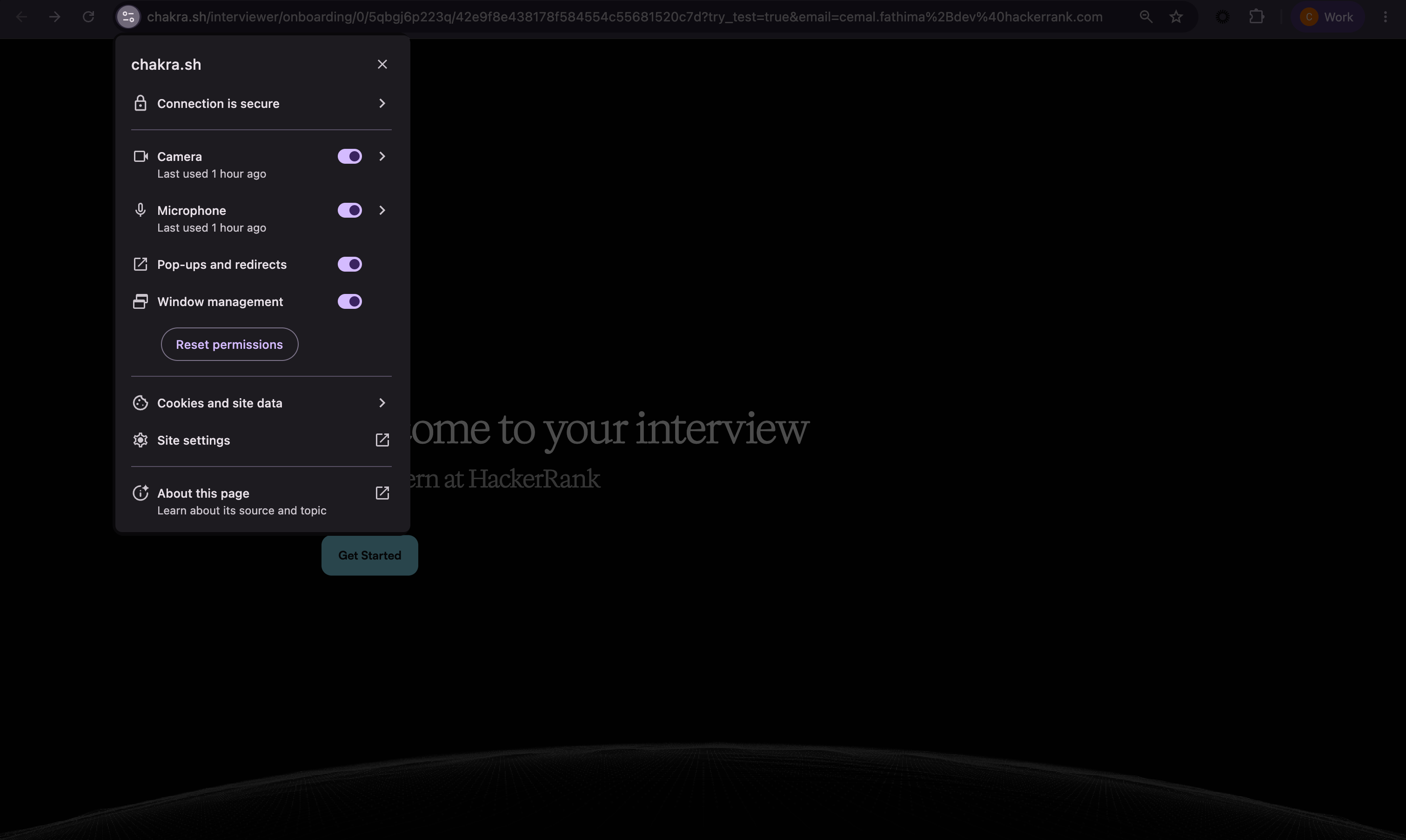
Set Camera and Microphone to Allow.
Microsoft Edge
Select Settings and more > Settings > Privacy, search, and services > Site permissions > All sites.
Select the site that matches the web address of your Chakra page.
Set Camera and Microphone to Allow.
After you change the browser permissions, reload the Chakra page and repeat the camera and microphone checks.
Step 2: Check computer permissions
Follow the steps for your operating system.
macOS
Open System Settings > Privacy & Security.
Select Camera and turn on access for the browser you use for Chakra.
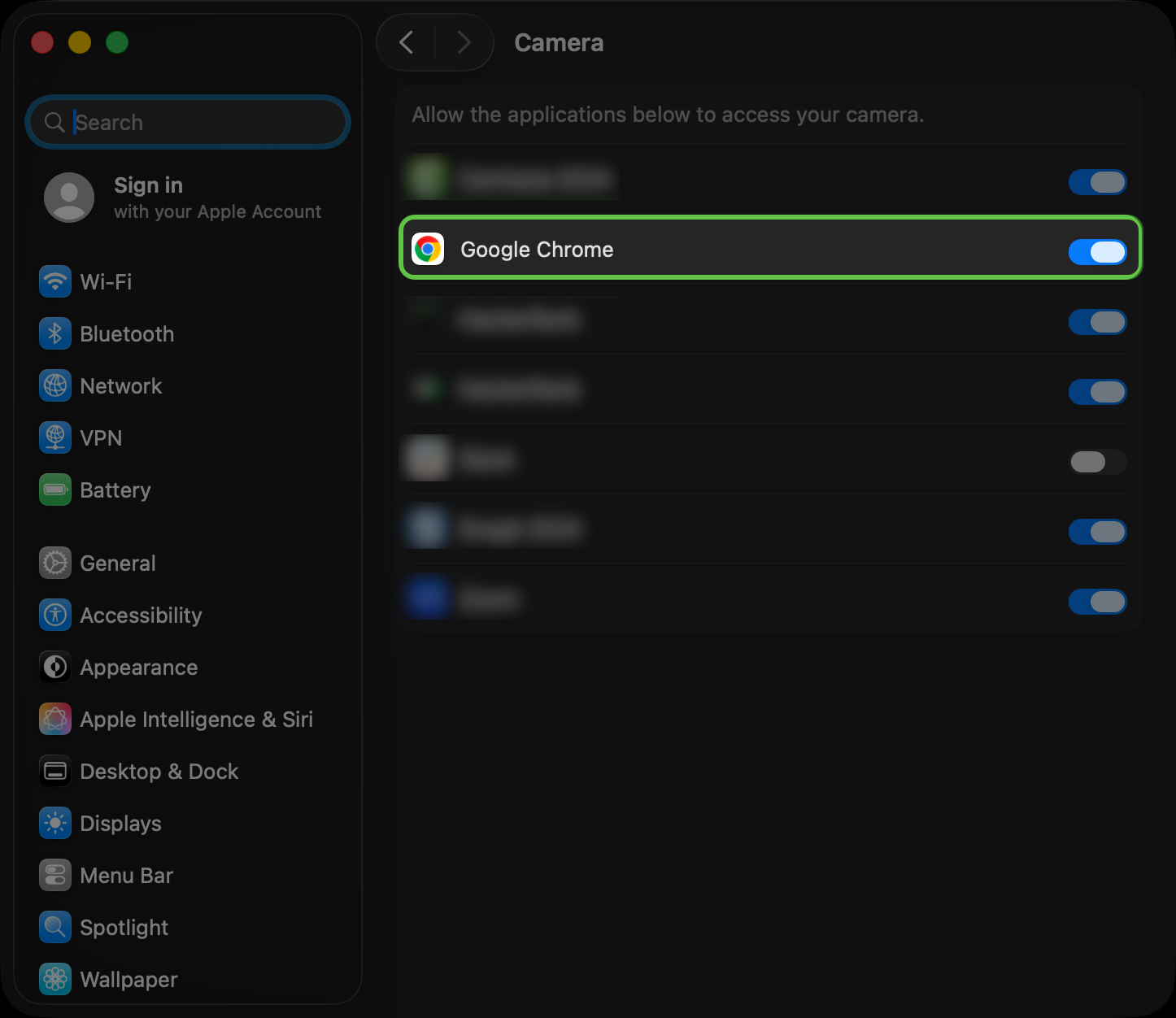
Return to Privacy & Security, select Microphone, and turn on access for the same browser.
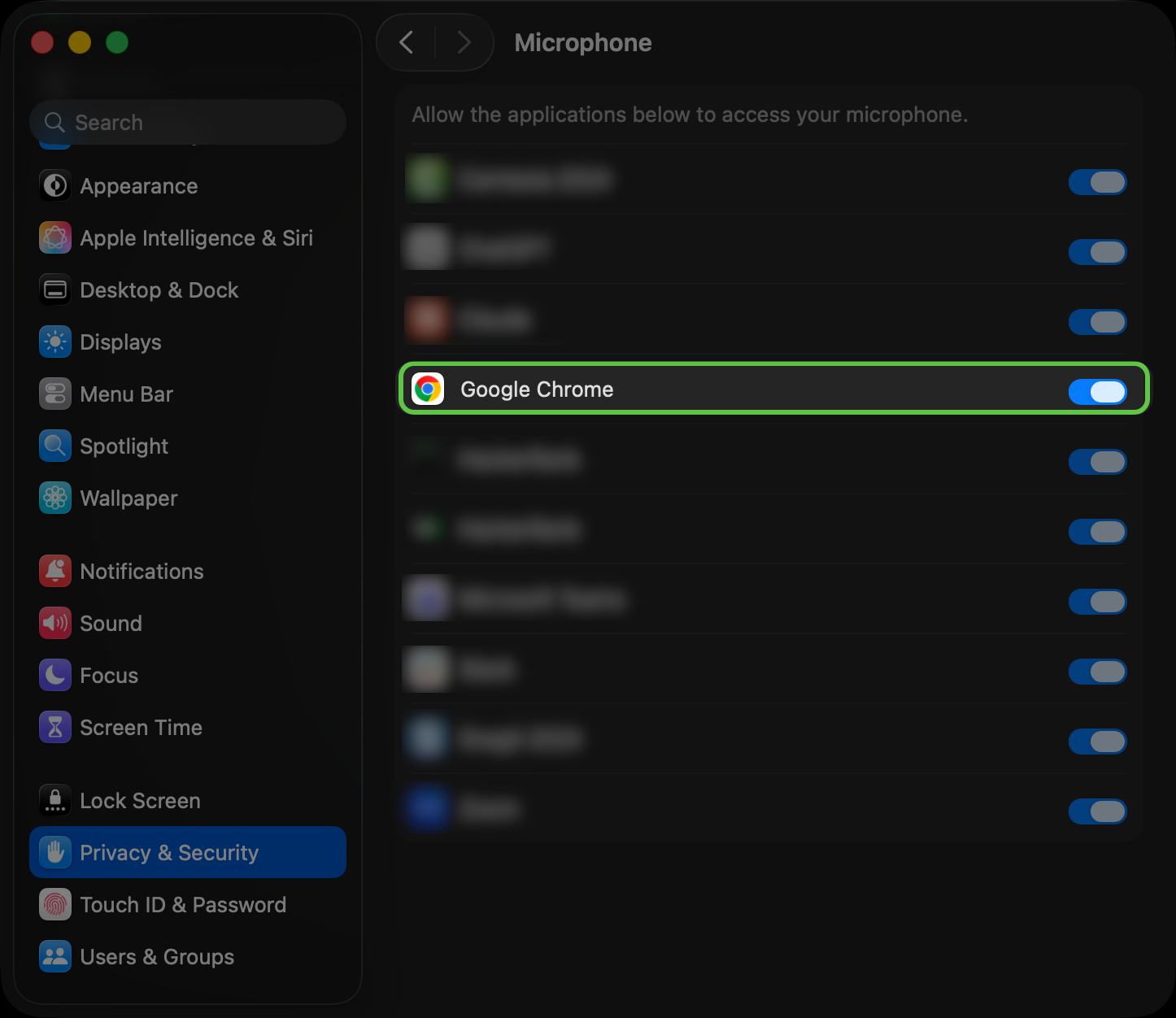
Quit and reopen the browser if macOS prompts you.
Windows 11
Open Settings > Privacy & security > Camera.
Turn on Camera access, Let apps access your camera, and Let desktop apps access your camera.
Return to Privacy & security, select Microphone, and turn on Microphone access, Let apps access your microphone, and Let desktop apps access your microphone.
Windows 10
Open Settings > Privacy > Camera.
Enable camera access for the device. Turn on Allow apps to access your camera and Allow desktop apps to access your camera.
Select Microphone and enable microphone access for the device. Turn on Allow apps to access your microphone and Allow desktop apps to access your microphone.
After you change the permissions, reload the Chakra page and retry the affected check.
Issue: Camera is not detected
If your camera does not appear under Device settings or the camera preview stays blank:
Check that the camera is connected and turned on. For a wired external camera, check the cable connection. For a wireless camera, confirm that it is connected to your computer.
Open the camera’s privacy shutter, if available, and check that its hardware privacy controls allow access.
Close other applications and browser tabs that use the camera.
Return to Chakra, select the camera you want to use under Device settings, and check the camera preview.
If the issue continues, restart your computer, open the Chakra invitation link, and repeat the checks.
Issue: Microphone is not detected
If your microphone does not appear under Device settings:
Check that the microphone is connected and turned on. For a wireless device, check that it is paired and connected to your computer.
Close other applications and browser tabs that use the microphone.
Open your computer’s sound settings and check whether the microphone appears as an input device.
Return to Chakra and check the microphone list under Device settings. If the microphone appears, select it and repeat the microphone test.
If the microphone still does not appear, try another microphone, preferably a headset microphone. Select it under Device settings and repeat the test.
If the issue continues, restart your computer, open the Chakra invitation link, and repeat the checks.
Issue: Microphone test detects no sound or the volume is too low
If your microphone appears under Device settings, but the test detects no sound or your voice is too quiet:
Check the mute controls on your microphone or headset and make sure the microphone is not muted in Chakra.
Close other applications and browser tabs that use the microphone.
Open your computer’s sound settings and increase its input volume if it is too low.
Move closer to the microphone and speak at a normal volume.
Return to Chakra, select the microphone under Device settings, and repeat the microphone test.
If the issue continues, try another microphone, preferably a headset microphone. Select it under Device settings and repeat the test.
If the issue continues, restart your computer, open the Chakra invitation link, and repeat the checks.
Issue: Speaker is not detected
If your speakers or headphones do not appear under Device settings:
Check that the speakers or headphones are connected and turned on. For a wired external device, check the cable connection. For a wireless device, check that it is paired and connected to your computer.
Open your computer’s sound settings and check whether the device appears as an output device.
Return to Chakra and check the speaker list under Device settings. If the device appears, select it and select Test speakers.
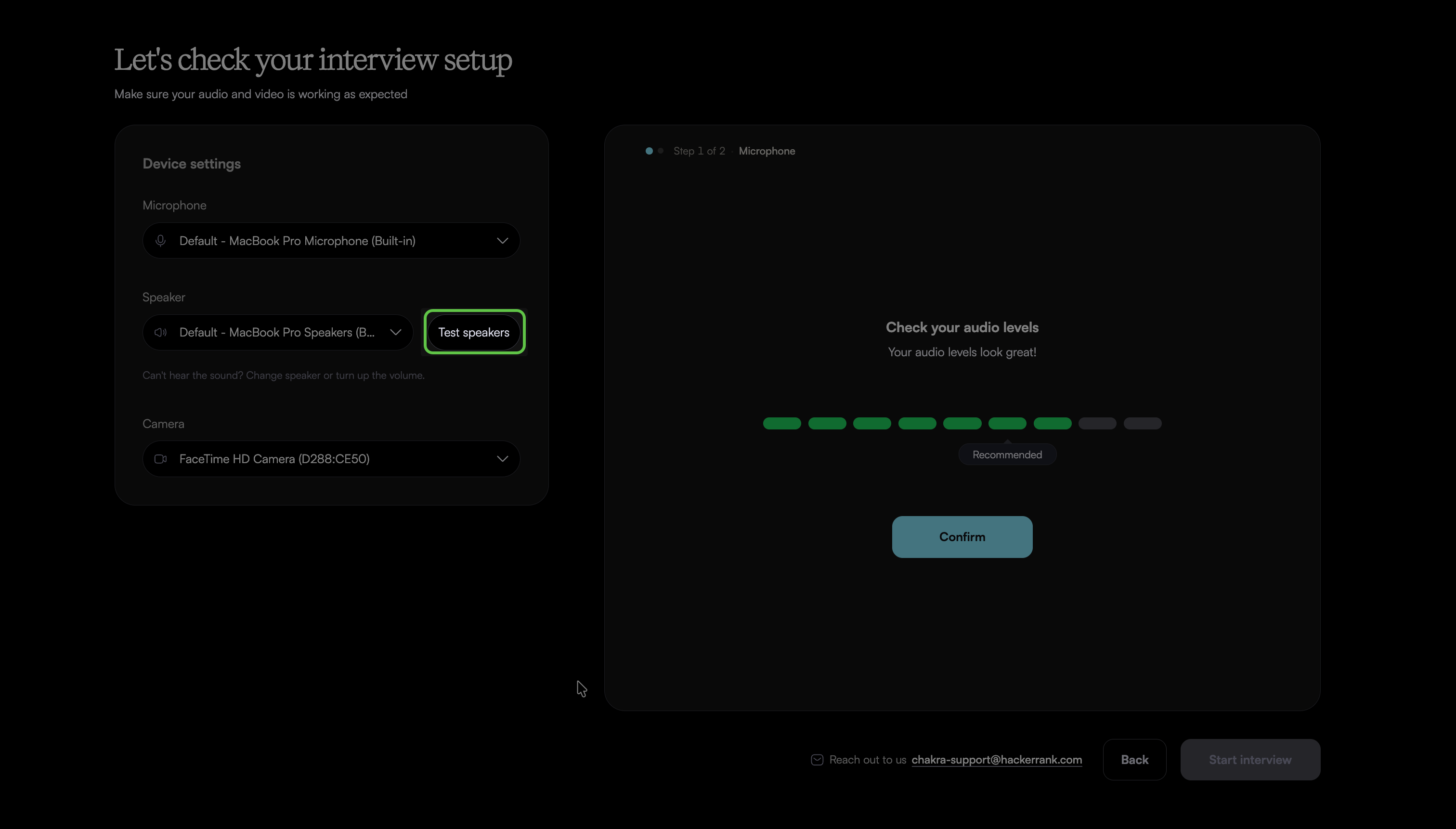
If the device still does not appear, try another output device, such as your computer’s built-in speakers, and repeat the check.
If the issue continues, restart your computer, open the Chakra invitation link, and repeat the checks.
Issue: Speaker test plays no sound or the volume is too low
If your speakers or headphones appear under Device settings but you cannot hear the test sound, or it is too quiet when you select Test speakers:
Check the mute controls on your microphone or headset and make sure the microphone is not muted in Chakra.
Check that your speakers or headphones are connected and turned on.
Open your computer’s sound settings and increase its output volume if it is too low.
Return to Chakra, select the speaker under Device settings, and click Test speakers.
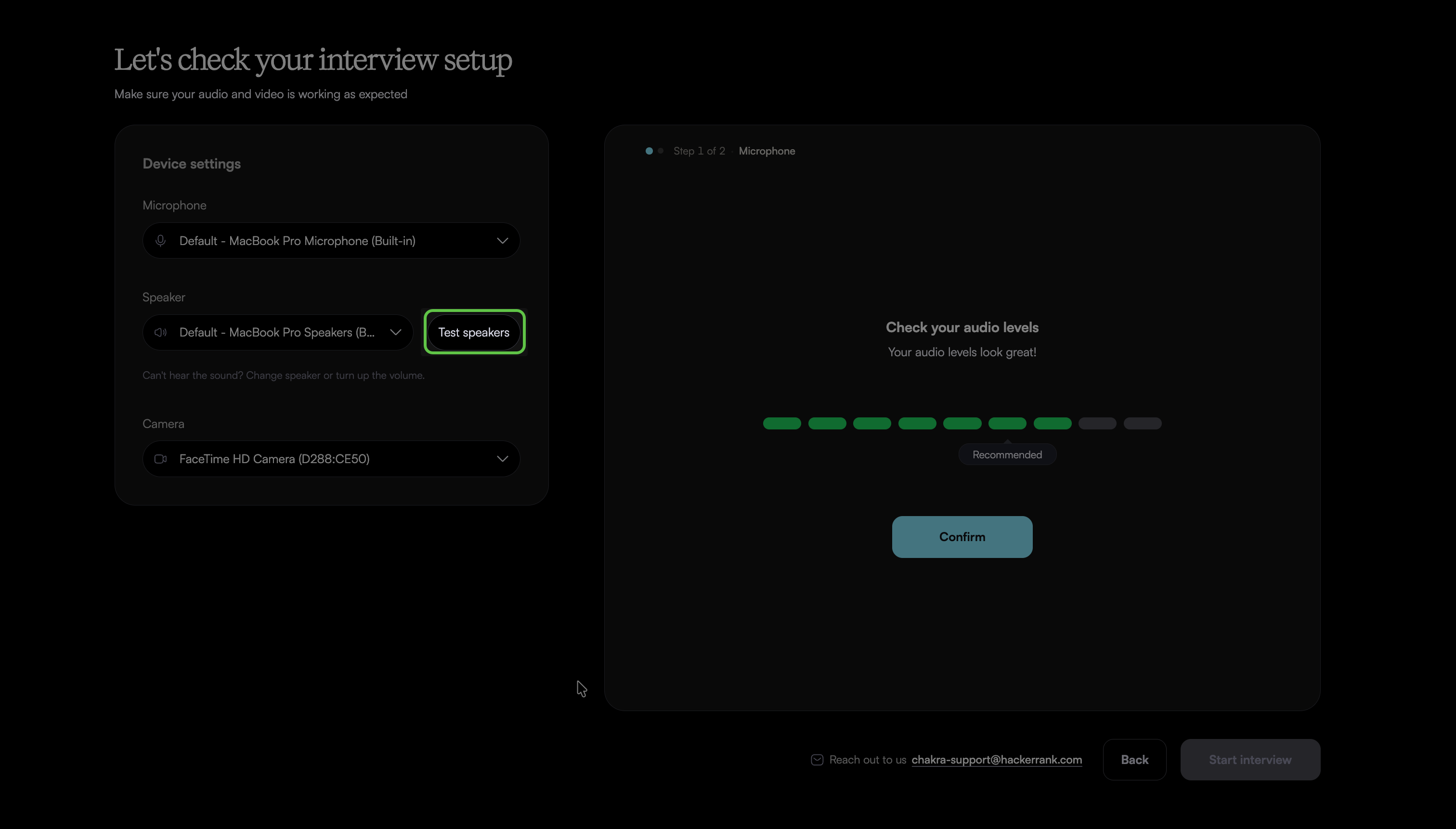
If you still cannot hear sound, select another output device, such as your computer’s built-in speakers, and repeat the check.
If the issue continues, restart your computer, open the Chakra invitation link, and repeat the checks.
Issue: Screen sharing does not start
If the sharing prompt repeats, the sharing dialog closes, or Chakra does not detect screen sharing, follow the steps below:
Step 1: Retry screen sharing
On Windows or macOS:
On the Chakra permissions page, select Share Screen to reopen the sharing dialog.
Select Entire screen.
Select the screen preview, and then select Share.
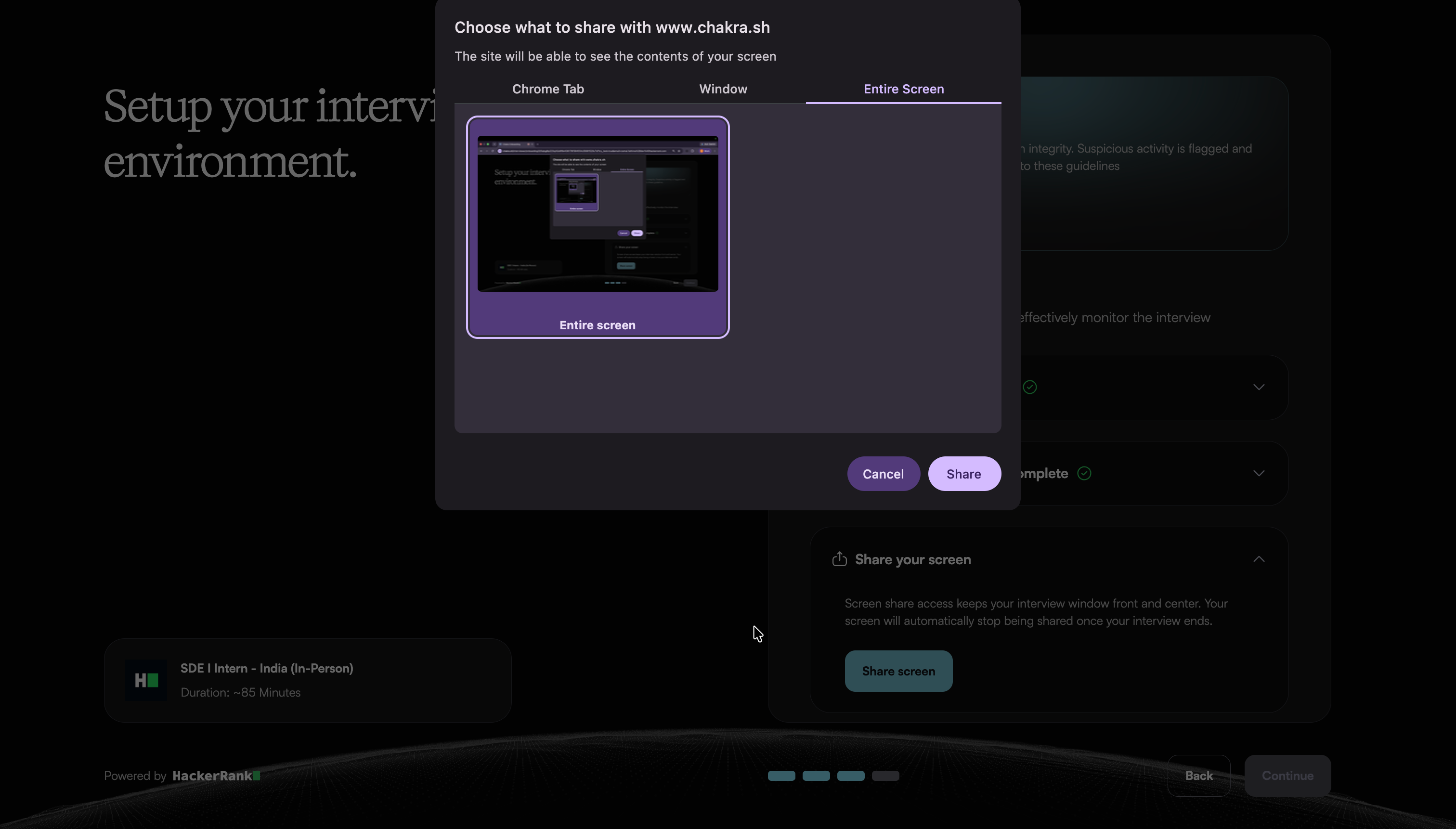
Return to Chakra and check that a green check mark appears for screen sharing.
Step 2: Check screen recording permission on macOS
If screen sharing still does not start on macOS:
Open System Settings > Privacy & Security.
Select Screen & System Audio Recording on your macOS version.
Turn on access for the browser you use for Chakra.
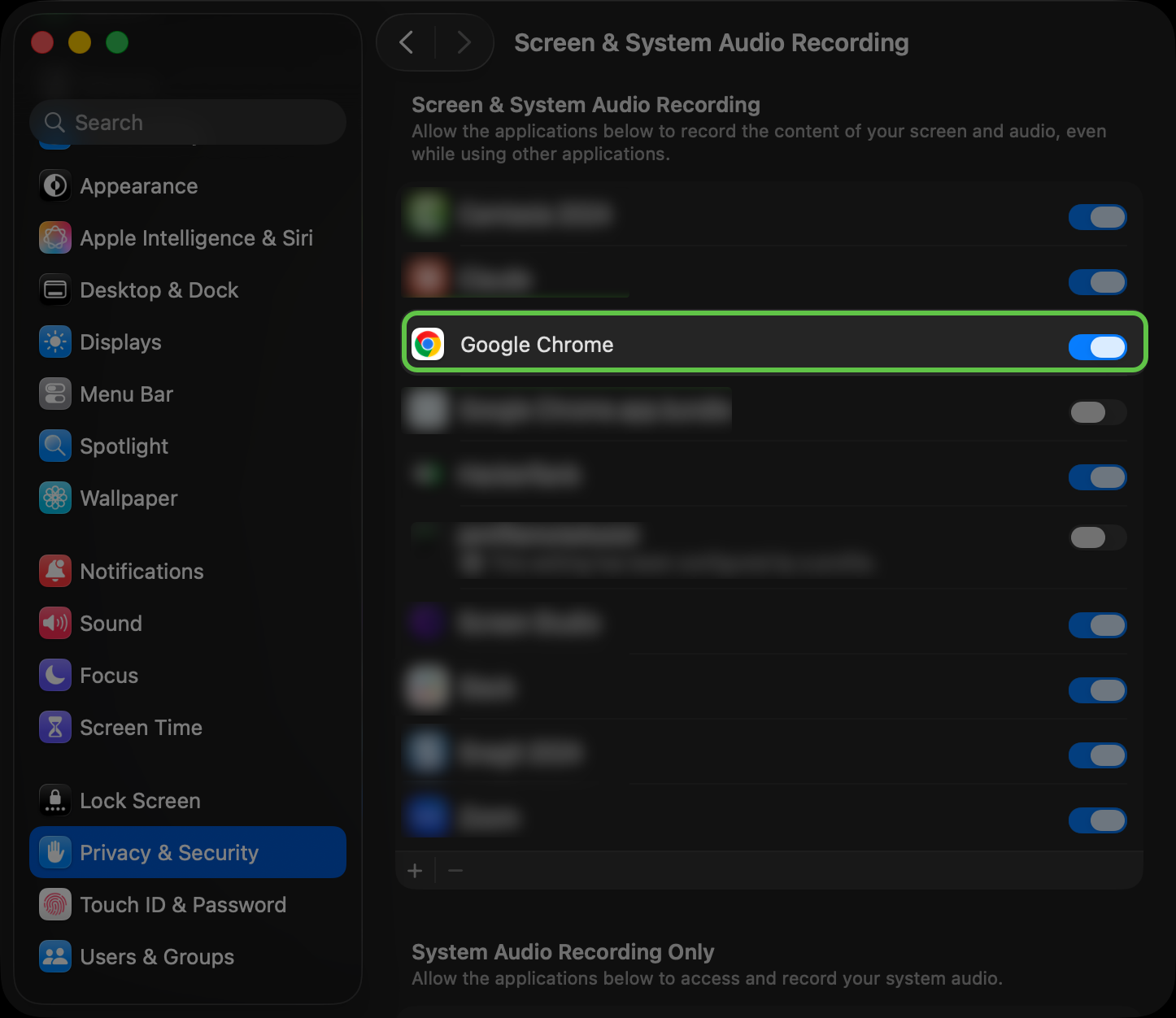
If the browser does not appear and an Add (+) button is available, select it and add the browser from Applications.
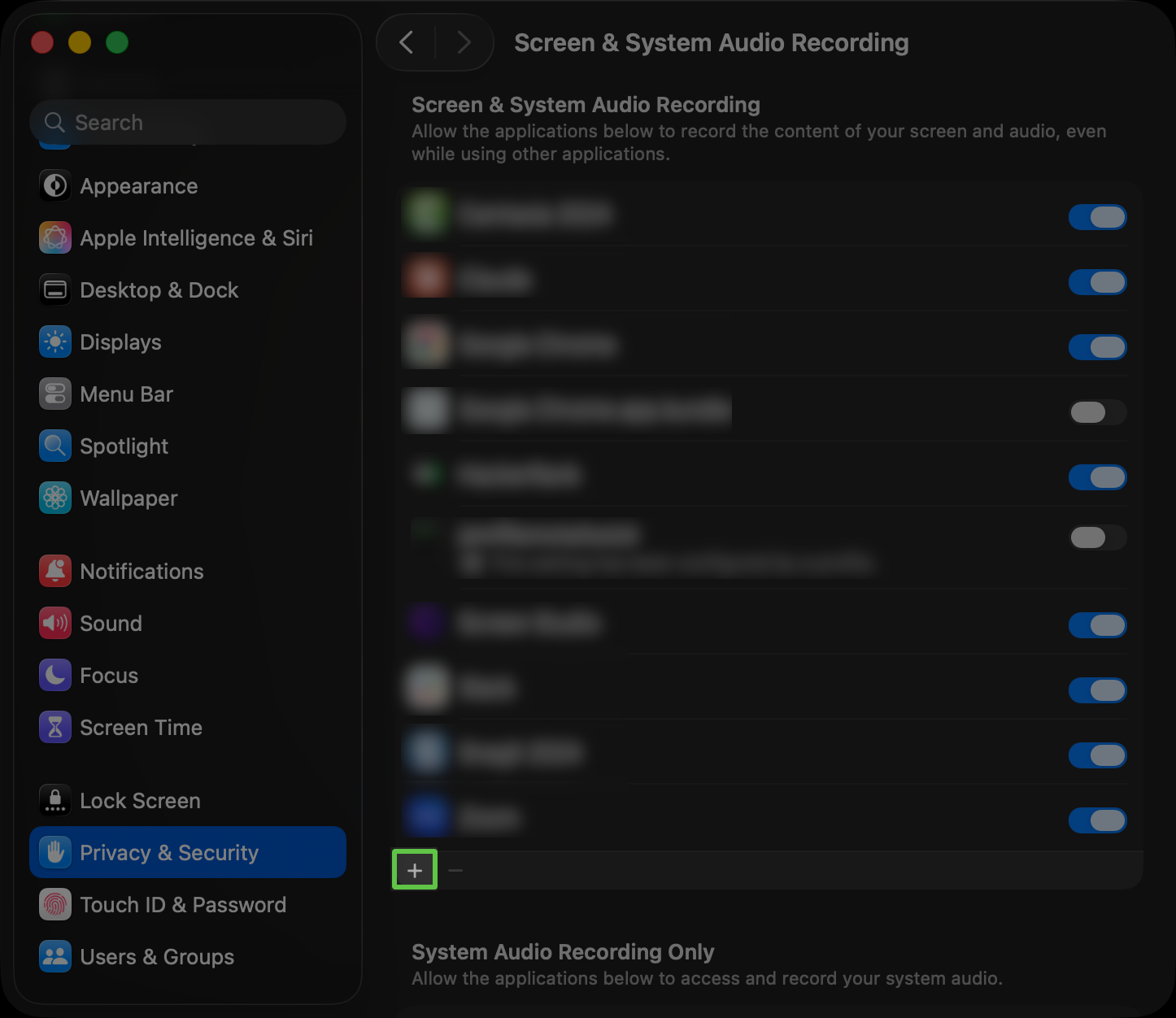
Quit and reopen the browser if macOS prompts you.
Open the Chakra invitation link and try sharing your entire screen again.
Issue: Screen sharing stops during the interview
If Chakra asks you to restore screen sharing:
Follow Chakra’s prompt to share your screen again.
In the sharing dialog, select Entire screen.
Select the screen preview, and then select Share.
Check that Chakra no longer asks you to restore screen sharing.
If you cannot restore screen sharing, contact HackerRank support at chakra-support@hackerrank.com.
Issue: Multiple monitor warning appears
If Chakra continues to show a multiple monitor warning:
Disconnect additional monitors, including mirrored displays and displays connected through a dock.
Disconnect wireless displays and any device you use as an additional screen, such as an iPad through Sidecar.
Check your computer’s display settings and disconnect any remaining additional displays:
Windows: Open Settings > System > Display.
macOS: Open Apple menu > System Settings > Displays.
Return to the Chakra permissions page, select Check Now for the monitor check, and confirm that a green check mark appears.
Issue: Face visibility warning appears
If Chakra cannot detect your face clearly:
Select the intended camera in Device settings.
Position your face in the center of the camera preview.
Place a light in front of you and avoid bright light behind you.
Keep your face unobstructed and make sure only you appear in the camera preview.
If Start Interview remains unavailable after the warning clears, complete any remaining permission checks and the audio test.
Issue: Start Interview button unavailable
If the Start Interview button is greyed out and you cannot select it:
Confirm that all required permission checks display green check marks.
Complete the microphone test and select Confirm. If the microphone is missing or the test fails, see Issue: Microphone is not detected, or Issue: Microphone test detects no sound or the volume is too low.
Make sure your face is clearly visible in the camera preview and resolve any face visibility warning. For more information, see Issue: Face visibility warning appears.
If all displayed checks pass but the Start Interview button remains disabled, contact HackerRank support at chakra-support@hackerrank.com.
Connection issues
Issue: Slow internet connection warning appears
If Chakra displays Slow internet connection detected, your connection may affect audio or video quality. Chakra recommends a bandwidth of 10 Mbps for optimal performance.
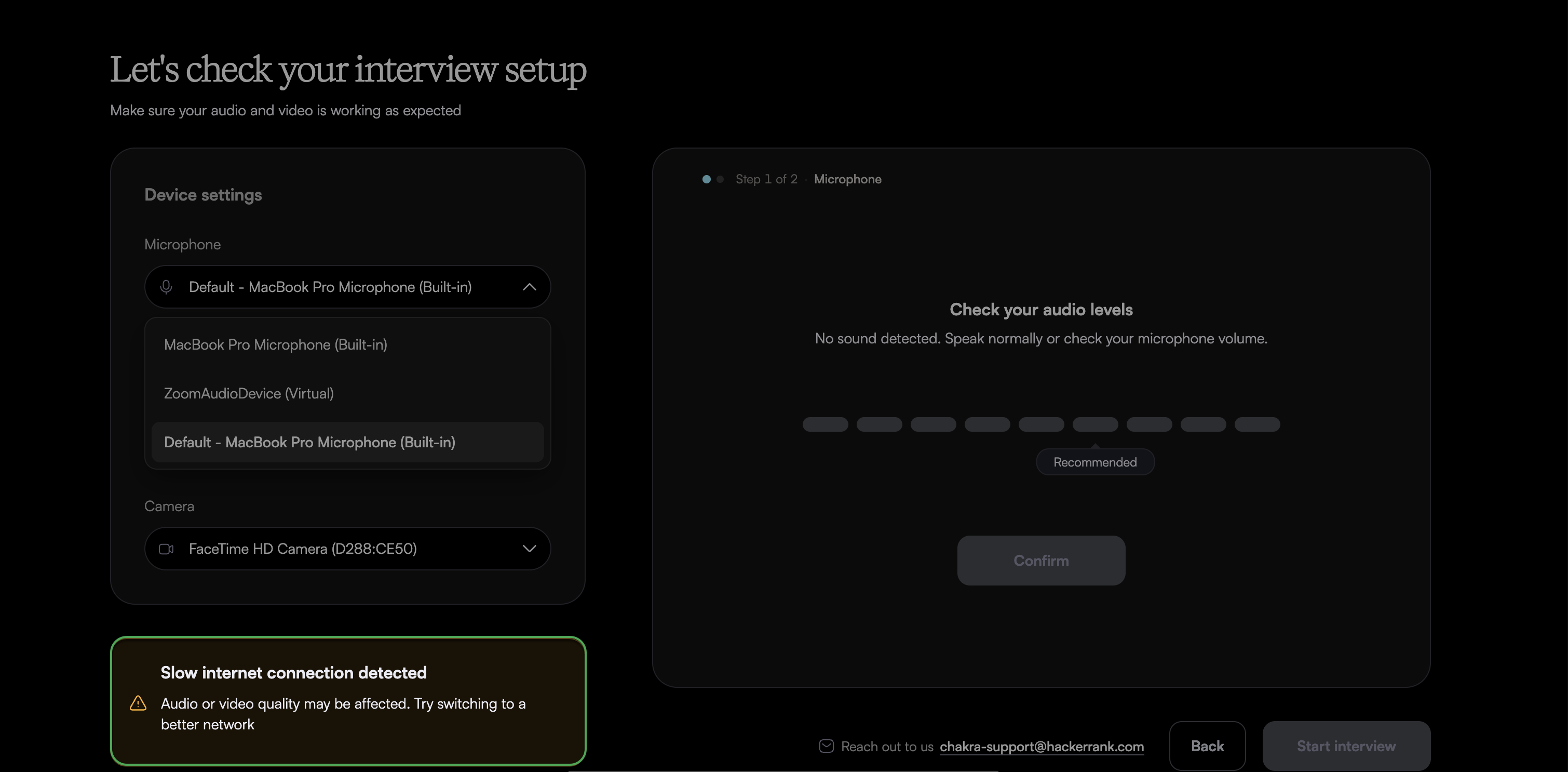
Follow these troubleshooting steps:
Pause large downloads, uploads, streaming, and cloud backups on your computer. If possible, pause similar activity on other devices that share your internet connection.
If you use Wi-Fi, move closer to your router to improve the signal.
If the warning continues, switch to a more stable network.
Return to Chakra and check whether the warning clears.
Issue: No internet connection warning appears
If Chakra displays No internet connection detected, follow these troubleshooting steps:
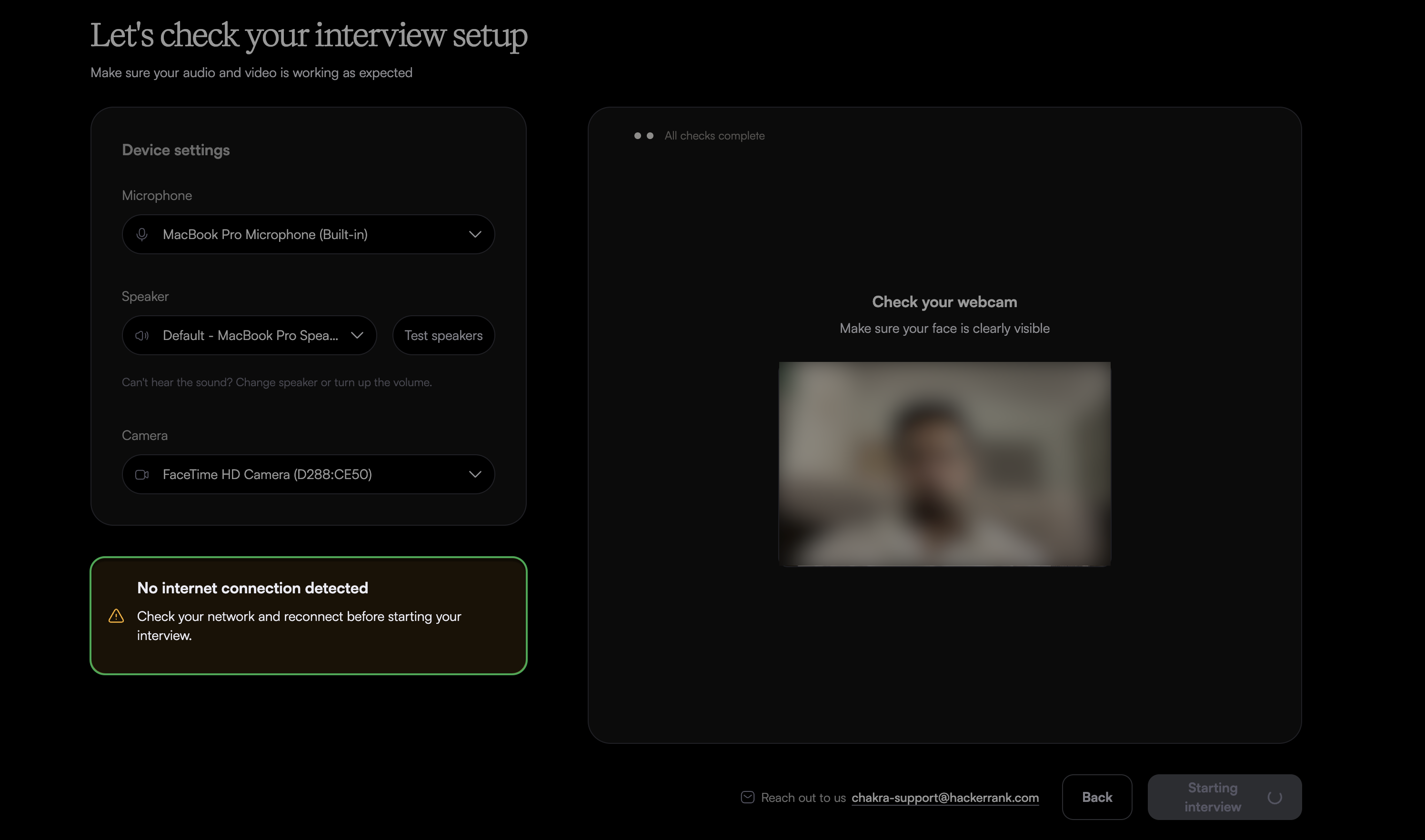
Check that your computer is connected to a network with internet access.
Disconnect from the network and reconnect.
Switch to another network if the warning continues.
Return to Chakra and check whether the warning clears.
Issue: Connection check fails or does not finish
If Chakra encounters an issue during the connection check, it may display one of the following error messages:
Message | What it means |
|---|---|
We couldn't finish the check | The check stops before it completes. |
Your network is blocking the interview | Chakra cannot reach its servers from your current network. |
Audio and video can't get through | Chakra can reach its servers, but the live audio and video connections fail. |
Follow these troubleshooting steps:
Select How to fix this, if available, to review the guidance.
Check that your computer is connected to the internet. Switch to another network if there is no internet access.
If you use Chakra in a browser, keep only one interview tab open.
Disconnect any VPN or proxy you use.
If you use Chakra in a browser, temporarily turn off ad-blocking or privacy extensions that might interfere with the connection.
Return to Chakra and select Try again.
If you use an office device, ask your network administrator to confirm that the network allows the connections Chakra requires.
Issue: Cannot retry the connection check
Chakra may temporarily disable the Try again option while a previous check finishes or during a waiting period.
Previous connection check is still running
If Chakra displays We're wrapping up your previous check. You can try again in a moment, follow these troubleshooting steps:
Wait for the countdown on Try again to finish.
Select Try again when the option becomes available.
Connection cannot be verified
If Chakra displays We couldn't verify your connection and specifies when you can try again, follow these troubleshooting steps:
Check the retry date, time, or waiting period shown in the message.
While you wait, follow the troubleshooting steps under Issue: Connection check fails or does not finish to address any connection issues.
Select Try again when the option becomes available after the waiting period ends.
If Chakra displays Unable to verify your connection. Please try again in a moment without specifying a waiting period, follow these troubleshooting steps:
Wait until the Try again option becomes available.
Select Try again to repeat the connection check.
Issue: Internet connection drops or becomes unstable during the interview
Chakra may display one of the following messages:
Message | What it means |
|---|---|
Disconnected from network. Check your internet connection. | Chakra detects a network disconnection. |
Your network connection is unstable. Audio quality may be affected. | An unstable connection may affect audio quality. |
Follow these troubleshooting steps:
Keep the Chakra page open while you restore your connection. Do not select End interview to resolve the issue.
Check your internet connection. If you use Wi-Fi, move closer to your router to improve the signal. Switch to a more stable network if needed.
After you restore a stable connection, check whether the conversation resumes. If it does, continue your interview and ask Chakra to repeat the last question if needed.
If your connection returns but the interview page remains unresponsive in your browser, reload the Chakra page.
If Chakra displays We couldn't connect to the interview, select Try again, if shown. For further troubleshooting, see 📄 Troubleshooting Guide for Chakra → Page loading issues.
Workspace setup issues
Issue: Workspace setup does not complete
While Chakra prepares your interview workspace, you may see Setting up the interview environment or Finalizing your session setup. These messages indicate that setup is in progress.
If setup fails, Chakra may display one of the following error messages:
Message | What it means |
|---|---|
Server provisioning failed. Please try again. | Chakra cannot set up the interview workspace. |
Failed to check server status. Please try again. | Chakra cannot check the status of the interview workspace. |
Server provisioning timed out. Please try again. | Chakra did not finish preparing the workspace within the allowed time. |
Failed to start the interview. Please try again. | Chakra cannot start the interview. |
Follow these troubleshooting steps:
Keep the page open while Chakra prepares the workspace.
If an error appears, wait for the 20-second countdown on Retry to finish, and then select Retry. The button remains unavailable during the countdown.
If Retry remains unavailable or setup still does not complete, contact HackerRank support at chakra-support@hackerrank.com.
Transcript issues
Issue: Transcript keeps showing loading messages
The transcript may display placeholders such as Tuning the antennae..., Decoding the silence..., or Polishing the transcripts... when no conversation text is available. Their brief appearance does not indicate an error.
If the transcript continues to display these messages instead of conversation text, follow these troubleshooting steps:
Check the microphone icon in the interview controls. If your microphone is muted, select the icon to unmute it.
Open Device settings and confirm that the correct microphone is selected.
If transcript continues to display the loading message, contact HackerRank support at chakra-support@hackerrank.com.
Note: If conversation text appears but you cannot hear Chakra, follow the speaker troubleshooting steps in 📄 Troubleshooting Guide for Chakra → Permission and device issues.
Interview Interruptions
Issue: Browser crashes, computer freezes, or computer shuts down during the interview
Reopen your interview as soon as possible after the interruption. The interview timer may continue to run while you are disconnected.
Step 1: Recover from the interruption
Follow the instructions for your situation, and then continue to Step 2: Reopen your interview.
Browser crashes: Reopen your browser.
Computer freezes: Choose the option that applies:
If your computer responds to system controls, restart it.
If your computer does not respond and you cannot restart it normally, force it to shut down. Press and hold the power button until your computer turns off, and then turn it on again.
Note: Forcing your computer to shut down can cause you to lose unsaved work.
Computer shuts down or a power outage occurs
If a power outage occurs, wait until power returns.
Check that your computer’s power cable or charger is securely connected to a working power source.
Turn on your computer.
Step 2: Reopen your interview
Check that your computer is connected to the internet.
If the interview does not reopen automatically, open the Chakra interview link from your invitation email.
Follow the on-screen instructions. If the interview is still available, continue your session.
If the conversation resumes, tell Chakra about the interruption and ask it to repeat the last question, if needed.
If Chakra displays The interview has ended, see Issue: “The interview has ended” appears when you reopen the link.
Issue: “The interview has ended” appears when you reopen the link
If Chakra displays The interview has ended, follow these troubleshooting steps:
Confirm that you use the invitation link for the correct company, role, and interview.
If you have not taken the interview or it ends before you finish, contact HackerRank support at chakra-support@hackerrank.com.
If a technical issue prevents you from completing the interview, contact your hiring company. Describe the issue and request another attempt.
Get help
If an issue continues after you complete the troubleshooting steps, contact HackerRank support at chakra-support@hackerrank.com.