Interview with Chakra
Last updated: July 22, 2026
Chakra is an AI-powered interviewer that delivers a fully autonomous interview experience for technical and non-technical roles. The interview mirrors the structure and rigor of real-world interviews, providing a fair and consistent experience.
Taking an interview with Chakra
To take an interview with Chakra:
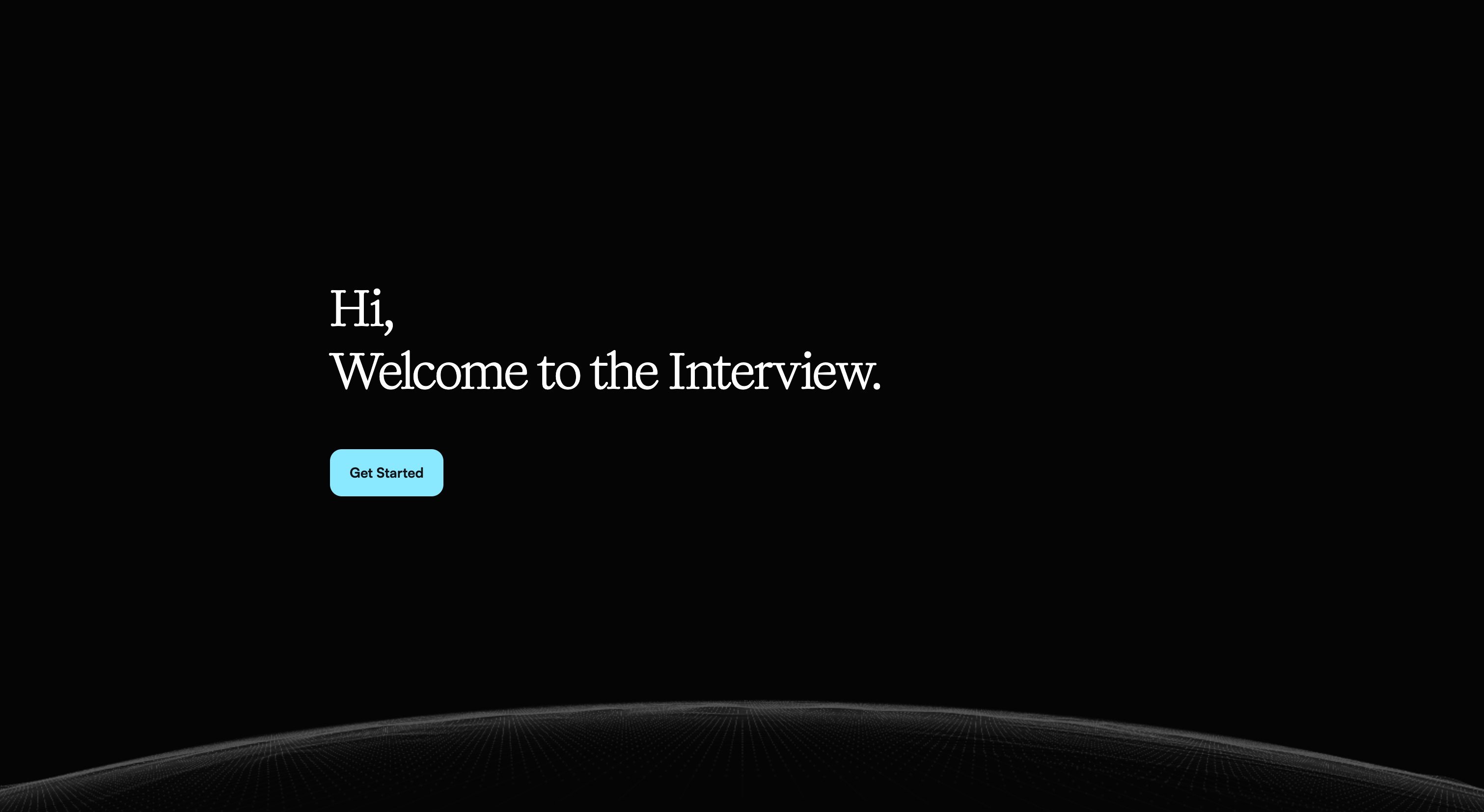
Click the interview link you received from the hiring company. The system redirects you to the interview page.
Click Get Started.
Enter the details requested by the hiring company, such as:
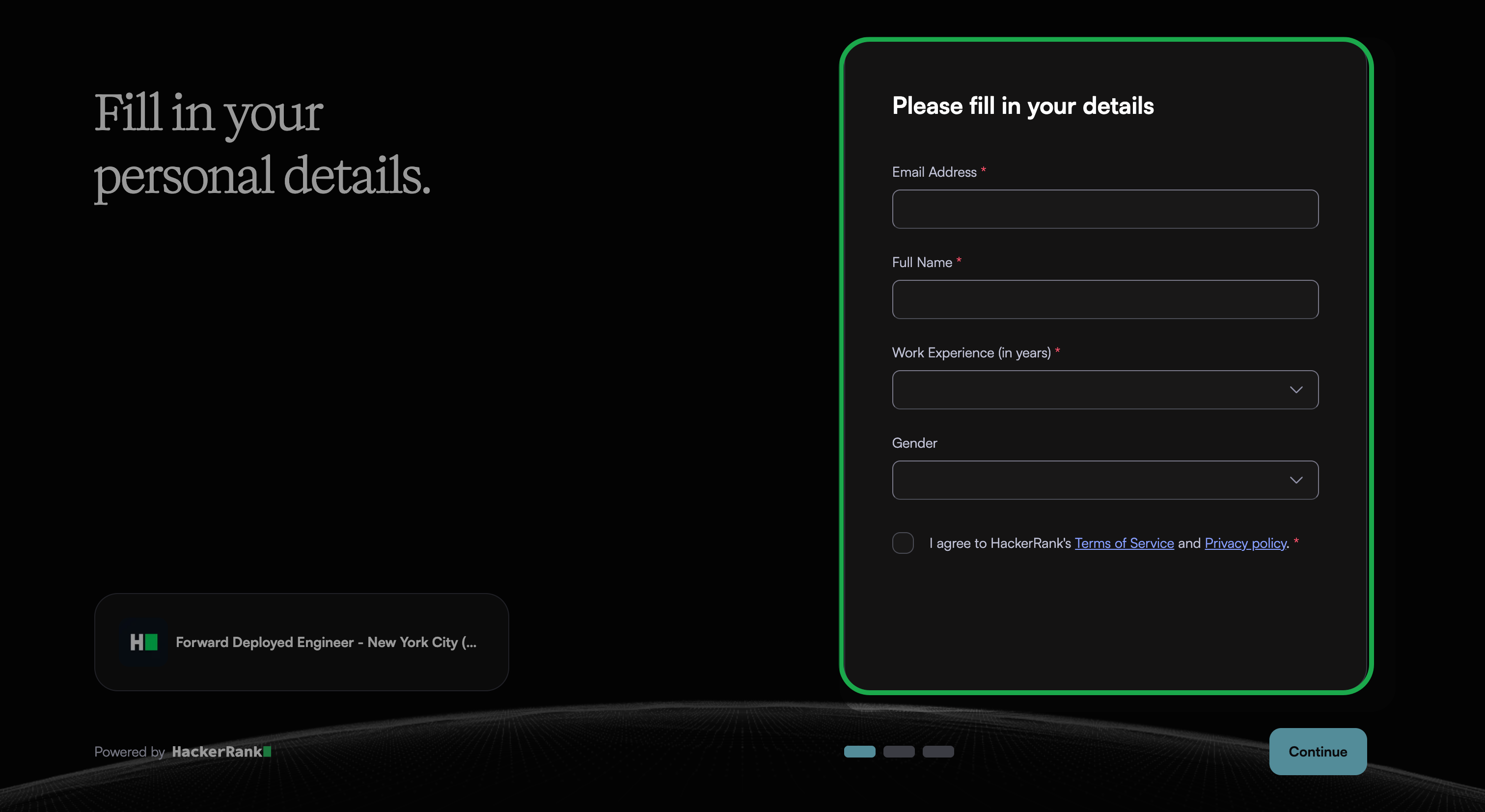
Email address
Full name
Work experience
Gender
Select the checkbox to agree to the terms and conditions.
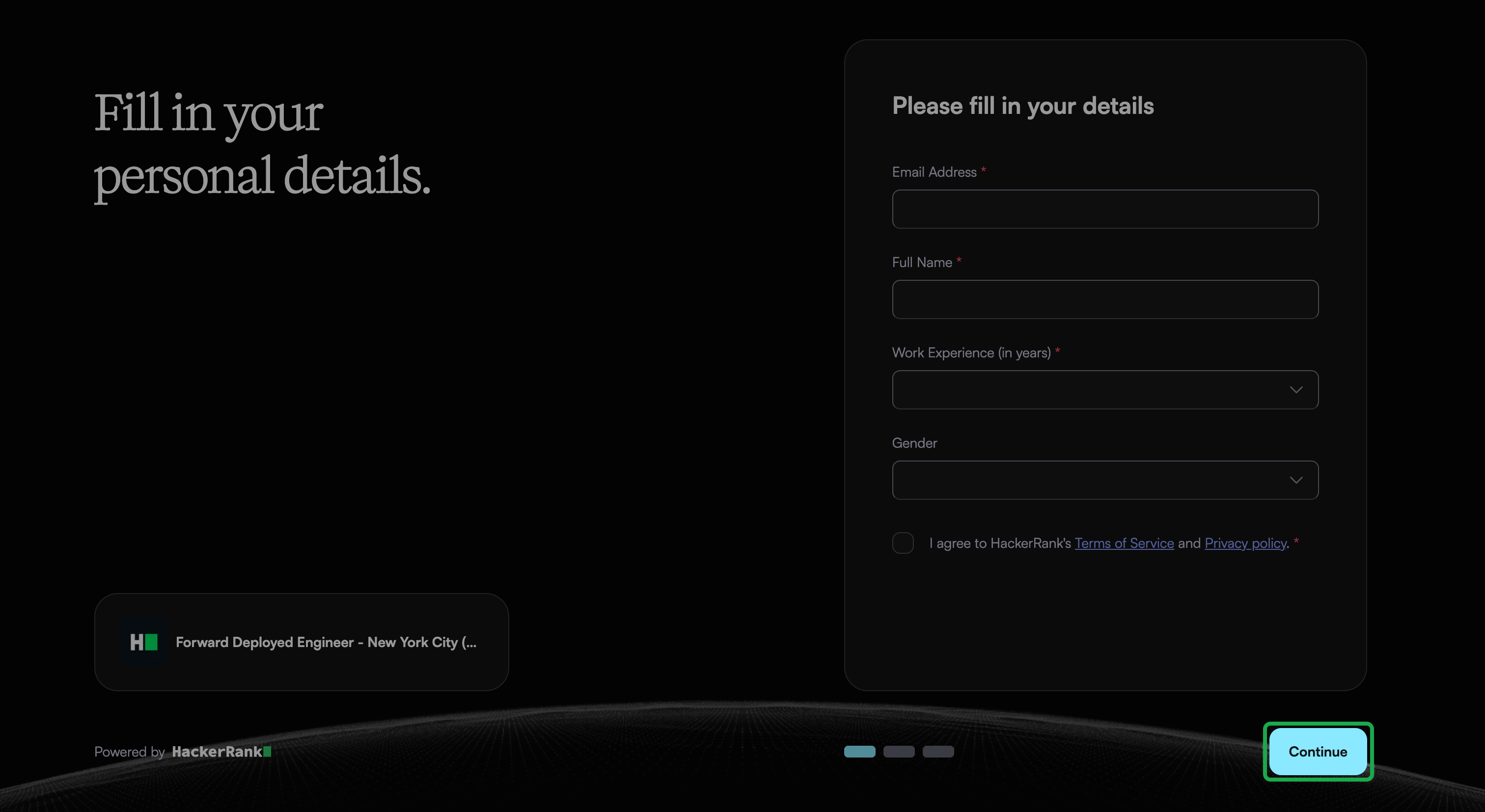
Click Continue.
Read the Interview Instructions carefully. These include:
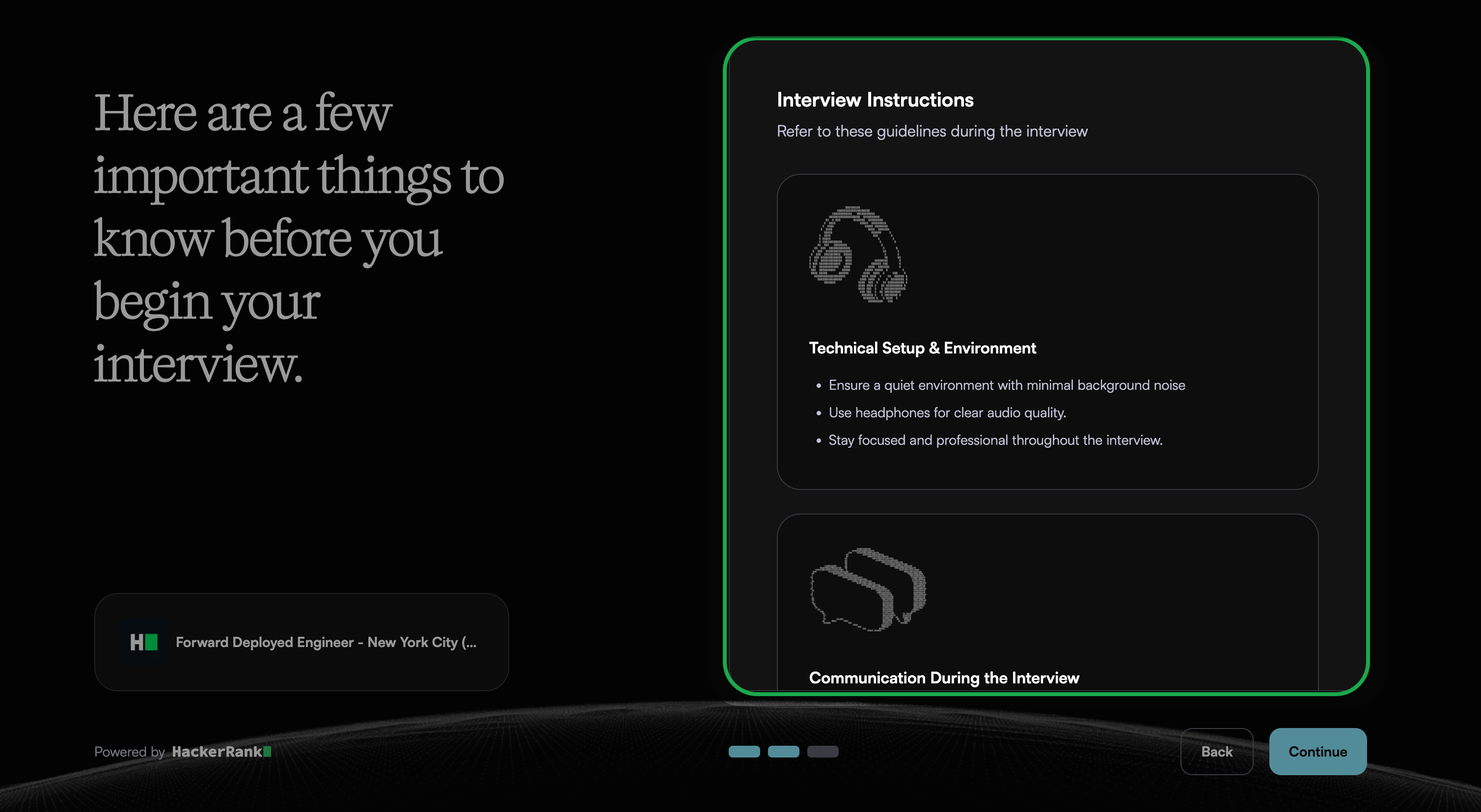
Technical setup and environment requirements
Communication guidelines during the interview
Interview conduct and expectations
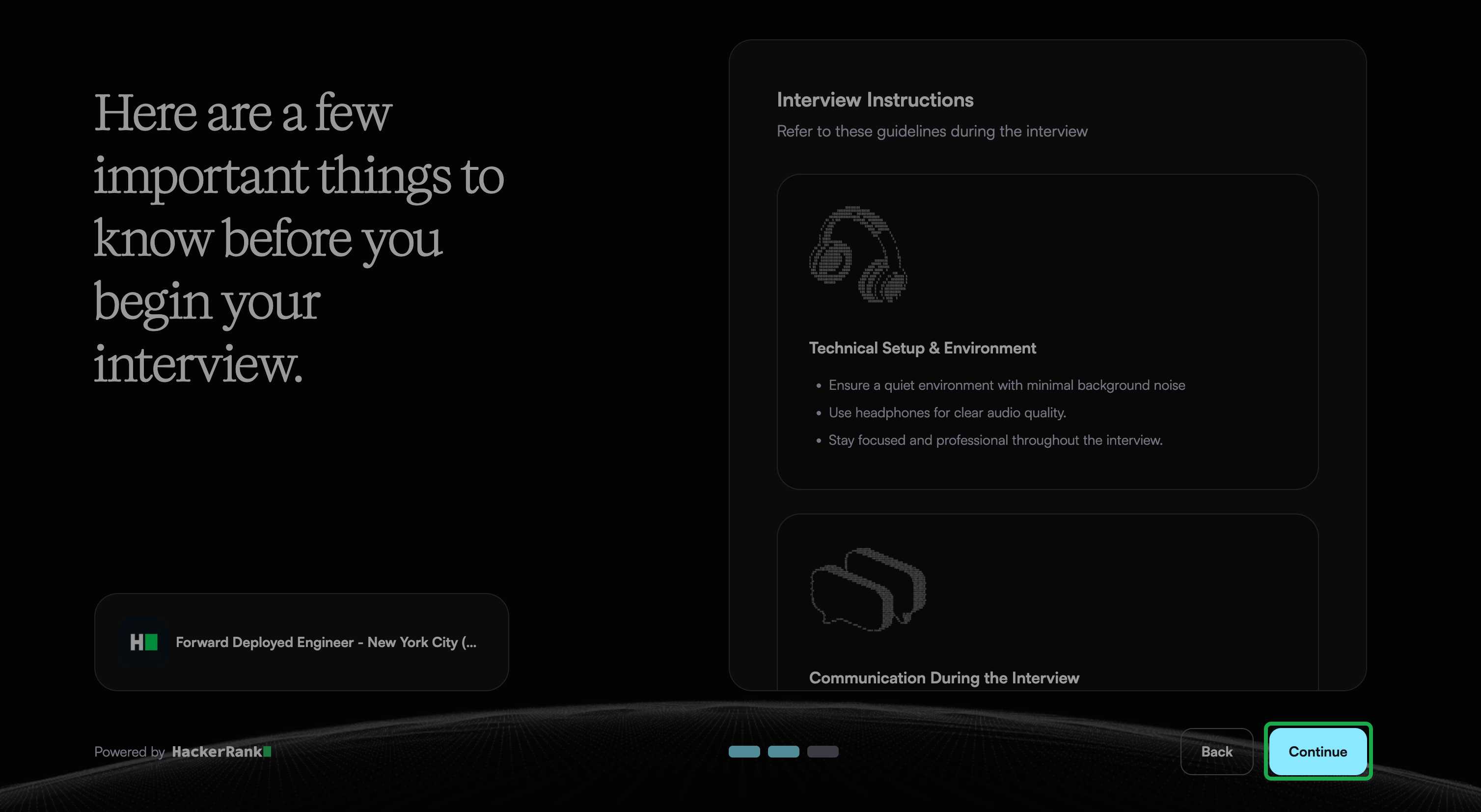
Click Continue.
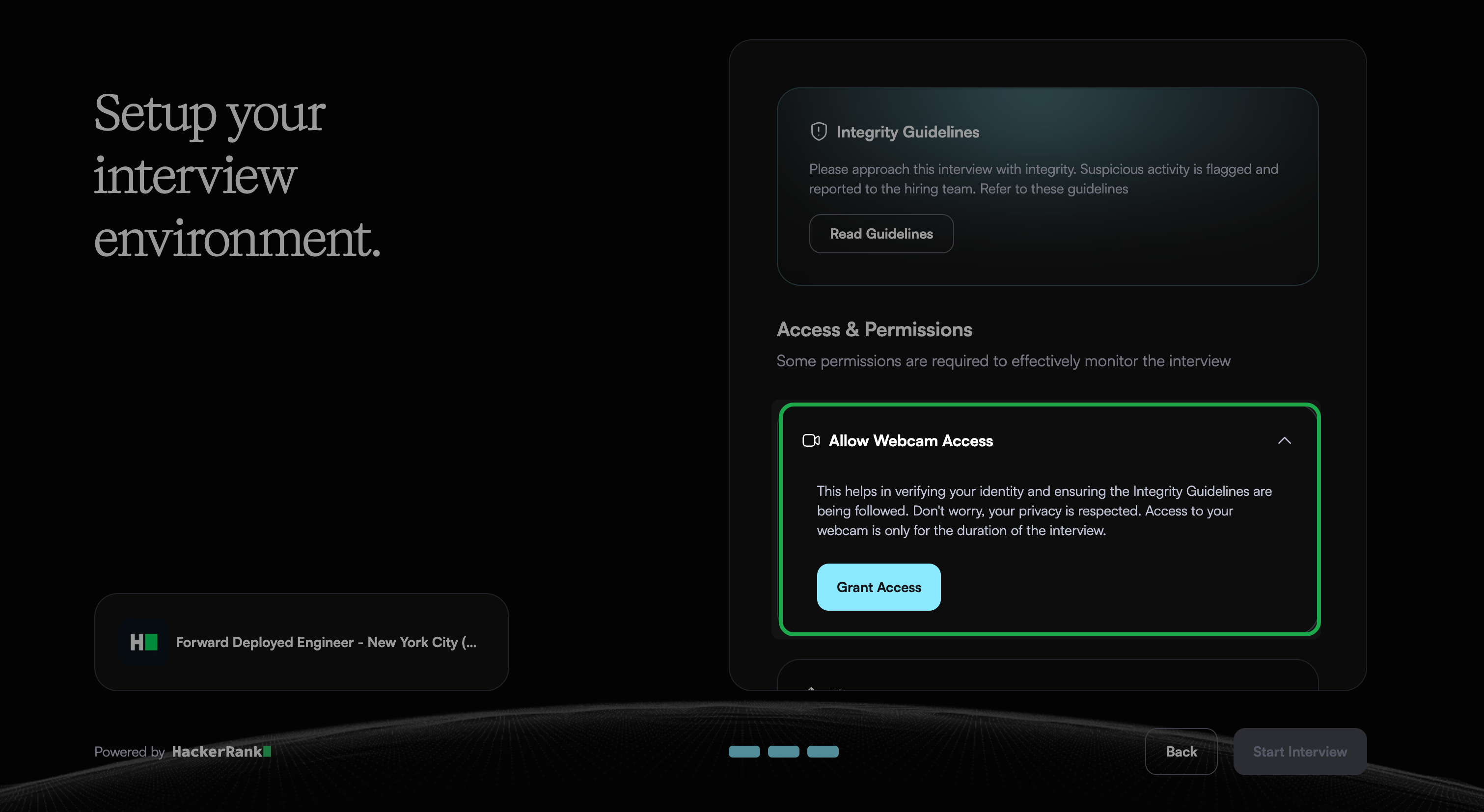
Grant the required access and permissions to proceed:
Allow Webcam Access: Select Grant Access and allow the browser to access your webcam when prompted. Ensure your face is clearly visible in the webcam.
Share your Screen: Select Share Screen to allow the system to monitor your screen activity during the interview.
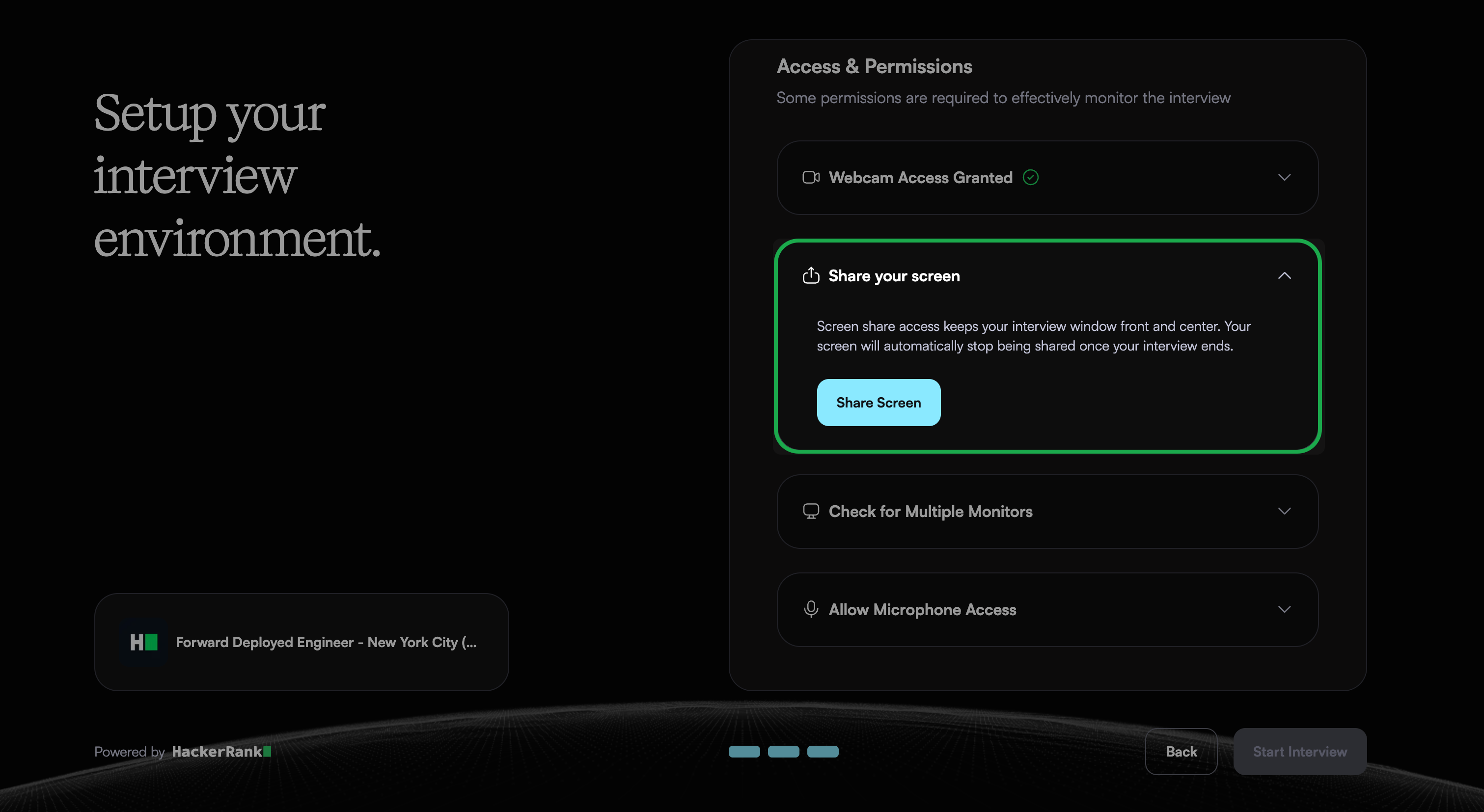
Check for Multiple Monitors: Select Check Now to confirm that no additional monitors are connected. Disconnect any extra monitors if detected.
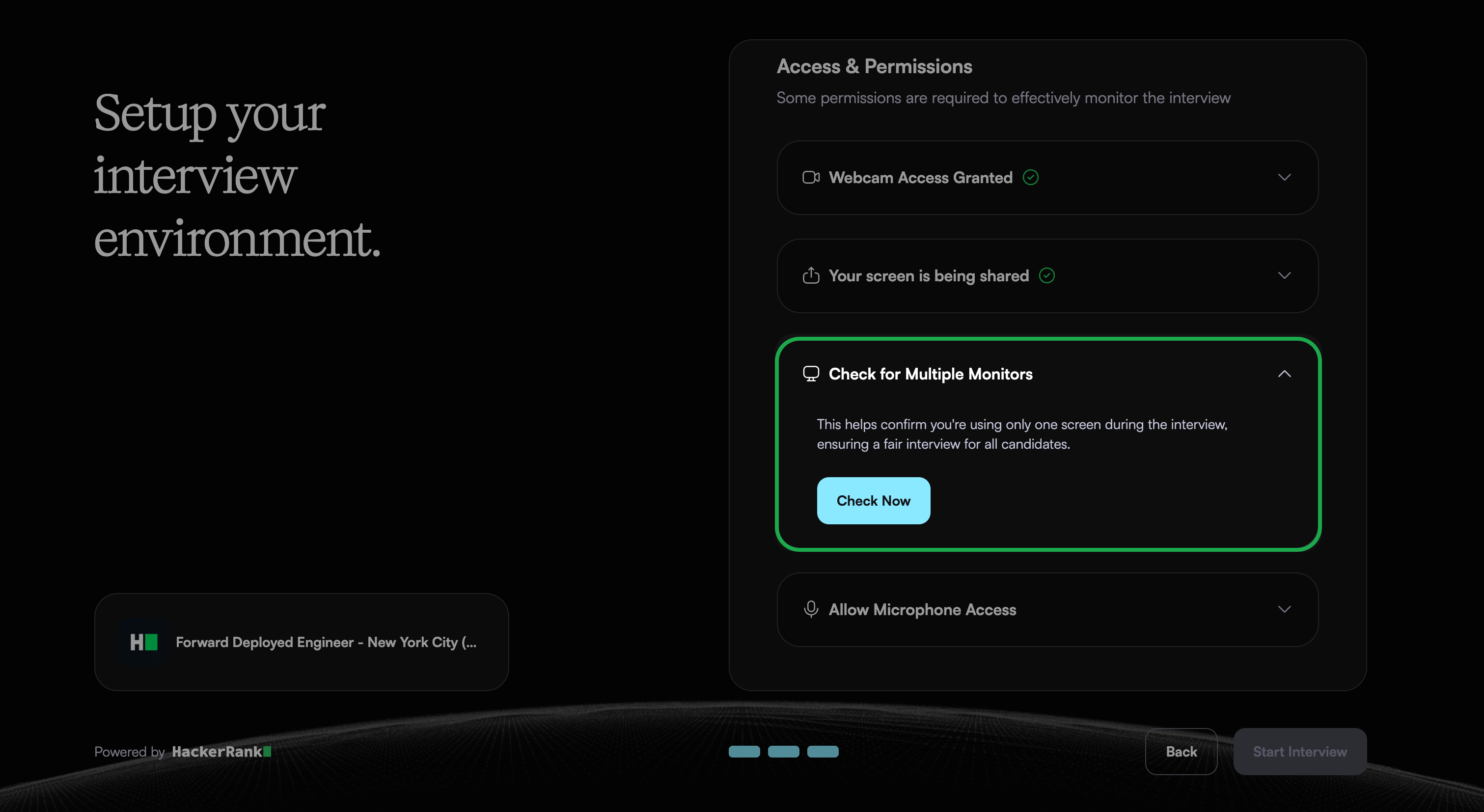
Allow Microphone Access: Select Check Now and allow the browser to access your microphone when prompted.
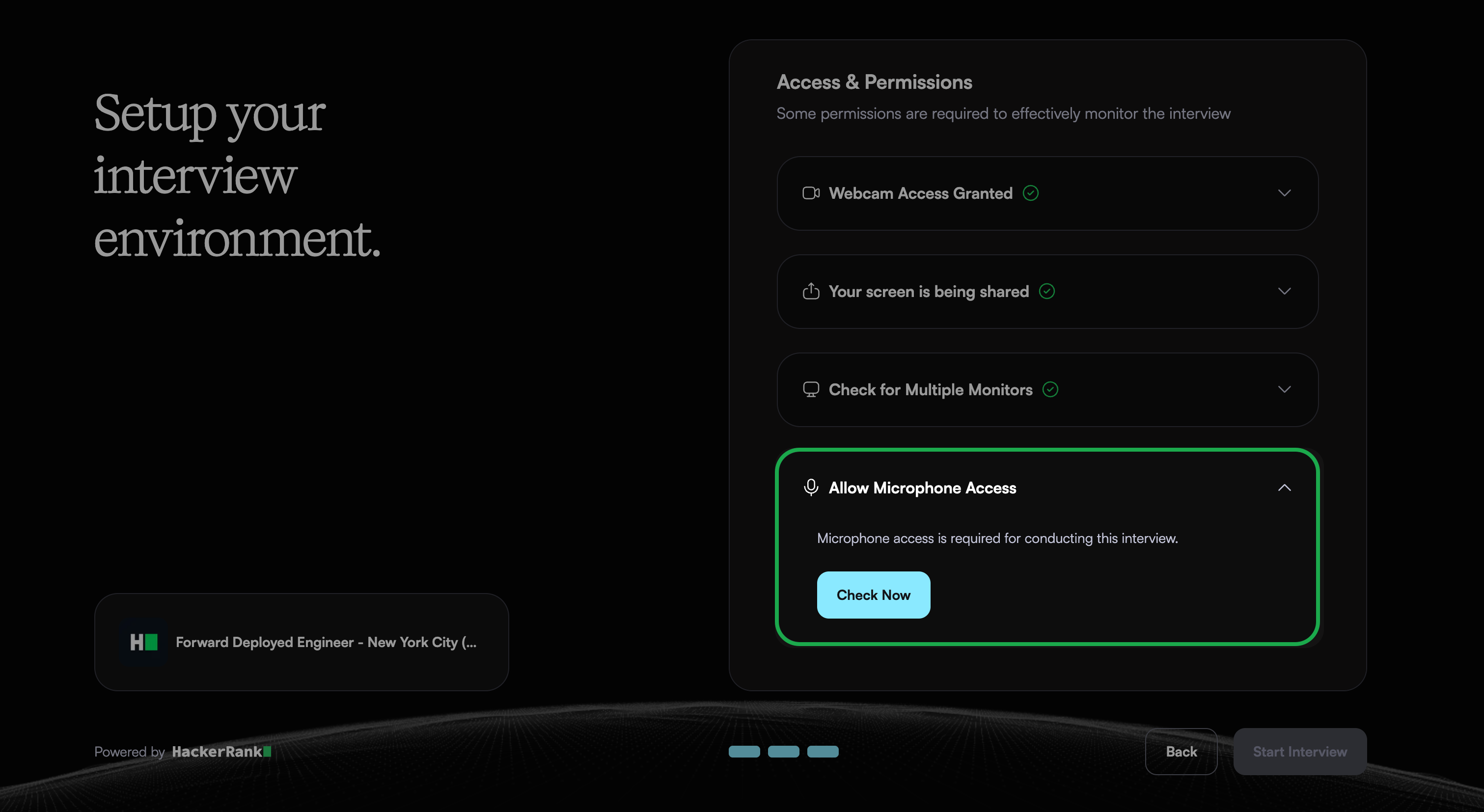
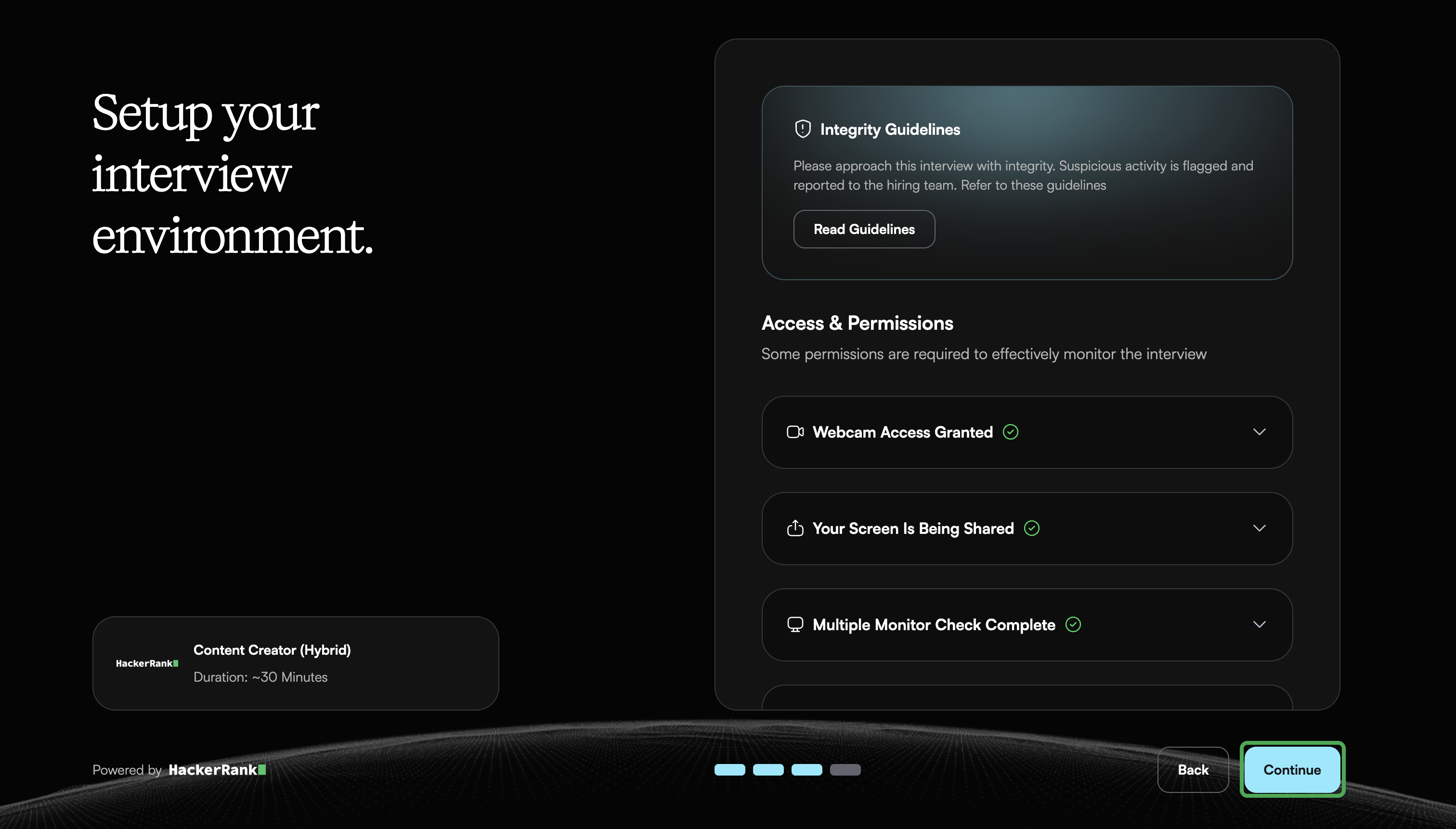
A green check mark appears when each permission is granted successfully.
Note: Review the Integrity Guidelines to understand integrity requirements.
Click Continue.
Select your microphone, speaker, and camera under Device settings.
Test your audio levels and click Confirm.
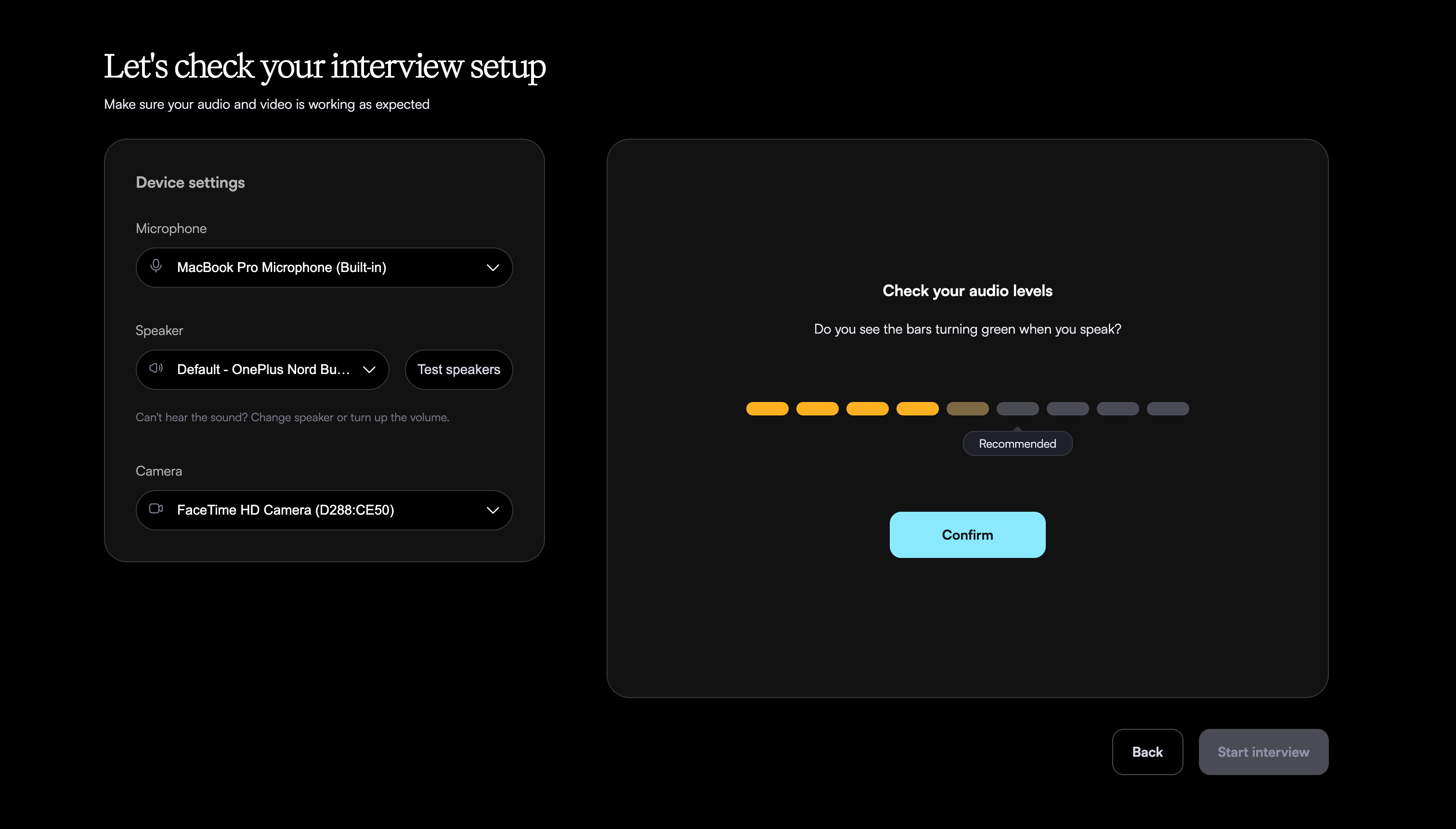
Click Test speakers to test your speaker.
Adjust your webcam so that your face is clearly visible.
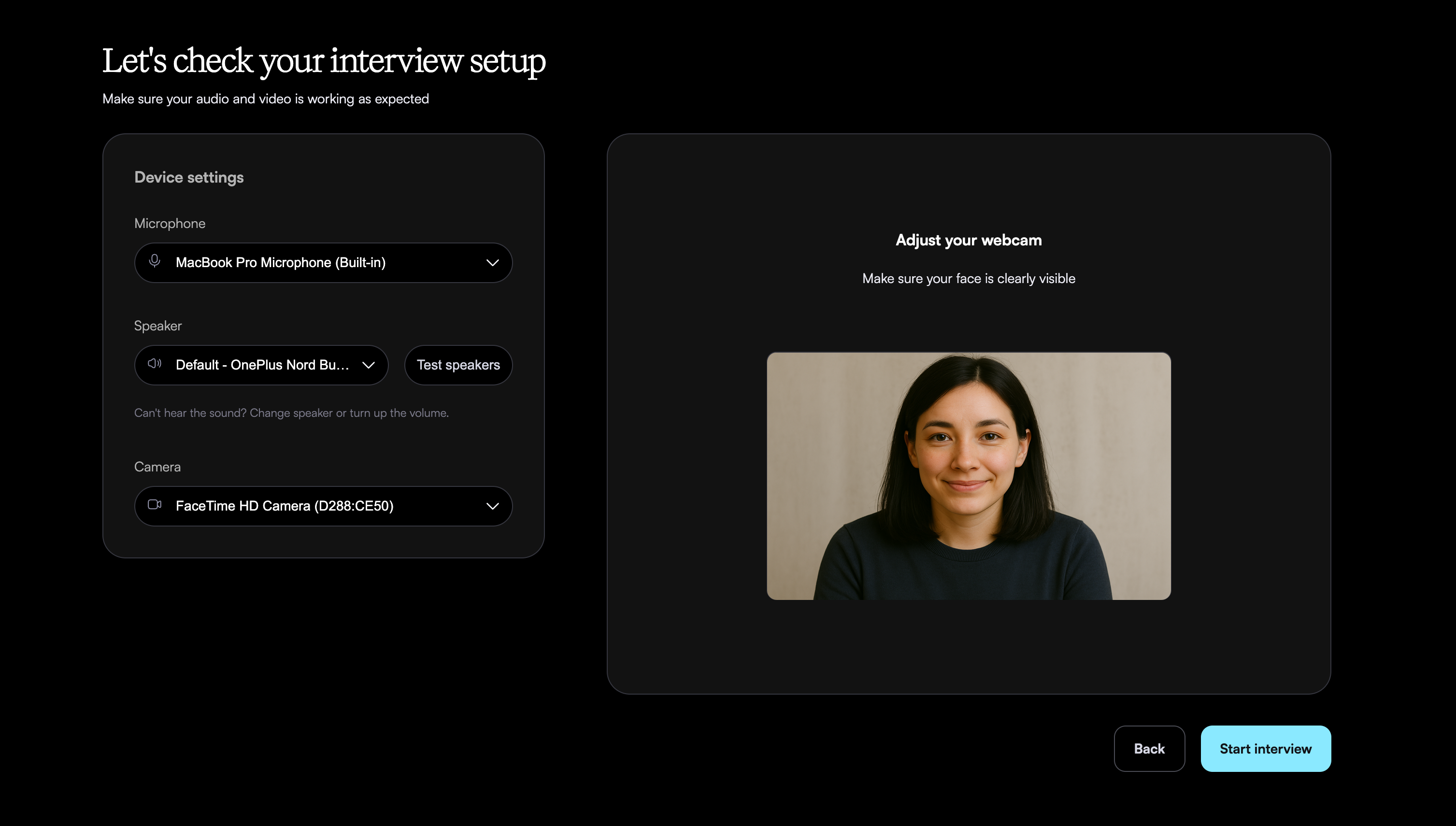
Click Start Interview.
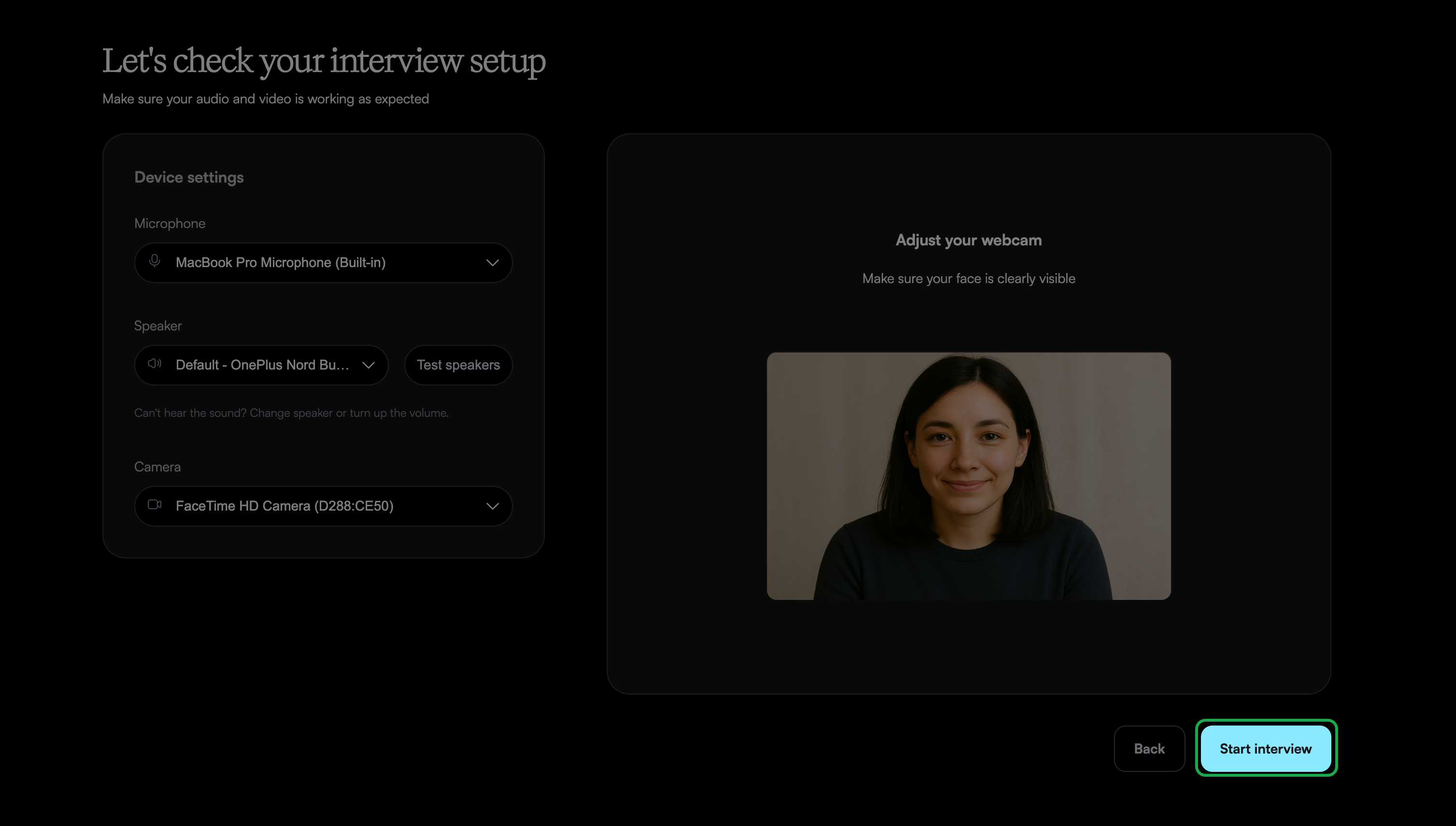
The interview opens in full-screen mode. You can exit full-screen mode only after you complete the interview.
Interview experience
At the start of the interview, the Chakra:
Introduces the interview
Explains the interview flow
Describes the topics you will discuss
Answers any questions you have before the interview begins
During the interview, Chakra keeps the conversation natural and interactive. It:
Asks follow-up questions based on your answers
Explores topics in more depth when needed
For coding questions, Chakra surfaces an in-line code editor. You can write, edit, and run code while continuing to interact with Chakra for guidance throughout the exercise. After you submit your solution, Chakra asks follow-up questions about your approach and reasoning before continuing the interview.
Interview controls
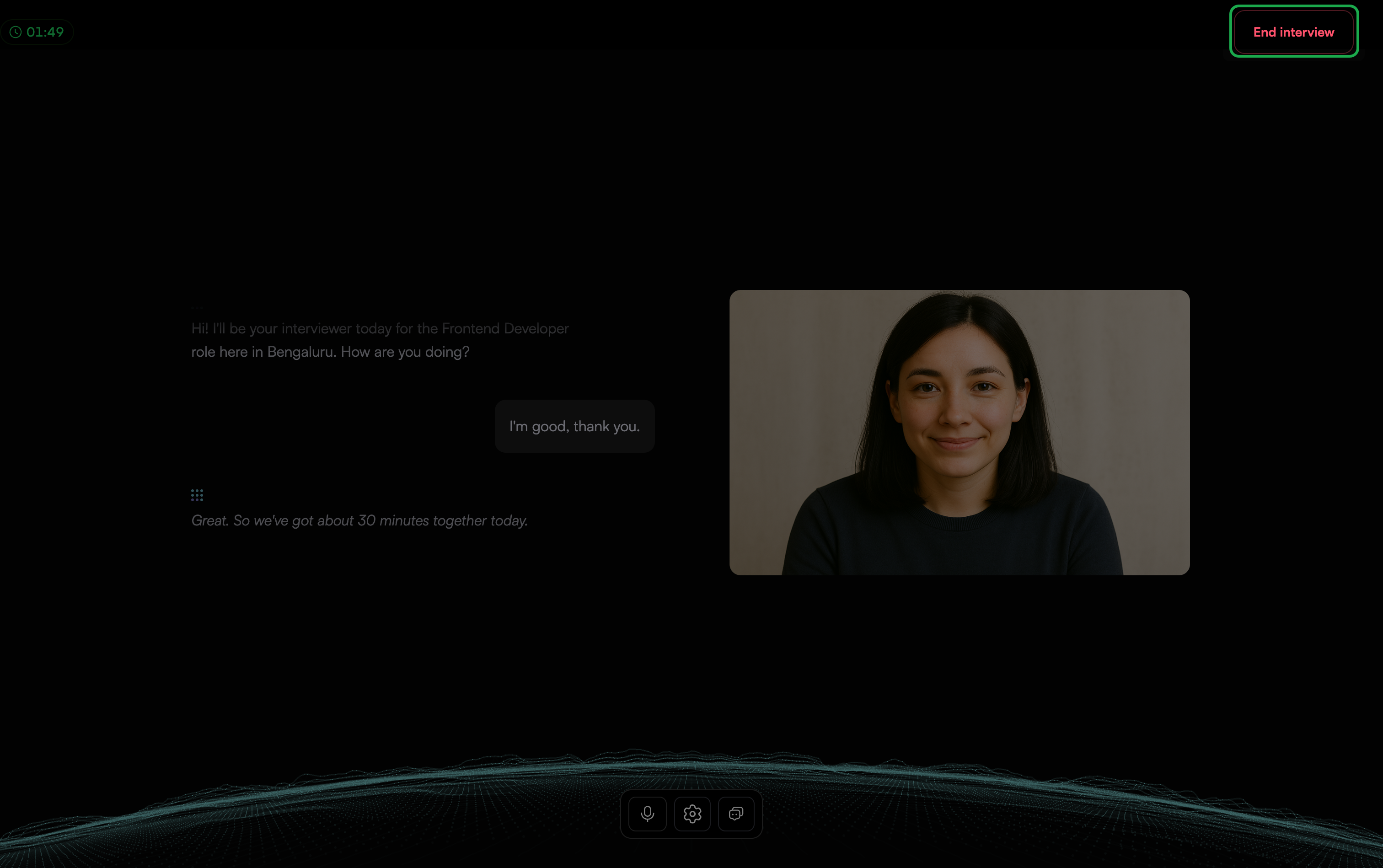
During the interview, you can use the following controls:
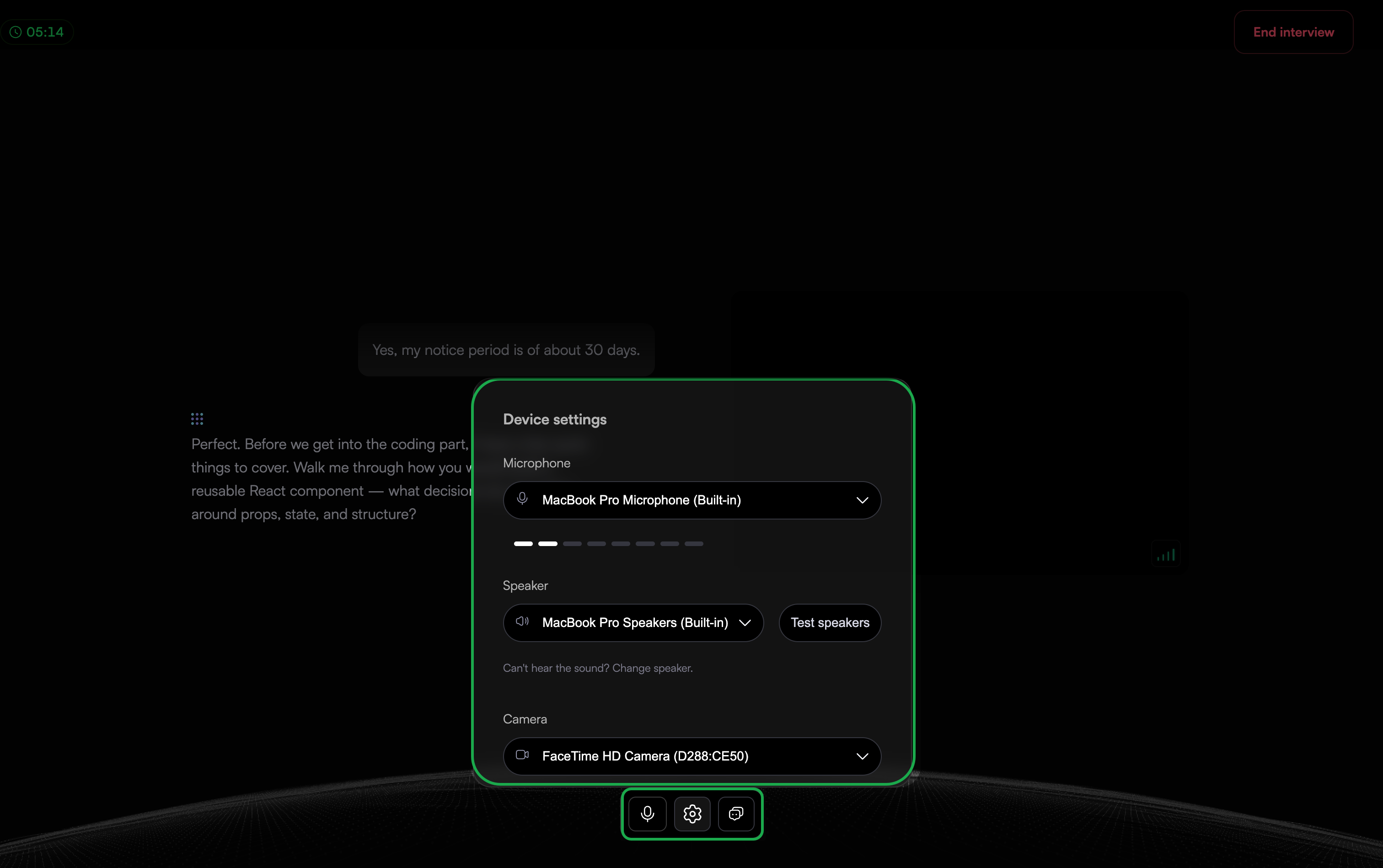
Microphone: You can mute or unmute your microphone during the interview by clicking the microphone icon.
Device Settings: You can change your microphone, speakers, or camera. You can also check your audio level and test your speakers.
Live transcript: You can hide or unhide the transcript by clicking the transcript icon.
Ending an interview
When the interview concludes, the interviewer confirms that you are ready to end the session. The interviewer then ends the interview.
Alternatively, you can end the interview manually.
To end the interview manually:
Click End interview in the upper-right corner of the interview screen.
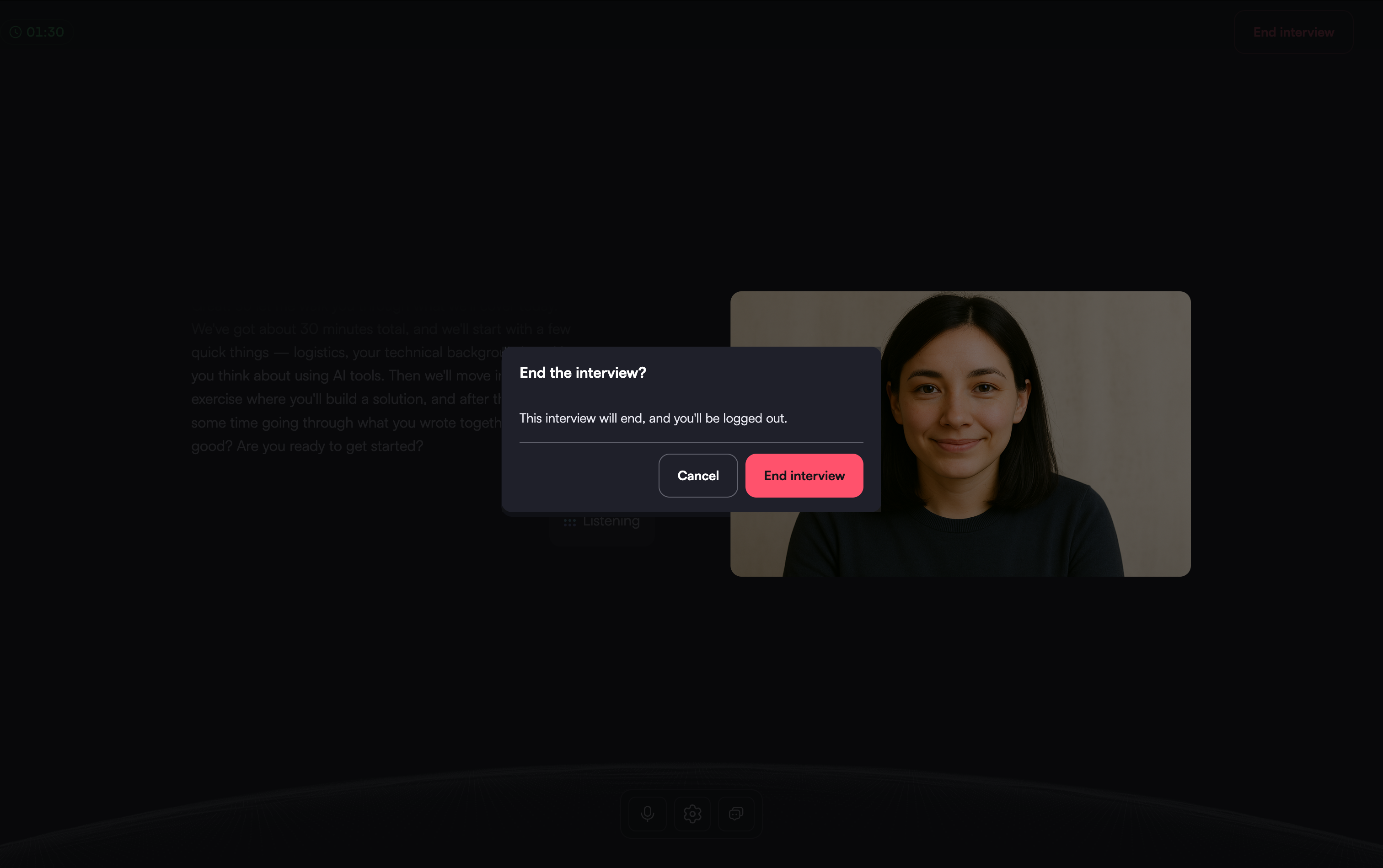
In the confirmation dialog, click End interview again.