Attempting Chakra using the HackerRank Desktop App
Last updated: July 22, 2026
The HackerRank Desktop App is a lightweight application that provides a secure environment for you to take the interview in Chakra. After you launch the application, it blocks unauthorized activities such as accessing other applications, browsers, or tabs to ensure a fair and seamless interviewing experience
Supported operating systems
The HackerRank Desktop App runs on the following operating systems:
Operating system | Supported versions |
|---|---|
Windows | 10 and 11 |
macOS | Monterey 12 or above (Intel and Apple Silicon) |
Before you begin
To avoid interruptions during your interview, make sure you have:
A stable internet connection.
A working webcam and microphone because you communicate with Chakra by speaking.
A quiet, private, well-lit environment.
Only one monitor is connected. Disconnect all external or secondary monitors.
Closed all other applications running on your system such as video conferencing applications (Zoom, Microsoft Teams, and Google Meet) and AI assistant tools.
Your device is plugged in or fully charged.
Install and launch the HackerRank Desktop App
To install and launch the HackerRank Desktop App:
Step 1: Download the app
For Windows
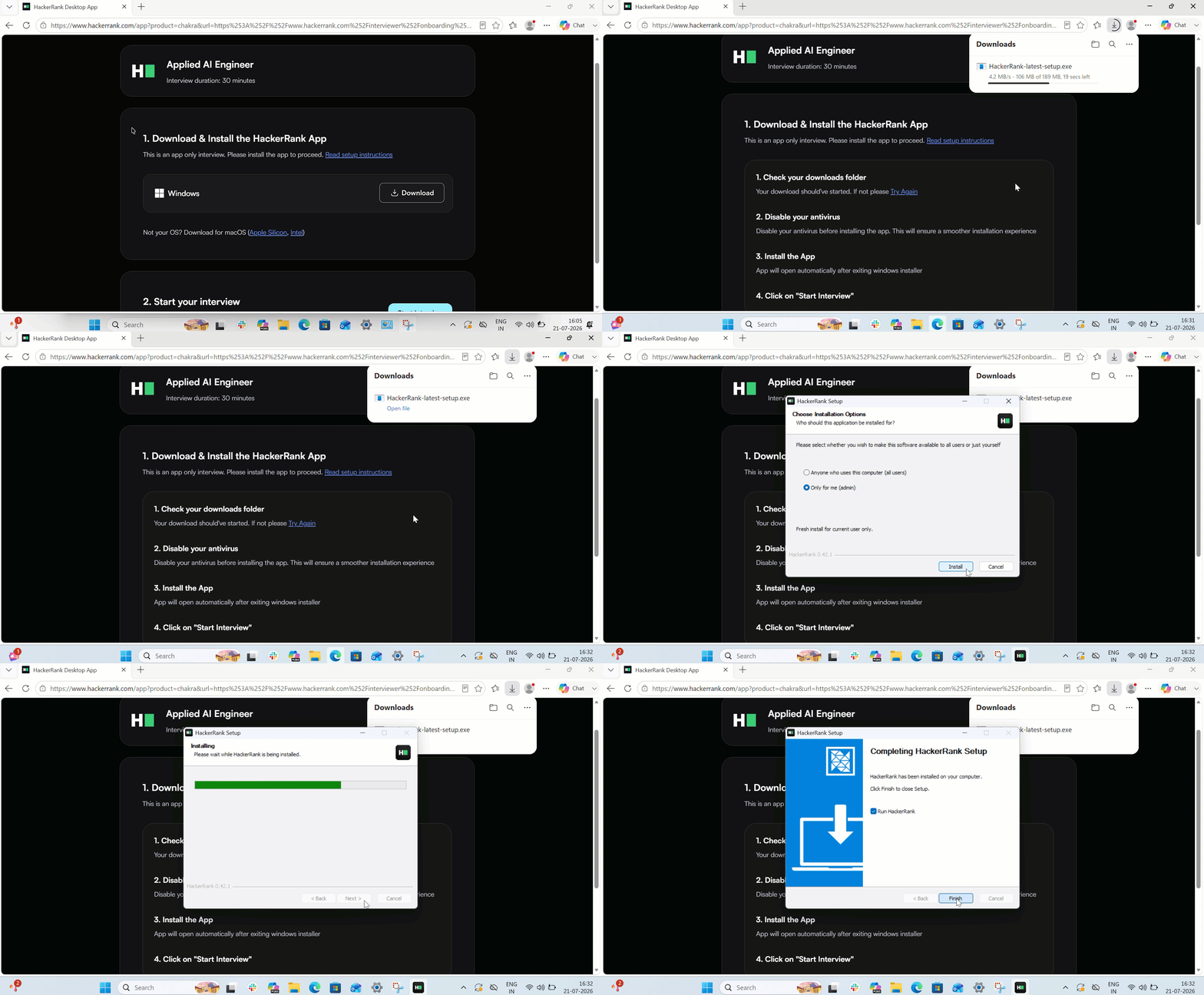
Open your Chakra invitation email and click the interview link. The page prompts you to download the HackerRank Desktop App.
Click Download to download the Windows installer.
Note:
You do not need administrator access to install the HackerRank Desktop App on Windows.
If your antivirus software flags the HackerRank Desktop App as suspicious or blocks it from running, temporarily disable your antivirus to complete the installation. The HackerRank Desktop App is safe to use.
Once the download is completed, open the downloaded
.exefile and follow the on-screen instructions in the setup wizard to install the app.When the installation completes, select Finish to close the setup wizard.
Note:
Keep the Run HackerRank checkbox selected to launch the app automatically.
If the HackerRank Desktop App does not open automatically, open it manually from the Start menu or Desktop.
Return to the browser tab where you downloaded the app.
Click Start Interview, and when prompted, click Open HackerRank to launch the app.
For macOS
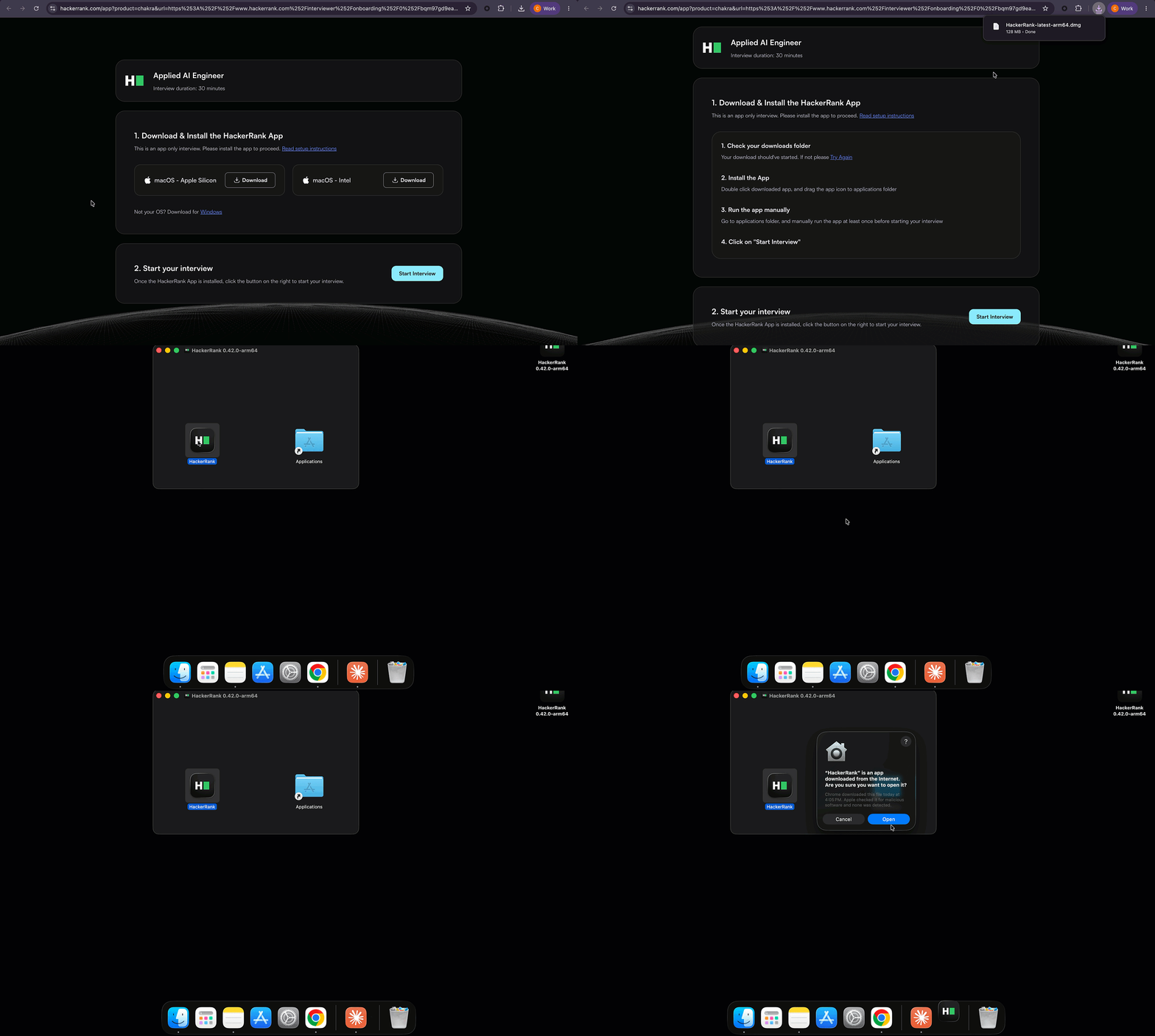
Open your Chakra invitation email and click the test link. The test page prompts you to download the HackerRank Desktop App.
Click Download under your macOS version (Apple Silicon or Intel) to download the macOS installer.
Note: To check your Mac version, go to Apple menu > About This Mac.
If it shows Chip: Apple M1, M2, or later, choose Apple Silicon.
Otherwise, choose Intel.
Once the download is completed, open the downloaded
.dmgfile.Drag the HackerRank icon into the Applications folder, and close the installation window.
Open Finder, search for HackerRank, and click HackerRank to launch the app.
Click Open when macOS prompts that the app is downloaded from the internet.
Return to the browser tab where you downloaded the app.
Click Start Interview, and when prompted, click Open HackerRank to launch the app.
Note: If the HackerRank Desktop App does not open when you click Start Interview, follow the troubleshooting steps to open the app manually and paste the test link to start the interview.
Step 2: Grant system permissions
For Windows
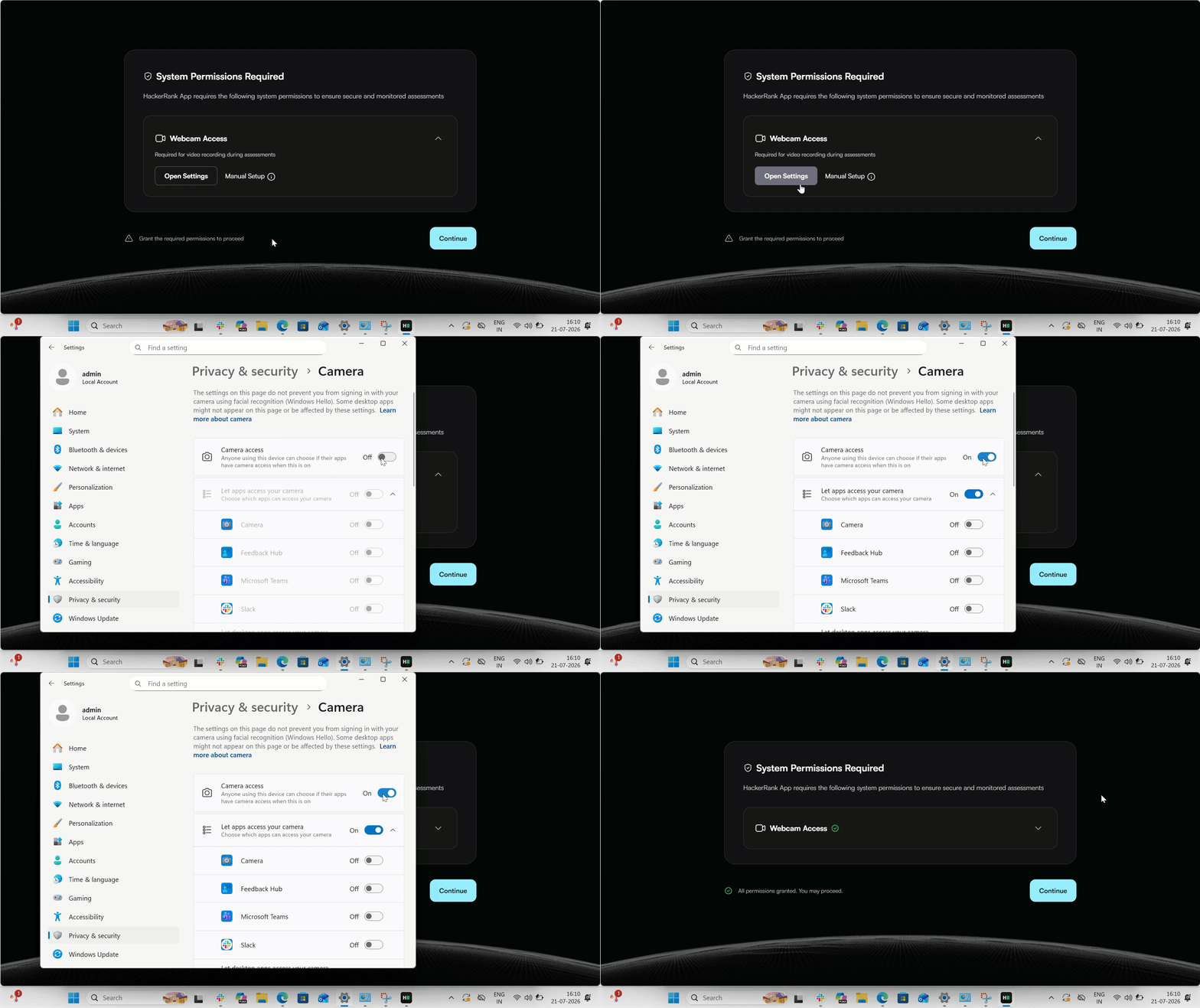
When you open the HackerRank app for the first time, you will be prompted to grant the system permission to access your webcam.
Click Open Settings to go to Privacy & Security > Camera.
Turn on the Camera access toggle for the HackerRank app.
Return to the HackerRank app and click Continue to proceed.
For macOS
When you open the HackerRank app for the first time, you will be prompted to grant the following system permissions:
Webcam and Microphone access
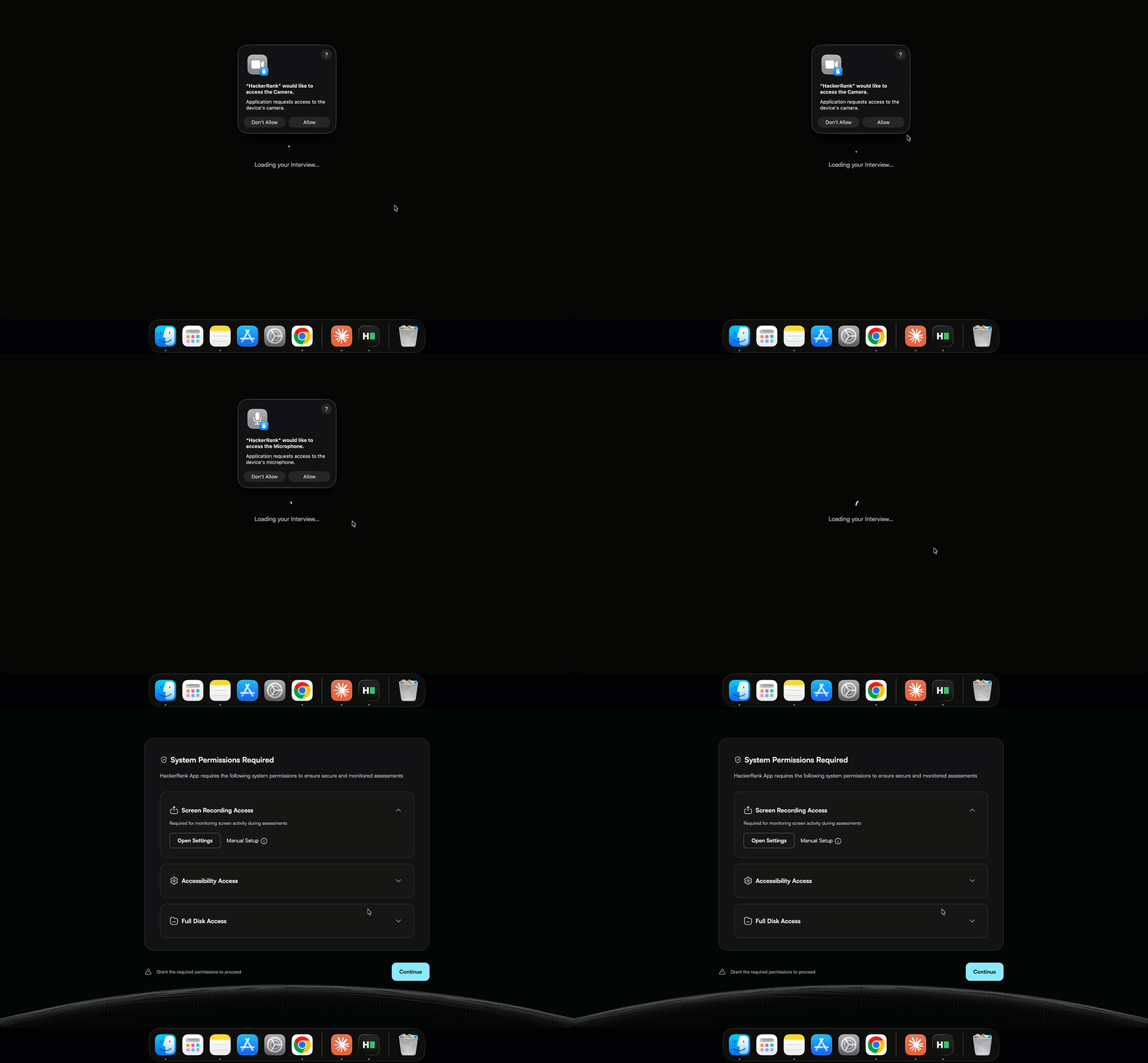
When prompted to allow camera access, click Allow.
When prompted to allow access to the microphone, click Allow.
Screen recording access
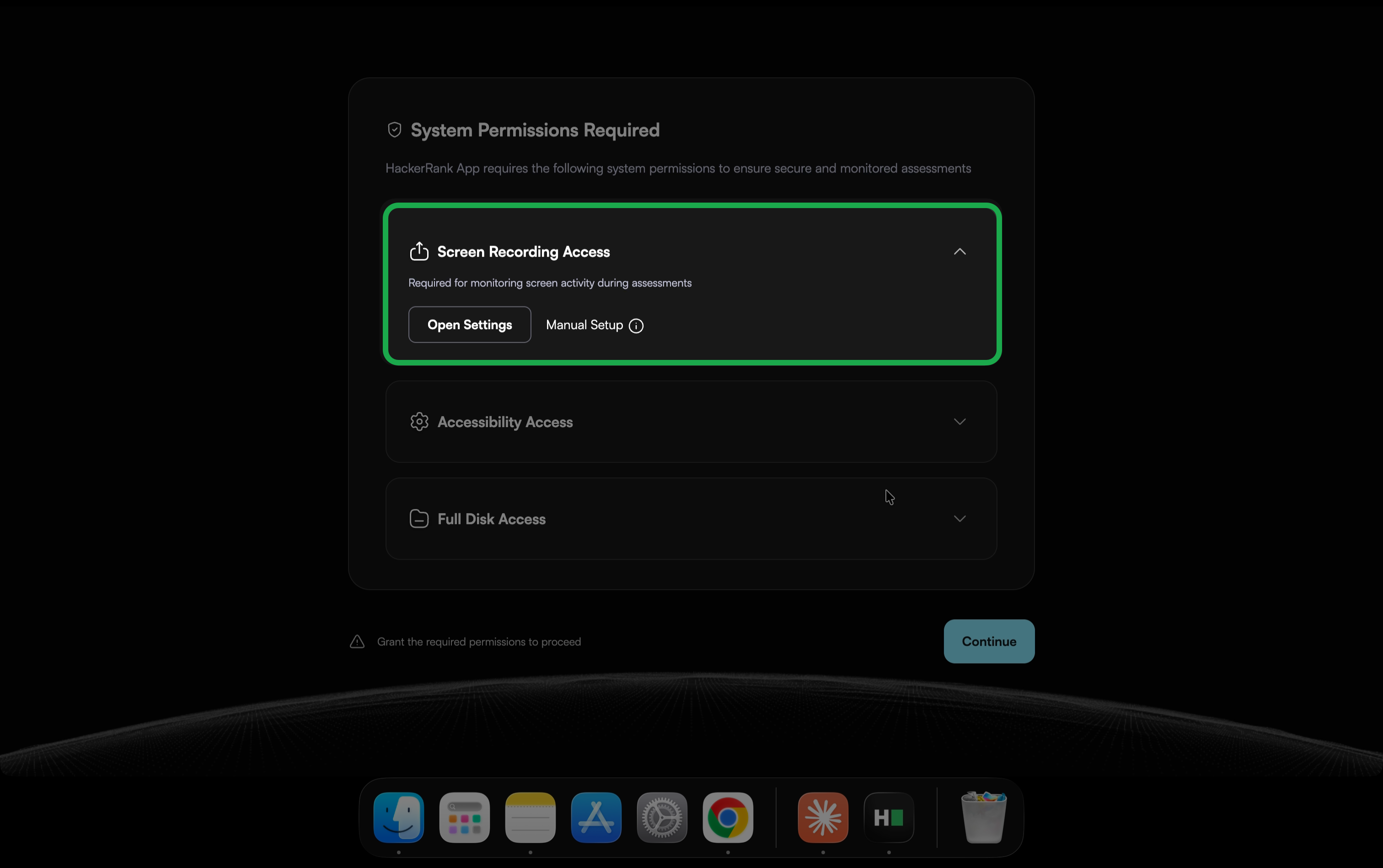
Click Open Settings to go to Privacy & Security > Screen & System Audio Recording.
Do one of the following:
If the HackerRank app is not in the list:
Click the + icon.
In the Applications folder, select HackerRank, and click Open.
Enter your password or use Touch ID to confirm the setting changes.
Click Quit & Reopen when prompted to apply the changes.
Verify that HackerRank appears in the list with the toggle turned on.
If the HackerRank app is already in the list:
Turn on the HackerRank toggle.
Accessibility access
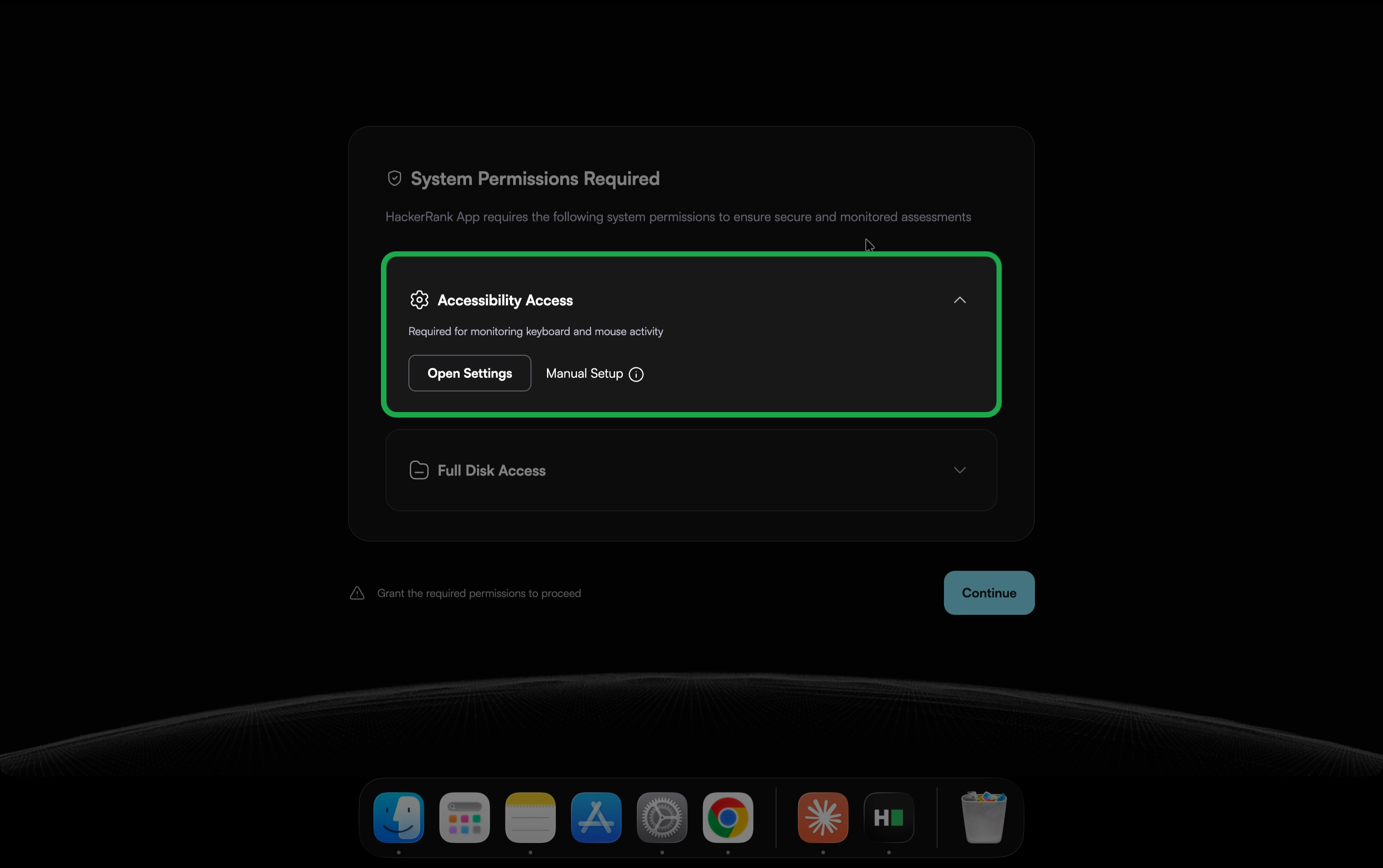
Select Open Settings to go to Privacy & Security > Accessibility.
Do one of the following:
If the HackerRank app is not in the list:
Click the + icon.
In the Applications folder, select HackerRank, and click Open.
Enter your password or use Touch ID to confirm the setting changes.
Click Quit & Reopen when prompted to apply the changes.
Verify that HackerRank appears in the list with the toggle turned on.
If the HackerRank app is already in the list:
Turn on the HackerRank toggle.
Full Disk Access
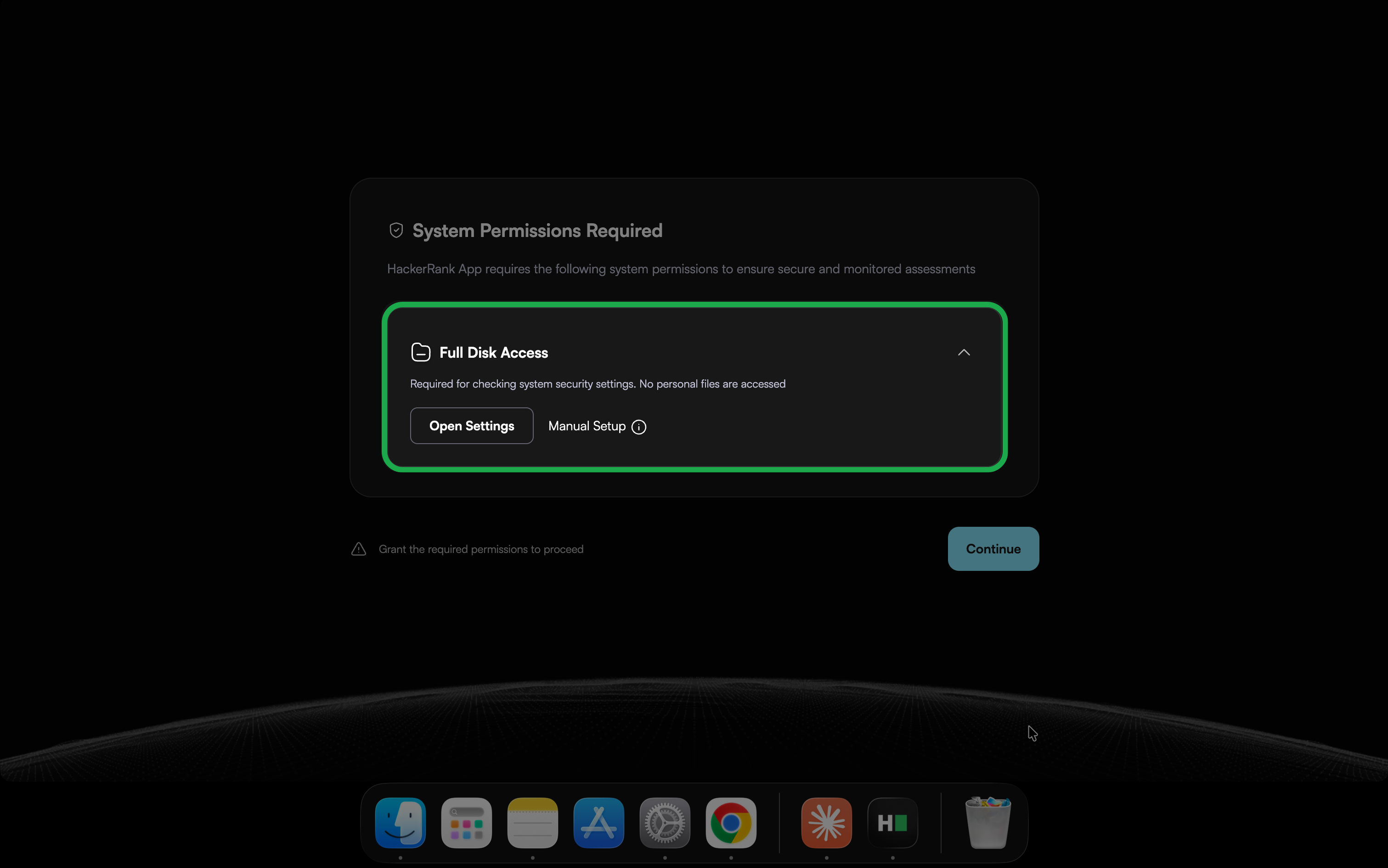
Select Open Settings to go to Privacy & Security > Full Disk Access.
Do one of the following:
If the HackerRank app is not in the list:
Click the + icon.
In the Applications folder, select HackerRank, and click Open.
Enter your password or use Touch ID to confirm the setting changes.
Click Quit & Reopen when prompted to apply the changes.
Verify that HackerRank appears in the list with the toggle turned on.
If the HackerRank app is already in the list:
Turn on the HackerRank toggle.
After you grant all required permissions, click Continue to proceed.
Step 3: Add details and acknowledge Chakra rules
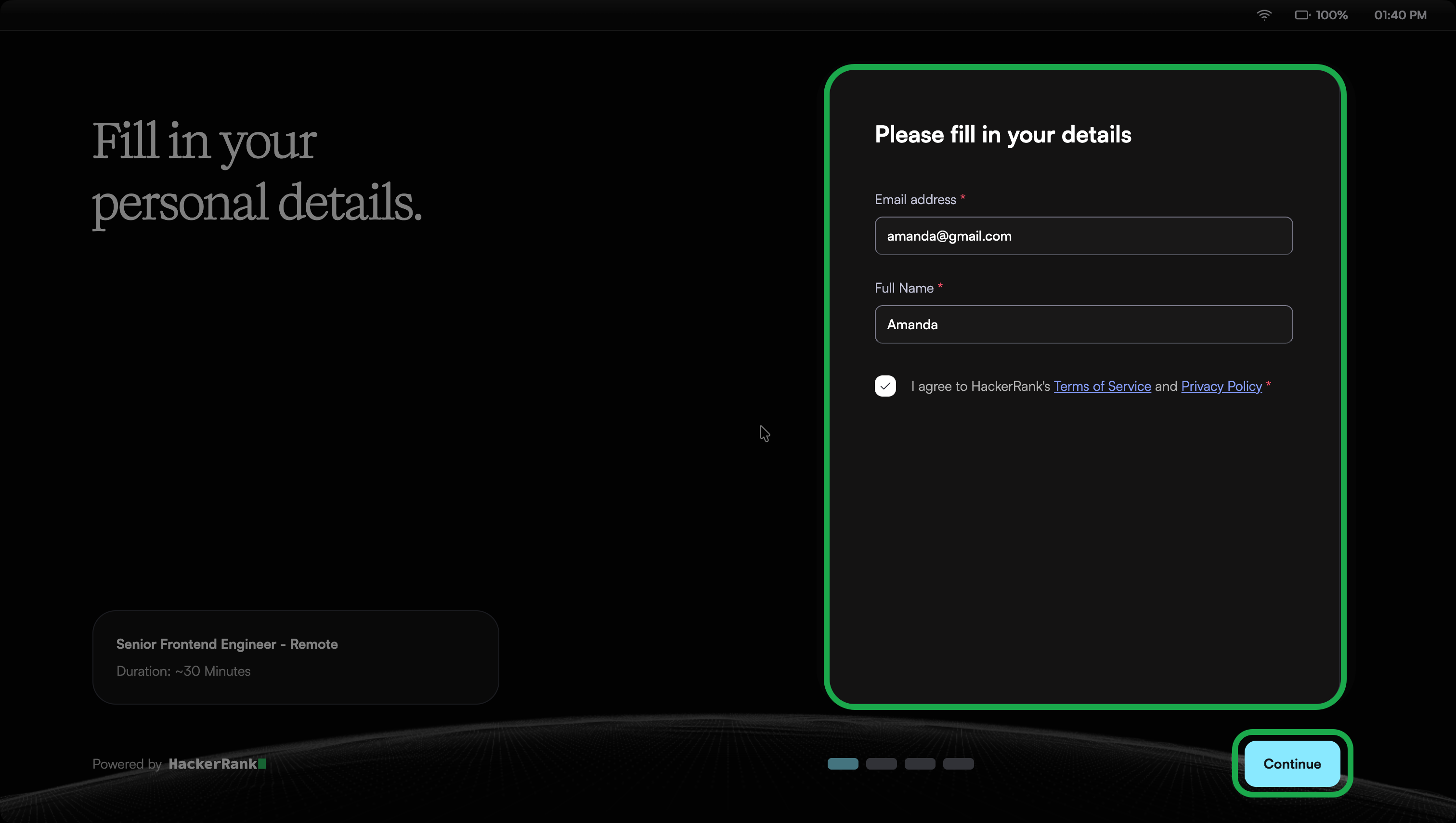
Enter any details requested by the hiring company.
Select the checkboxes to confirm that you agree to the terms and understand the Chakra rules.
Click Continue to proceed.
Step 4: Grant Chakra permissions
Complete the required permission checks before starting the interview.
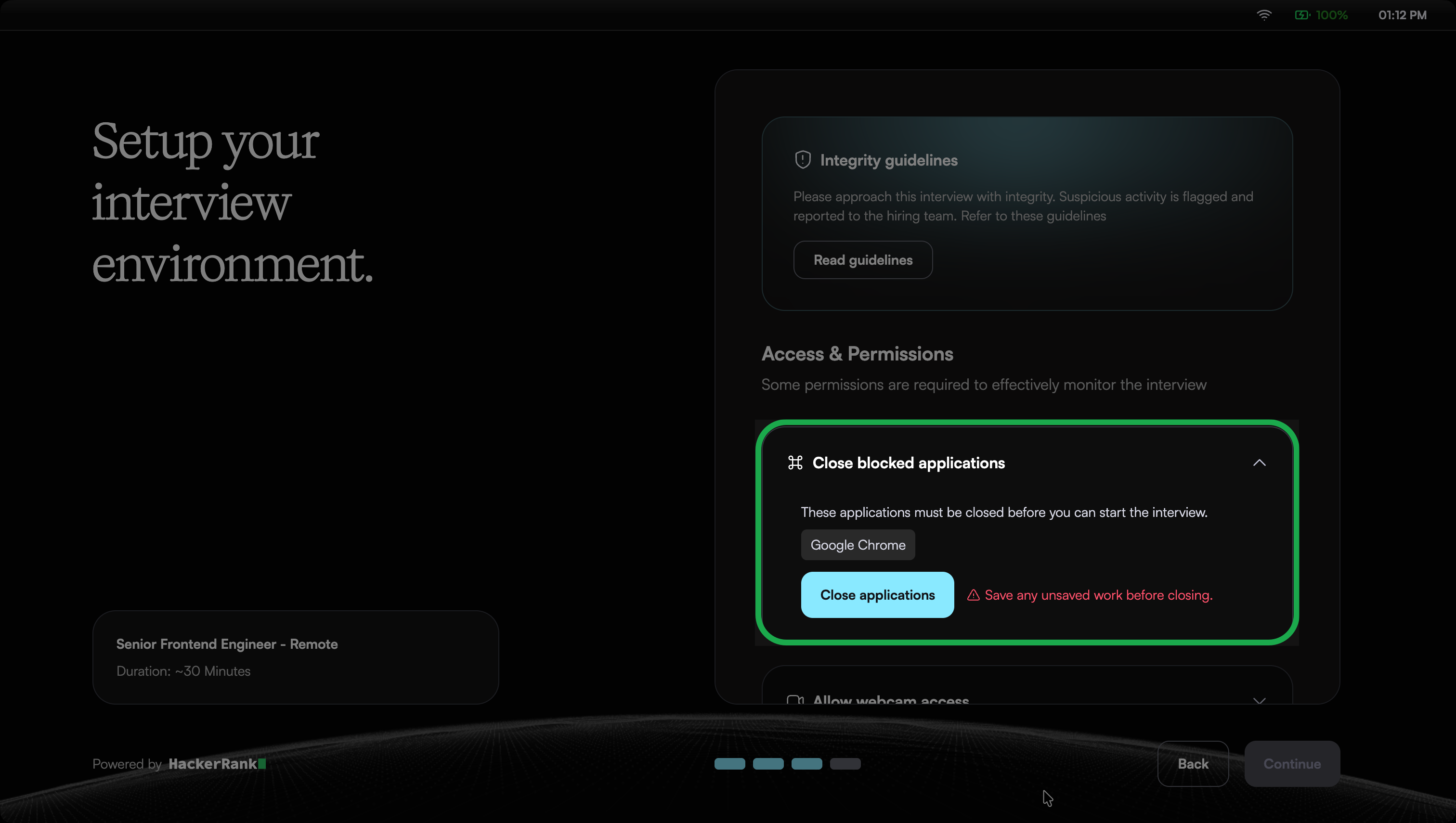
Close blocked applications: Close all other applications running on your system before starting the interview. Close them manually or click Close applications to close them automatically. The system displays a list of applications that you need to close. If you force close applications, any unsaved data is lost.
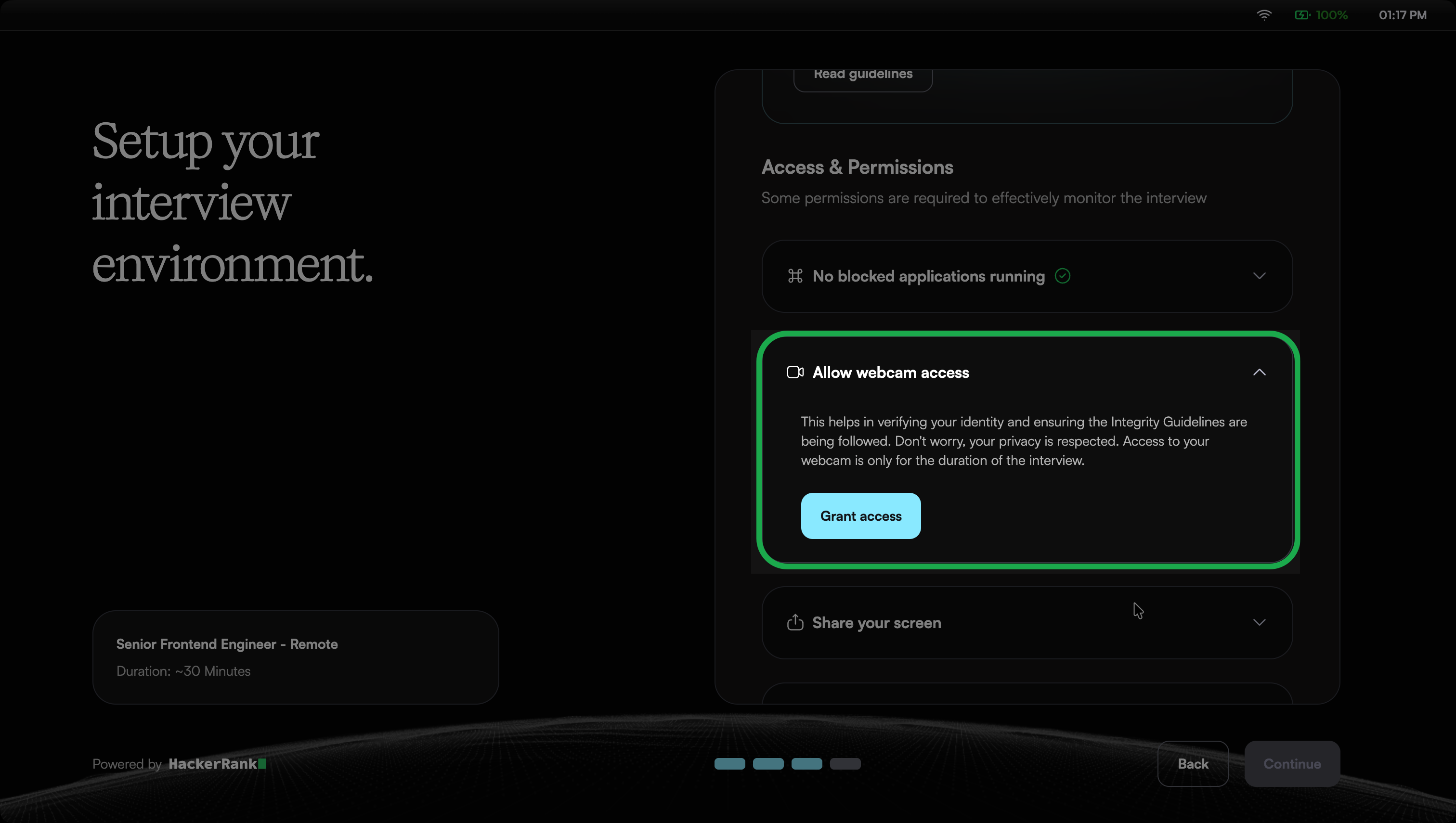
Allow webcam access: Select Grant Access, ensure your face is clearly visible in the webcam.
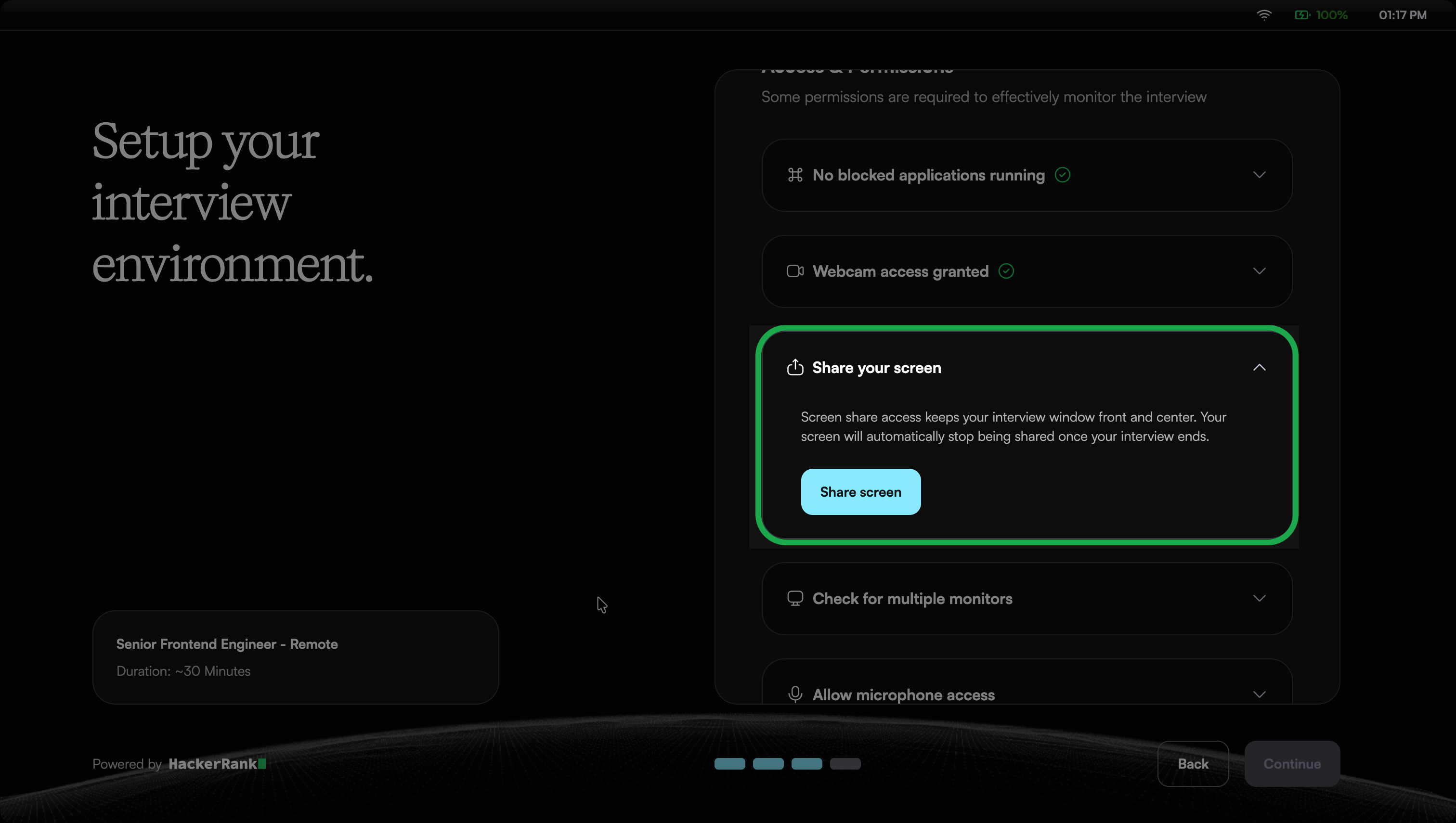
Share your screen: Select Share Screen to allow access.
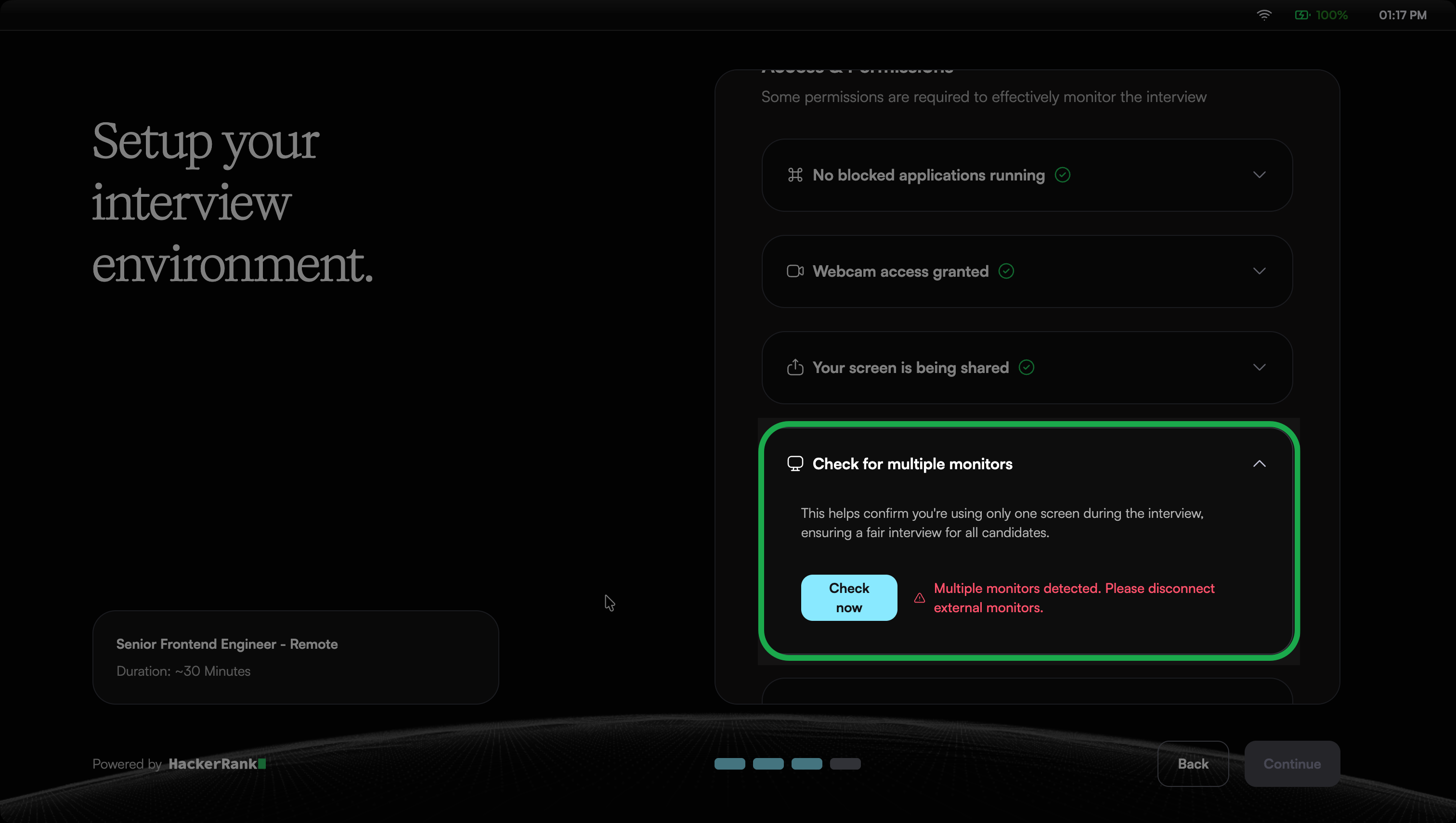
Check for multiple monitors: Select Check Now to confirm that no additional monitors are connected. Disconnect any extra monitors if detected.
Allow microphone access: Select Check now to allow access.
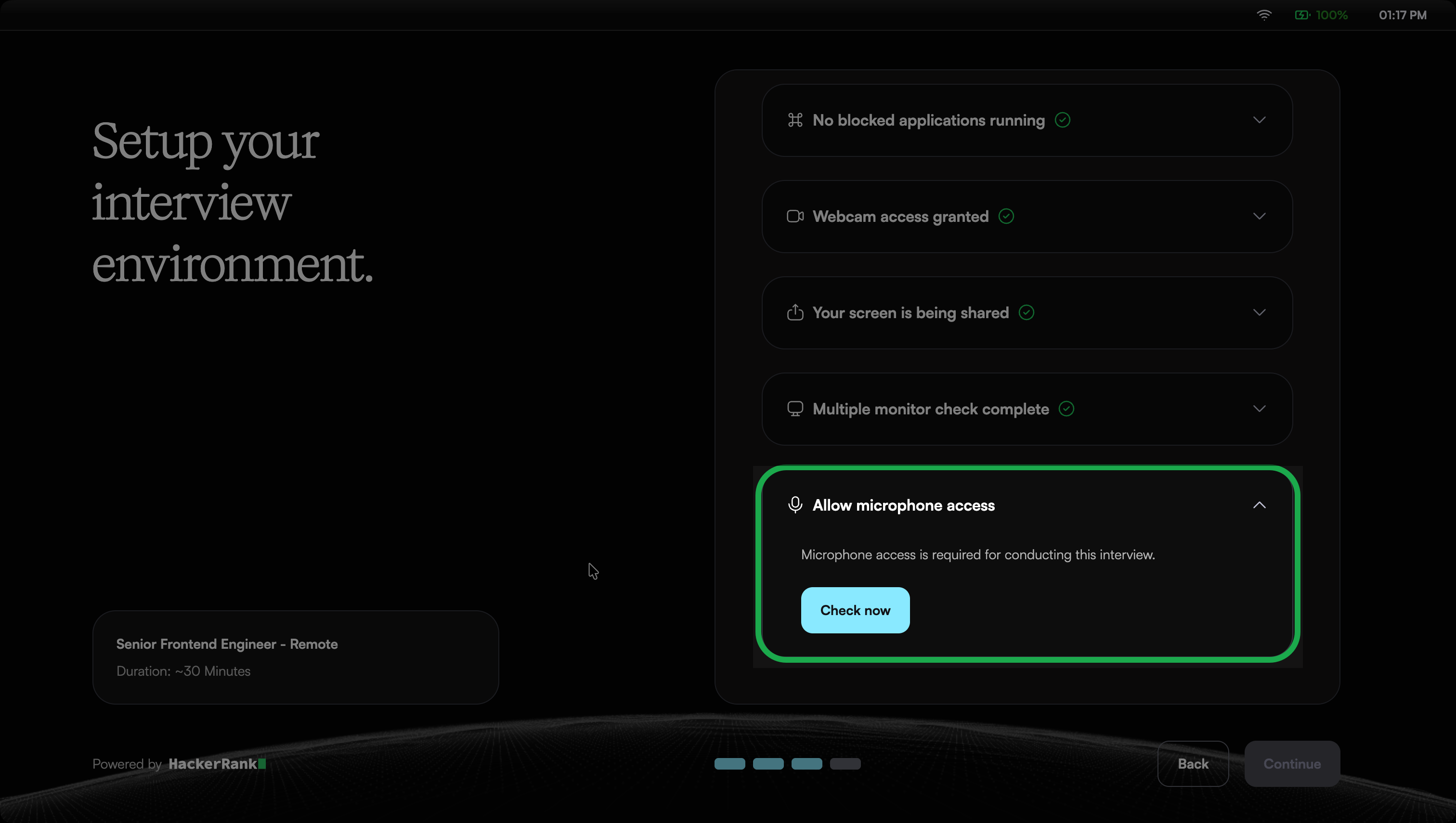
Note: A green check mark appears when the permissions are granted correctly.
Click Continue to proceed.
Step 5: Start the interview
When all permissions display green check marks, click Start Interview.
The app launches your interview in full-screen mode. You can exit full-screen mode only after you complete the interview.
During your interview
Here is what to expect while the interview is running:
Respond to questions using your microphone. Chakra listens and responds in real time. Some questions also allow you to type or write code.
Keep your face clearly visible in the webcam. The system warns you if your face is not visible or if it detects more than one person.
The application prevents you from leaving full-screen mode or switching to another application. Any attempt is recorded.
Do not open other applications. The app detects and closes other programs you try to open, including AI assistant tools.
If a new monitor or screen mirroring is detected mid-interview, you must disconnect it to continue.
Troubleshooting
If you experience problems during setup or the interview, try the following solutions:
The HackerRank Desktop App does not open after I click Start Interview.
Solution: Open the HackerRank Desktop App manually and paste the interview link into the application.
My microphone or webcam is not detected.
Solution: Reconnect the device, confirm the app has camera and microphone permission in your system settings (Step 2), then run the check again.
I see a message that my device is not supported or a virtual machine is detected.
Solution: The HackerRank Desktop App supports only physical Windows and macOS computers. Virtual machines are not supported.
My antivirus software blocks the HackerRank Desktop App.
Solution: The HackerRank Desktop App is safe to use. Temporarily allow it, then reopen the app.