Attempt a Coding Question in Chakra
Last updated: November 13, 2026
A Coding question in Chakra is a hands-on exercise that assesses how you solve a programming problem without AI assistance. You write and test your code in the built-in editor, then discuss your approach and reasoning with Chakra.
Prerequisites
Before the hands-on section starts:
Complete the onboarding steps and permission checks. For more information, see 📄 Interview with Chakra.
Install the HackerRank Desktop App if the hiring company requires it. For more information, see 📄 Attempting Chakra using the HackerRank Desktop App.
Attempting a Coding question in Chakra
Chakra follows the interview plan defined by the hiring team. At the start of the interview, Chakra explains the time available for the coding question and the follow-up discussion. When Chakra starts a hands-on section that includes a Coding question, it displays the problem statement.
Review the problem statement
The Problem Statement panel displays the problem description, examples, expected output, and constraints. The transcript of your conversation with Chakra appears on the left.
To review the problem statement:
Read the description, examples, expected output, and constraints in the Problem Statement panel.
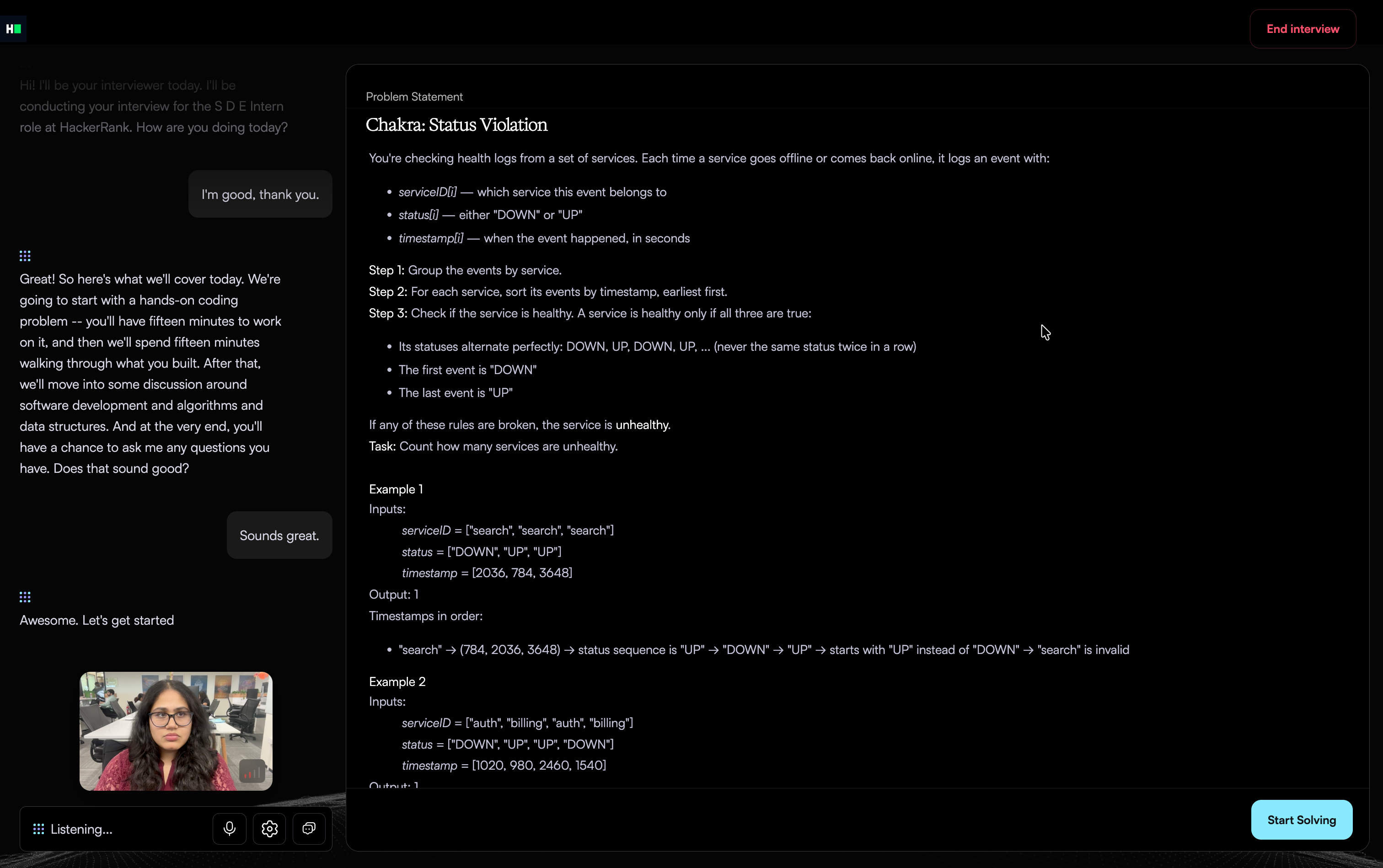
Ask Chakra clarifying questions about the requirements, inputs, edge cases, or scope, if needed.
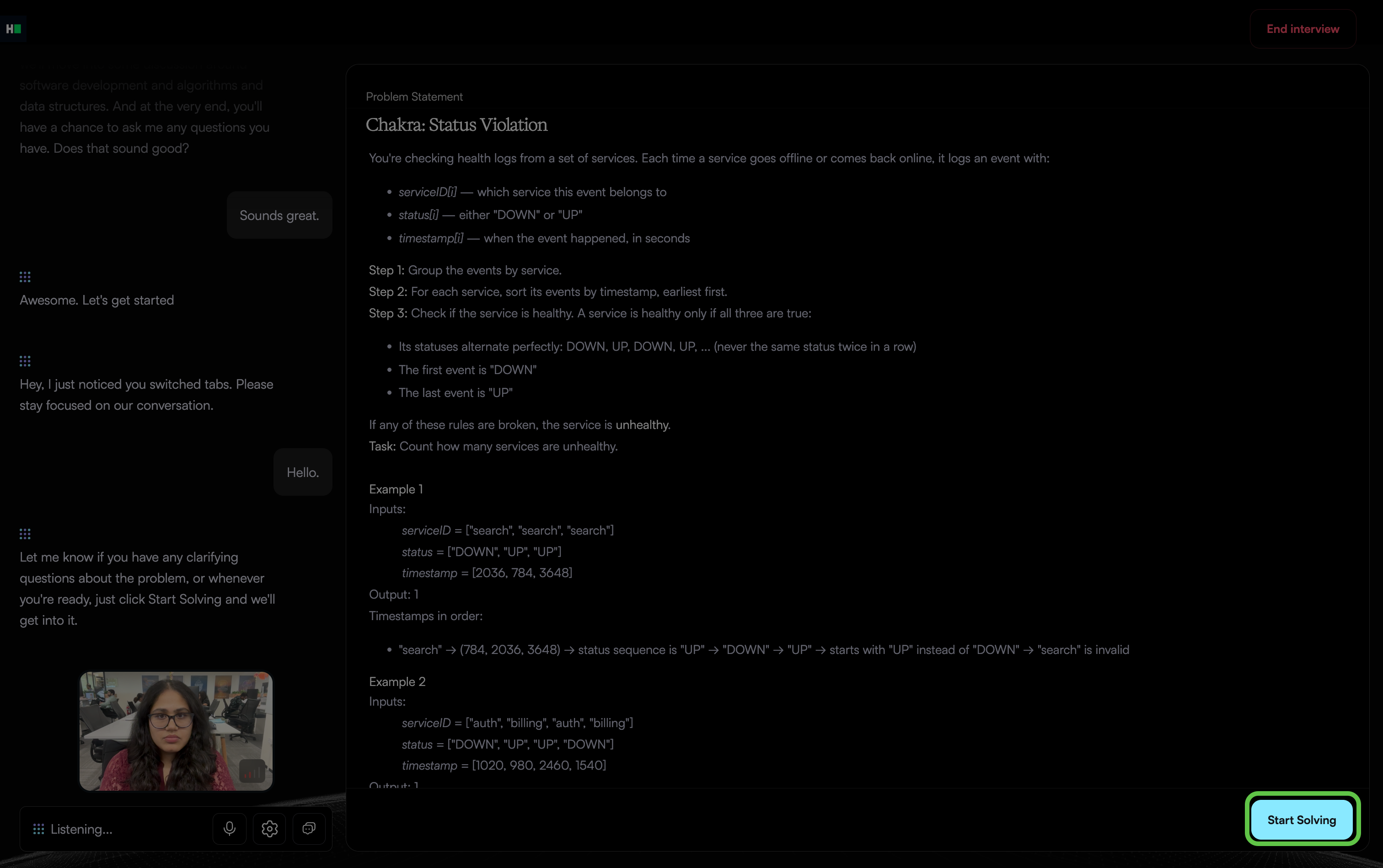
Click Start Solving to open the code editor and start the timer. The timer appears in the upper-right corner of the editor.
Write your solution
The Problem Statement panel appears on the left, and the code editor on the right. Select the arrow next to Problem Statement to collapse or expand the panel.
To write your solution:
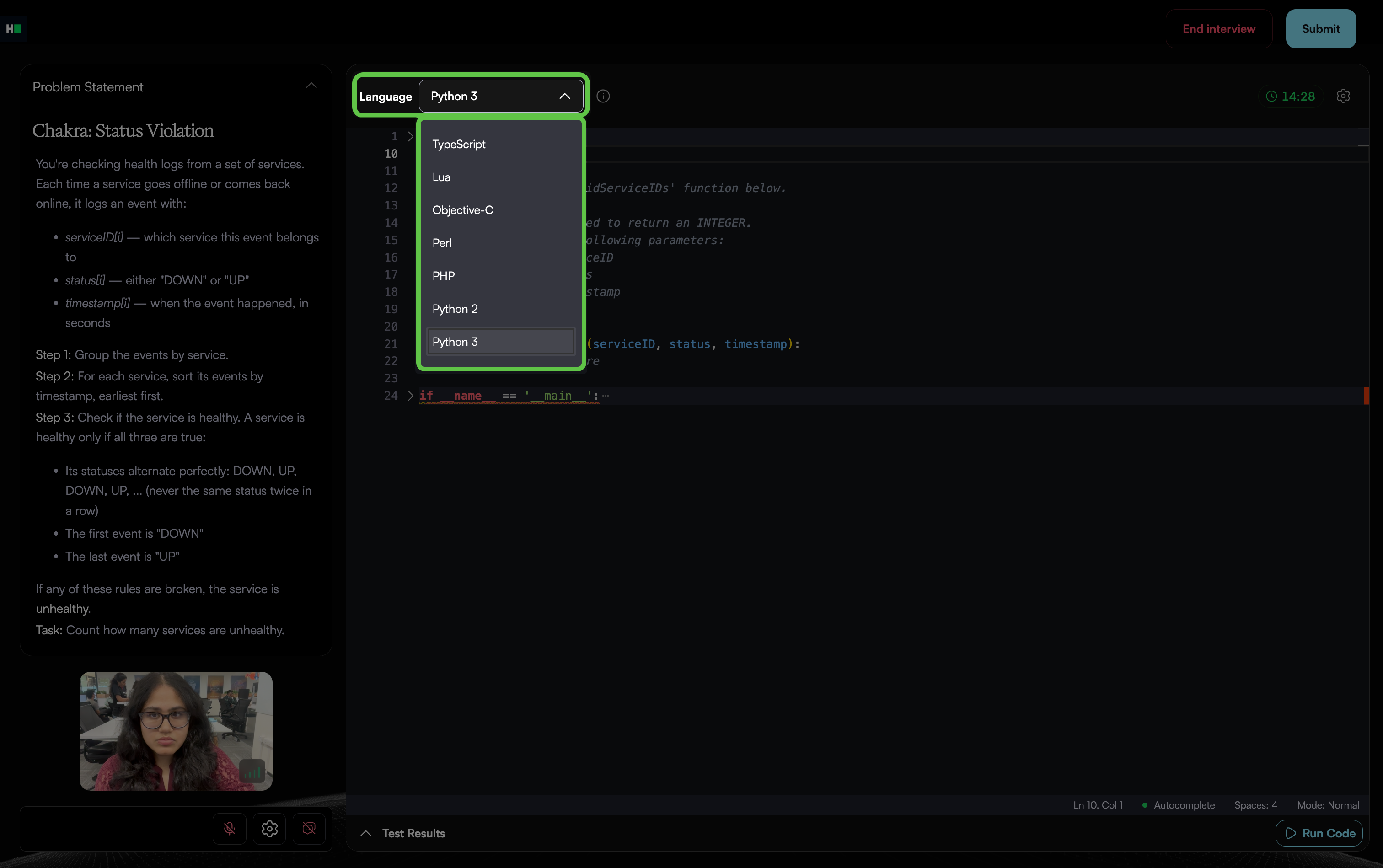
Select a programming language from the Language list.
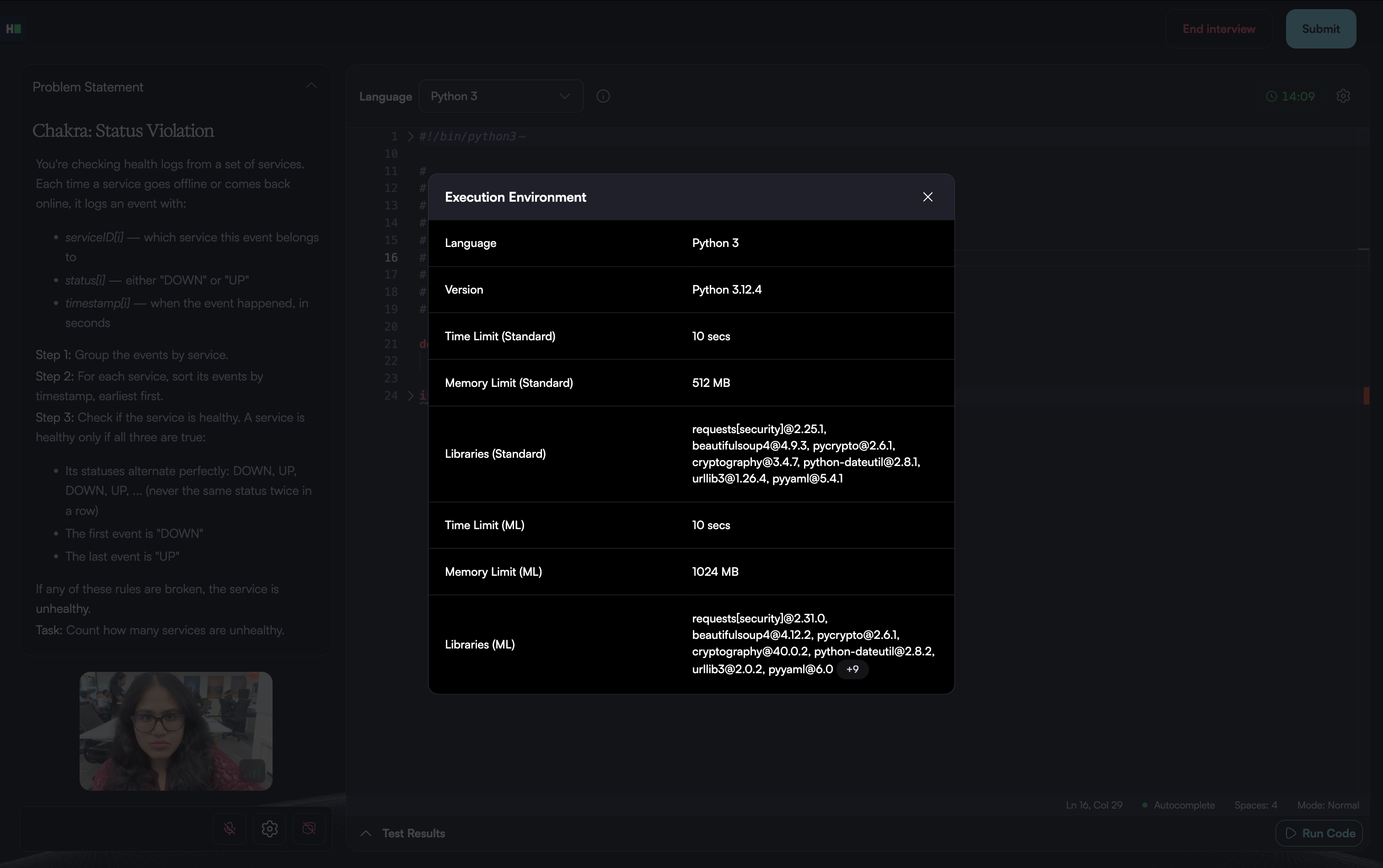
(Optional) Select the information (ⓘ) icon next to Language to review the Execution Environment, if needed. It shows the language version, time limit, memory limit, and available libraries.
(Optional) Select the settings icon in the upper-right corner of the editor to change the following editor settings:
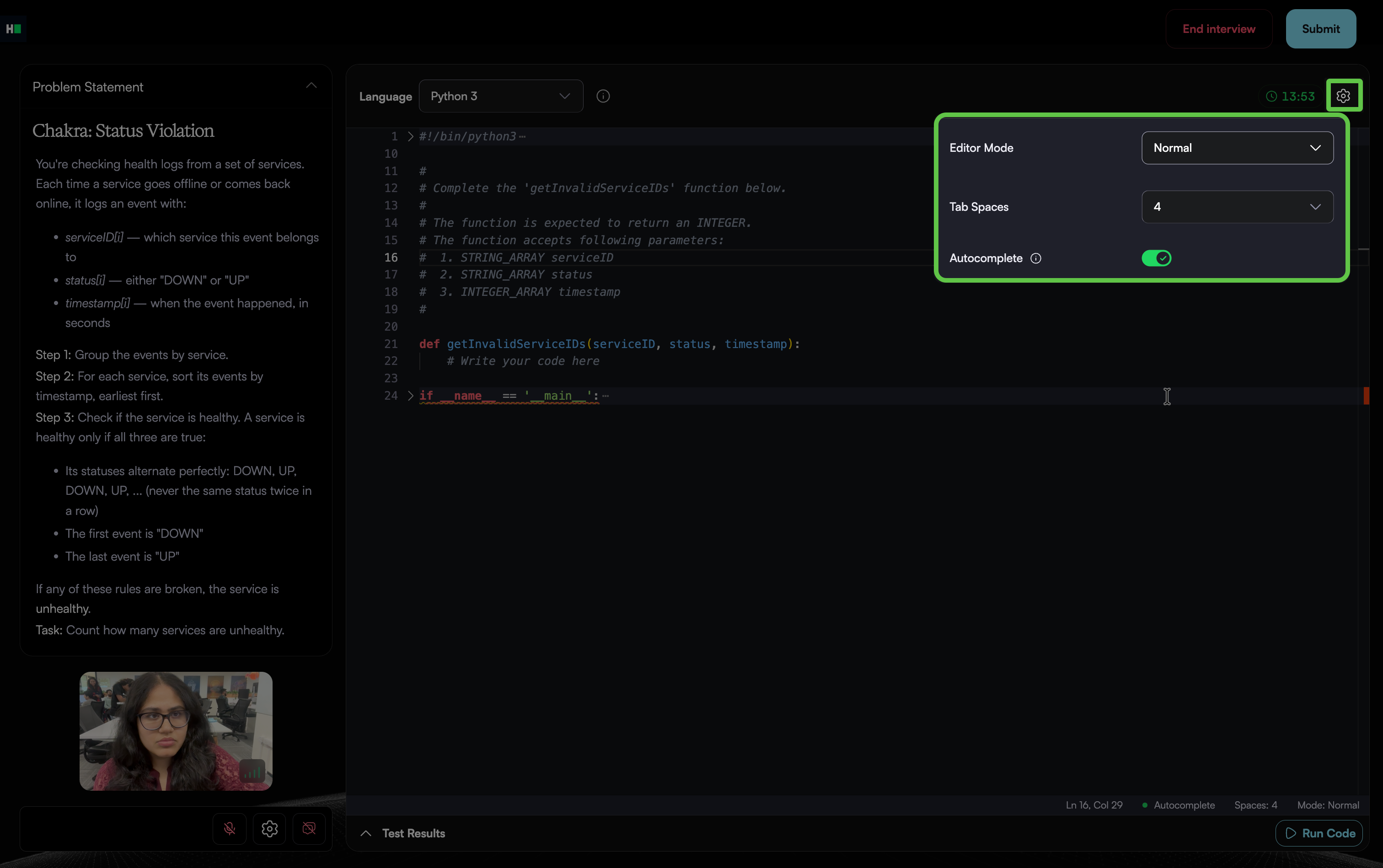
Editor Mode: Select Normal, Emacs, or Vim.
Tab Spaces: Select 2, 4, or 8 spaces for indentation.
Autocomplete: Turn code suggestions on or off.
Write your code in the function provided in the editor.
The status bar at the bottom of the editor shows the cursor position and the current Autocomplete, Spaces, and Mode settings.
To view your conversation with Chakra while you work, select the transcript icon below your webcam preview.
Test your solution
Run your code to check that it generates the expected output.
To test your solution:
Click Run Code.
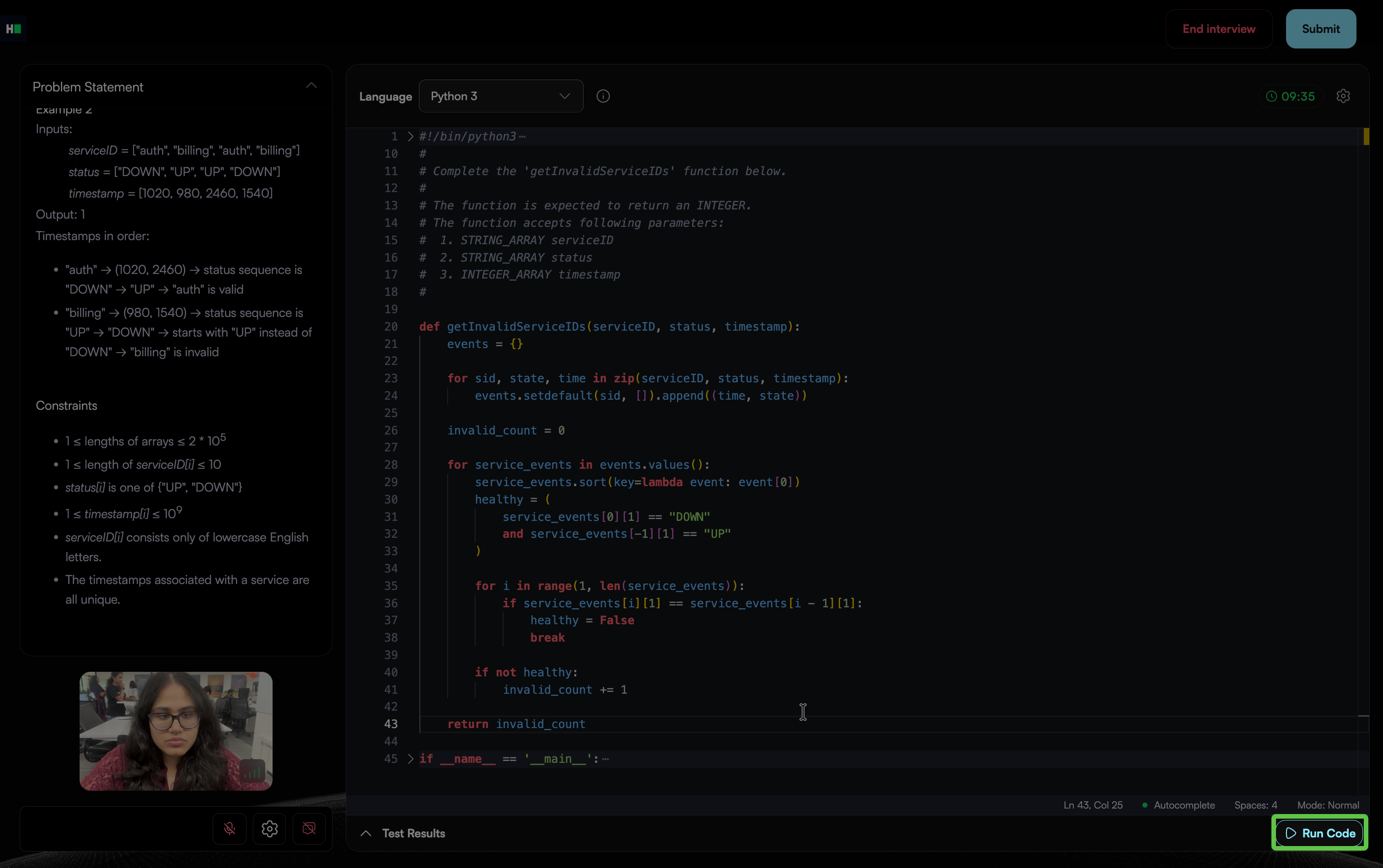
The Test Results panel opens and runs your code against the test cases. To stop a run in progress, click Abort.
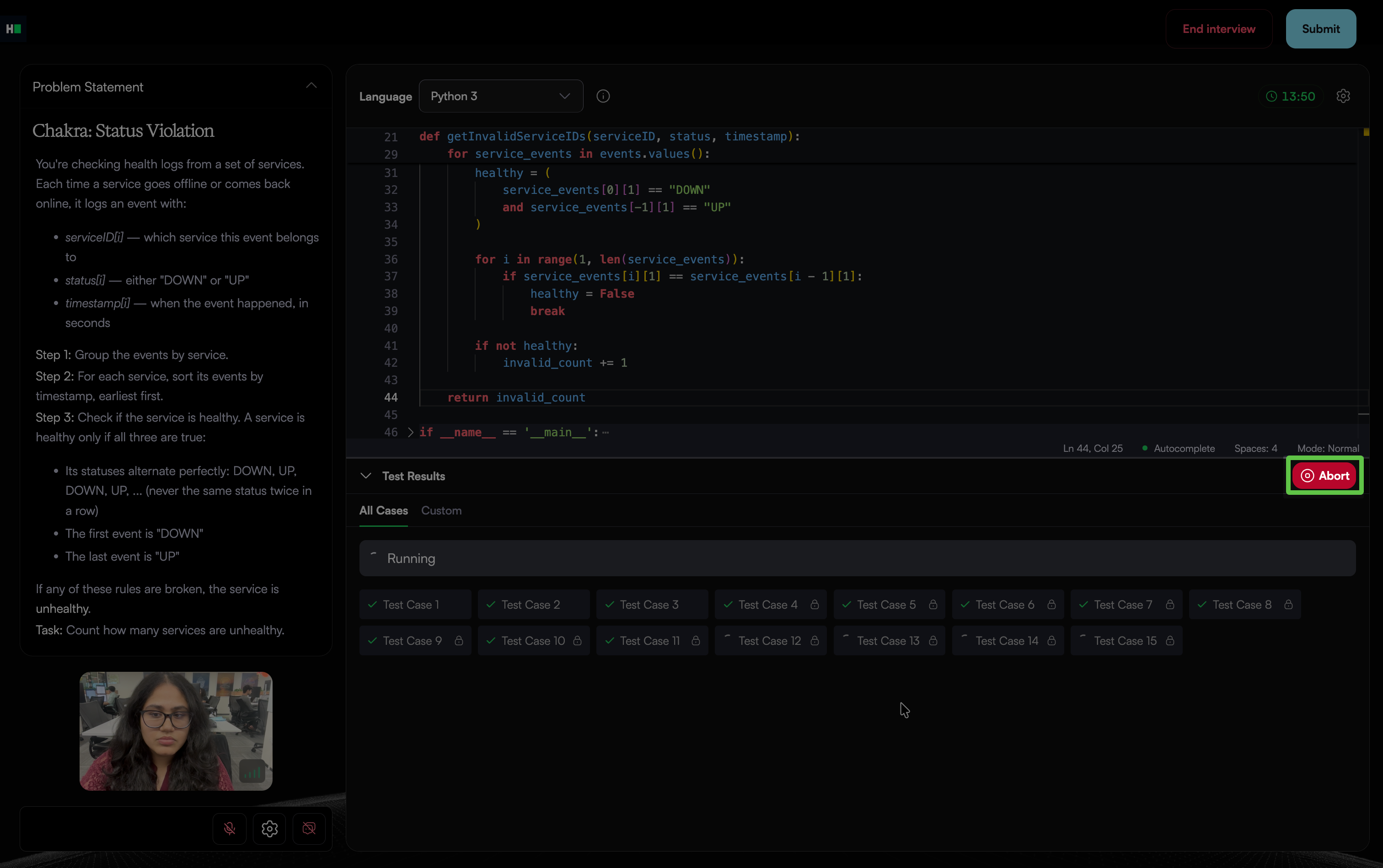
Review the results under the Test Cases > All Cases tab.
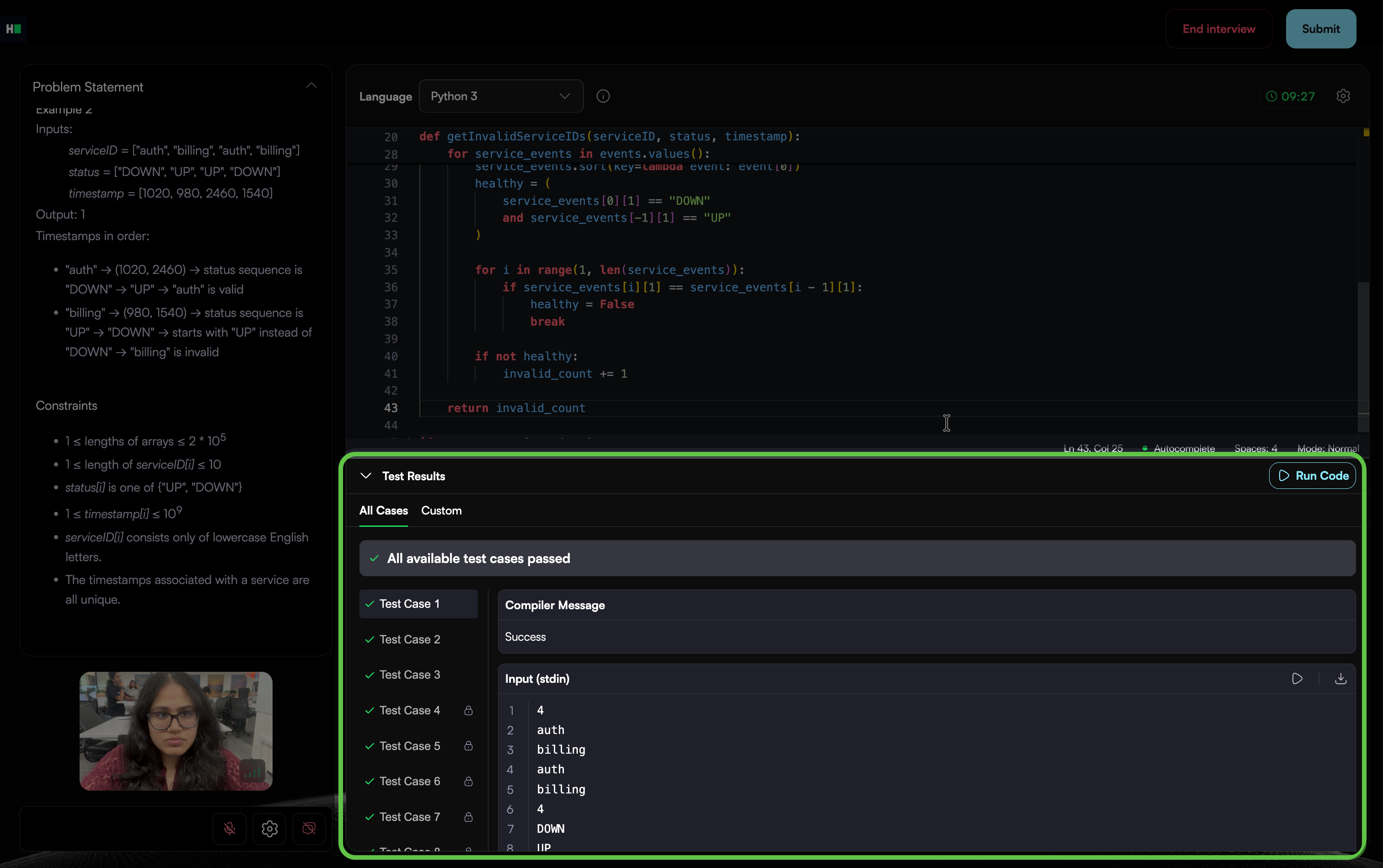
(Optional) Select the Custom tab to run your code with your own input.
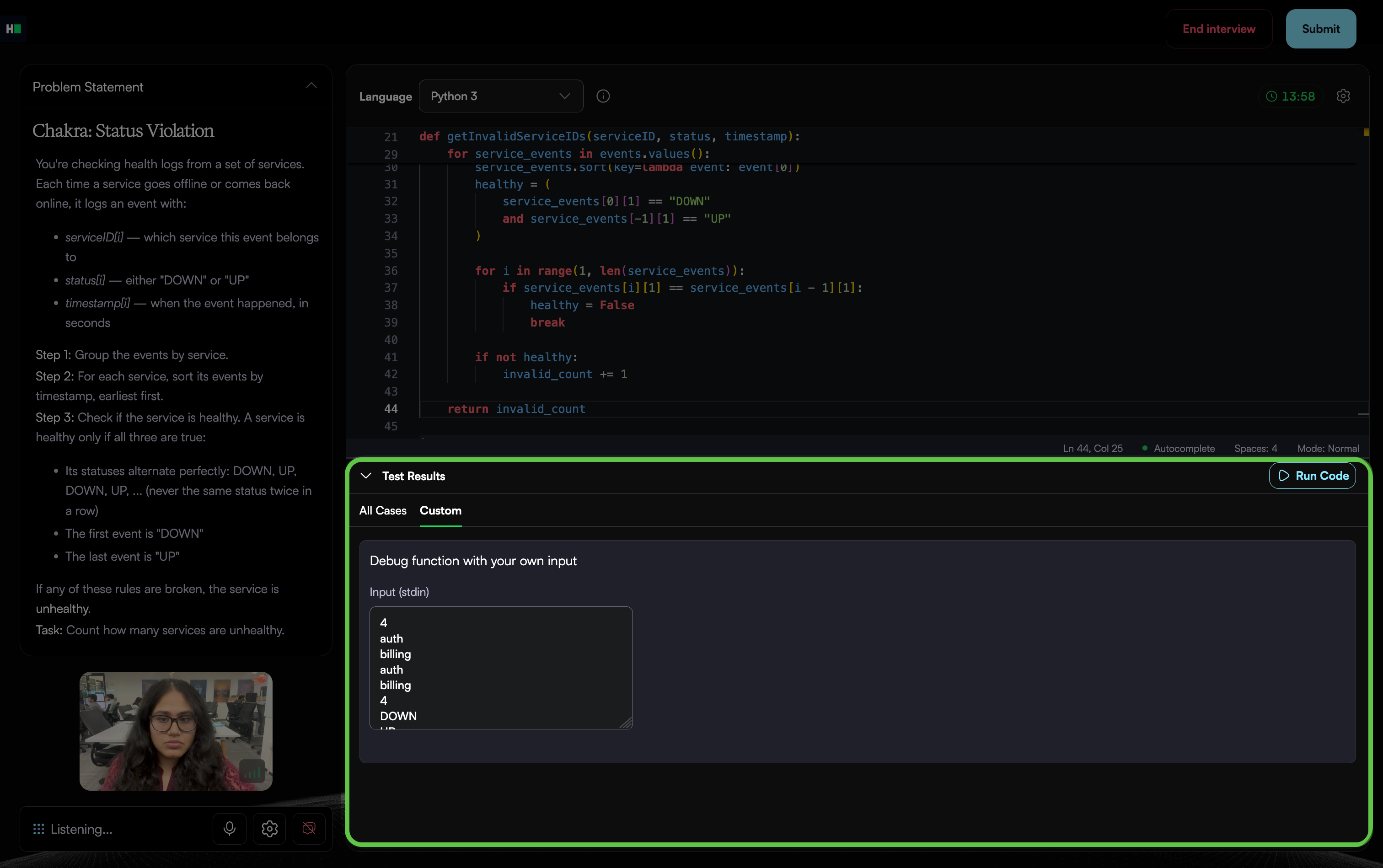
Fix any errors and click Run Code again to verify your changes.
If your code does not compile, the Test Results panel displays Compilation error along with the Compiler Message and Compile Command. Use the compiler message to identify and fix the error, and then run your code again.
Submit your solution
Submit your solution when it is ready. You cannot change your code after submission.
To submit your solution:
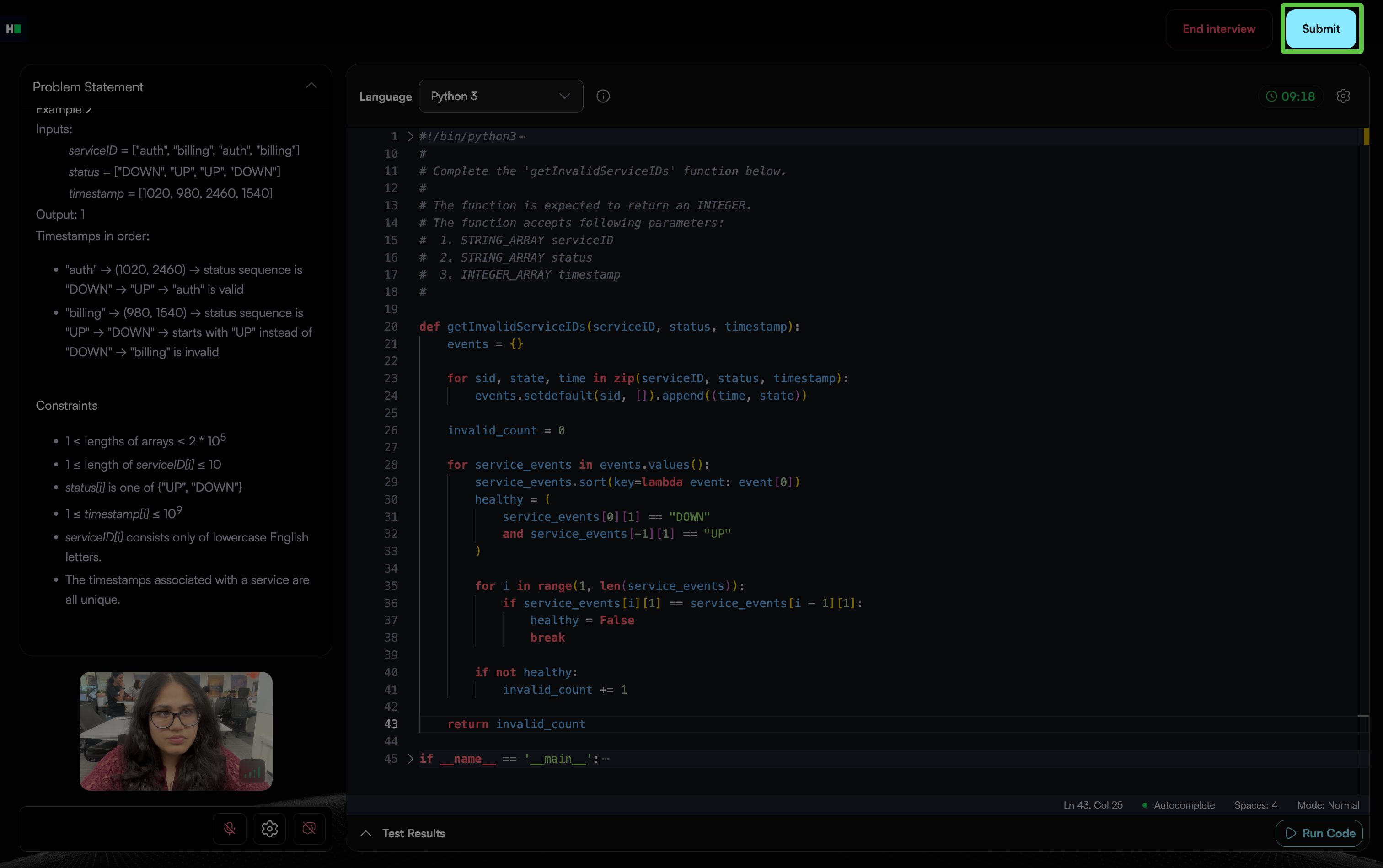
Click Submit in the upper-right corner.
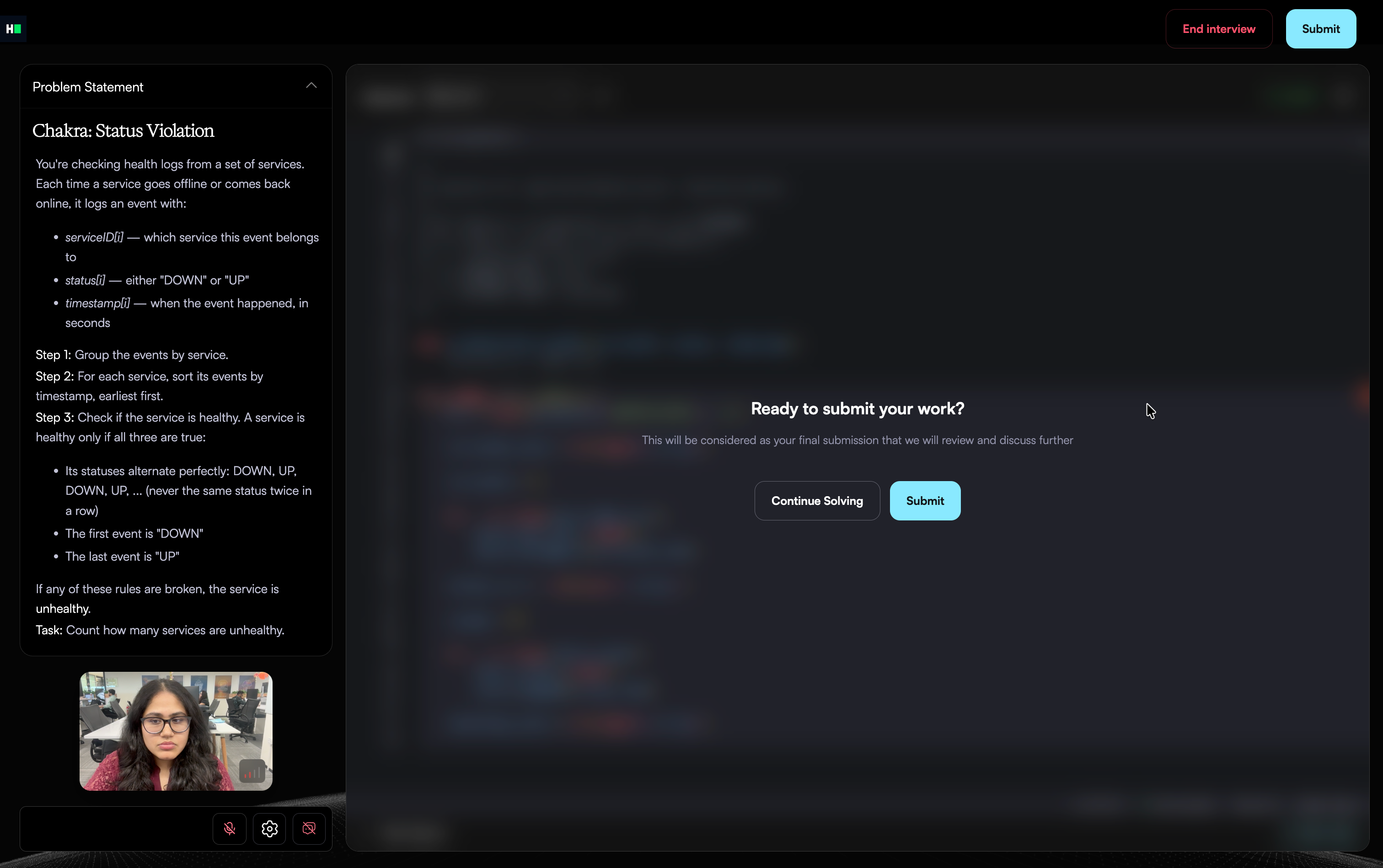
Click Submit in the dialog to confirm. To return to the editor, click Continue Solving.
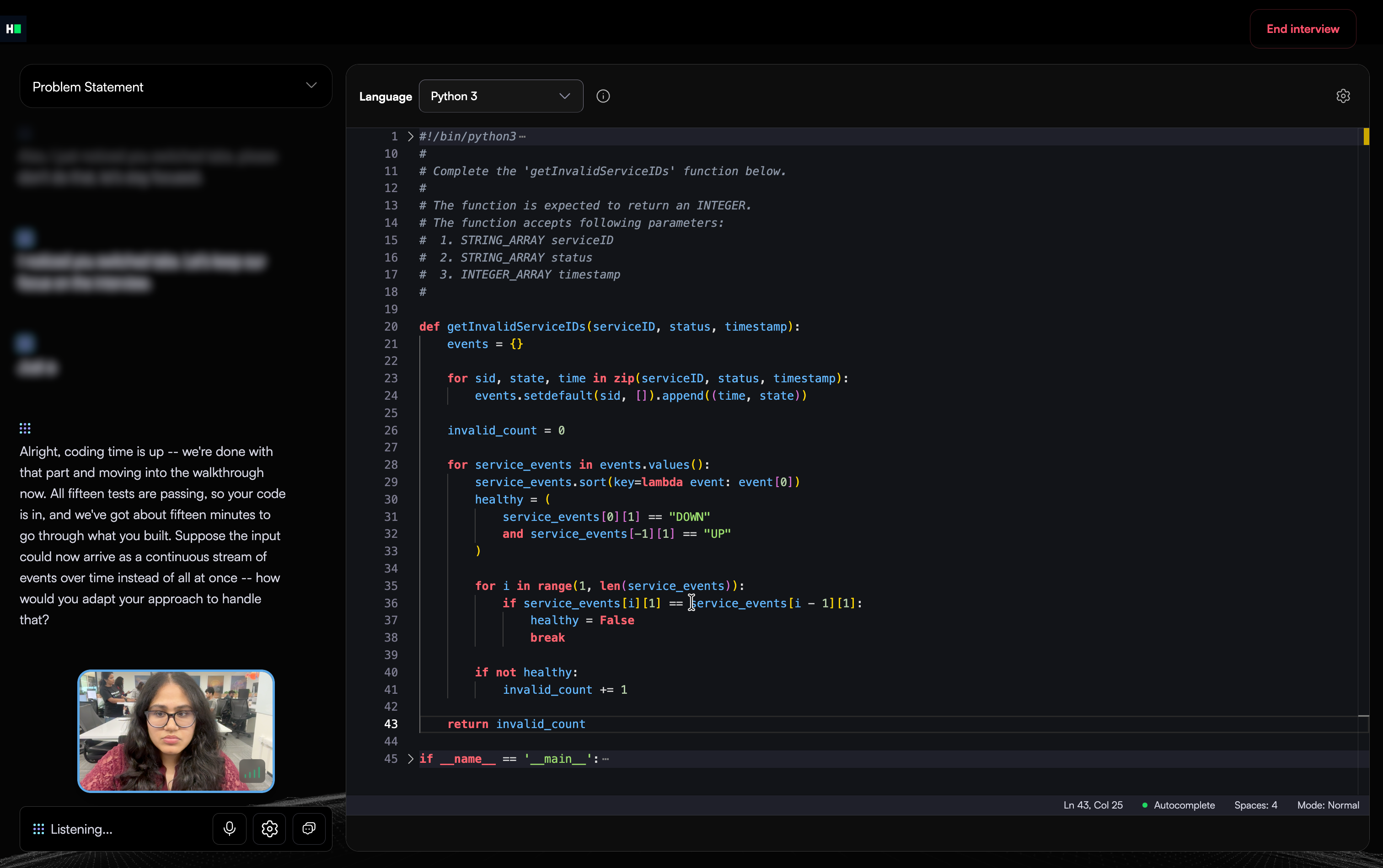
After you confirm your submission, the timer and Submit button no longer appear. Your code remains visible, the transcript reappears on the left, and Chakra moves to the follow-up discussion.
Note: If the allotted coding time expires before you submit your solution, Chakra automatically submits it.
Follow-up discussion
Chakra reviews your work with you to understand your approach and the decisions behind your solution. It can ask you to explain:
How you interpret the problem and its requirements.
Why you choose your approach and data structures.
How you validate your solution.
How your solution handles edge cases and large inputs.
How you adapt your solution if a constraint changes.
What you can improve if you solve the problem again.
If you do not complete your solution within the allotted time, Chakra still conducts the follow-up discussion. It focuses on your intended approach and how you plan to validate your solution.
Note: For details about how Chakra evaluates your performance, see 📄 Evaluation in Chakra.
Best practices
Follow these practices to develop and validate your solution:
Read the full problem statement and examples before you click Start Solving.
Ask Chakra to clarify any unclear requirements before you start coding.
Implement a working solution, and then improve its efficiency.
Test your code with edge cases, such as empty inputs, very large inputs, and boundary values.
Be prepared to explain your solution’s time and space complexity.
Frequently Asked Questions (FAQs)
Can I use an AI assistant for a Coding question?
No. AI assistance is available only for Code Repository questions in the ADE.
Can I change my code after I submit?
No. Your submission is final after you confirm it.
What happens if the time expires before I submit the coding question?
Chakra automatically submits your solution and moves to the follow-up discussion.