Attempt a Code Repository Question in Chakra
Last updated: November 13, 2026
A Code Repository question in Chakra is a hands-on exercise that assesses how you solve a development task in the Agentic Development Environment (ADE). You use an AI assistant to plan your approach and build a feature or fix a problem in an existing codebase, then discuss your solution and the decisions behind it with Chakra.
Prerequisites
Before the hands-on section starts:
Complete the onboarding steps and permission checks. For more information, see 📄 Interview with Chakra.
Install the HackerRank Desktop App if the hiring company requires it. For more information, see 📄 Attempting Chakra using the HackerRank Desktop App.
Check that your internet connection is stable.
Attempting a Code Repository question in Chakra
Chakra follows the interview plan defined by the hiring team. When Chakra starts a hands-on section that includes a Code Repository question, it introduces the task and opens the ADE.
Build phase
During the build phase, you work in the provided codebase to implement a solution that meets the task requirements.
The ADE includes a collapsible navigation panel on the left, the agent workspace in the center, and a collapsible development panel on the right.
Understand the task
To understand the task:
Select Question in the left panel.
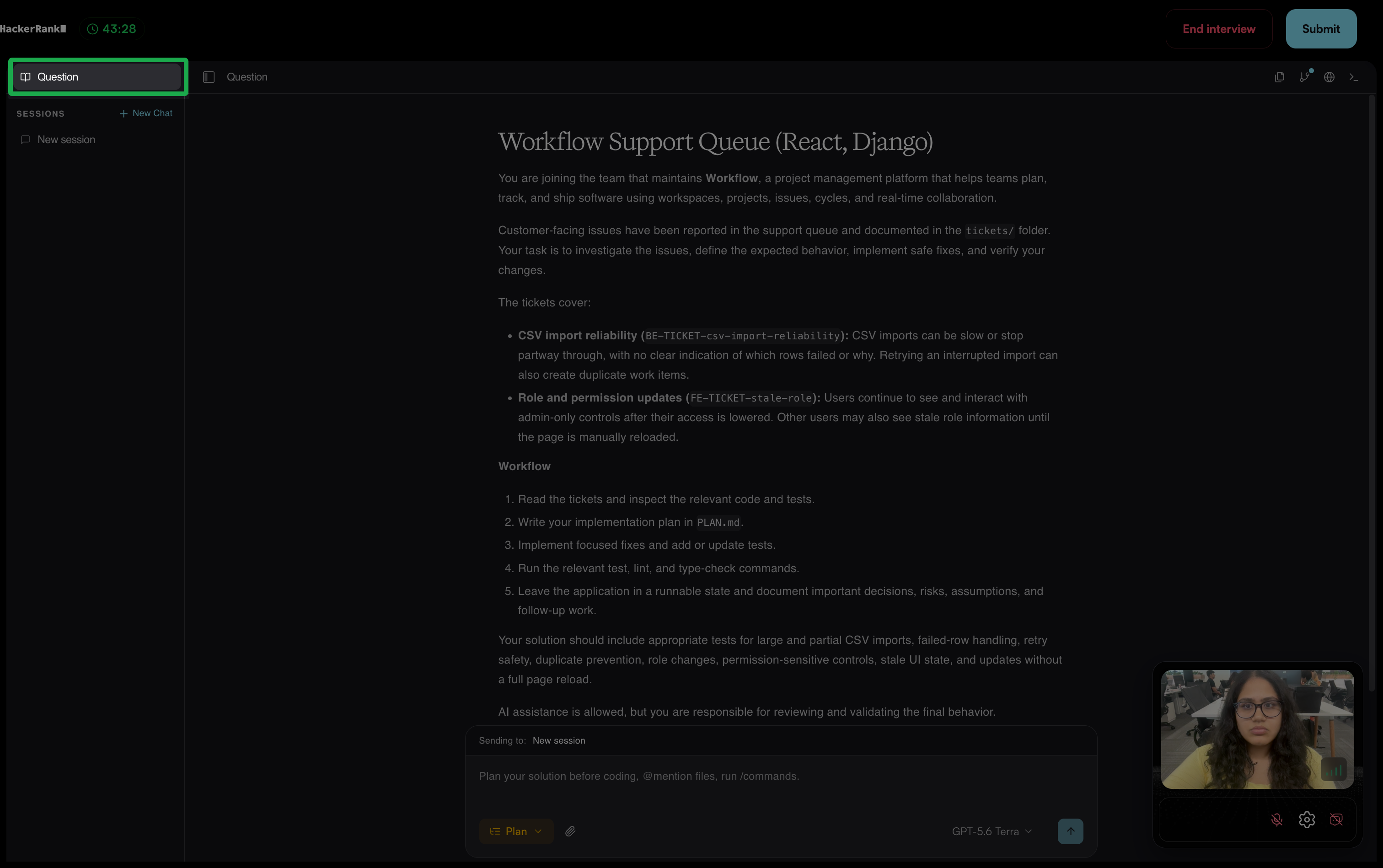
Read the problem statement, requirements, constraints, and repository context to identify the required changes and expected behavior.
Ask Chakra clarifying questions about the requirements or scope, if needed.
Plan your solution
Use Plan Mode to create an implementation plan with the AI assistant before you change any code. In Plan Mode, the assistant reads the problem statement and the existing code, asks clarifying questions when requirements are unclear, and proposes an implementation plan in Markdown. Plan Mode does not modify code.
To plan your solution:
Select Plan Mode from the mode selector in the prompt field at the bottom of the agent workspace.
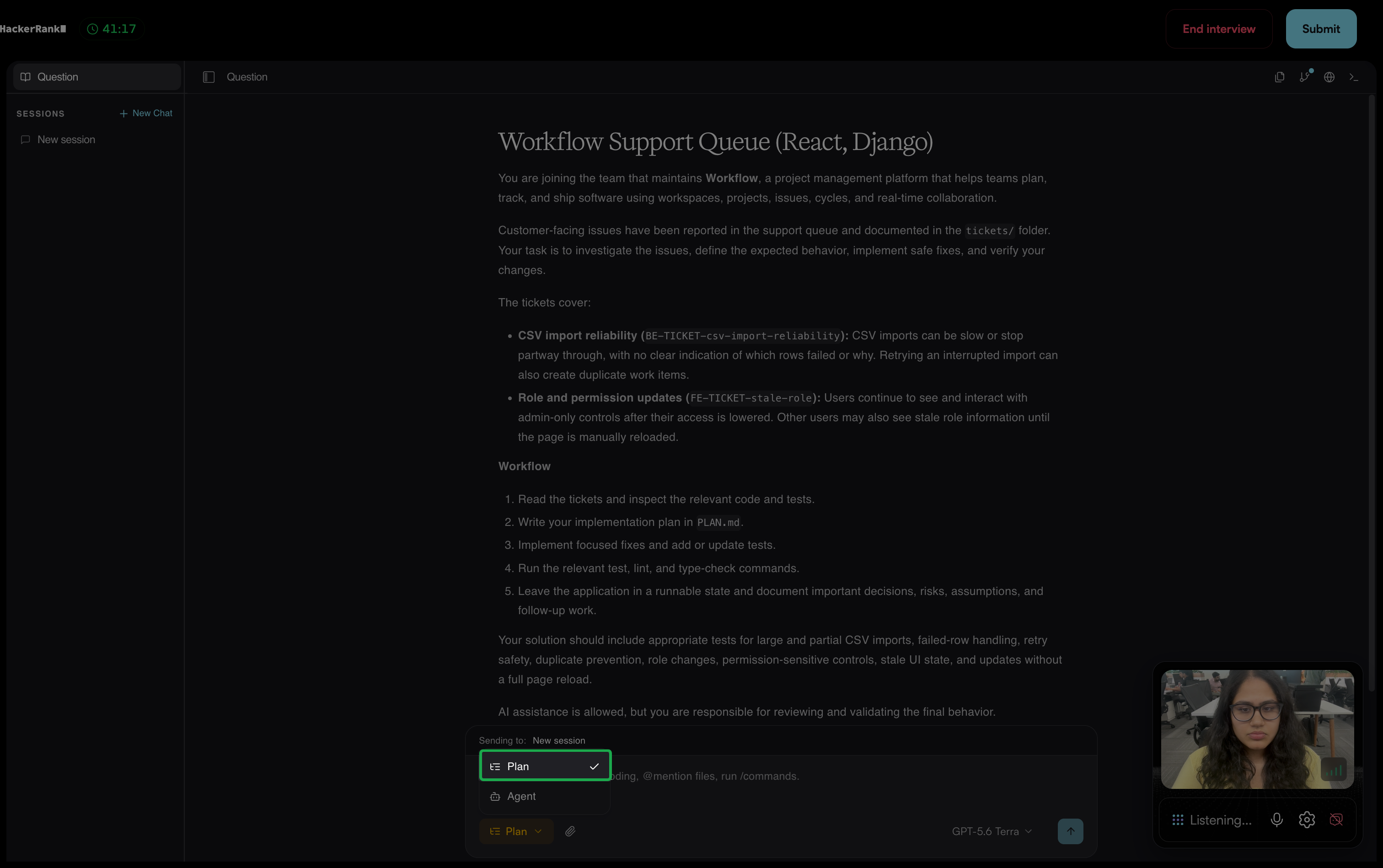
Ask the AI assistant to create an implementation plan. You can include the goal, relevant files, constraints, edge cases, and expected outcome in your prompt.
Review the proposed plan against the requirements. Brainstorm with the AI Assistant to explore and refine the plan before you implement it.
Implement your solution
After you review the plan, use Agent Mode to make the proposed changes. The AI assistant edits files and runs actions based on your prompts.
To implement your solution:
Select Agent Mode from the mode selector.
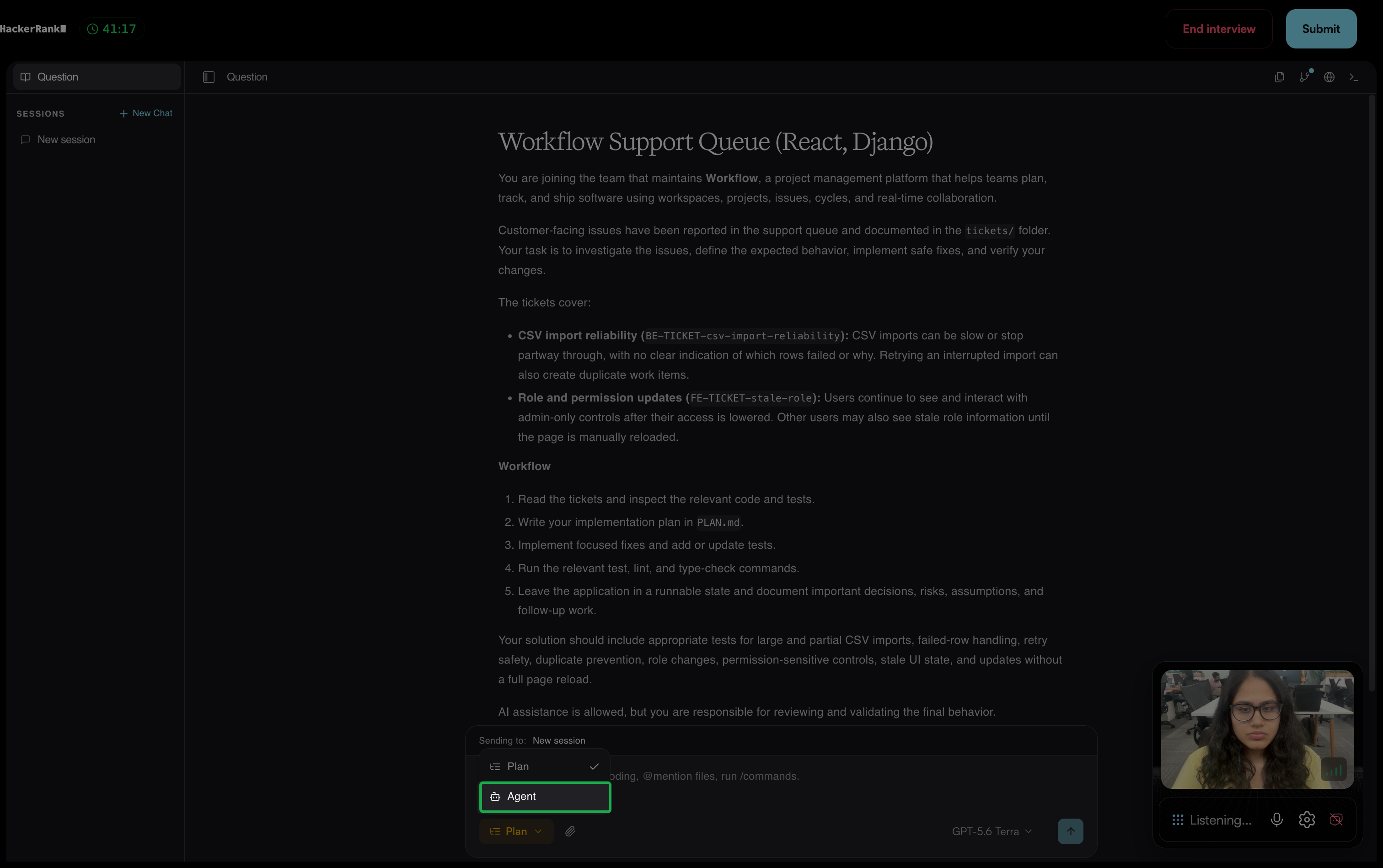
Ask the AI assistant to implement one part of the plan at a time.
Review each result against the task requirements.
Provide additional instructions as needed to correct assumptions, limit the scope of changes, or redirect the assistant.
Manage chat sessions
Use separate chat sessions to work on different parts of the task.
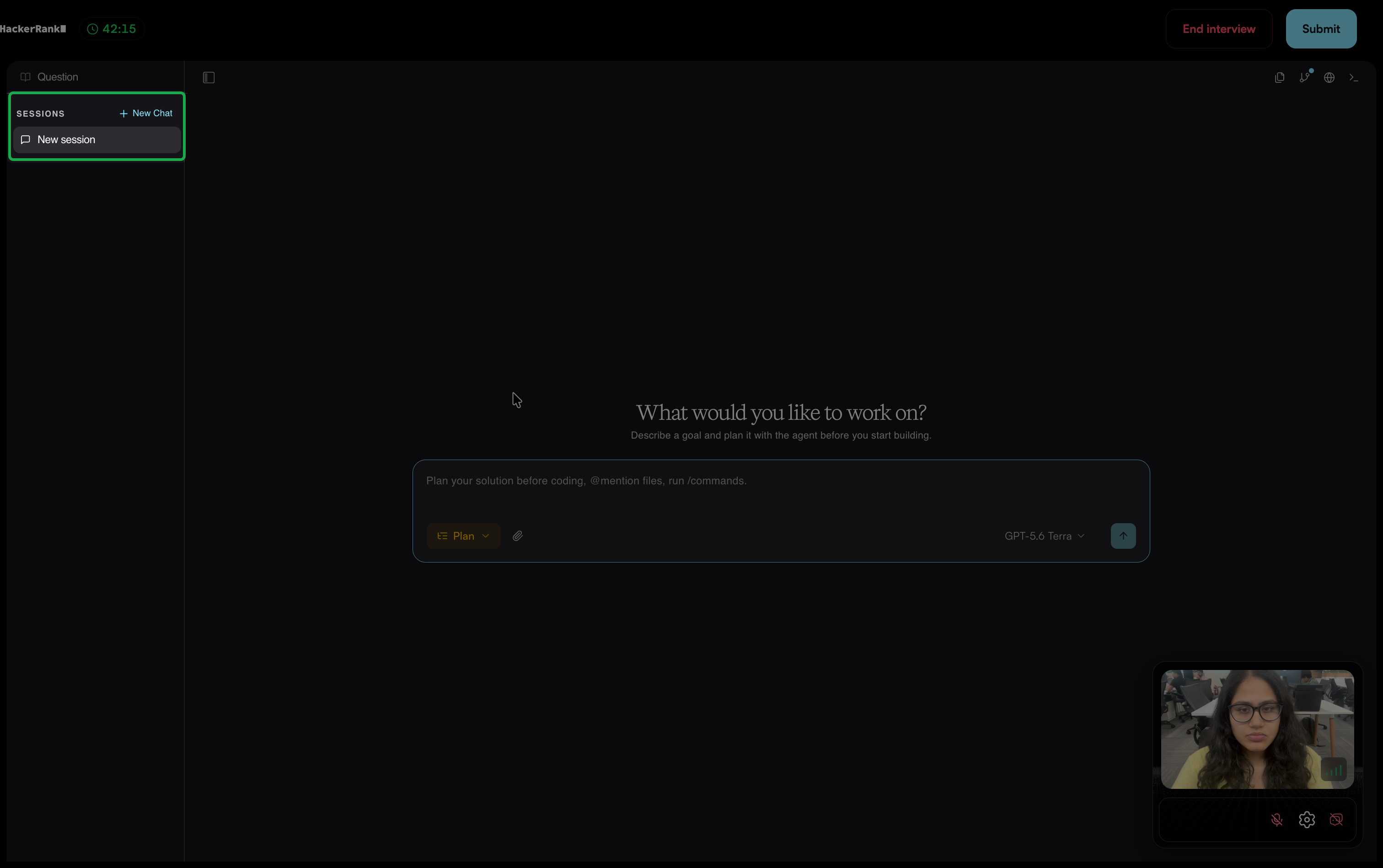
To start a session, select New Chat in the Sessions panel.
To remove a session from the list, select its archive icon.
Add context to your prompts
In the prompt field, you can:
Reference files with
@mentions.Run
/commands.Attach files.
Change AI model
Use the model selector in the prompt field to change the AI model. The AI assistant uses GPT-5.6 Terra by default.
Available AI models include:
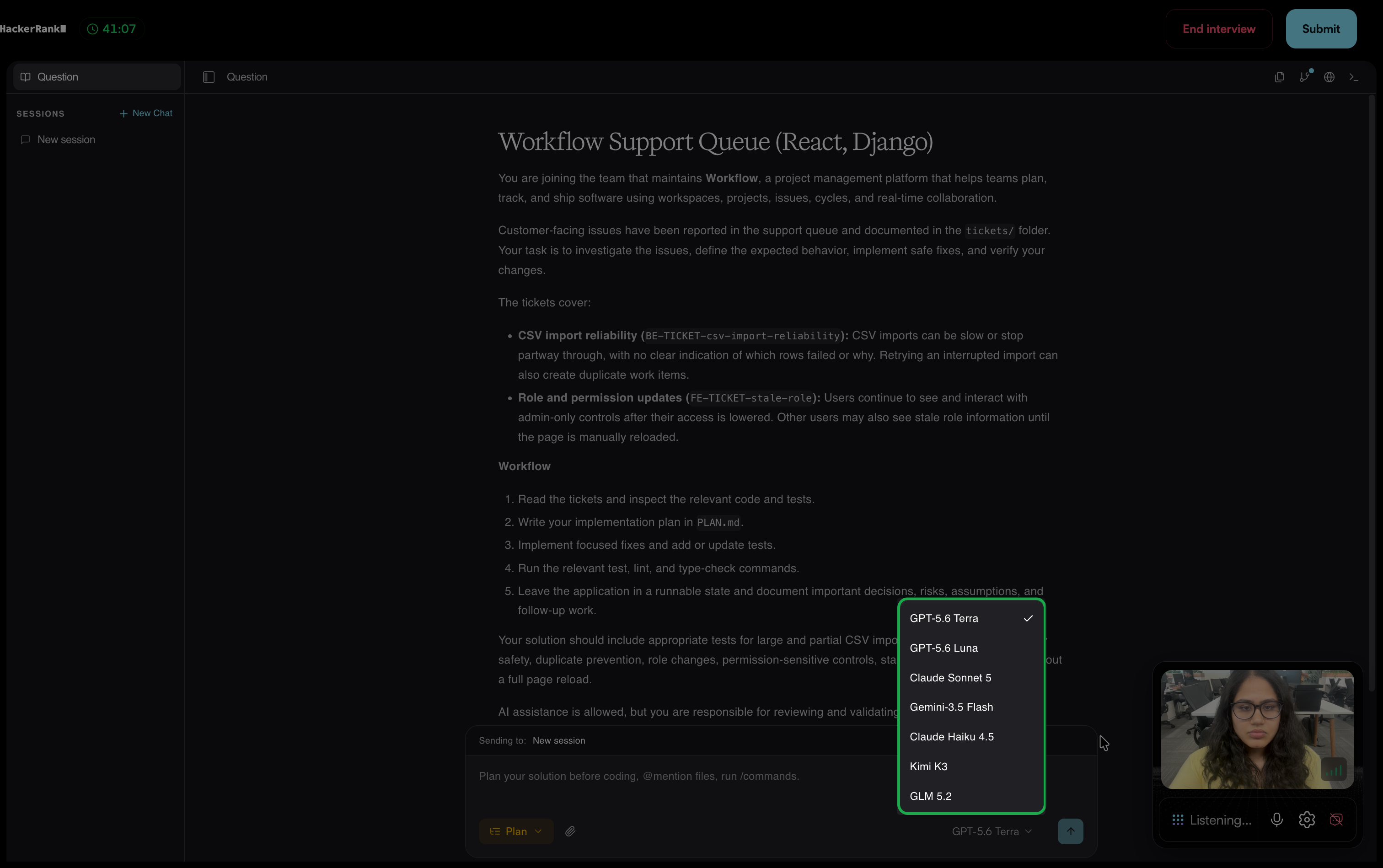
GPT-5.6 Terra
GPT-5.6 Luna
Claude Sonnet 5
Gemini-3.5 Flash
Claude Haiku 4.5
Kimi K3
GLM 5.2
Important Note: The available models during your interview in Chakra may vary based on the hiring company’s configuration.
Review and test your solution
Use the development panes to review your changes, run tests, and verify that your solution meets the task requirements. To open a pane, select its icon in the upper-right corner.
Editor: Use Explorer to browse, create, search, and open files and folders. Use Find a file to search for a file by name.
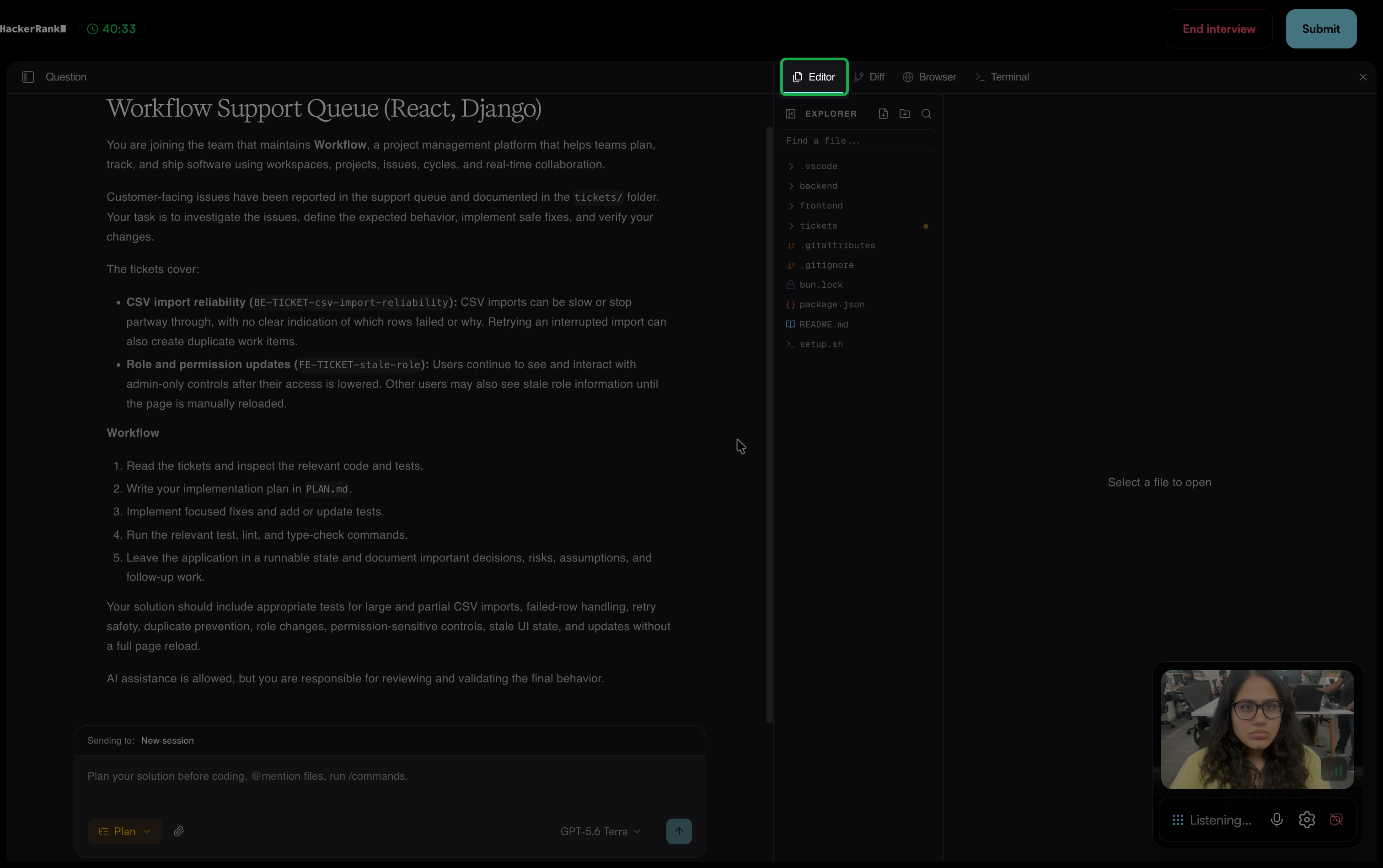
Diff: Compare your changes against the starting state of the repository. If no files have changed, the pane displays No changed files yet.
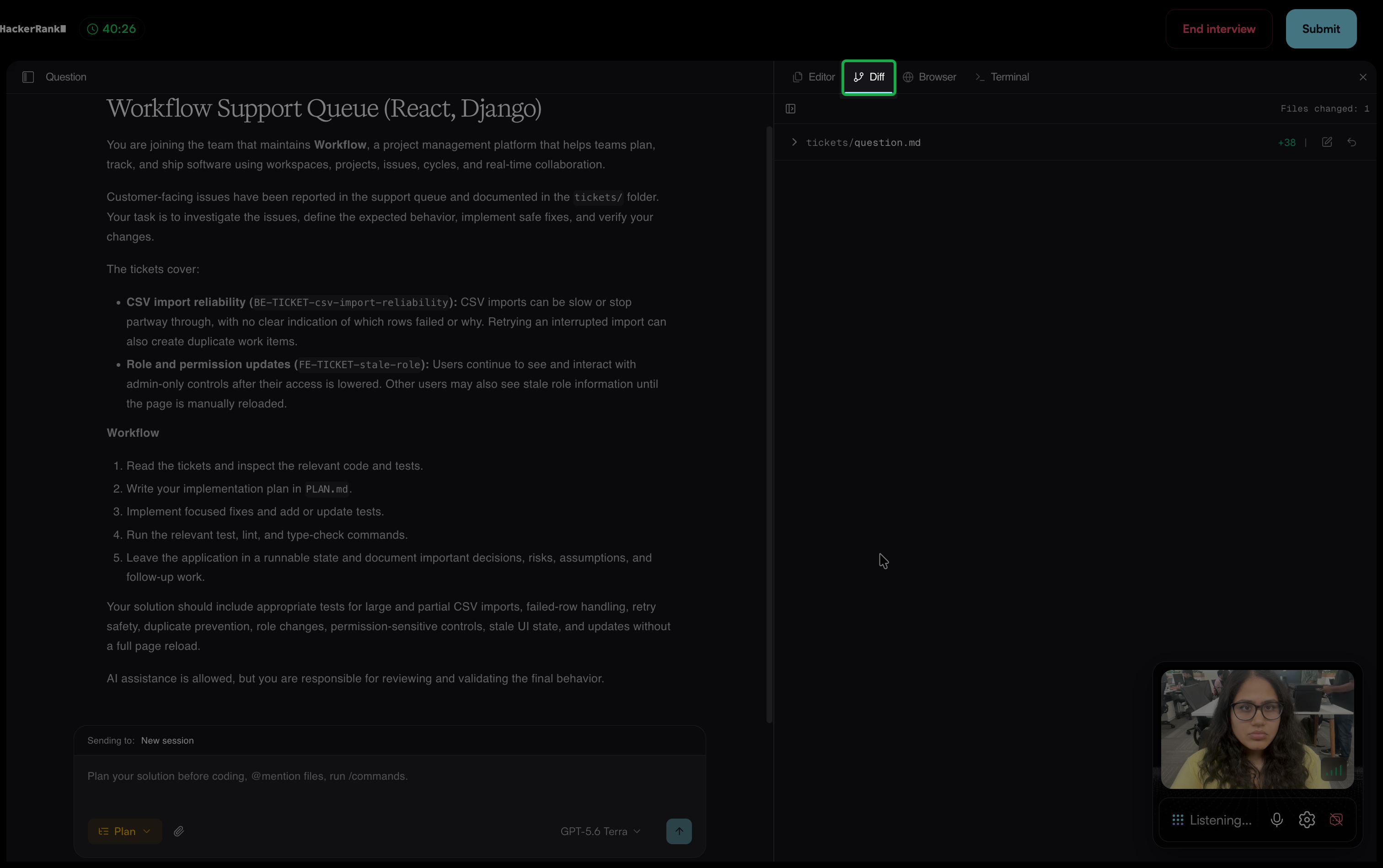
Browser: Ask the AI assistant to start the application, and then select a frontend or backend port to preview it.
Terminal: Inspect the repository, start services, run tests, and verify application behavior. Select the plus (+) icon to open another terminal tab.
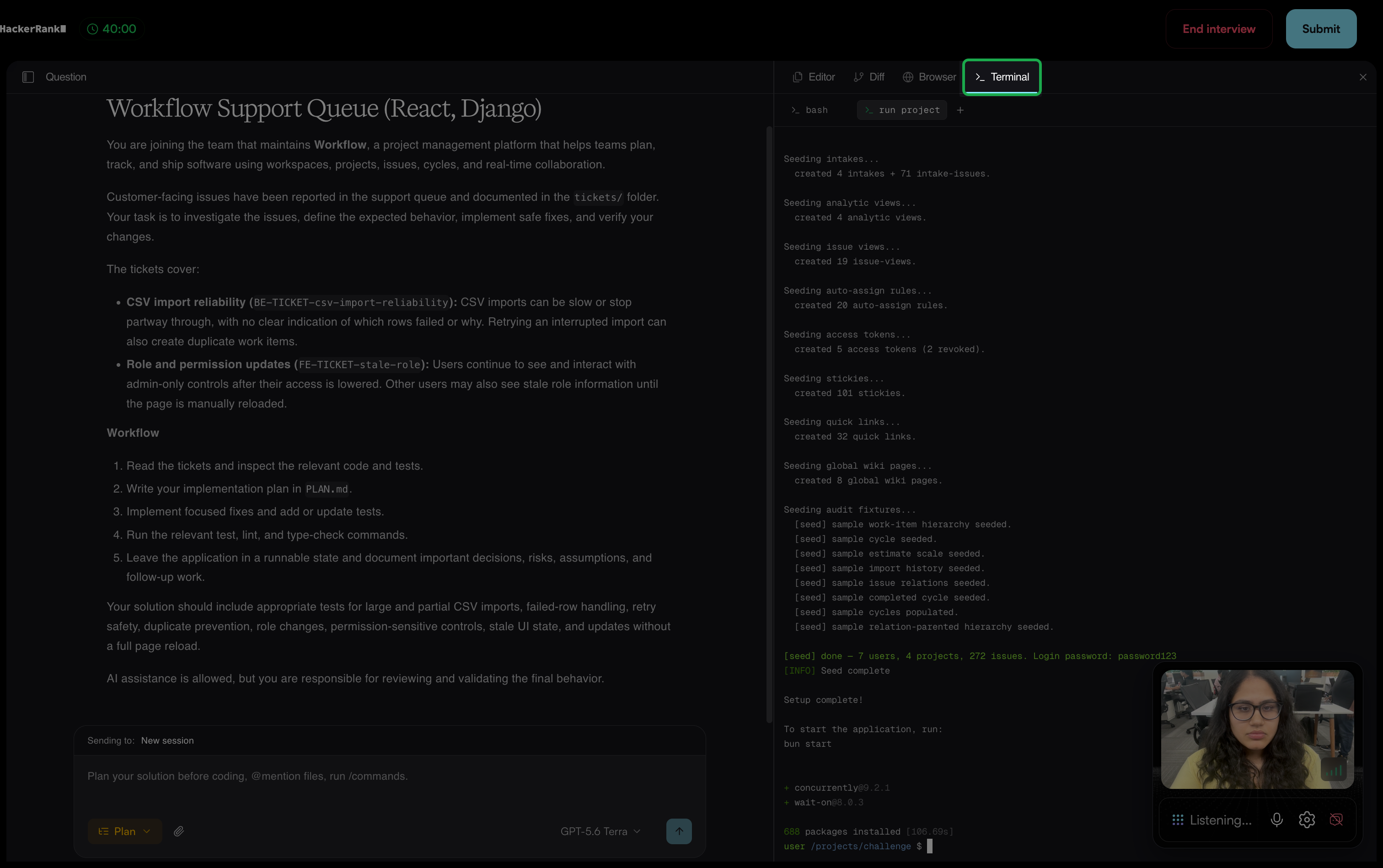
After you open a pane, select the Editor, Diff, Browser, or Terminal tab to switch panes. To close a pane, select the close (×) icon.
If you find an issue, ask the AI assistant to fix it or edit the code yourself in the Editor pane. Test the changes again to verify the fix.
Submit your solution
When your solution is ready, click Submit to end the build phase.
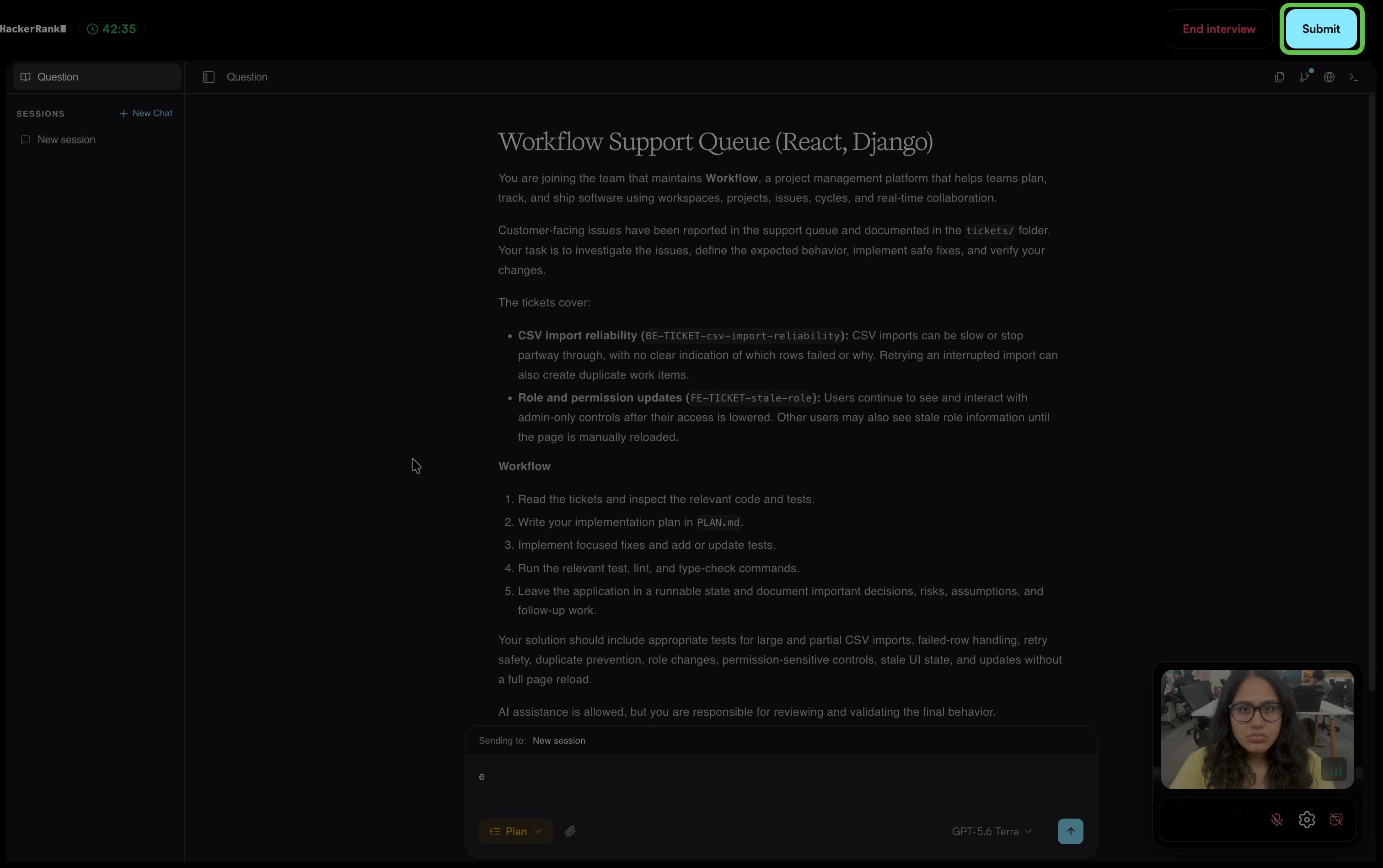
Note: If the allotted interview time expires before you submit your solution, Chakra automatically ends the build phase.
Chakra then moves to the follow-up discussion.
Follow-up discussion
After the build phase, Chakra reviews your work with you to understand your approach and the decisions behind your solution. Chakra can ask you to explain:
How you interpret and scope the requirements
Why you choose specific implementation or design approaches
What you review, challenge, or change in the AI assistant’s output
How you validate your solution
How your solution handles edge cases, risks, or scale
What you can improve if you repeat the exercise
If you do not complete your implementation within the allotted time, Chakra still conducts the follow-up discussion. It focuses on your intended approach and how you plan to validate your solution.
Note: For details about how Chakra evaluates your performance, see 📄 Evaluation in Chakra.
Best practices
Follow these practices to work effectively with the AI assistant during the build phase:
Spend the first few minutes understanding the problem and planning your approach before you write code.
Provide clear context in your prompts, including the goal, relevant files, constraints, and expected outcome.
Break the task into smaller steps and ask the AI assistant to complete one step at a time.
Review and test the AI assistant’s output. Question its assumptions and correct errors before you use it.
If a result is incorrect, clarify your instructions or redirect the assistant.
Frequently Asked Questions (FAQs)
Can I write code without the AI assistant?
Yes. Use the Editor pane to edit files directly and the Terminal pane to run commands.
What happens if the time expires before I submit?
Chakra automatically ends the build phase and moves to the follow-up discussion. If your implementation is incomplete, Chakra focuses on your intended approach.