Answer Coding Questions
Last updated: January 28, 2026
Coding questions are single-file programming challenges that assess your ability to solve algorithmic or functional problems using real, executable code.
Start the test
To start the test, see Logging into HackerRank Tests.
In-test experience
From the test dashboard, select a coding question you want to solve and then click Solve. The question description appears in the left panel.
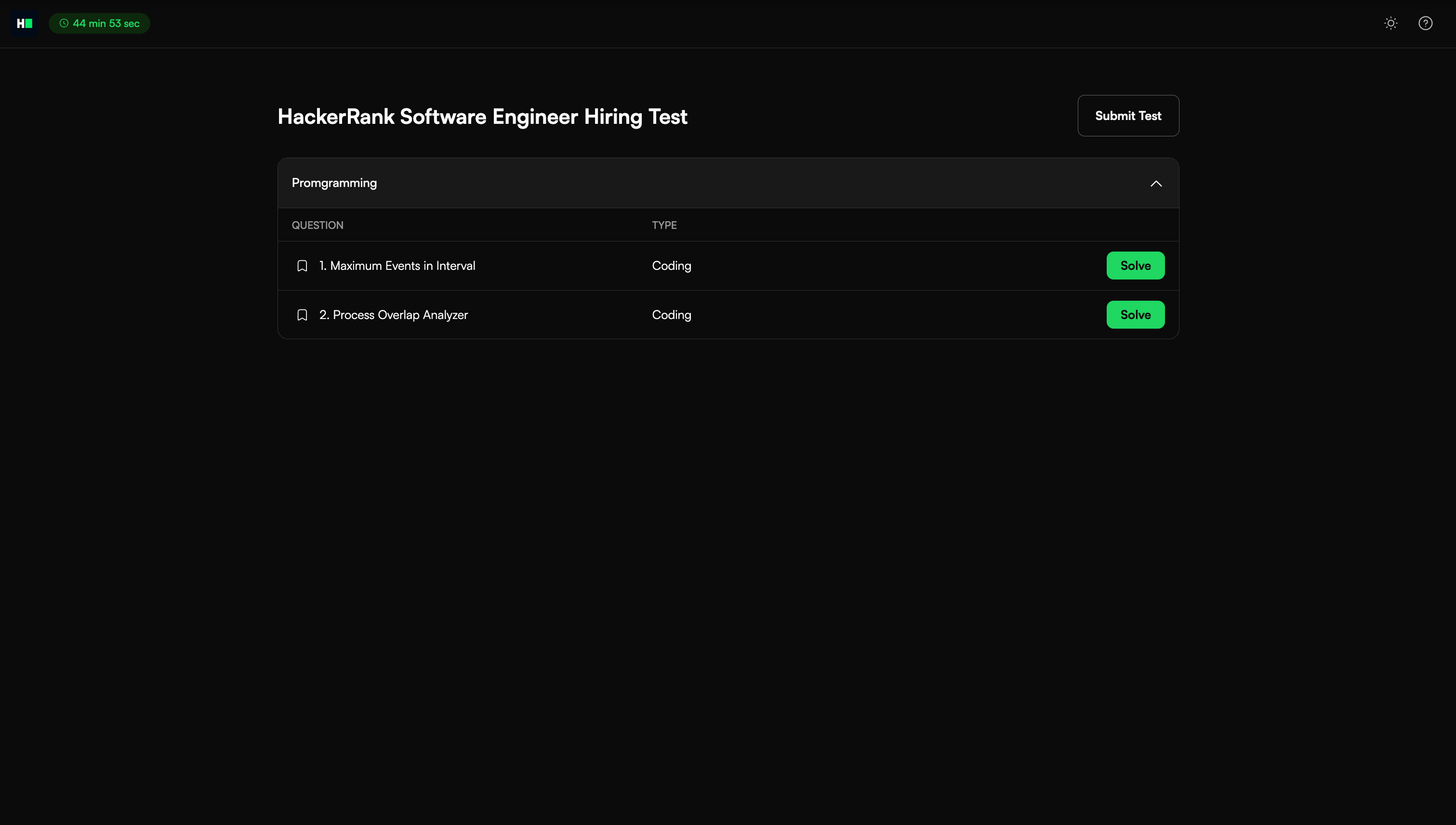
Use the side navigator to switch between questions. Select the arrow icon to show or hide the side navigator. To return to the test dashboard, click Test home.
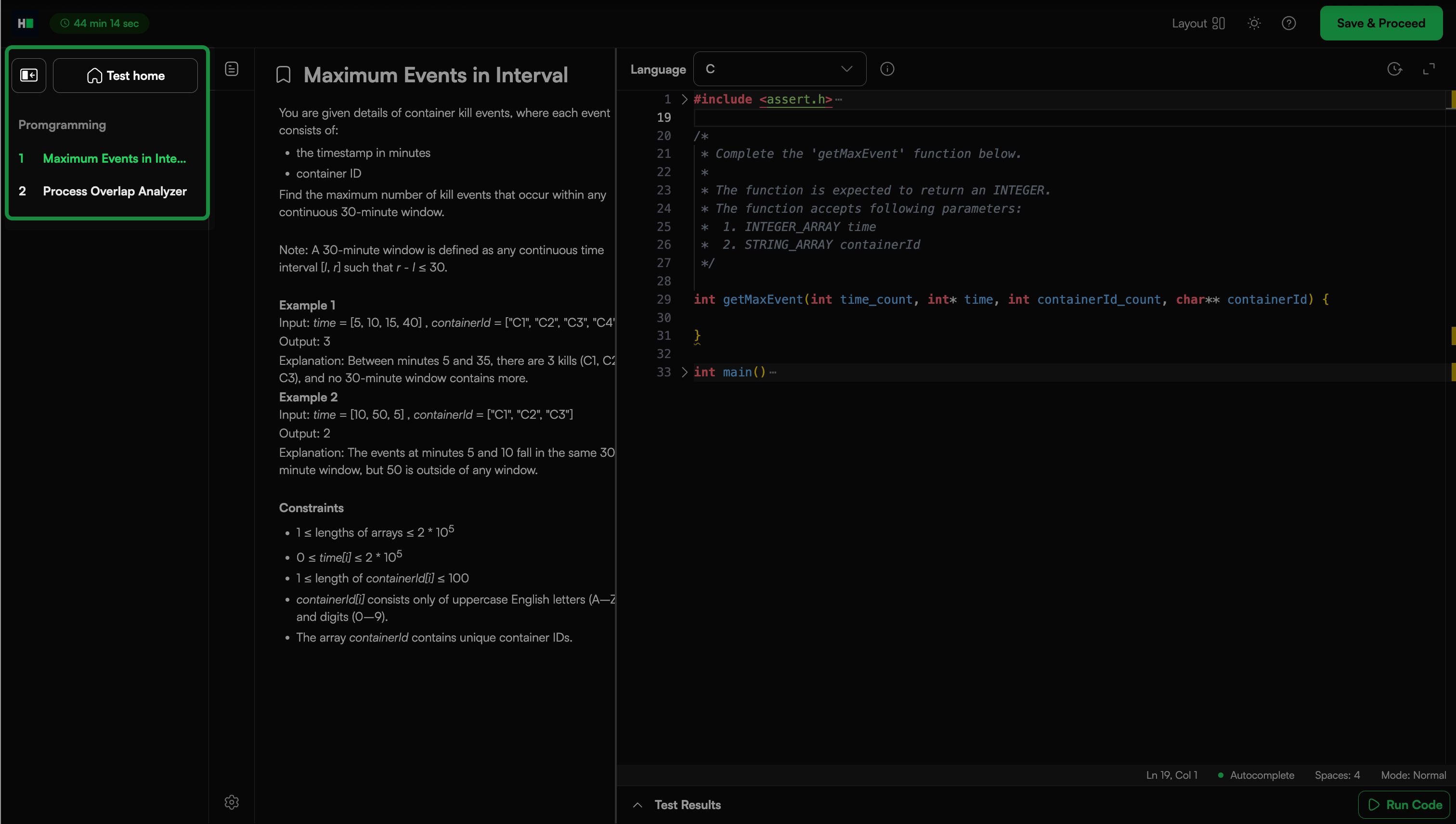
Switch between light and dark themes using the theme switcher in the upper-right corner.
Change the interface layout using the layout controls.
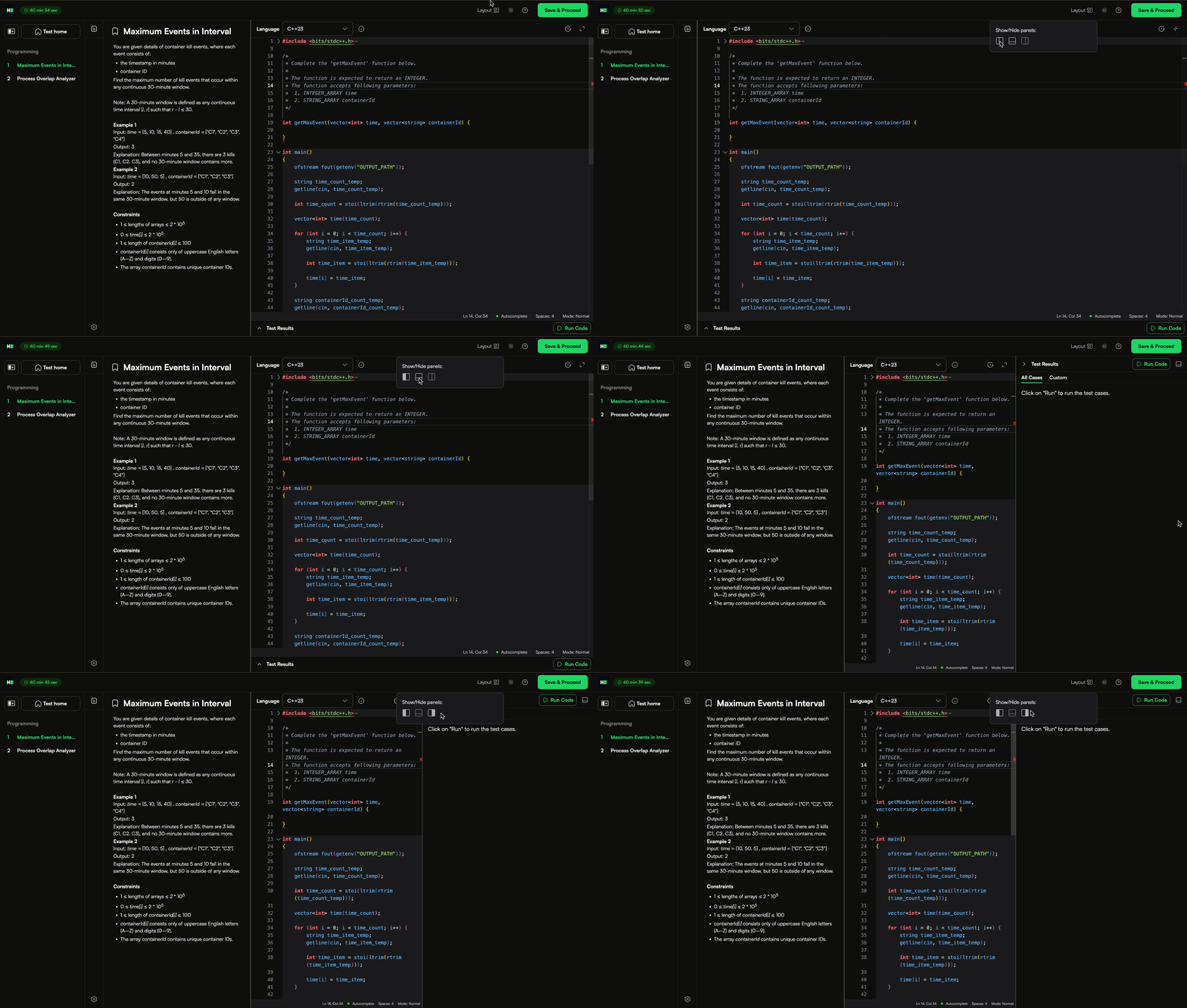
For additional support, click the Help icon (?) to choose either Report a problem or FAQs
Using the HackerRank Coding editor
The coding editor uses the Monaco Editor, a web-based code editor developed by Microsoft and used in Visual Studio Code. The platform currently uses version 0.50.0. The editor supports multiple programming languages and provides an integrated environment for writing and testing code.
The Monaco Editor includes the following features:
Multi-language support: The platform supports multiple programming languages, including Python, C++, and Java. Click the ⓘ icon next to the language dropdown to view execution environment details.
IntelliSense:
Autocompletion and contextual suggestions for functions, variables, and keywords in over 20 languages.
Real-time diagnostics for errors and warnings.
Language-specific syntax highlighting.
Customization options:
Click the Expand Editor icon to enlarge the coding area. Click the Collapse or Question icon to resize the coding area and display the question panel.
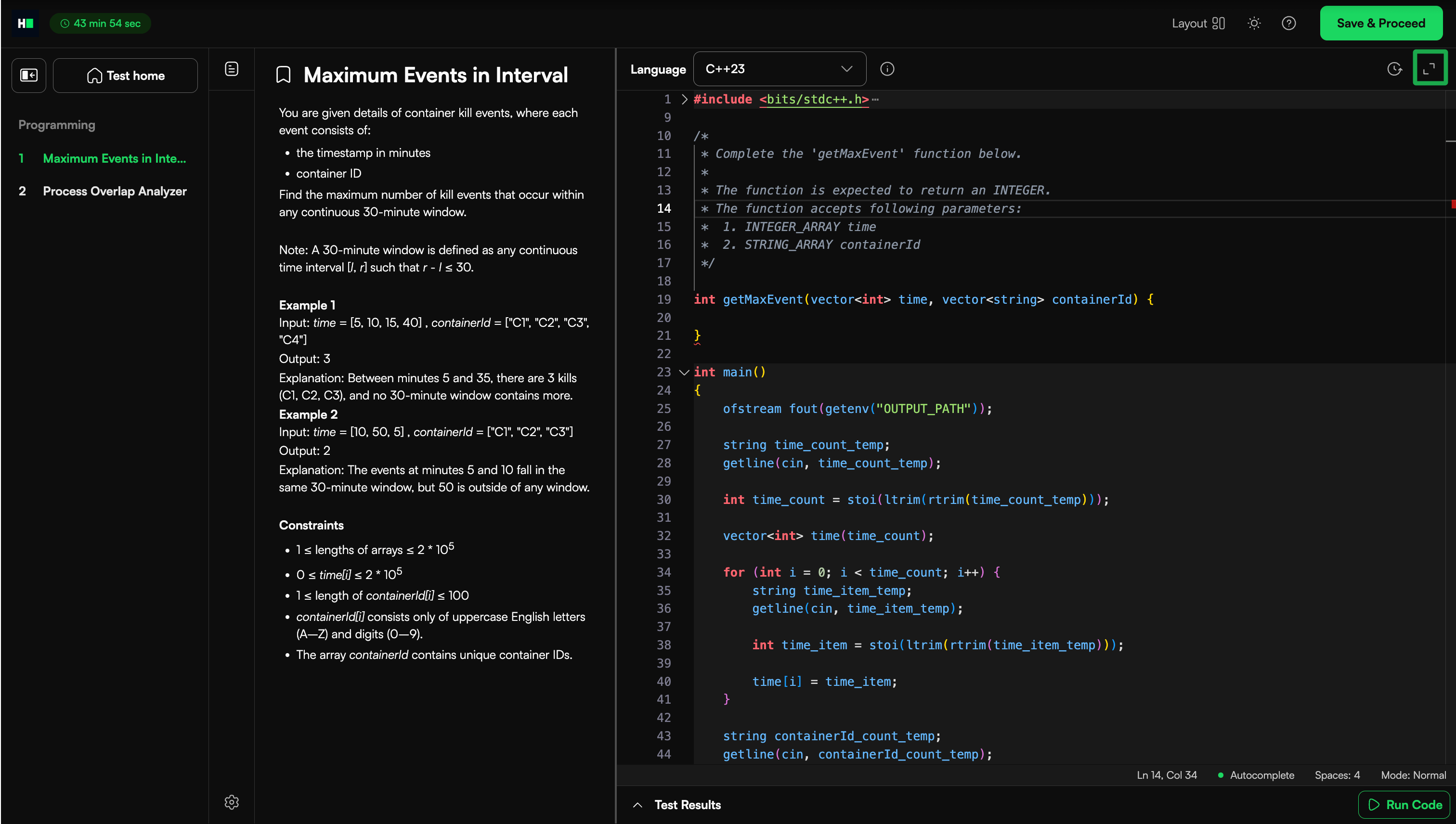
Click the question details icon to show or hide the question description.
Editor mode: Choose from the following editor styles:
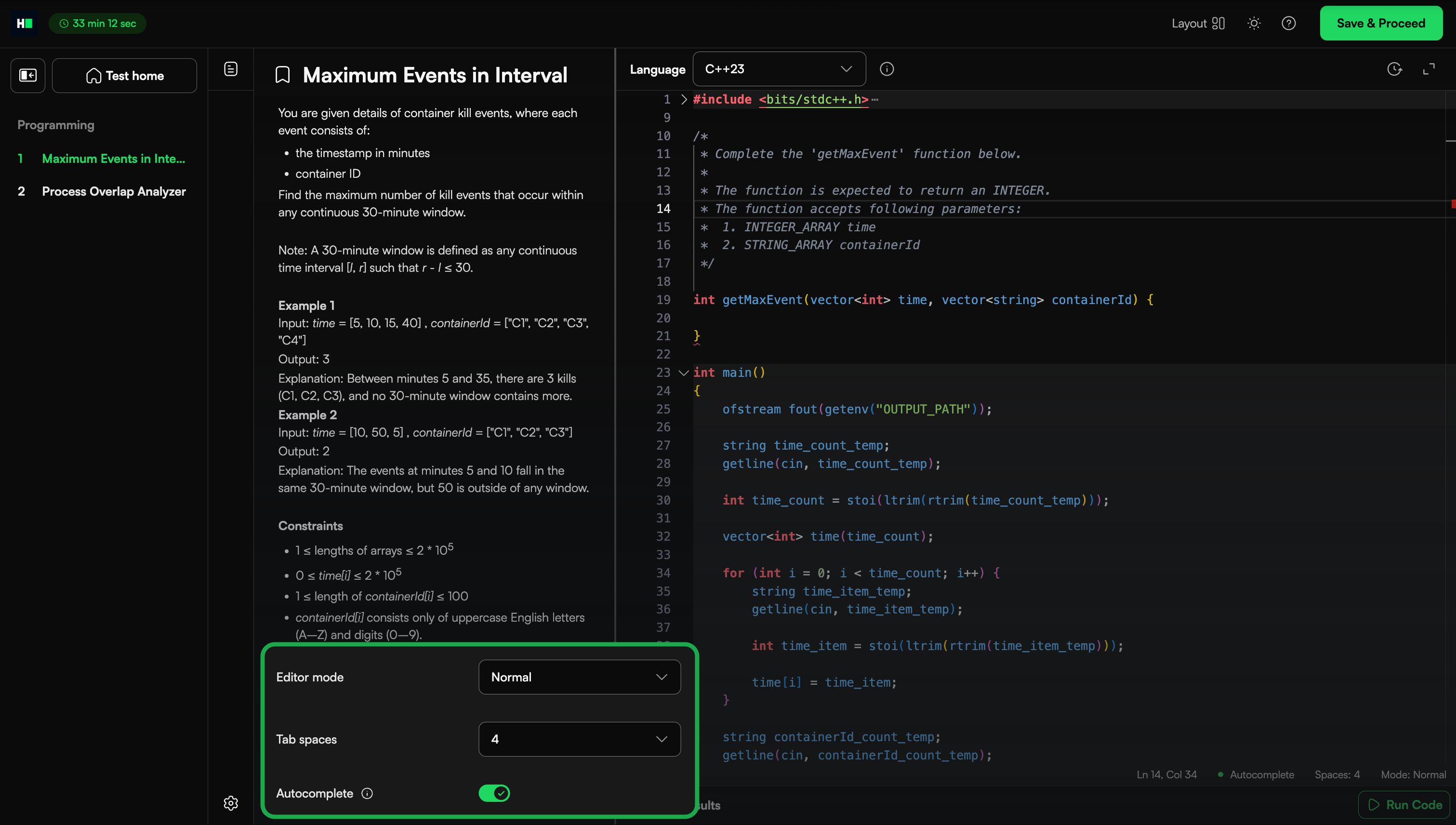
Normal: Default setting for general use.
Emacs: Mimics Emacs behavior for users familiar with its shortcuts and commands.
Vim: Mimics Vim behavior for users who prefer its navigation and editing features.
Tab spaces: Choose the number of spaces for indentation:
2 spaces: Compact and minimal; common in modern coding styles.
4 spaces: Standard setting for most programming languages; provides balanced readability.
8 spaces: Used in legacy codebases requiring wider spacing.
Autocomplete: Enable or disable real-time suggestions for functions, variables, and syntax.
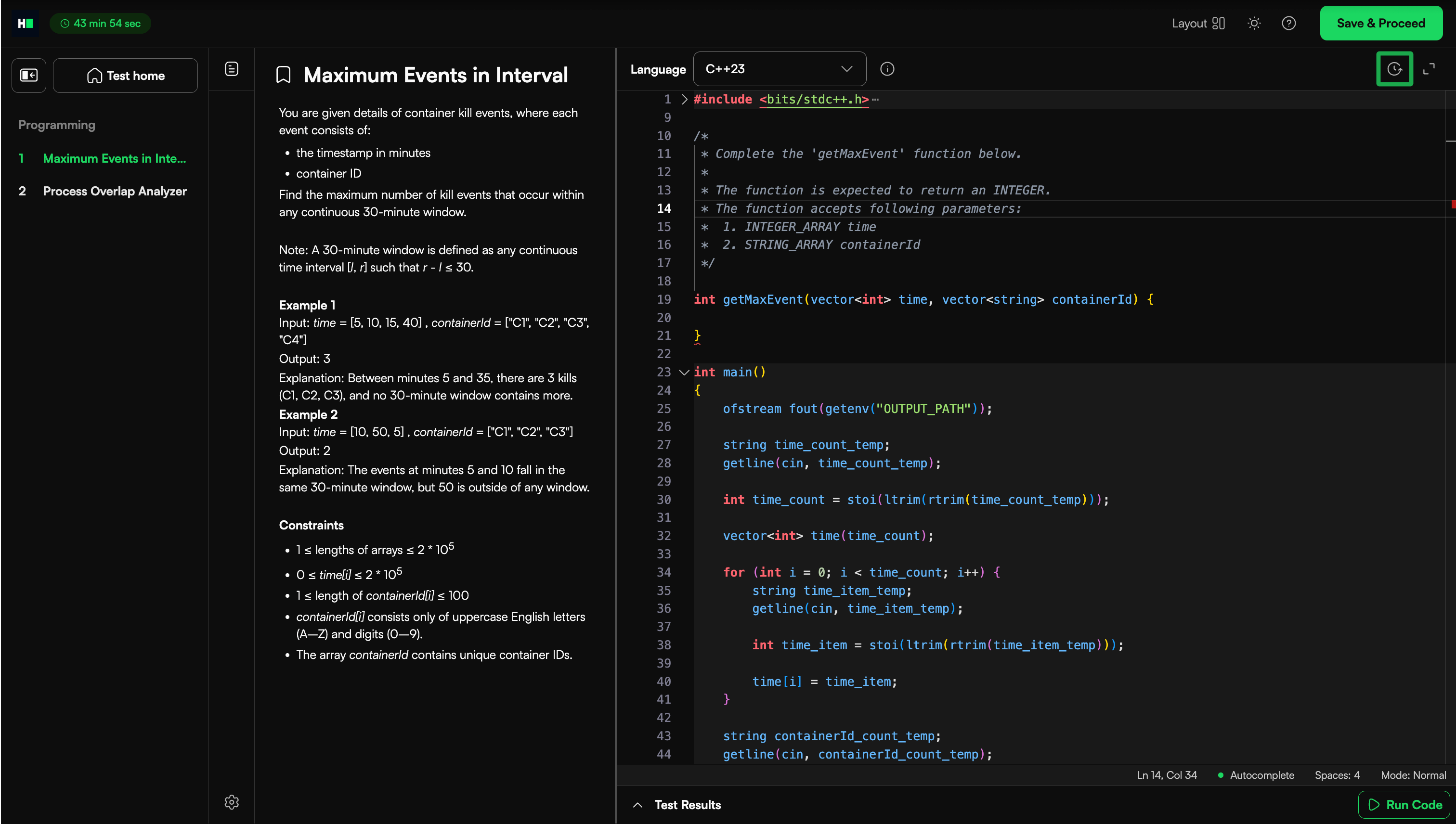
Version history: Compare your current code with the last saved or submitted version. Use Revert to restore an earlier version of your code
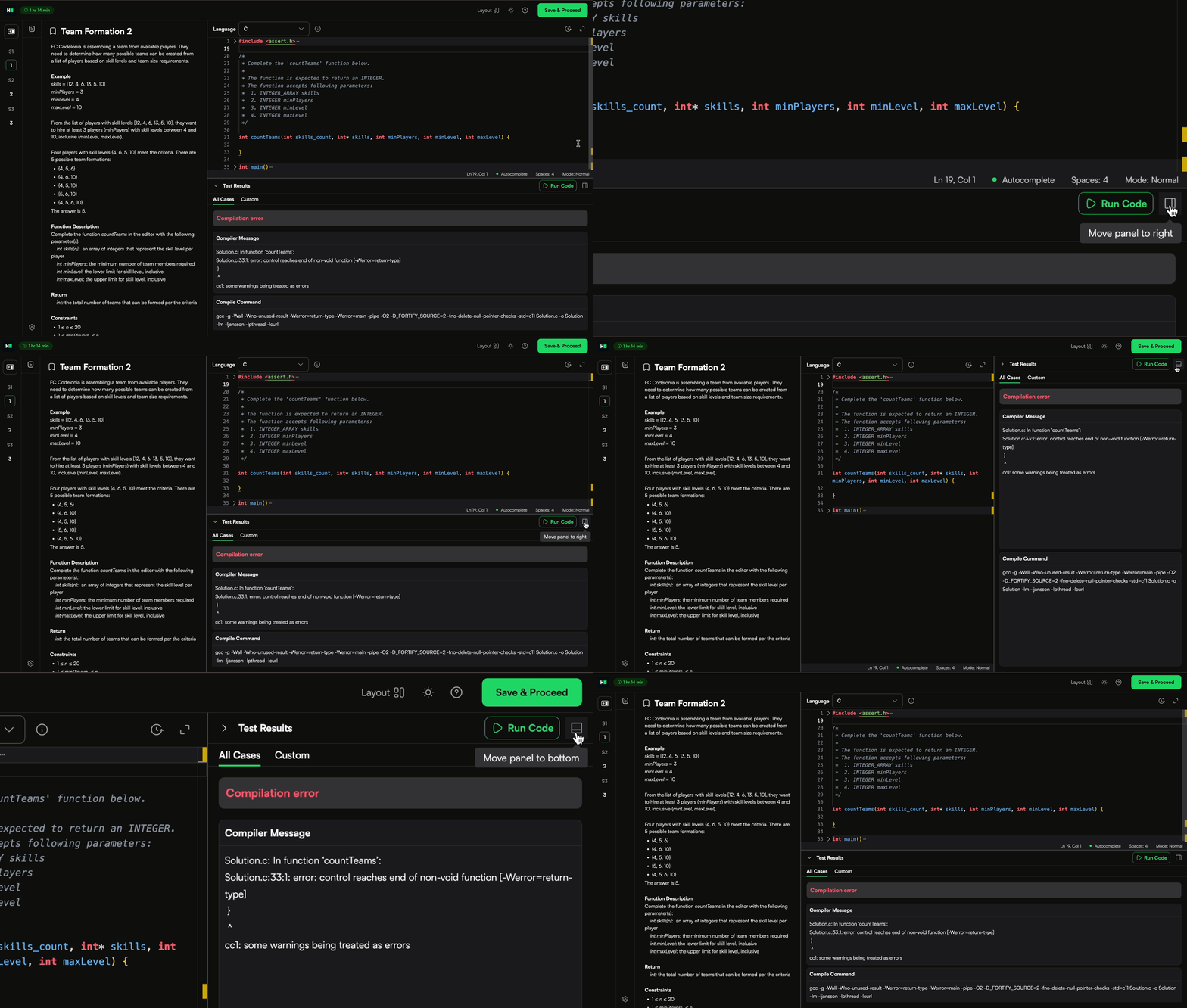
Run: Executes the code against multiple test cases to validate correctness. You can:
Run individual test cases.
Use custom test cases with your own input.
Toggle between formatted and raw input views.
Reposition the output panel by clicking the Dock icon.
Submit: Submit your final solution for evaluation.
Note:
In the HackerRank coding environment, most programs read input from Standard Input (STDIN) and write output to Standard Output (STDOUT). Use the input and output statements specific to your programming language.
For example,
C: Use
scanf()to read input andprintf()to write output.C#: Use
Console.ReadLine()to read input andConsole.WriteLine()to write output.
Solving Coding questions
You can solve a coding question by understanding the problem, editing the code, and validating the solution.
Editing the code
Click the arrow next to the top or bottom code stub to expand and review it. These sections are read-only. If no stub is provided, follow the link in the editor for guidance on handling STDIN and STDOUT manually.
Note: Switching the programming language resets the code editor. To avoid losing your work, copy your code before switching languages and paste it into the new editor.
You can customize your code by:
Renaming variables
Creating helper functions
Converting between data structures
Ensure that your function signature, implementation, and footer code together form a syntactically valid script. Code runs in an Ubuntu environment using standard interpreters or compilers.
Testing the code
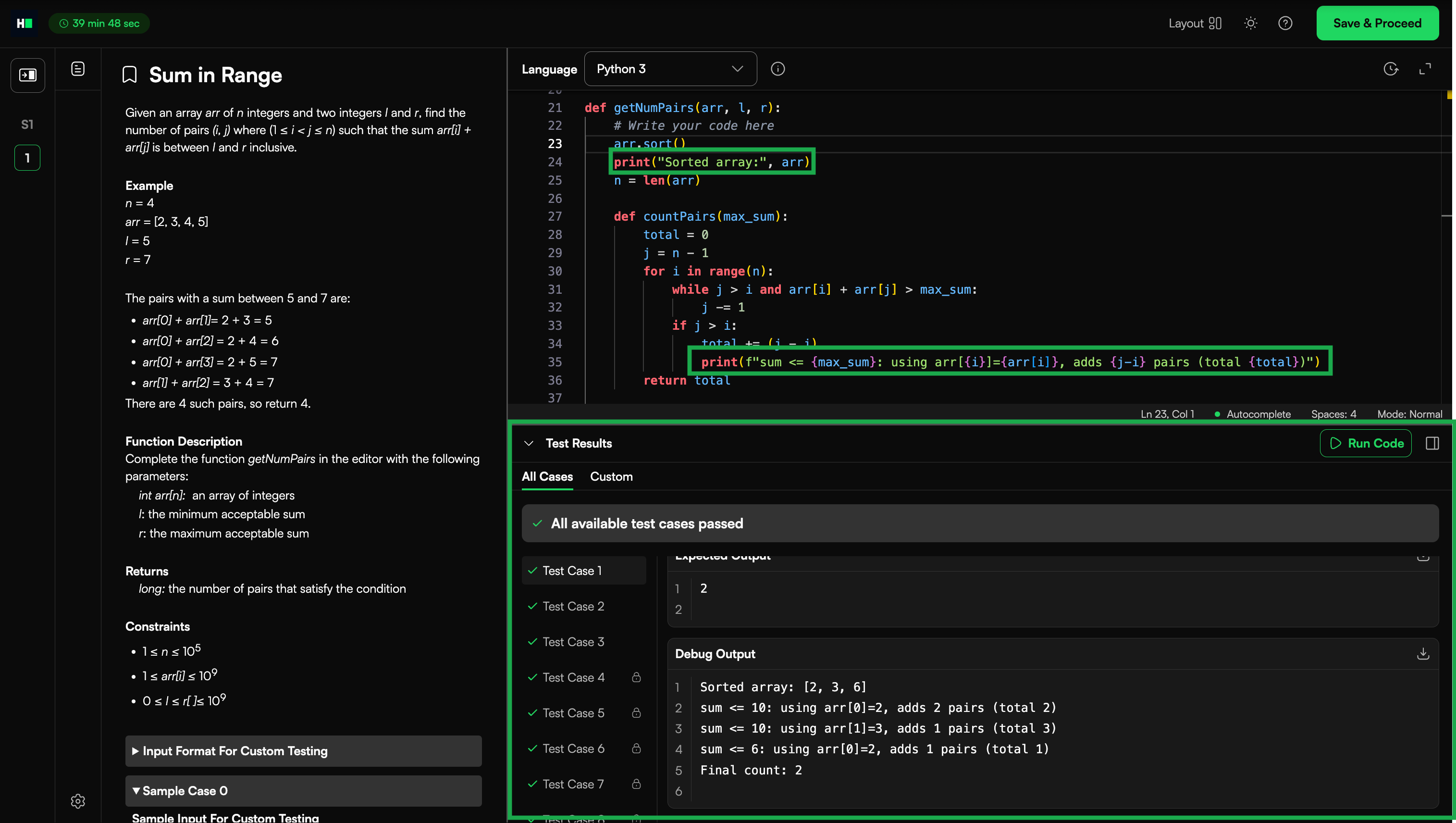
Most questions require your function to return a value. If you use print() statements (such as console.log in JavaScript), the output appears in the Debug Output panel and does not impact your score.
Test cases
A test case is a specific input provided to your code to verify whether the defined logic works as intended. The system compares the output from your code with the expected output for that test case.
Each challenge includes the following test cases:
Sample test cases: Provide basic examples to help you understand the input and output format. They validate the basic logic of your solution.
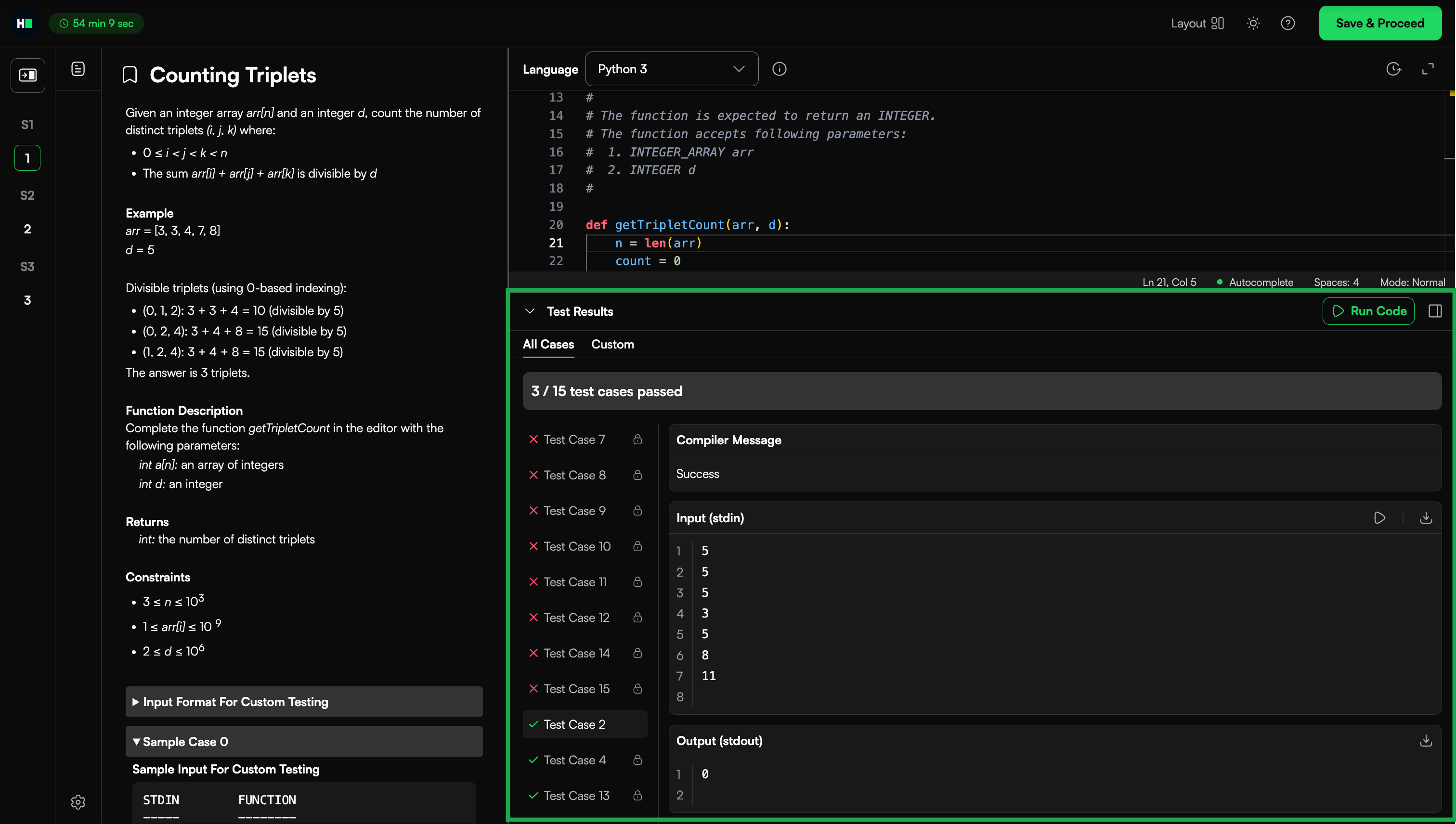
Hidden test cases: Include edge cases to test the correctness and performance of your code.
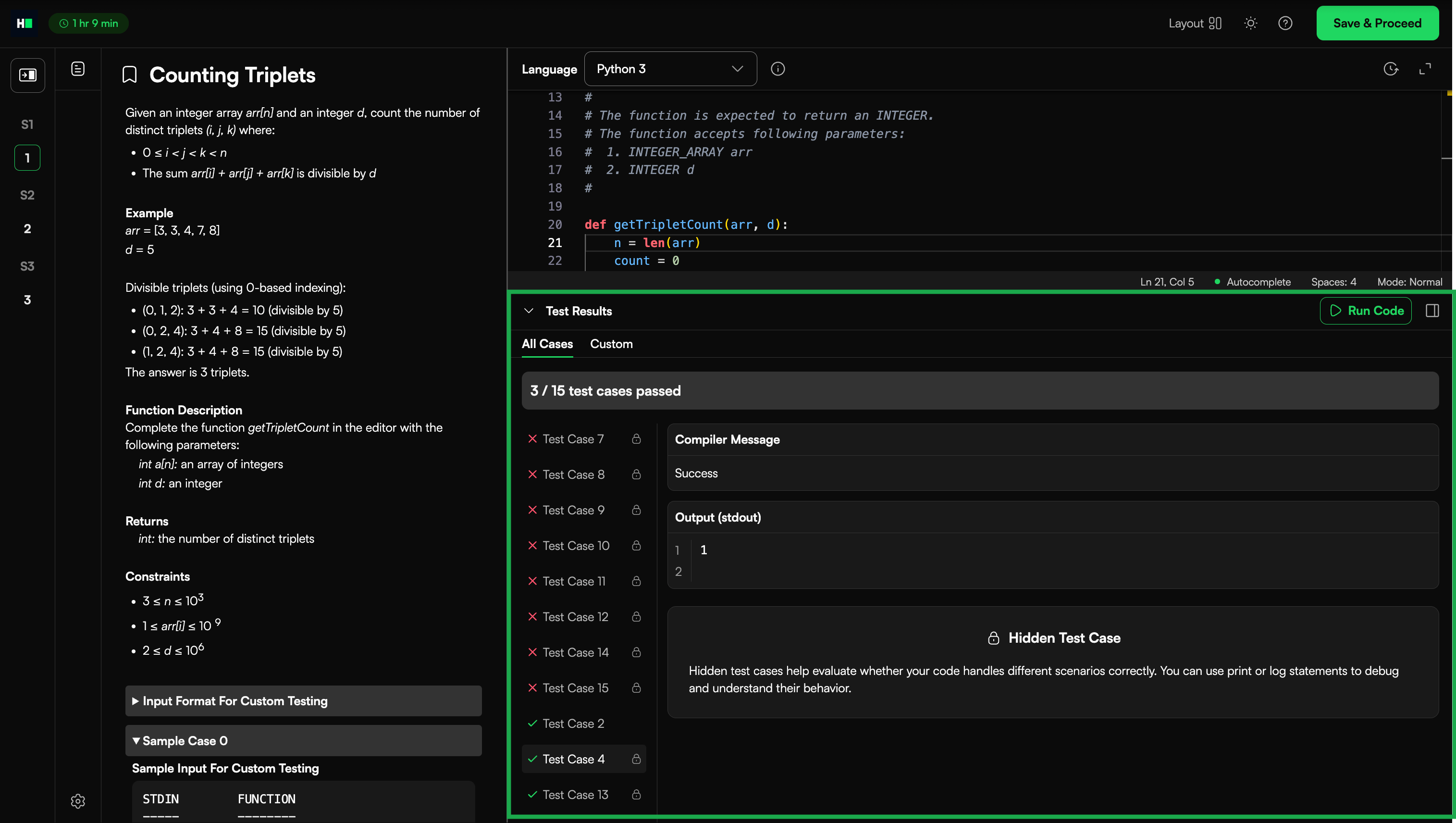
These are marked with a lock icon.
The input and expected output are hidden.
Only your output and debug logs are shown.
Note: If your solution runs slowly, optimize your algorithm to prevent time limit errors.
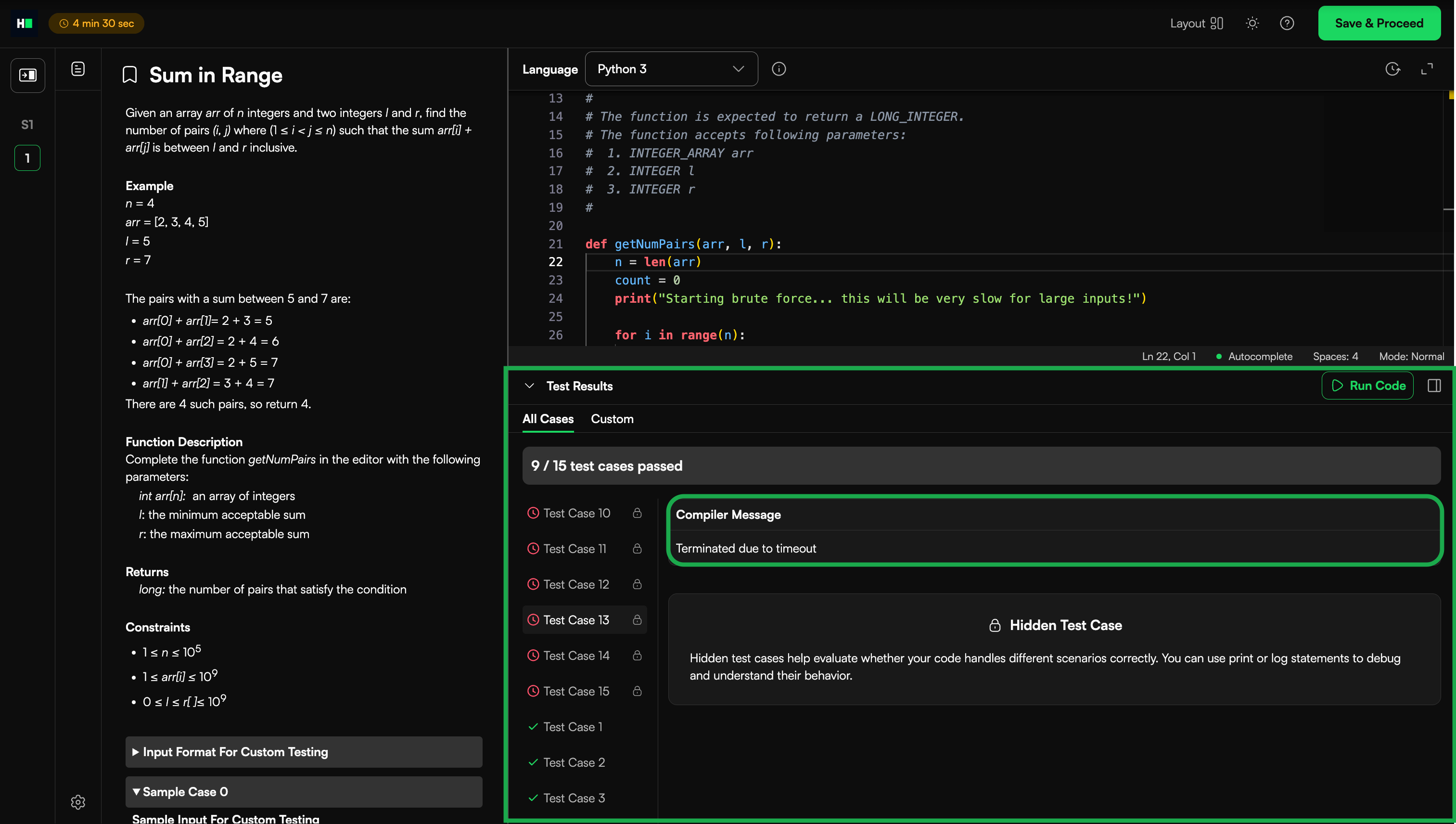
Terminated due to timeout status
Terminated due to timeout message means your code did not complete execution within the preset time limit. This error usually occurs due to inefficient logic, infinite loops, index overflow, or input overload.
The HackerRank coding environment supports 61 programming languages, each with a specific memory and execution time limit, which vary by language. For more information, see 📄 Execution Environment.
Debugging
You can debug your code by adding debug print statements or checking the output using custom input values.
Note: If the question expects printed output, remove all debug print statements before submission. Debug output may cause your solution to fail
Using debug statements
You can test the logic in your function by adding print statements and printing the output to STDOUT.
For example, use print to check the values returned at different points in your code.
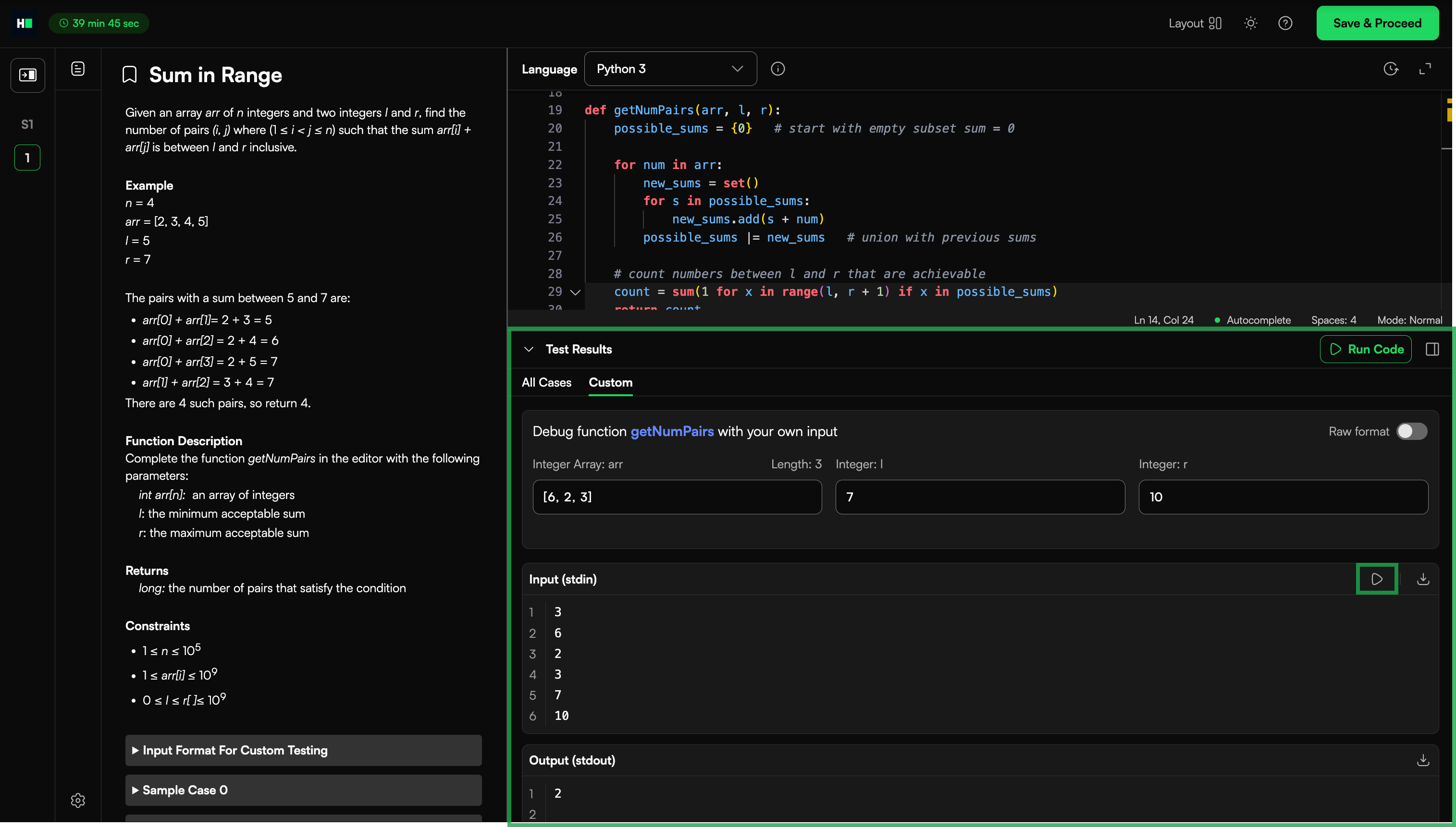
Using custom input
You can provide your own input values to test your code and verify the output.
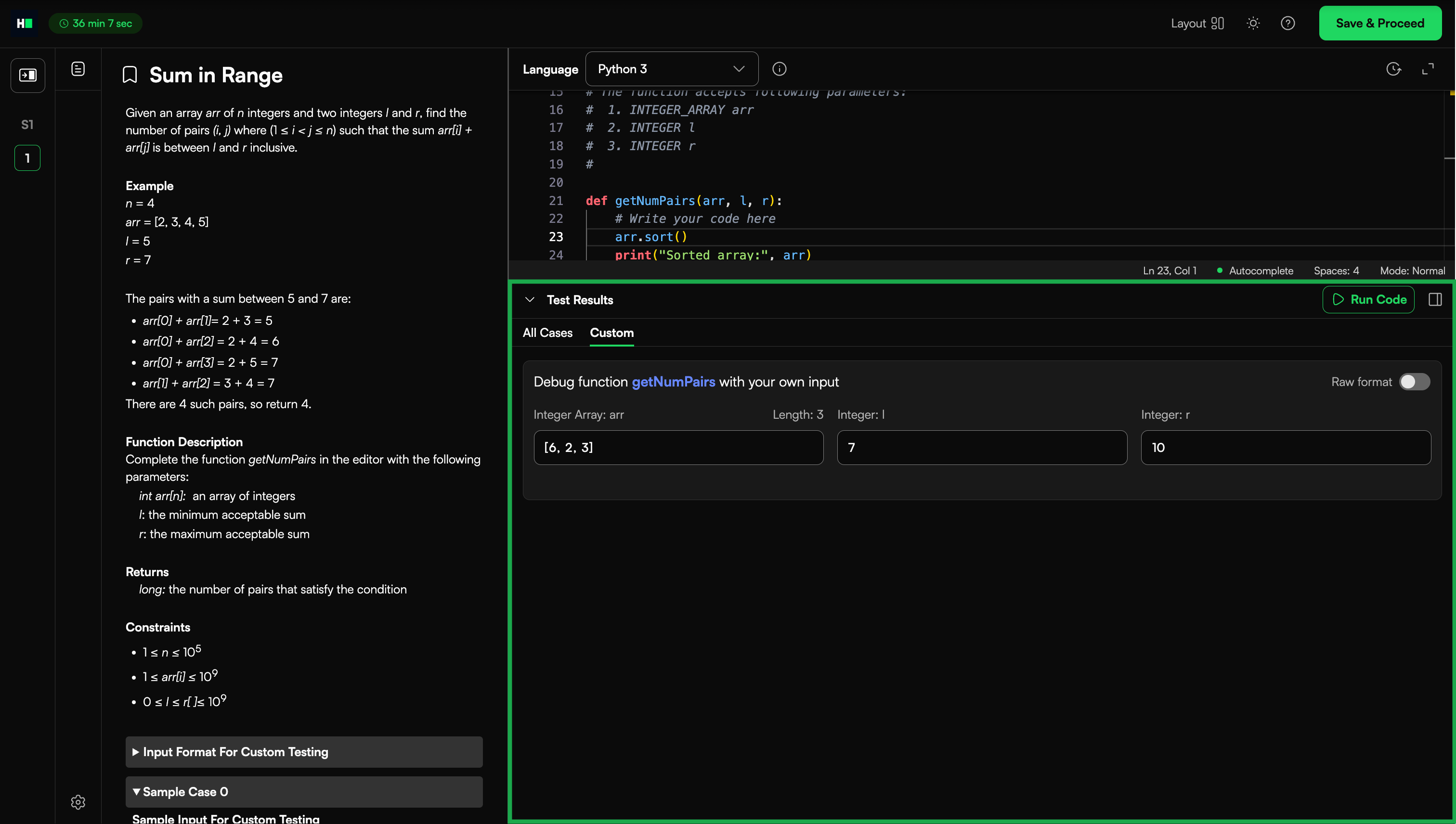
Toggle Raw format to enter raw input.
Click Run Code to execute with your custom input.
Note: You can download the Input (STDIN), Output (STDOUT), Expected Output, and Debug Output. You can click the play icon on the STDIN to run for that input.
Scoring criteria
Scoring is based on exact string matching. Your output must exactly match the expected result.
Best practices
Follow these best practices to write efficient and correct code in coding tests:
Avoid compulsive code iterations.
Use faster approaches to read input and write the output.
Ensure that the input values are passed in the expected format.
Use efficient approaches such as algorithms and data structures. Avoid using brute force.