Answer Data Science Questions
Last updated: April 22, 2026
HackerRank Projects for Data Science enables candidates to solve project-based challenges using an integrated VS Code IDE with notebook support. This article provides step-by-step instructions to help you navigate and use the IDE effectively during your test.
Answering a data science question
To answer a data science question:
Log in to your HackerRank test. For instructions, see Logging into HackerRank Tests.
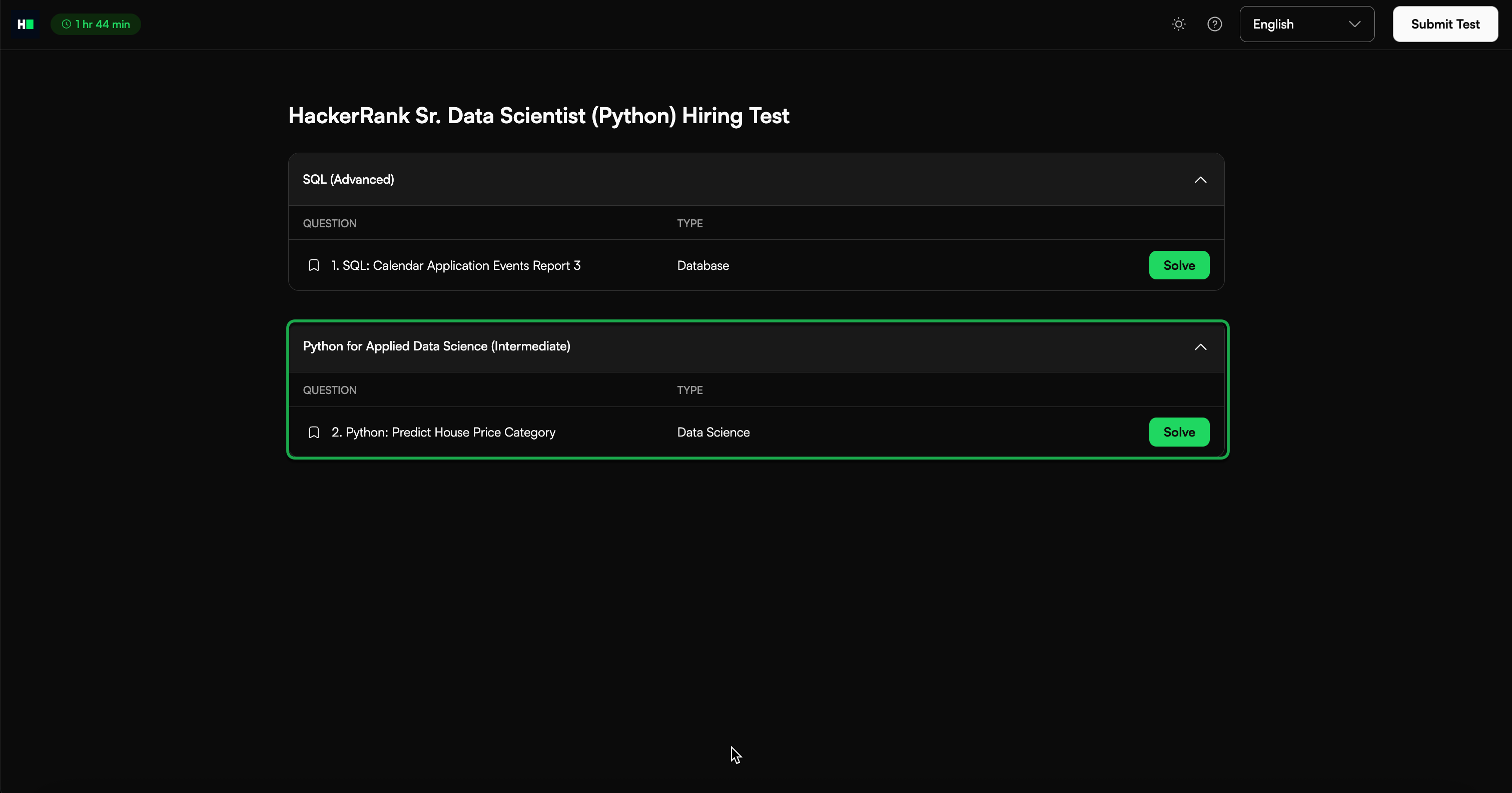
Select a data science question from the Test home and click Solve.
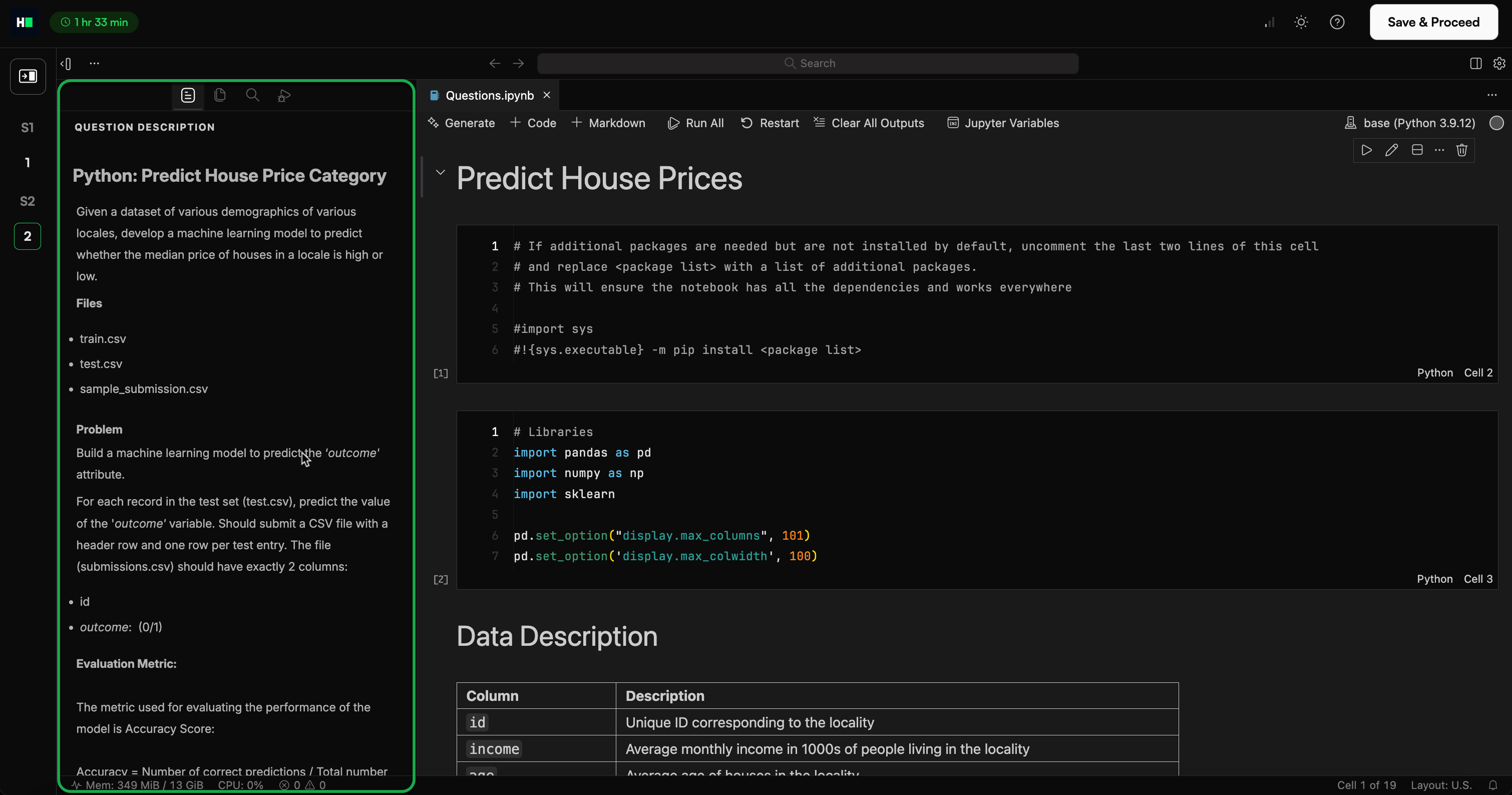
Review the question description in the left panel.
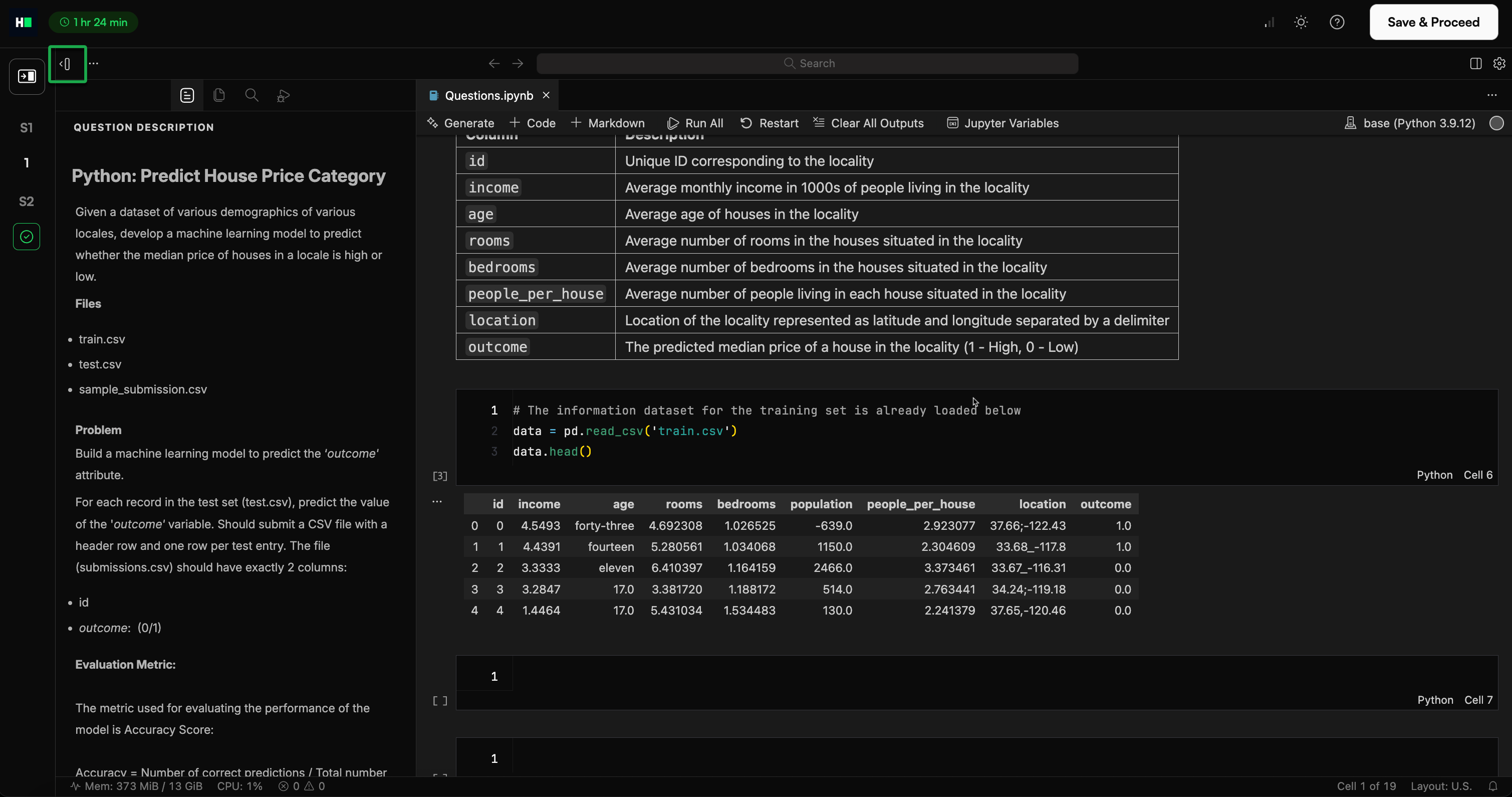
Write your solution in the VS Code IDE editor in the right panel.
(Optional) Click Collapse question description icon to expand the IDE area, if needed.
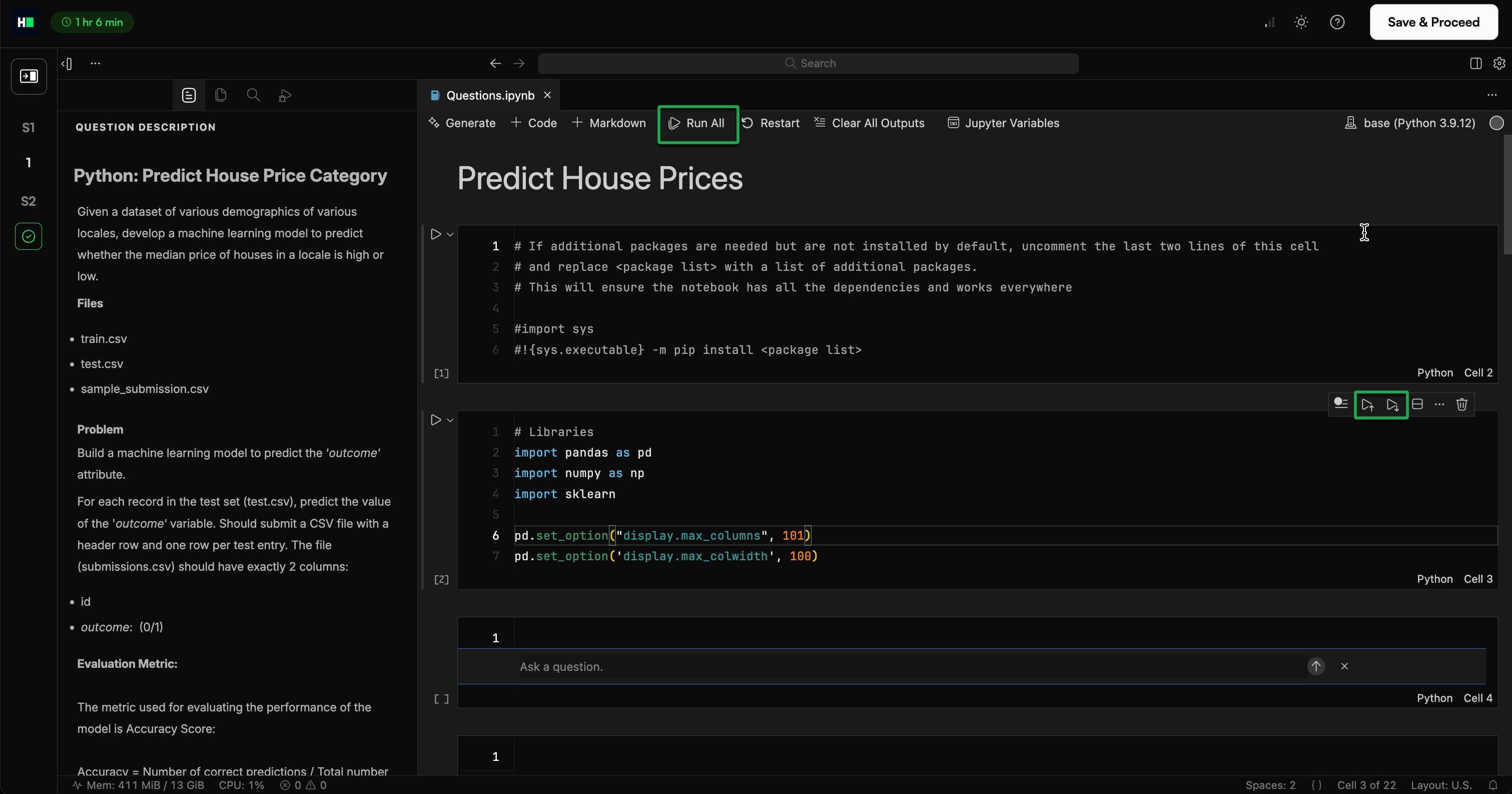
Click Run All to run the entire notebook, or run individual cells using the cell Run control.
Click Save & Proceed to save your answer and move to the next question. If the test contains only one question, this action returns you to the Test home.
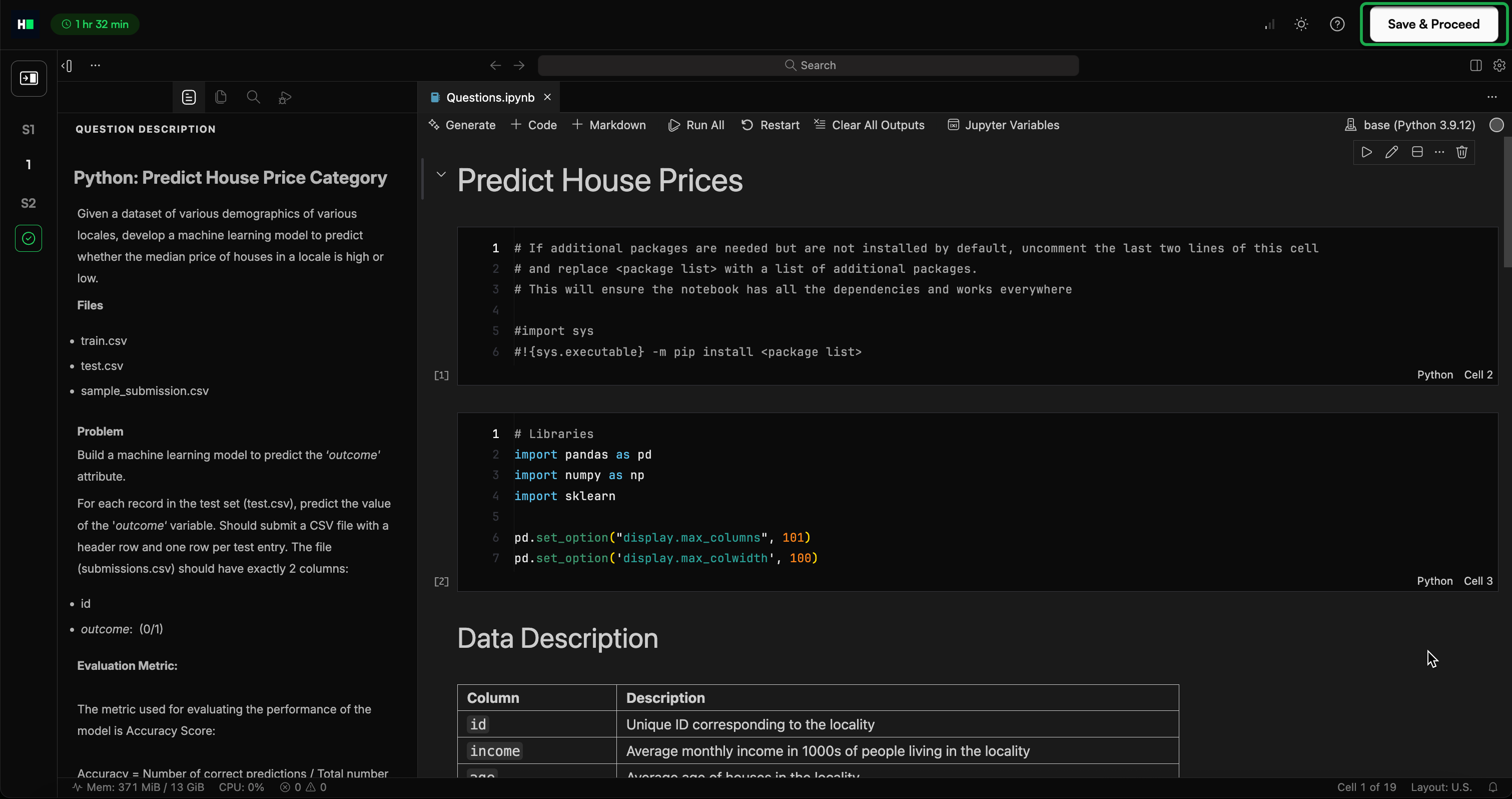
Click Submit Test after you complete all questions to finalize your submission.
Note: If you need to make changes before the test ends, click Modify to edit your response.
Submission validation checks
The platform performs the following checks when you submit your solution:
Confirms that the submission file is present.
Verifies that the file name matches the required format (for example,
submission.csv).Checks that the column names match those in the sample submission file.
Validates that the data types in each column match the expected structure.
If a check fails:
You can go back and fix the issue before resubmitting.
orYou can choose to submit anyway, but your solution may not be scorable.
Note: Always review validation warnings carefully to avoid losing points due to formatting or naming errors.
Best practices
Document your notebook with clear and concise comments.
Use meaningful variable names and maintain logical code structures for readability.
Switch to full-screen mode for an enhanced coding experience.
Check the pre-installed libraries and their versions before you start.
Troubleshooting
IDE is unresponsive
Restart the kernel: Click Restart.
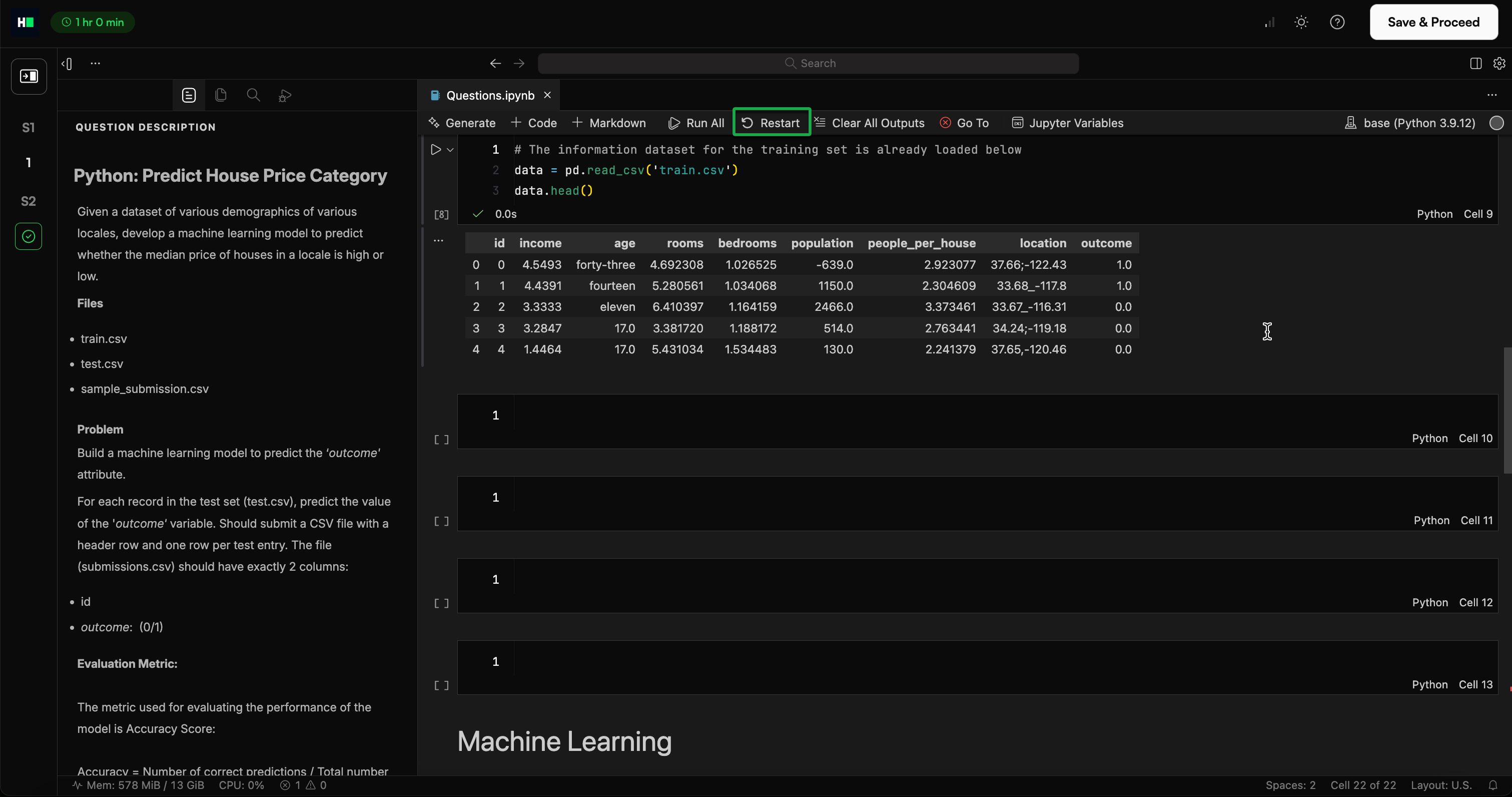
Reset the project: Reset the project: Click the question mark icon (?) at the top right corner, and then click Reset Project.
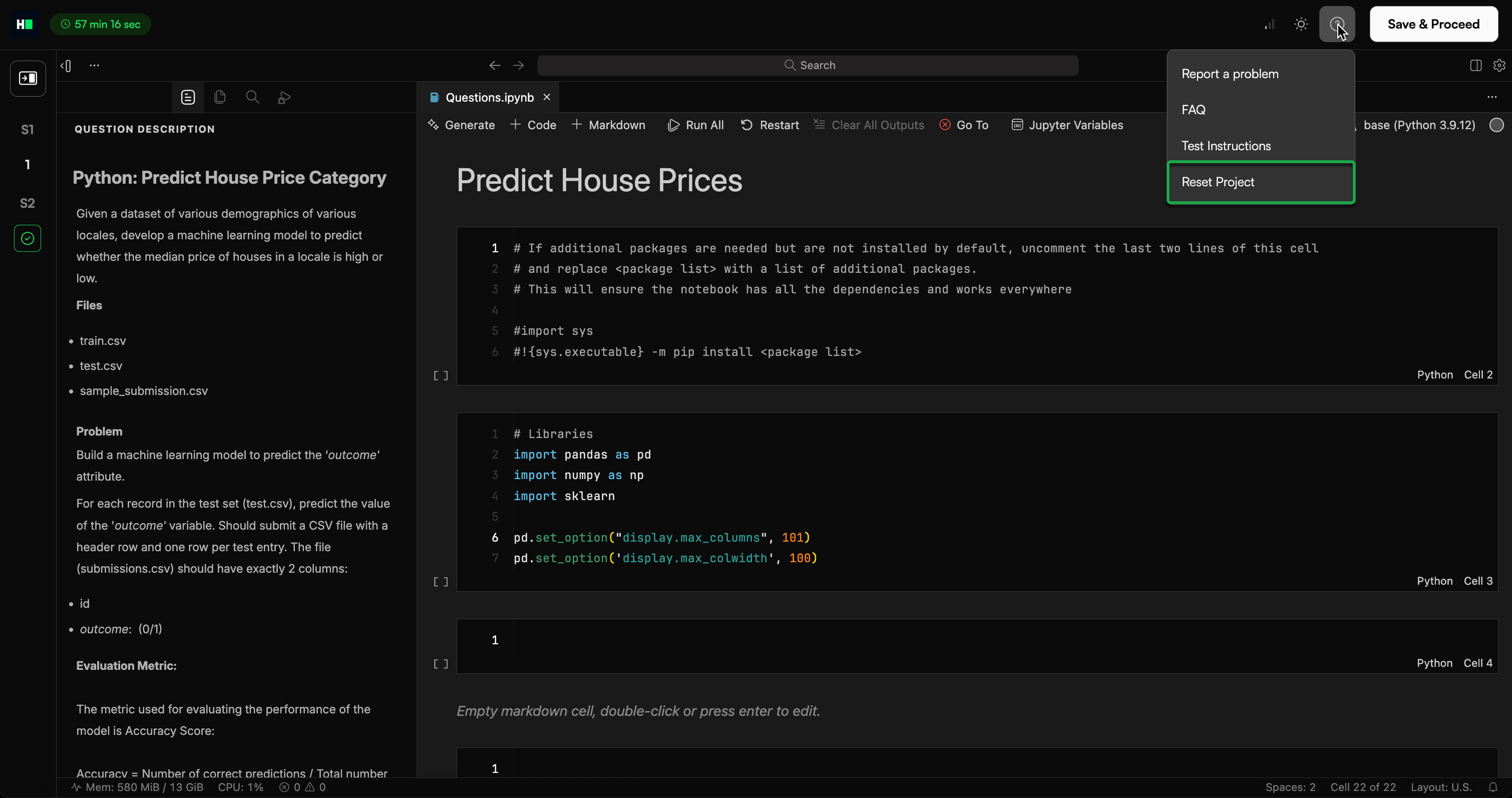
Installed packages are not reflected
Restart the kernel: Click Restart.
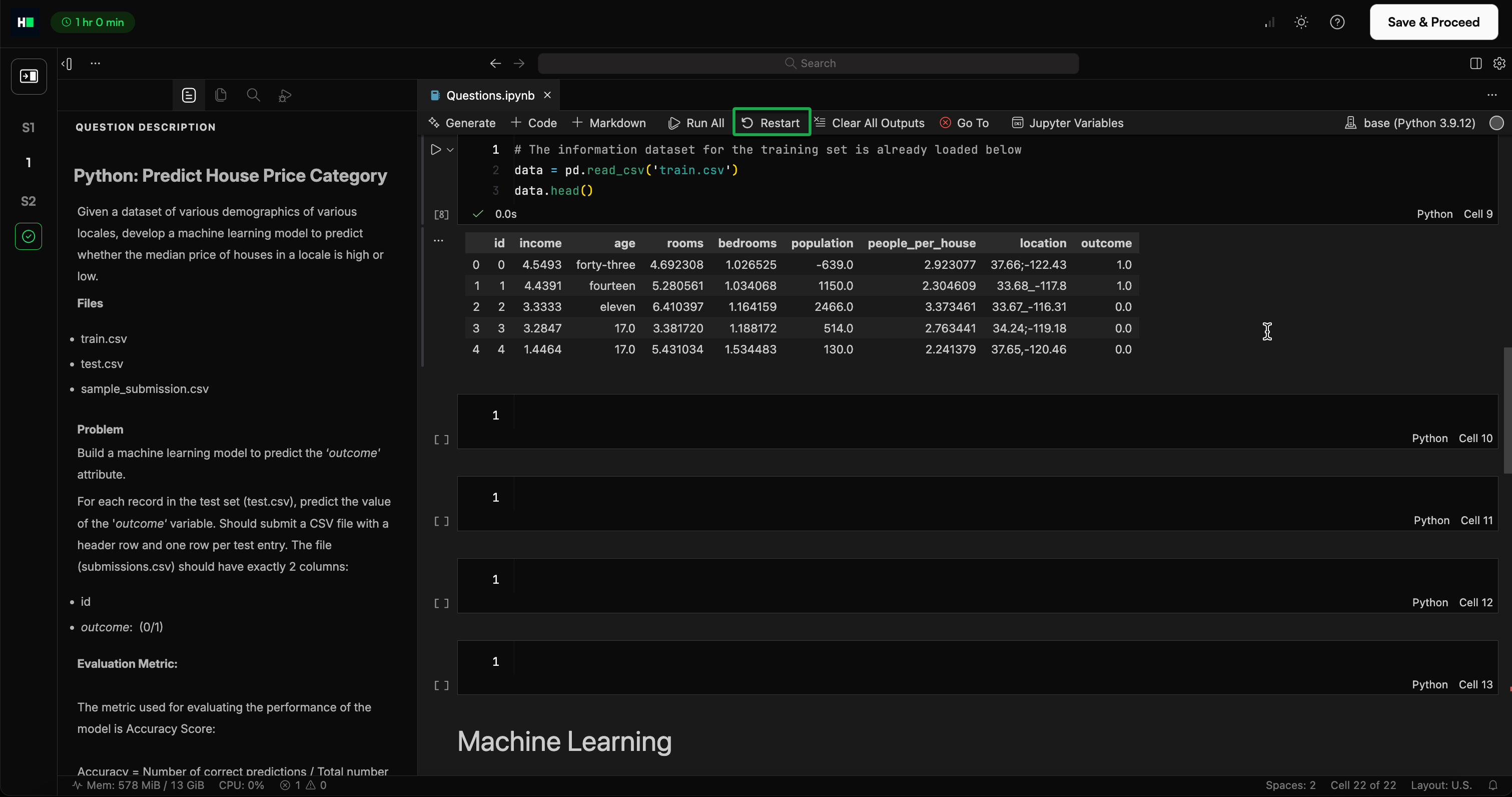
Package conflicts during installation
Use Mamba for faster and conflict-free installations.
Review package information and pre-installed dependencies.
Note: If the issue persists, click Help to report the problem.