Select Audio and Video Devices in Interviews
Last updated: November 19, 2025
HackerRank allows you to select audio and video devices directly from the Interviews interface.
Selecting audio and video devices
To select your audio and video devices after you join an interview:
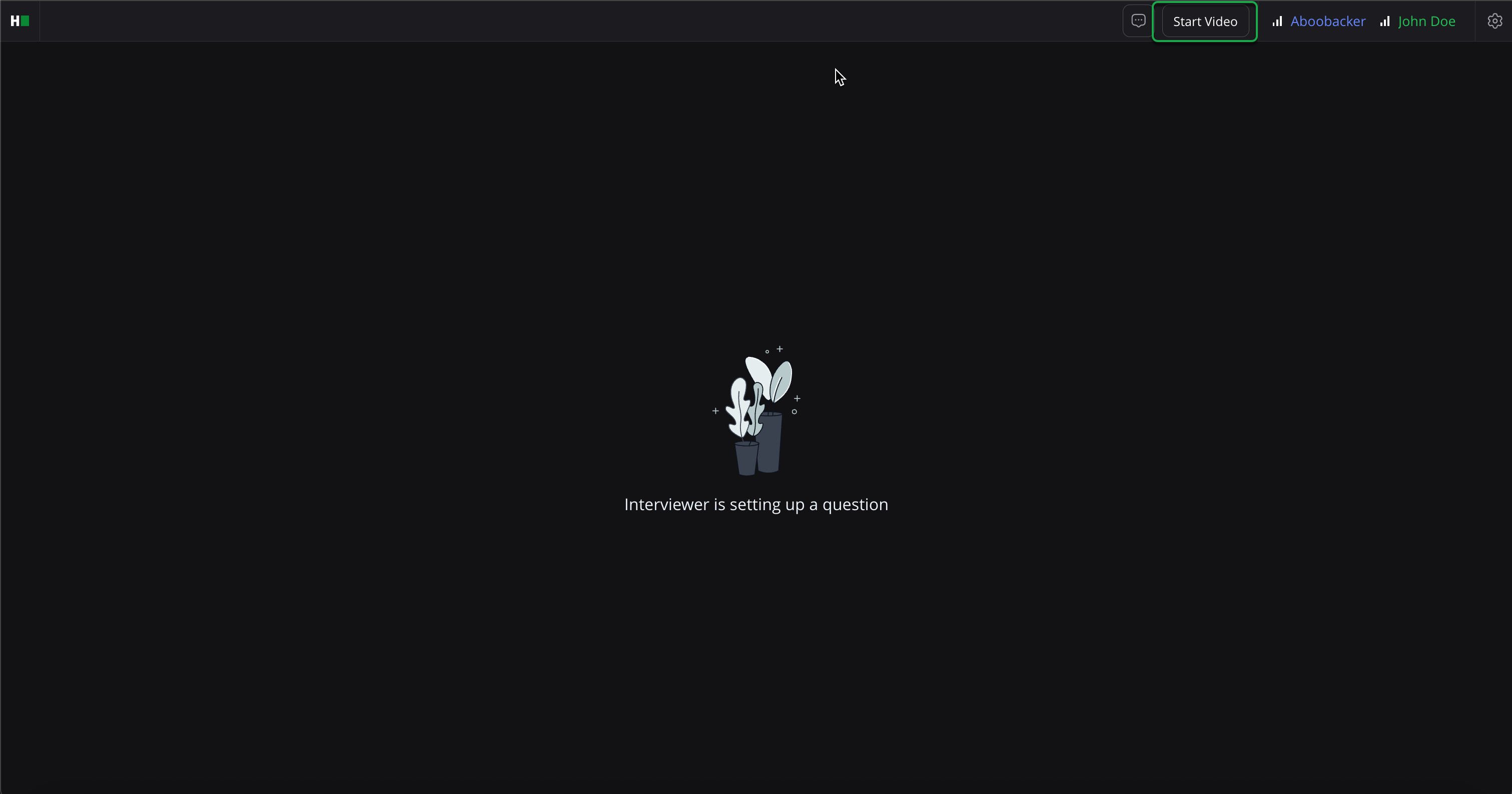
Click Start Video in the upper-right corner of the screen to launch the video call.
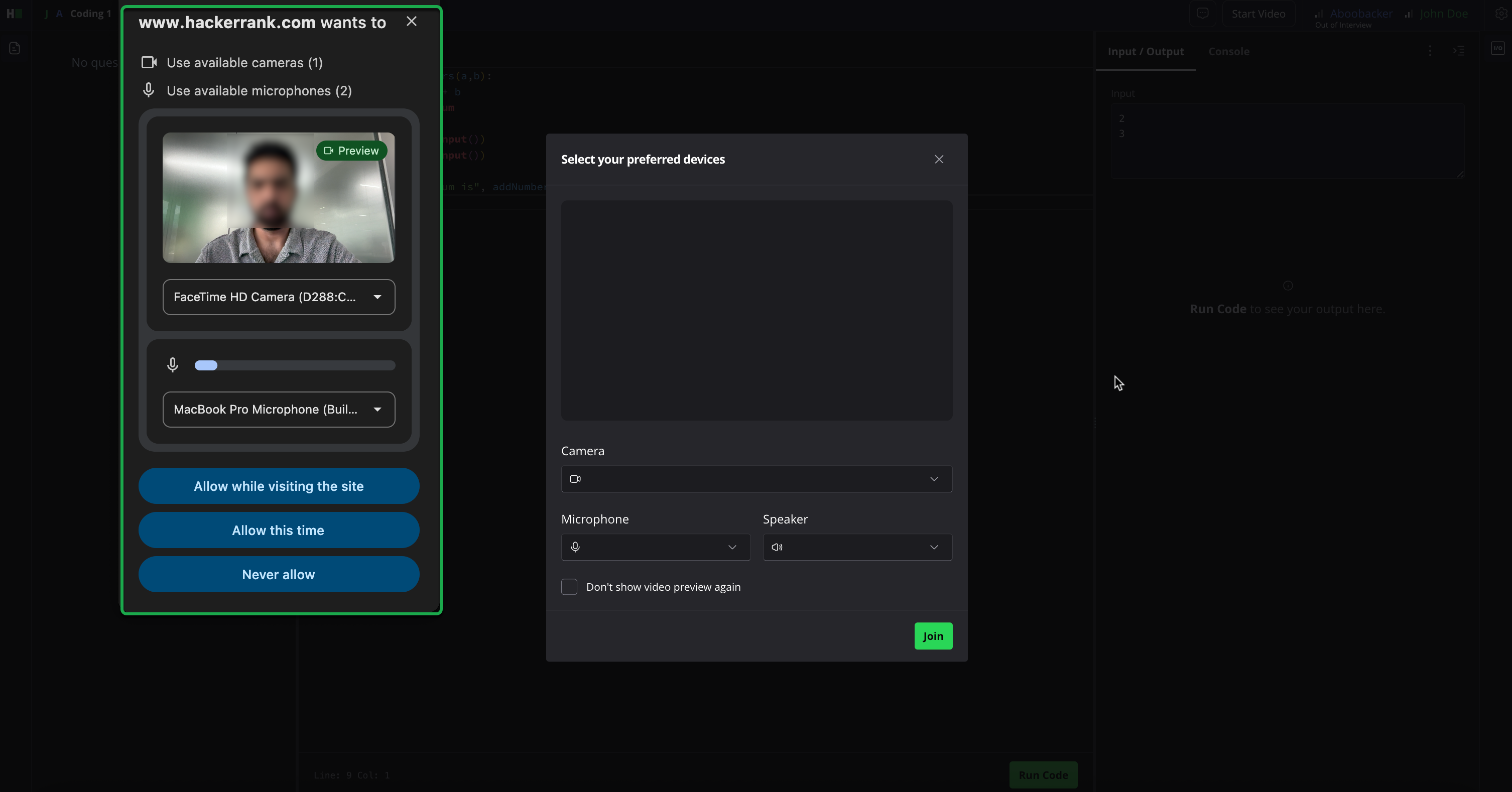
Allow the browser to access your camera and microphone when prompted.
Select your preferred Camera, Microphone, and Speaker from the drop-down menus.
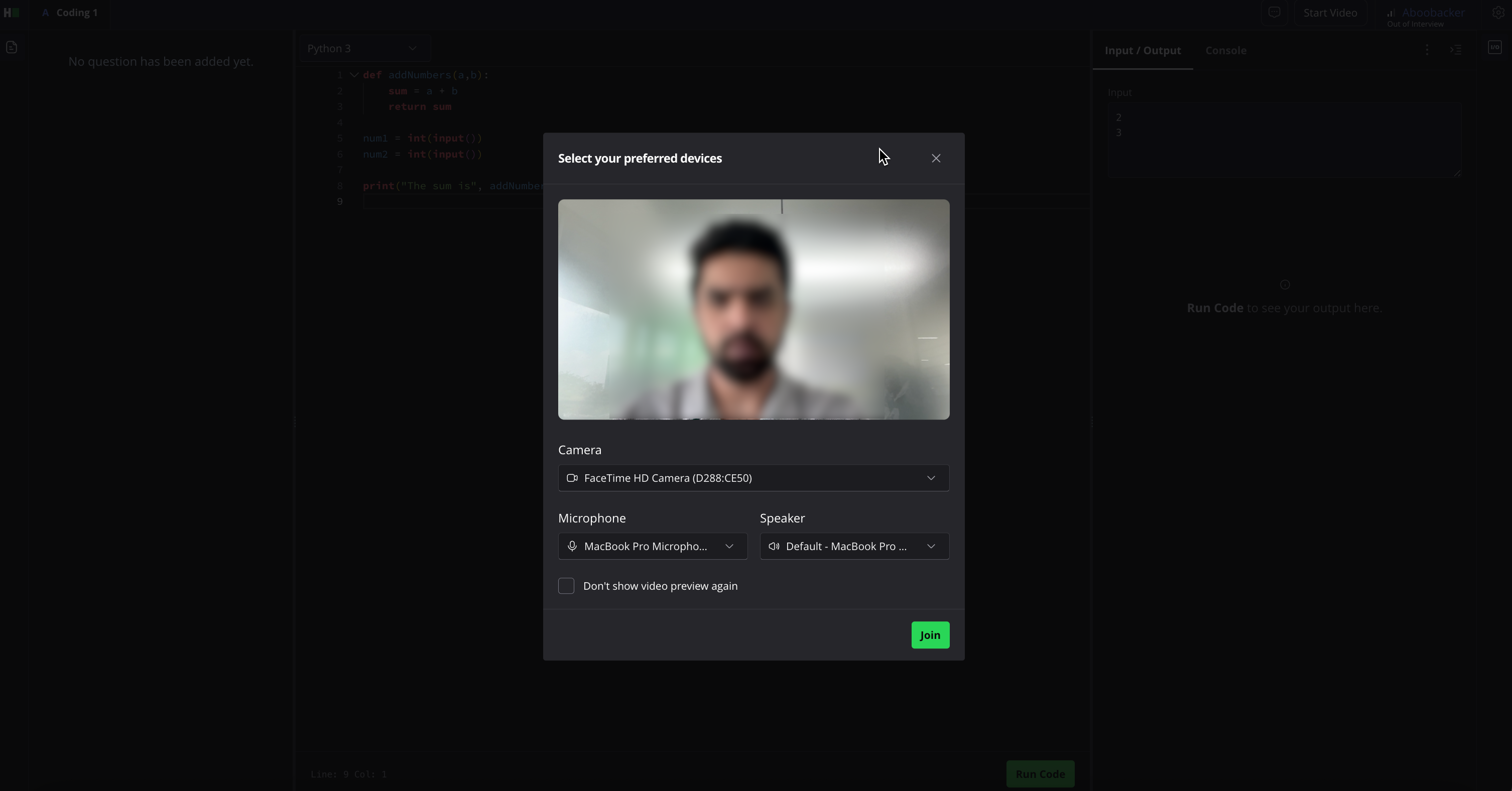
Click Join.
Note: If the interviewer invites you to a video call, click Join to start the video.
Changing device settings during the interview
To update your device selections during the interview:
Click the microphone or video icon in the upper-right corner of the screen.
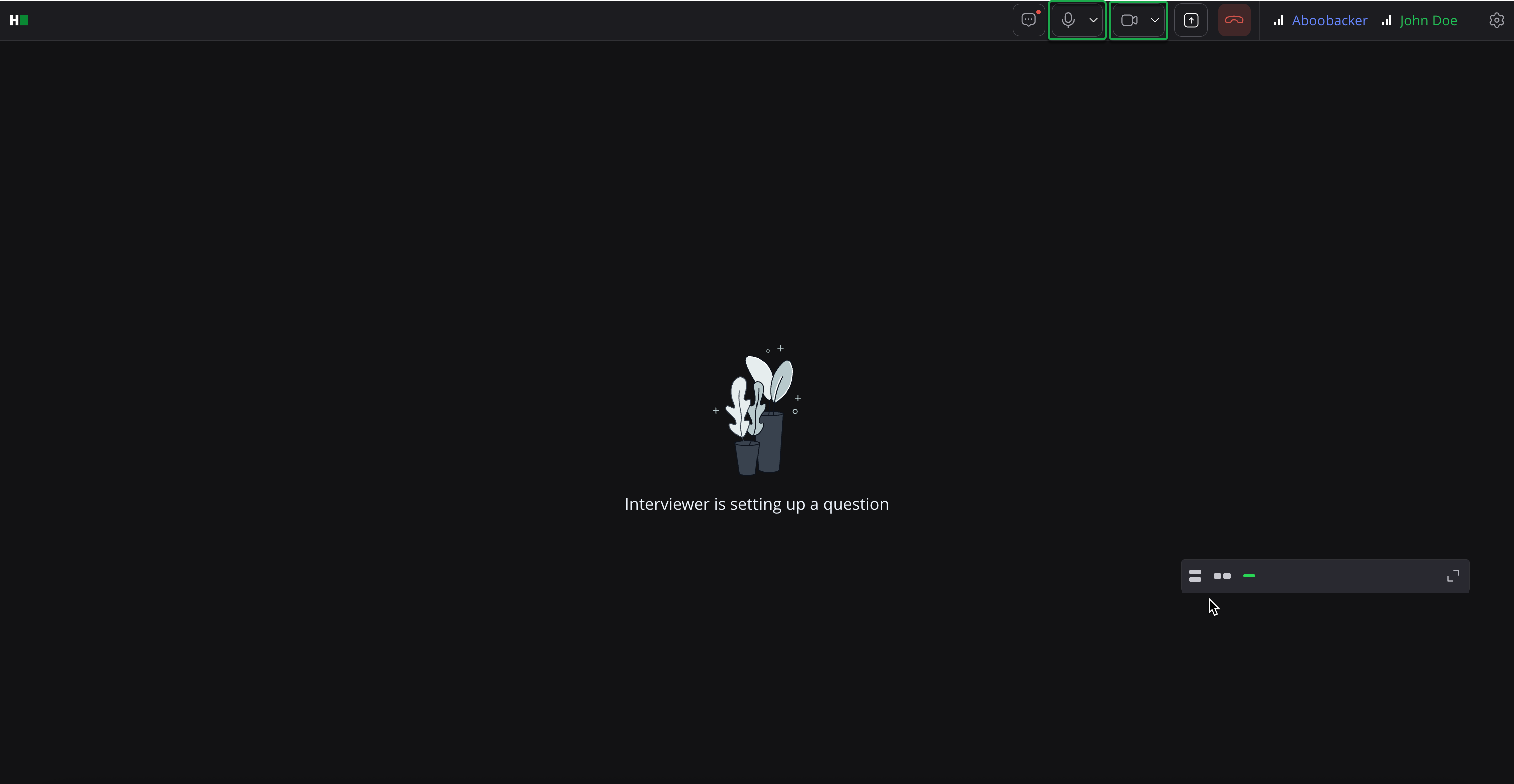
Select your preferred camera, microphone, or speaker from the drop-down menu.
Customizing the video layout
You can customize the video layout in HackerRank Interviews based on your preference. The following configurations are supported:
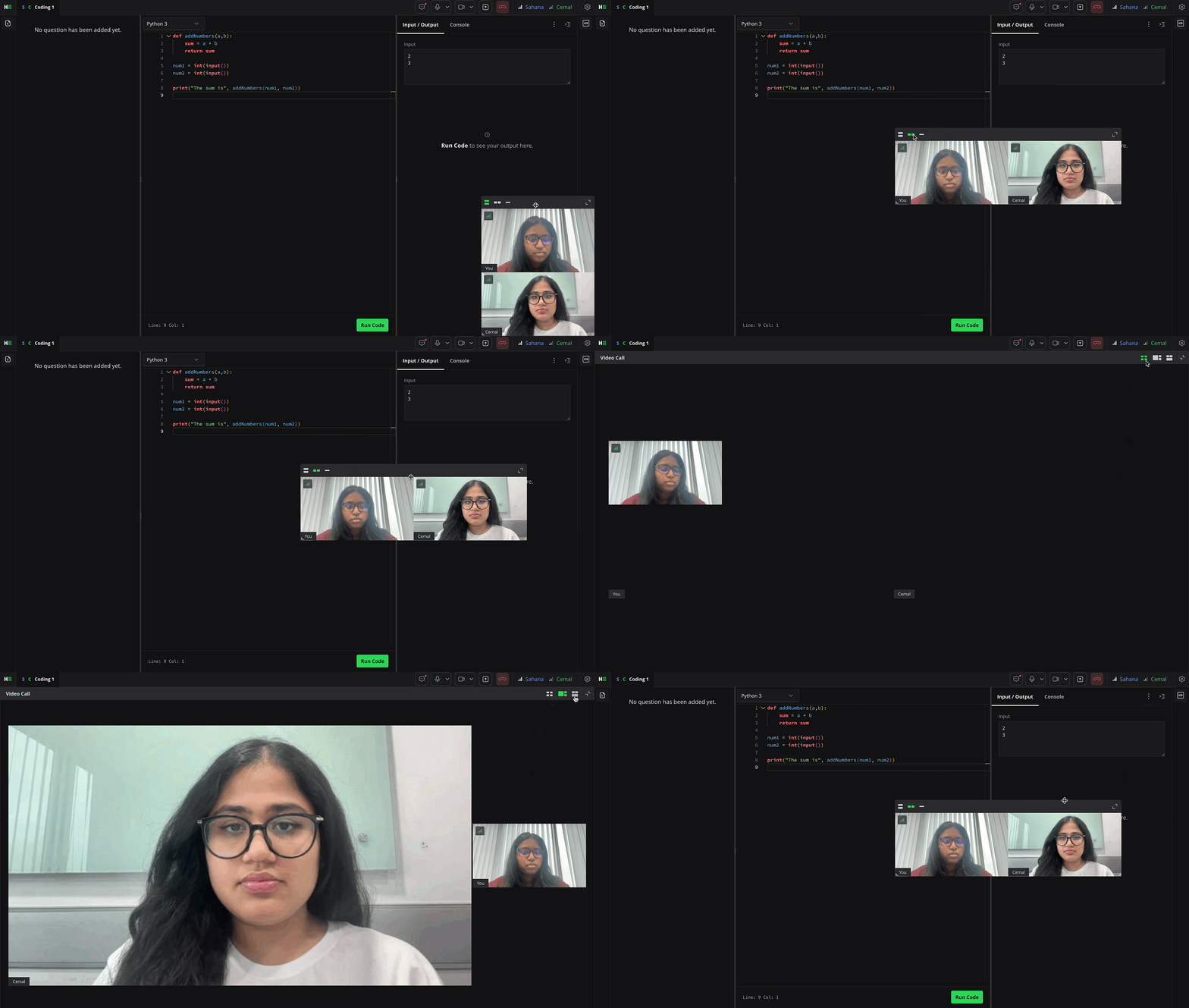
Gallery View: Displays participant videos in a grid.
Speaker View: Highlights the active speaker in a large window.
Side-by-Side Mode (when screen sharing): Shows the shared screen next to Speaker, Gallery, or Multi-speaker view.
Floating Thumbnail (Mini Window): Keeps a small, always-on-top video window when you minimize Zoom.
Pop-out View: Opens the video call in a separate browser tab, useful when using multiple monitors.