Question Types in Interviews
Last updated: November 16, 2026
This article applies to the new Interview experience. If your interview interface looks different for project questions, see 📄 Front-end, Back-end, Full-stack, and Mobile Developer Interviews for the legacy Interview experience.
When an interviewer adds a question, HackerRank opens the workspace for that question type. This article explains how to use the Code Repository, Coding, Whiteboard, Database, Data Science, and DevOps workspaces.
Code Repository
Code Repository question opens in the Agentic Development Environment (ADE). ADE provides a preconfigured codebase, an AI Assistant, and the tools you need to edit code, run commands, preview the application, and review your changes. For more information, see 📄 Navigate ADE in Code Repos Questions.
Coding
Coding questions assess your ability to solve algorithmic or functional problems in a single-file code editor. The workspace displays the question on the left, and the code editor in the center. If the hiring company enables the AI Assistant, it appears on the right.
You can use the following workspace elements and controls:
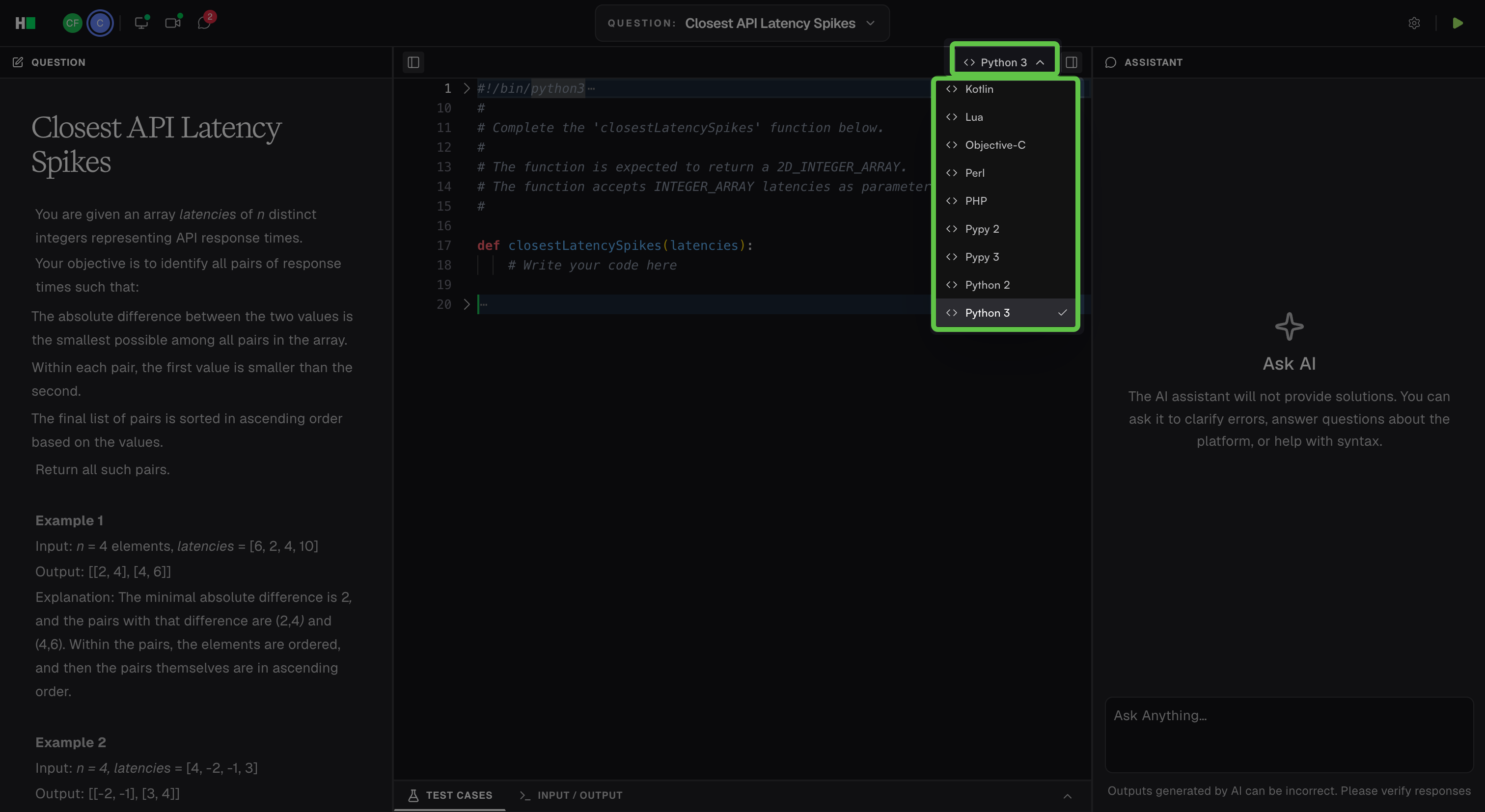
Language: Select the language menu above the editor, and then select a programming language.
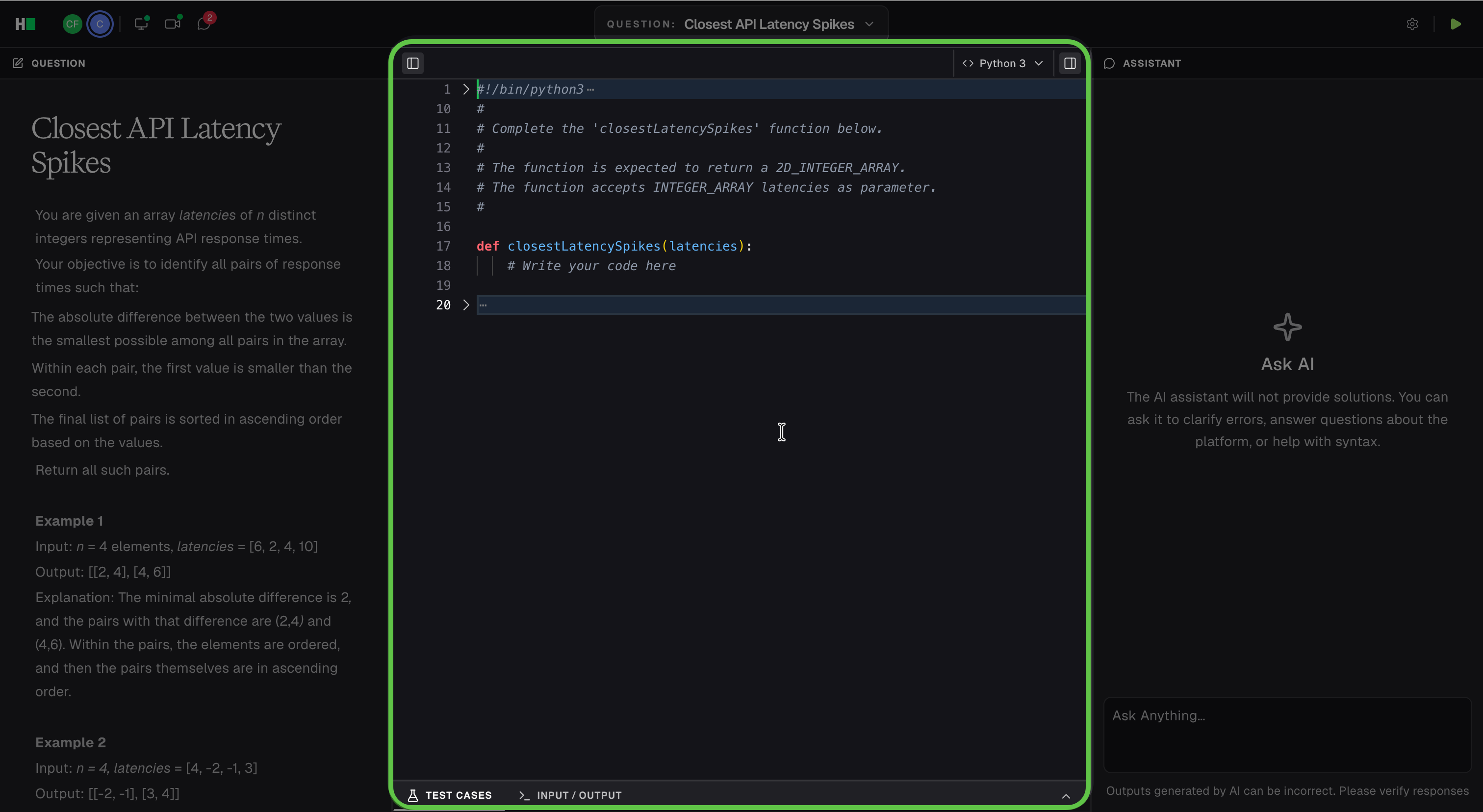
Code editor: Enter and edit your solution.
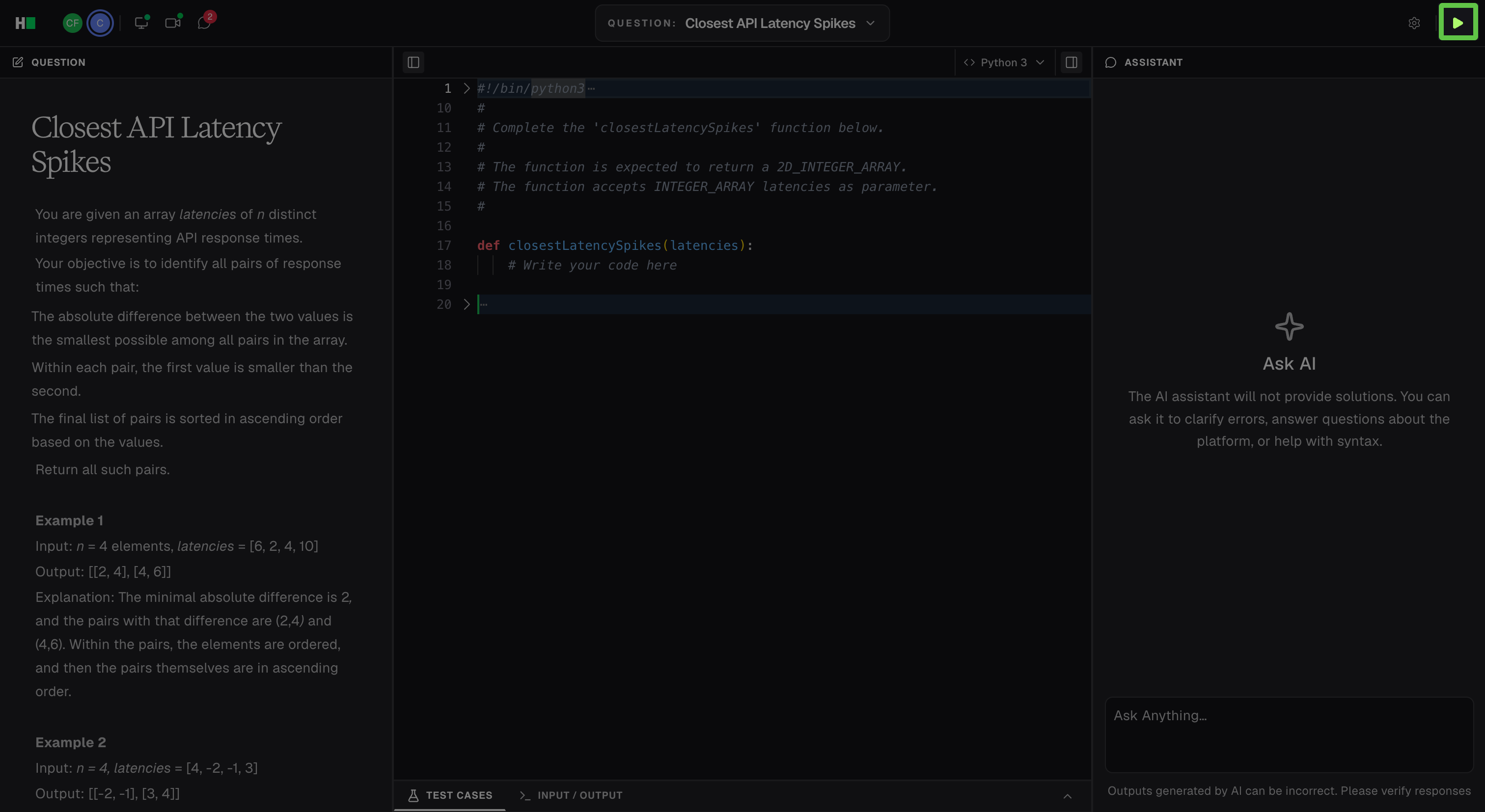
Run: Click the Run icon in the upper-right corner to run your code.
Test Cases: Expand the Test Cases tab at the bottom of the editor to review and run the available test cases.
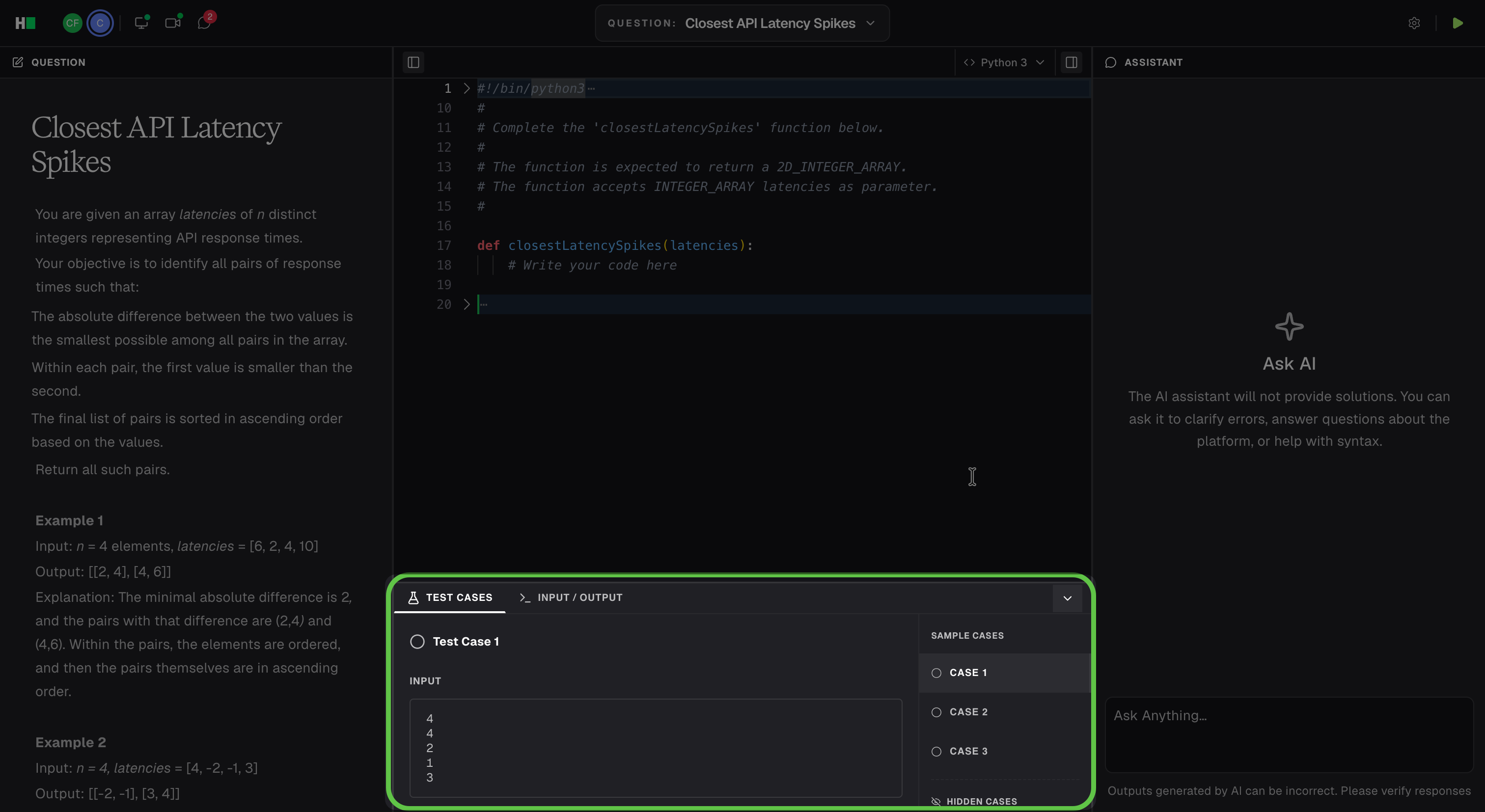
Input/Output: Expand the Input/Output tab to provide custom input and review the output.
AI Assistant: The AI Assistant operates in guarded mode. You can request help with syntax, platform navigation, and programming concepts. The AI Assistant does not provide complete solutions.
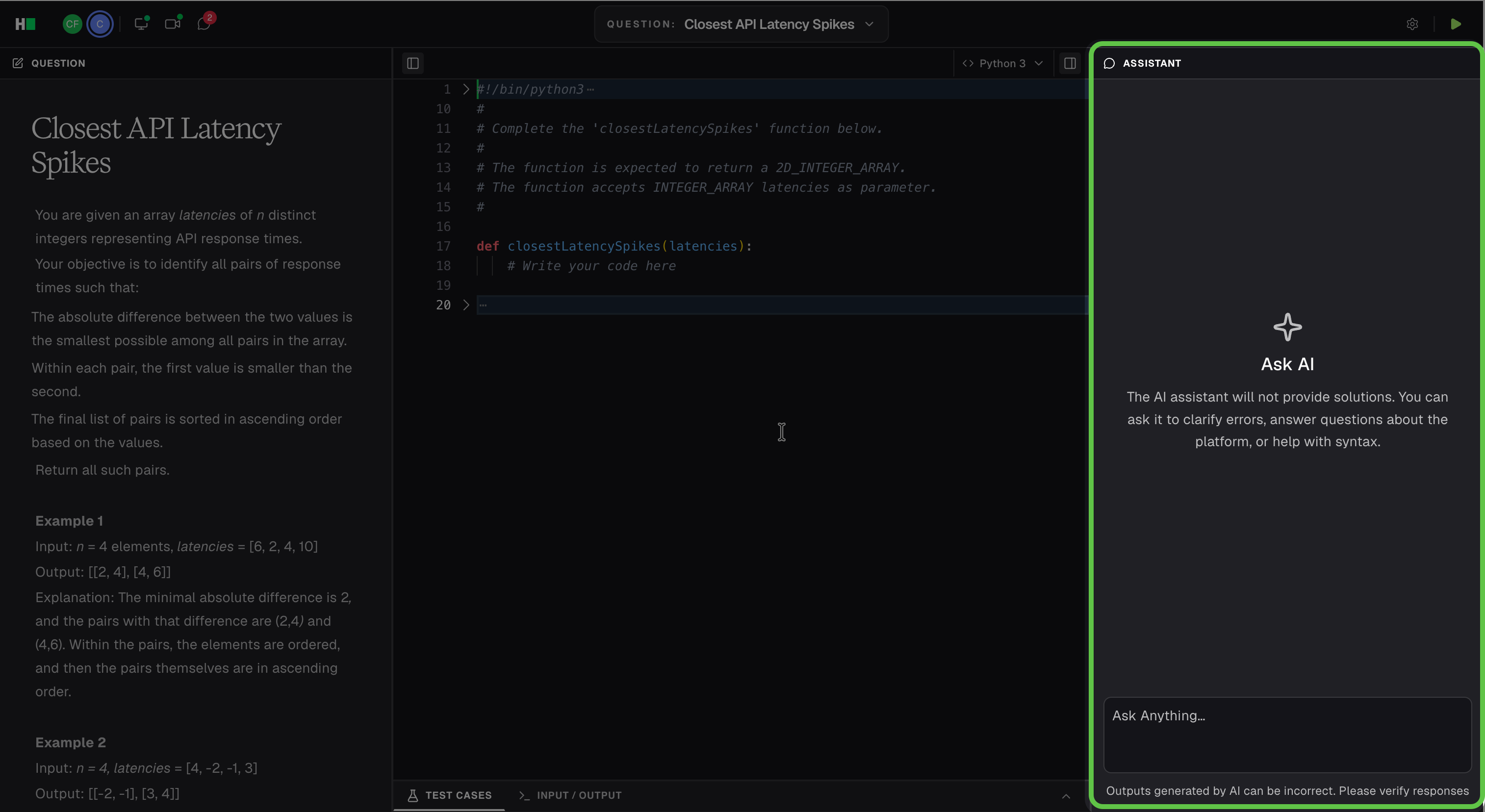
Select the Toggle right panel icon to collapse or expand the AI Assistant.
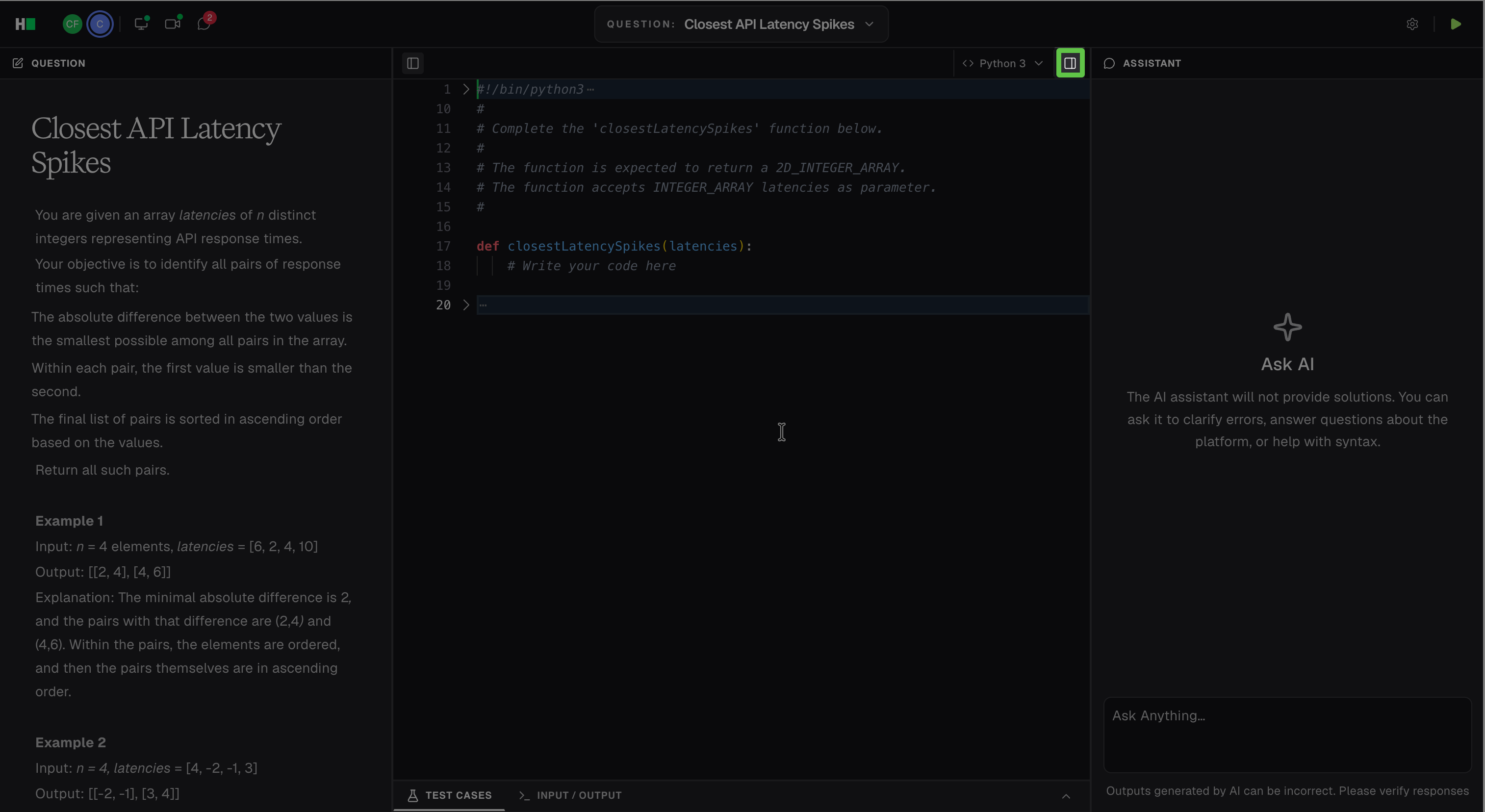
Note: The AI Assistant is available only when the hiring company enables it. For more information, see 📄 AI Assistant in Interview.
Whiteboard
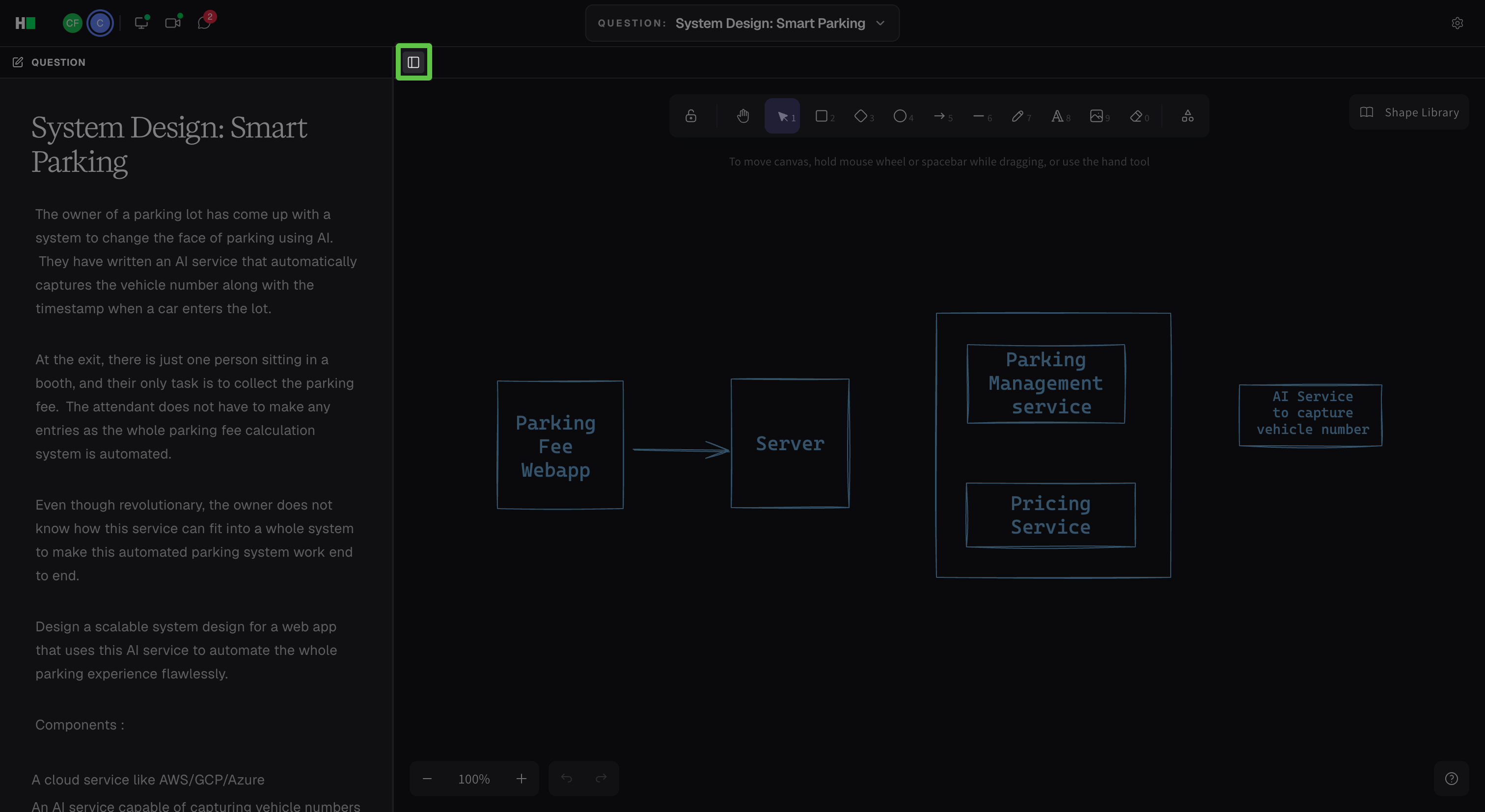
A Whiteboard question provides a shared canvas where you can create diagrams, add text, and explain your solution. The question panel appears on the left, and the whiteboard appears in the center.
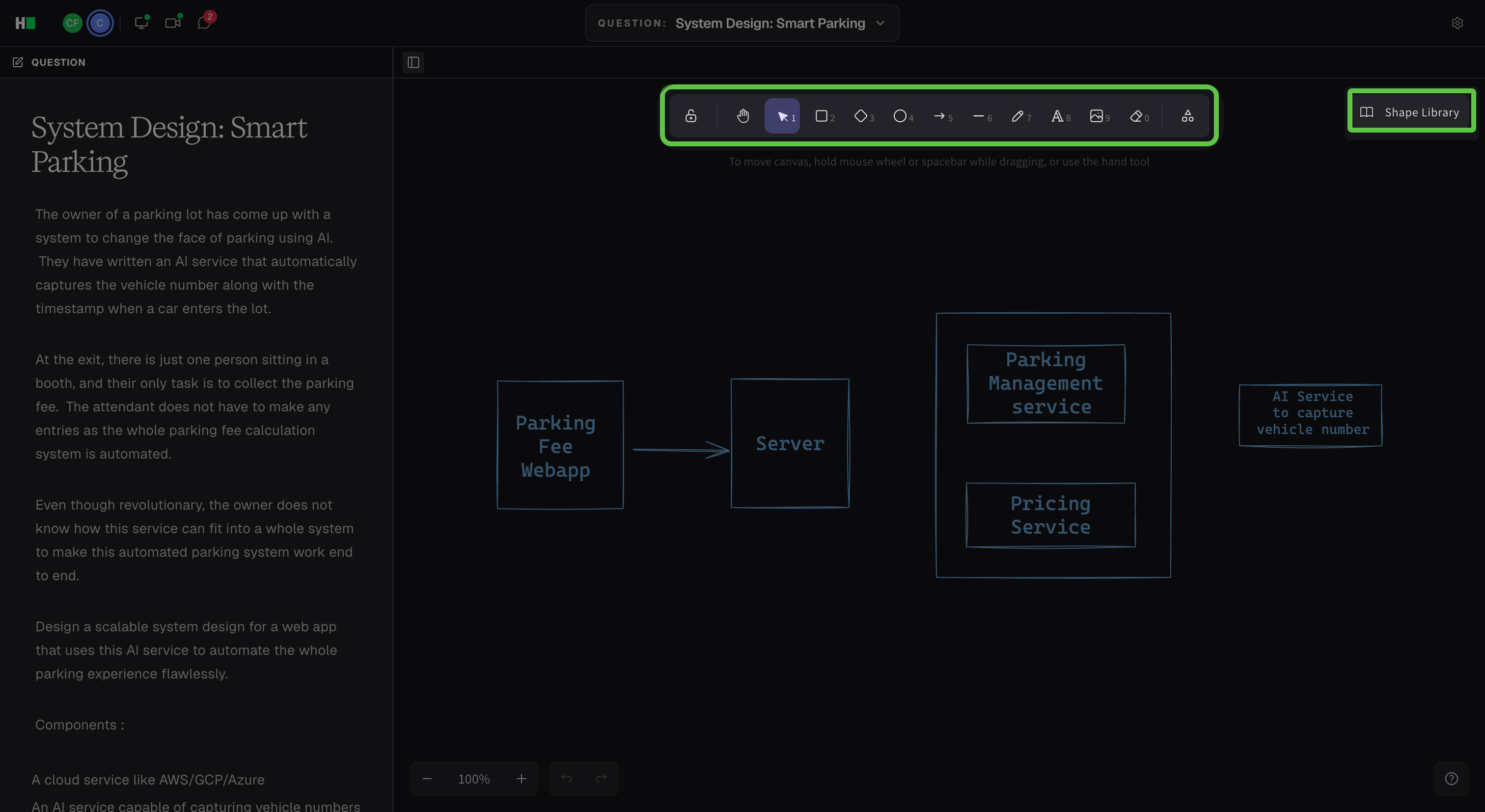
The whiteboard includes the following components and tools.
Canvas controls
Sketch and annotate without space limitations.
Scroll through the canvas to continue drawing seamlessly.
Use the + and – icons in the bottom-left corner to zoom in and out.
Drawing tools: The toolbar at the top of the whiteboard includes:
Selection tool: Select and move shapes or drawings. Drag handles around shapes to resize selected shapes. Press the Delete key on your keyboard to remove selected elements.
Shapes library: Insert common shapes such as squares, diamonds, and circles.
Arrow tool: Add directional arrows to diagrams.
Line tool: Draw straight lines for connections or boundaries.
Pen tool: Draw freehand sketches.
Text tool (A): Add labels, notes, or annotations.
Image upload icon: Insert predefined architecture diagrams and images to avoid redrawing company-specific architectures.
Select the Toggle left panel icon to collapse or expand the question panel.
Database
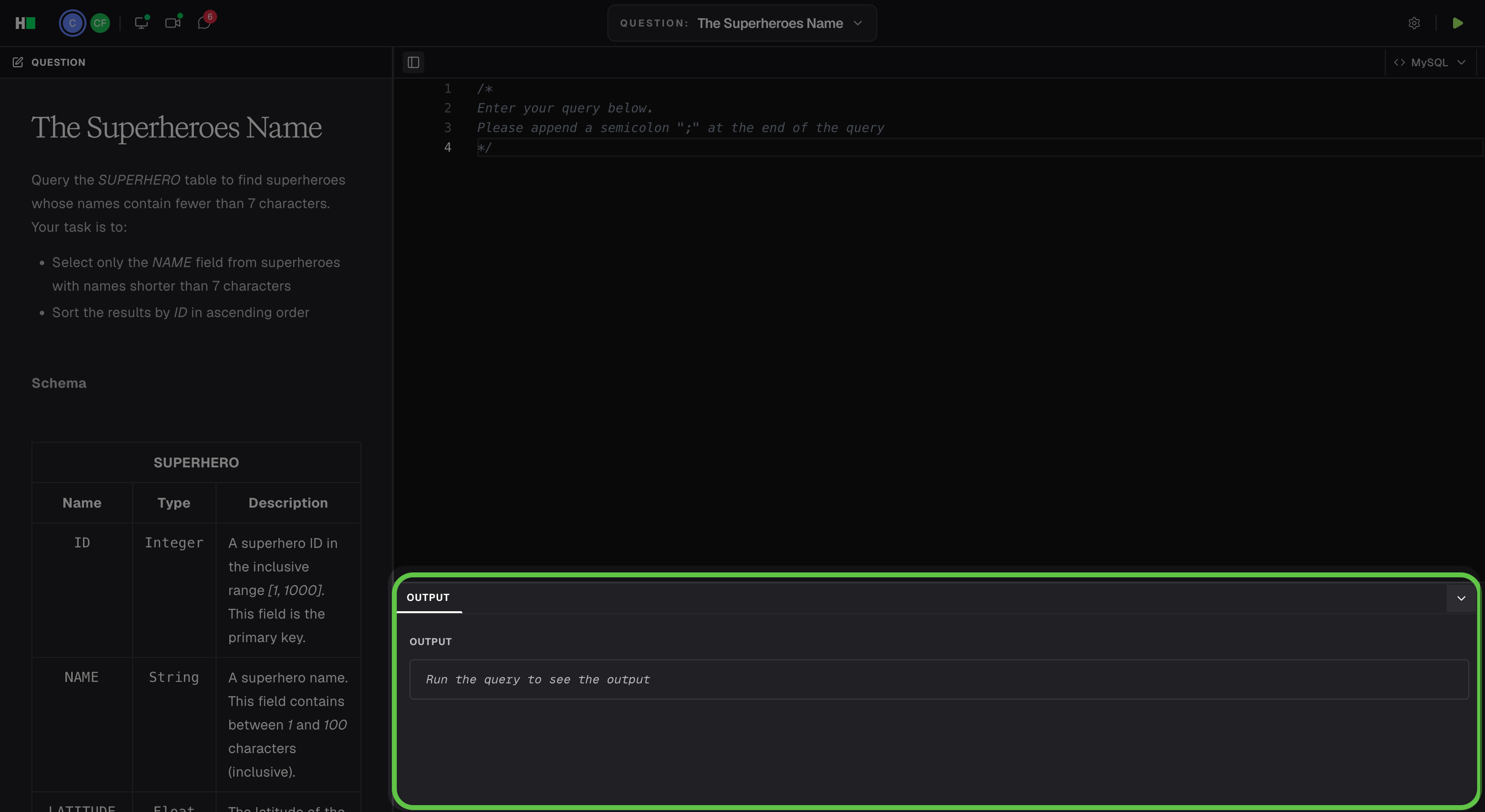
A Database question provides an editor where you can write and run database queries. The workspace displays the question on the left and the query editor in the center.
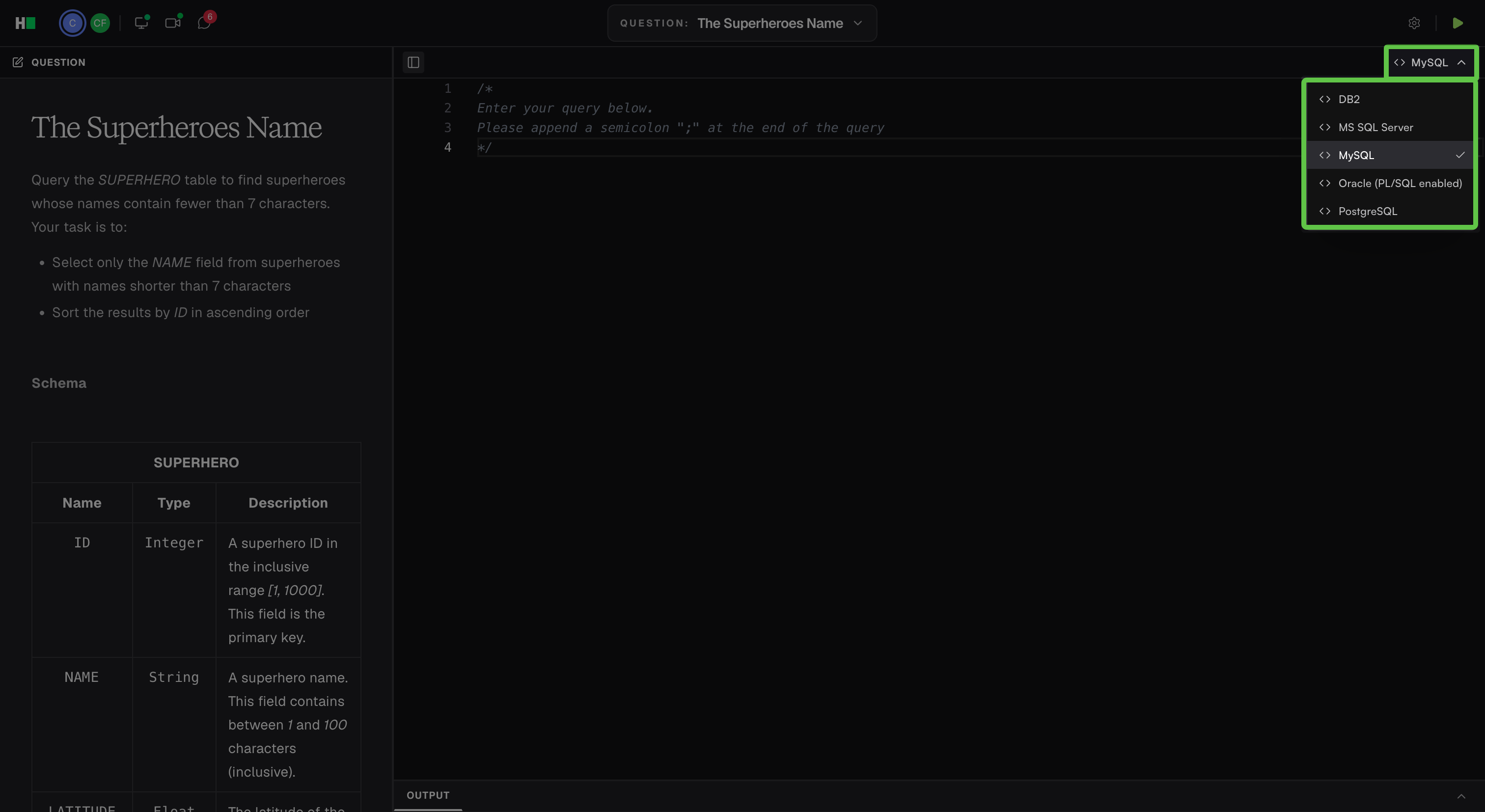
You can use the following workspace elements and controls:
Database language: Click the language dropdown to select database language.
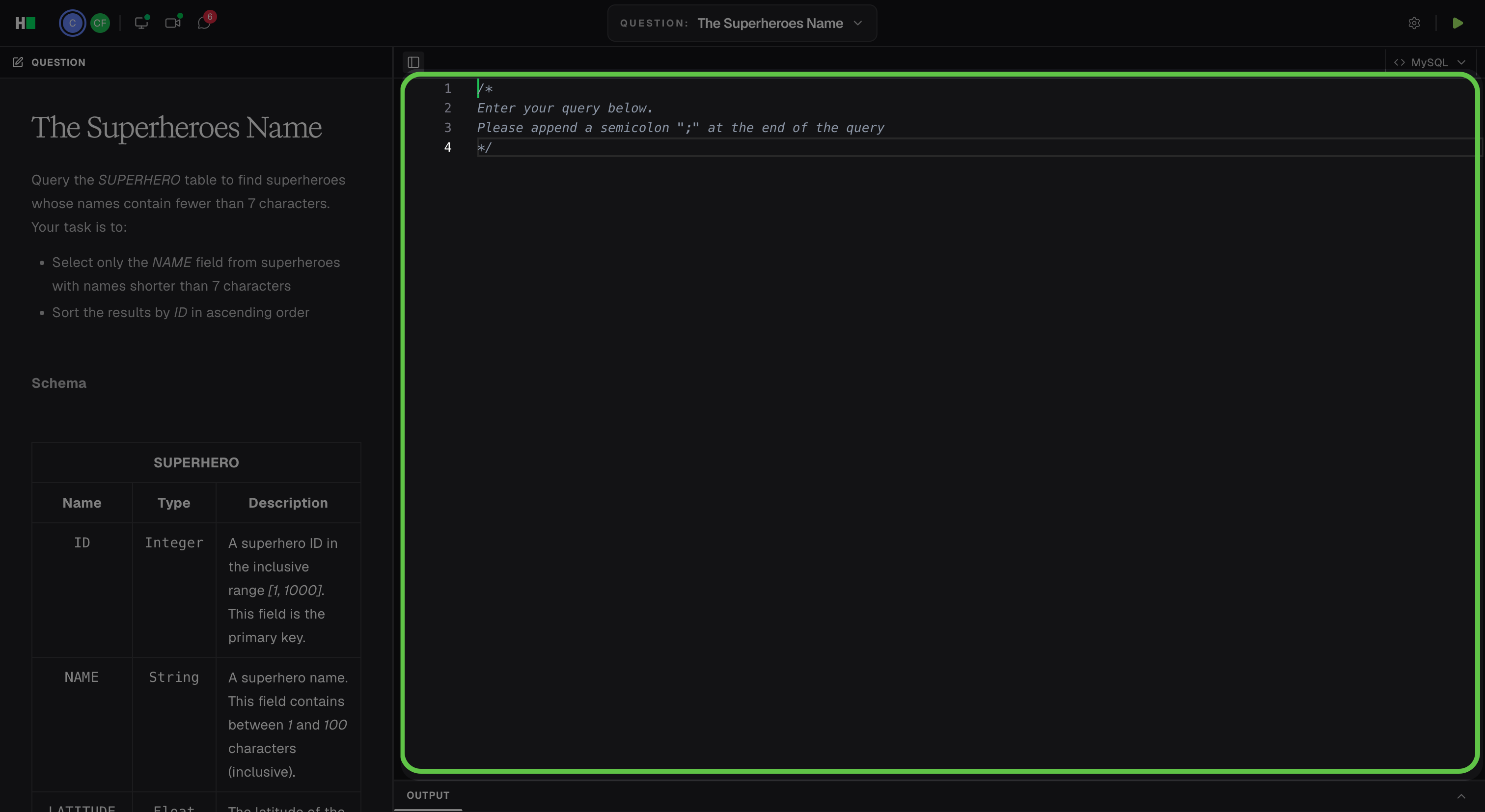
Query editor: Enter and edit your query in the main workspace.
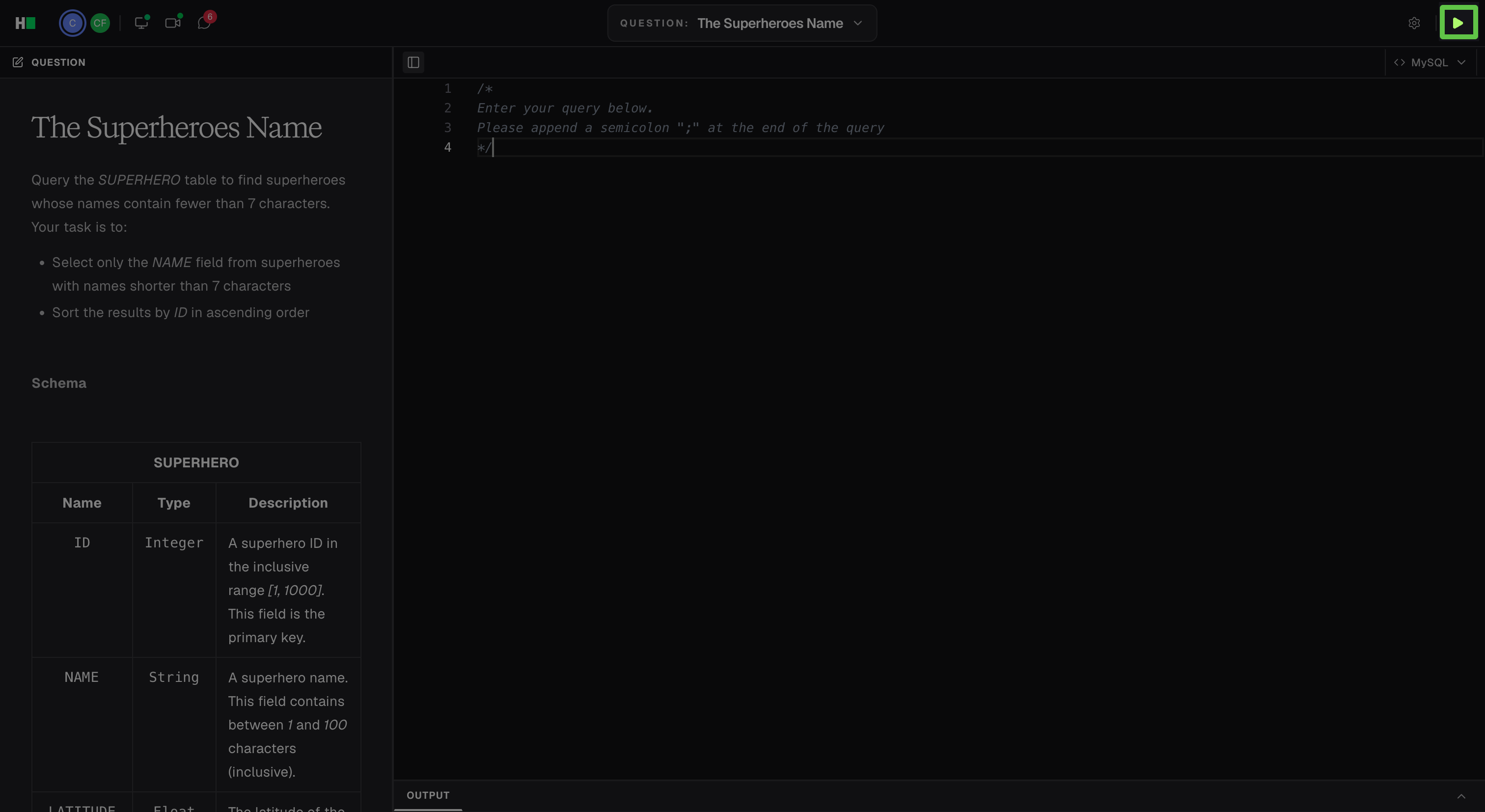
Run: Click the Run icon in the upper-right corner to run the query.
Output: Expand the Output tab at the bottom of the editor to review the query result.
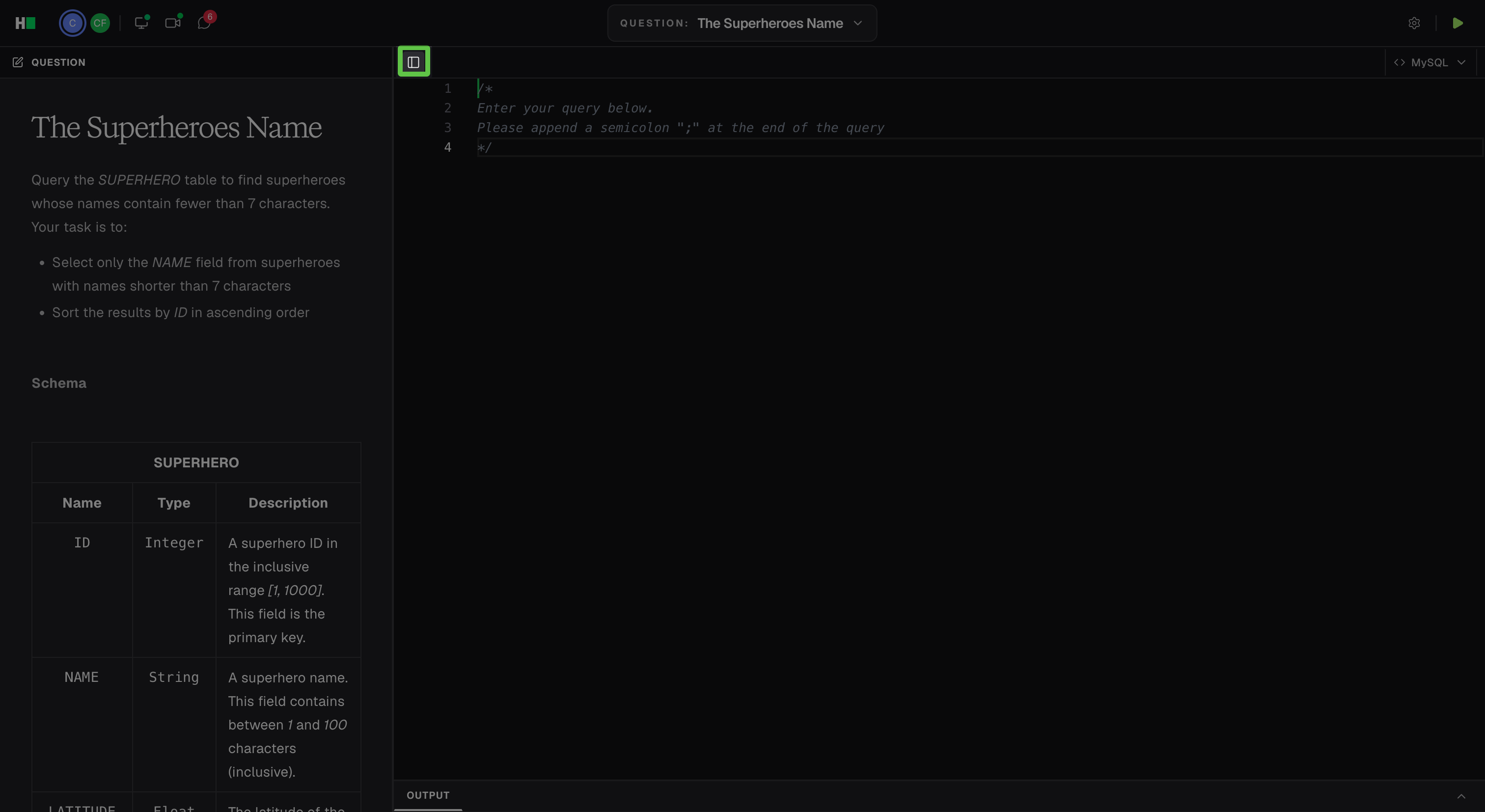
Click the toggle left panel icon to collapse the question panel.
Data Science
A Data Science question opens in a VS Code IDE with notebook support. The question appears in the left panel, and the IDE appears in the main workspace.
The workspace includes the following components:
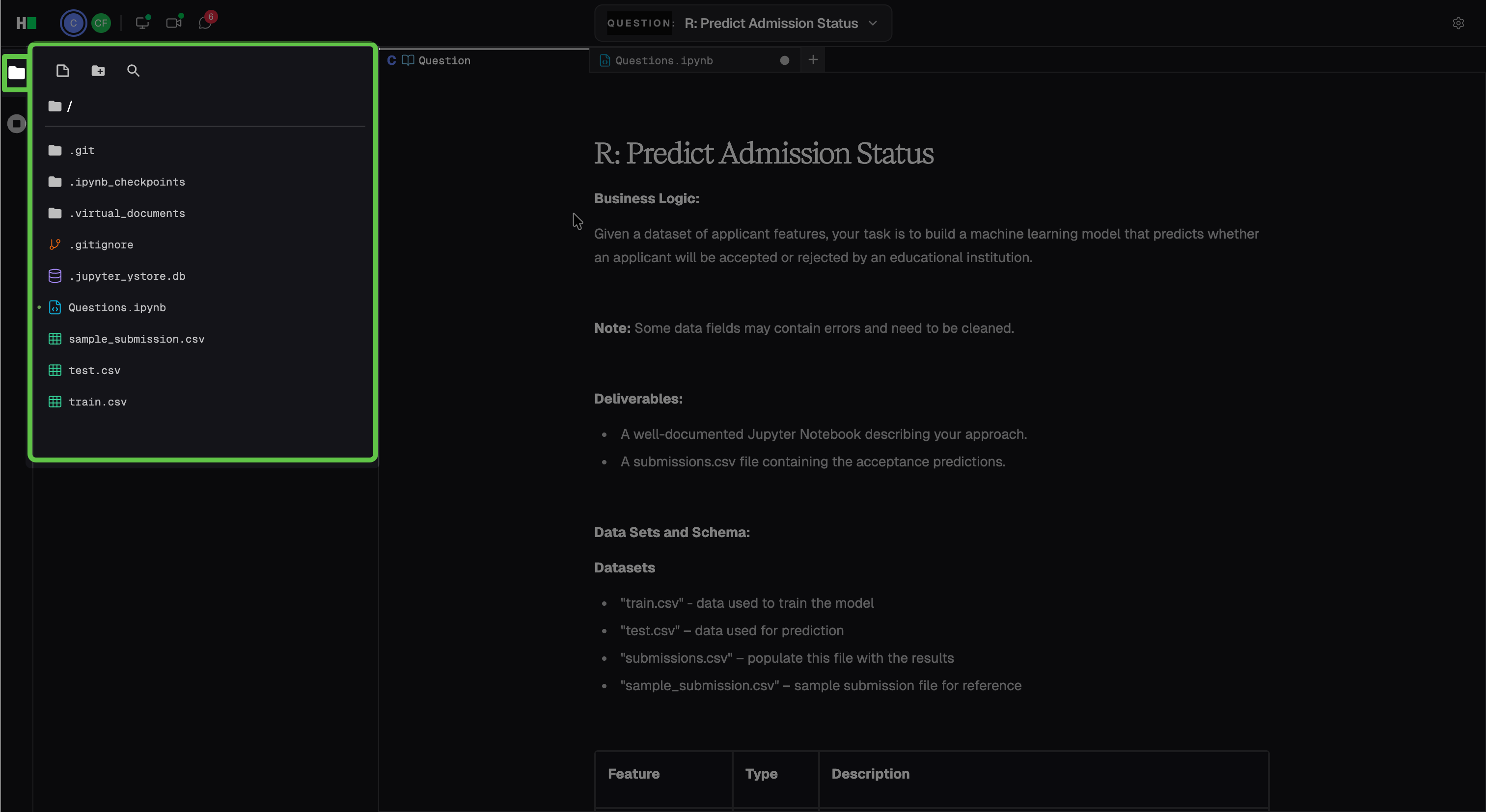
Explorer: View and open notebooks, datasets, scripts, and other project files.
Question panel: Review the problem statement, data description, requirements, and expected deliverables.
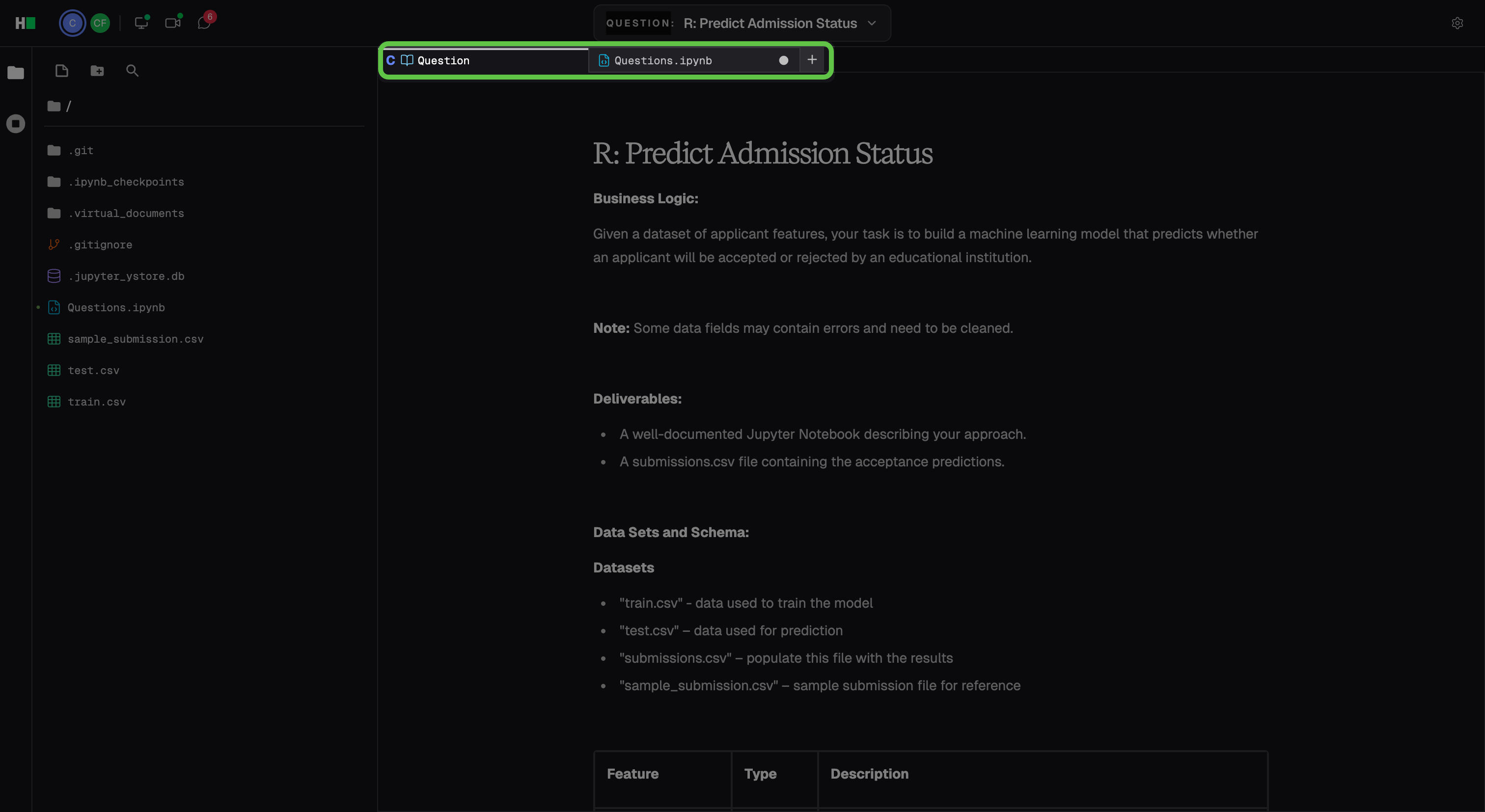
Notebook editor: Add or edit Markdown and code cells, run code, and review cell output.
Notebook controls: Run an individual cell or select Run All to run the entire notebook.
DevOps
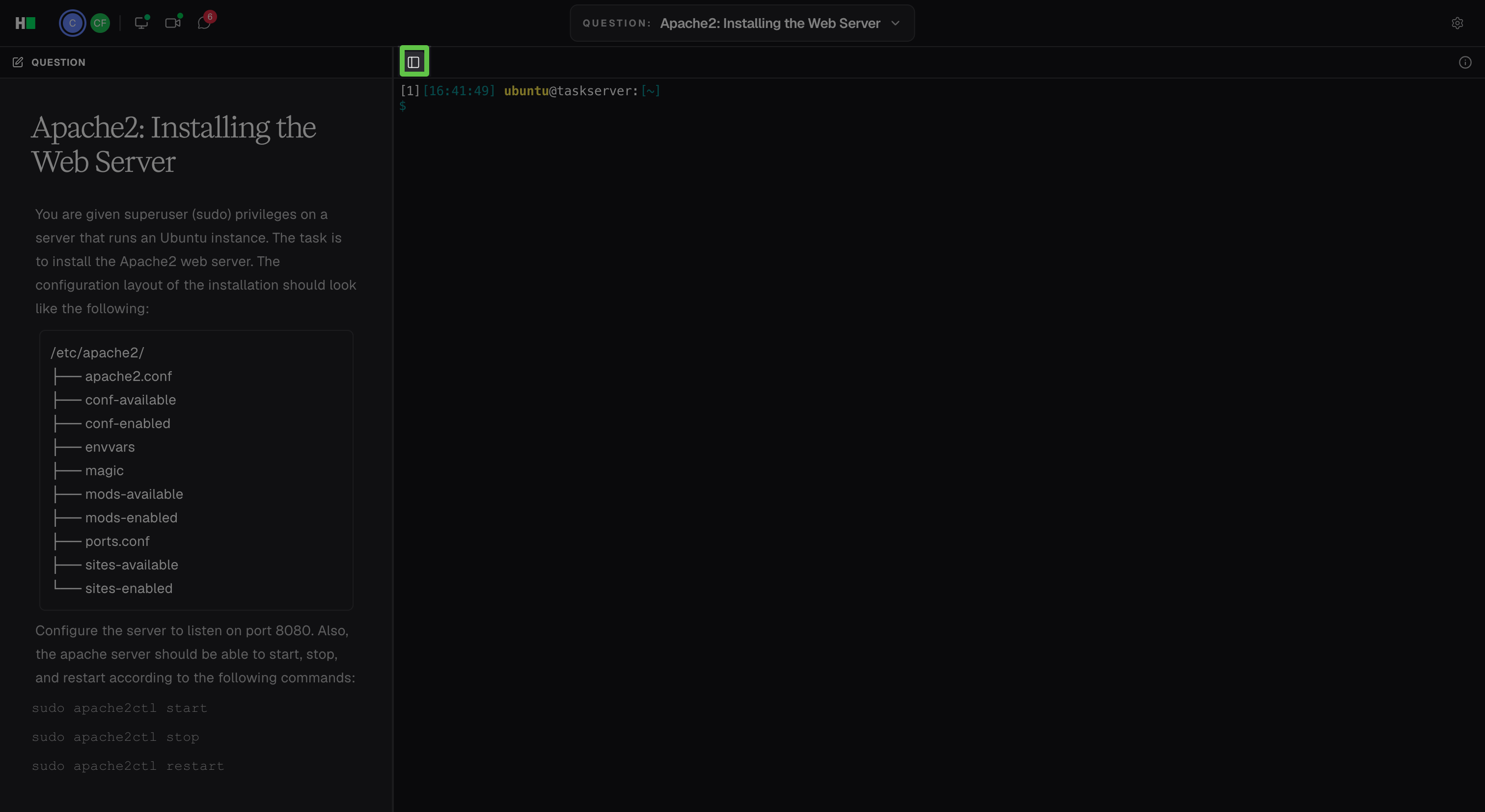
A DevOps question provides a sandboxed Linux environment that you access through an in-browser terminal. The question panel appears on the left.
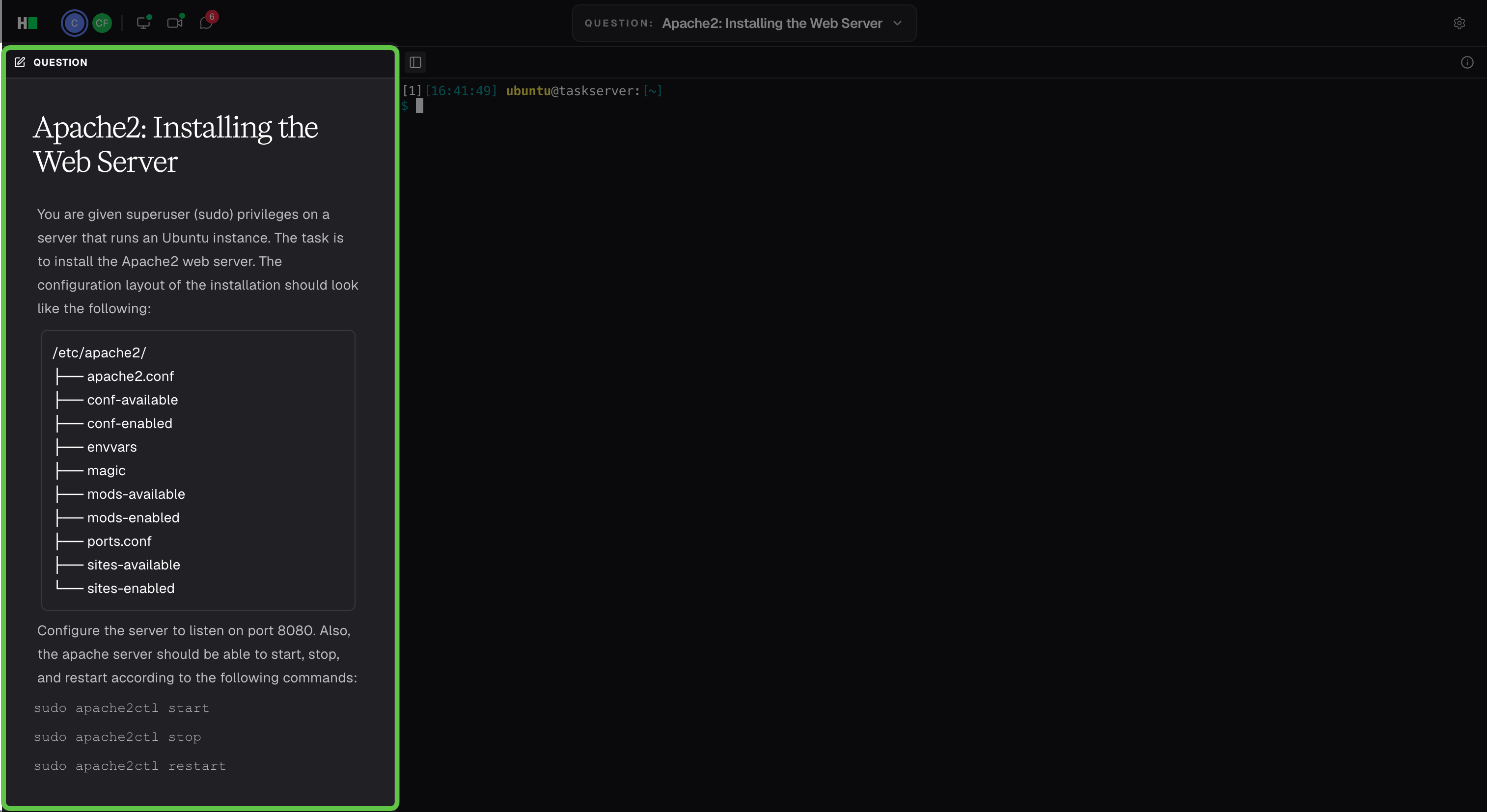
The terminal appears in the main workspace.
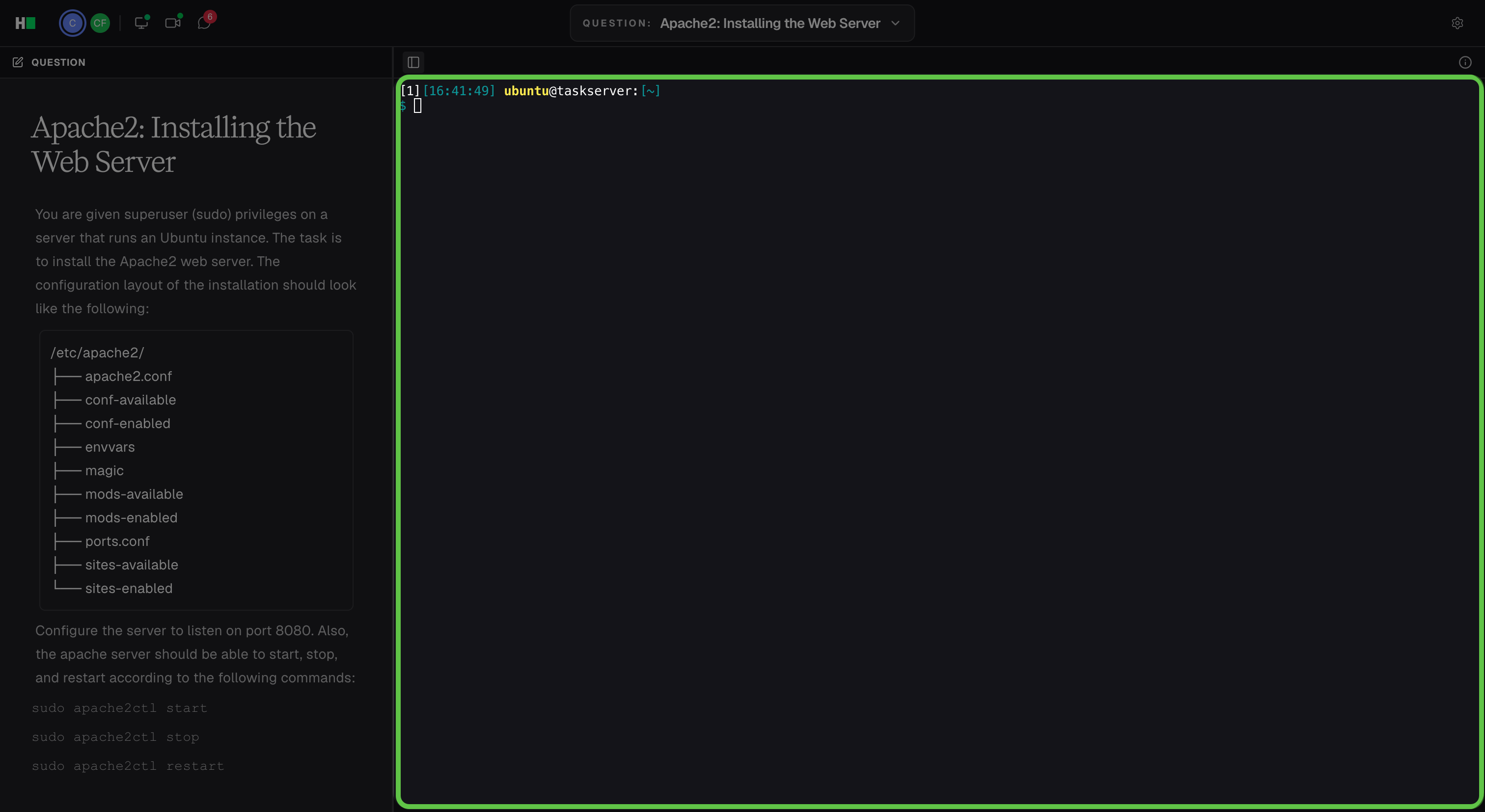
Review the requirements in the Question panel, and then use the terminal to complete the required Linux tasks, such as installing packages, creating files, or running command-line tools.
Click the toggle left panel icon to collapse the question panel.