Front-end, Back-end, Full-stack, and Mobile Developer Interviews
Last updated: August 27, 2026
This article applies to the legacy Interview experience. If your interview interface looks different, see 📄 Navigate Question Workspaces in an Interviewfor the new Interview experience.
HackerRank Interviews for Front-end, Back-end, Full-stack, and Mobile developer roles provide an interactive coding environment where you can use the built-in HackerRank VS Code–based IDE to solve real-world development tasks.
Understanding Code Repositories and Project questions
Code Repositories and Project questions are multi-file, real-world coding problems that simulate actual development work. They offer a more realistic experience compared to traditional Coding questions on the platform.
The table below compares regular Coding questions with Code Repositories and Project Questions.
Feature | Regular Coding Questions | Code Repositories / Project Questions |
File Structure | Single file | Multi-file (mimics real project layout) |
Environment | Single editor window | Full IDE-like environment |
Interview focus | Solves a specific coding problem | Tests functional implementation and debugging skills |
Code Repository tasks
A Code Repository is a reusable codebase (For example, React application, Express server) that contains multiple project-based questions. It serves as the base scaffold or application template for real-world coding tasks.
Example tasks:
Fix a bug in
UserService.jsImplement a feature in
Dashboard.jsx
Project tasks
Project questions are a question type on the HackerRank platform that allows you to work in a real-world development environment. These questions simulate job-related tasks, such as building a feature, fixing a bug, or improving an existing codebase.
Using the HackerRank IDE during interviews
The following details help you use the HackerRank IDE effectively:
Environment Setup and Execution:
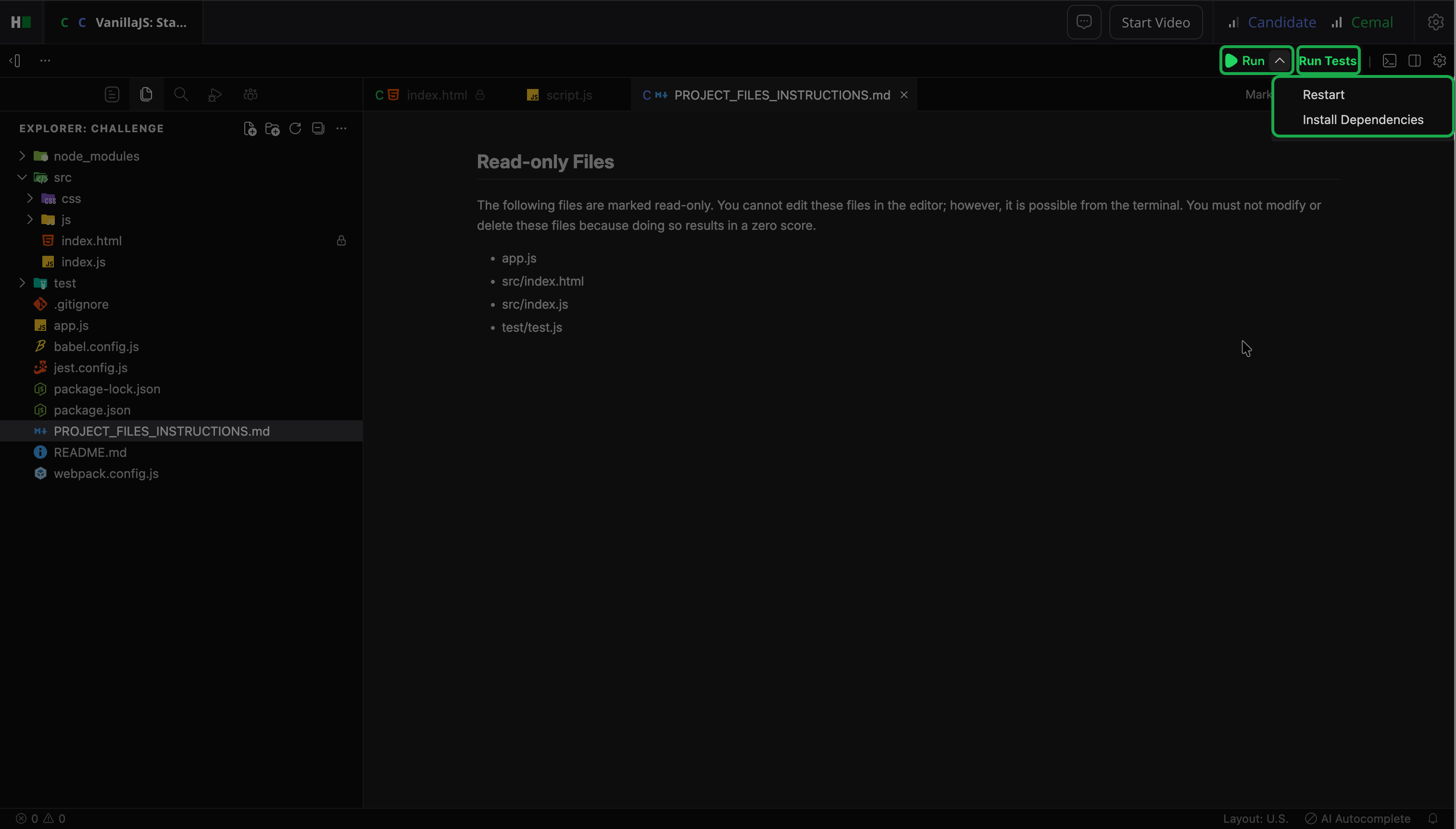
When the interviewer opens a project-based question, the IDE automatically installs dependencies. If the process stops, select Run dropdown and click Install Dependencies to install them manually.
Click Run to run the application.
Click Run Tests to execute test cases against your code.
Preview Panel:
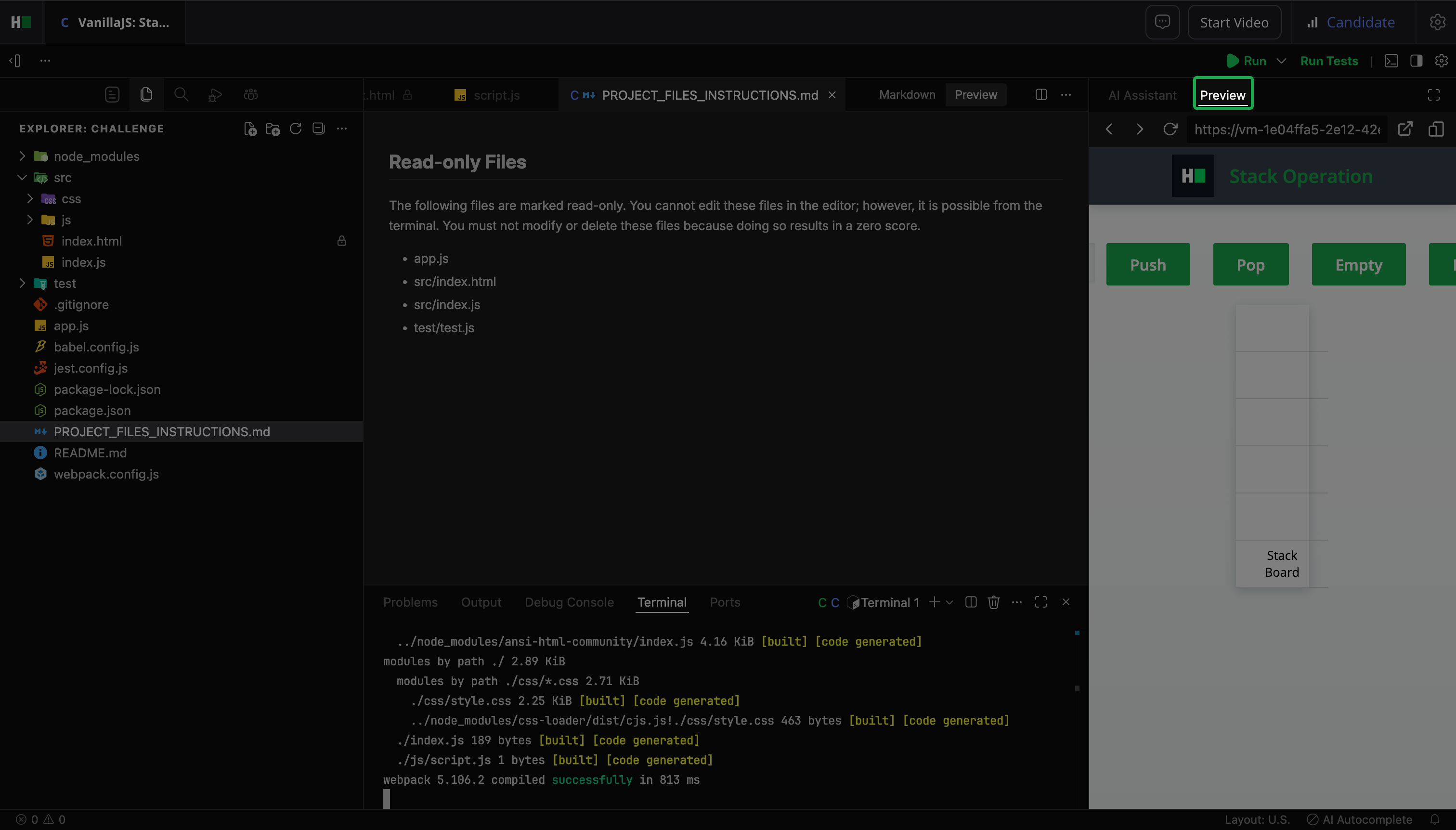
Click Run to open the preview panel.
Alternatively, click Toggle Secondary Sidebar Visibility next to the Run button to display the preview panel.
AI Assistant (if applicable): The AI Assistant tab allows you to ask questions and receive quick guidance. This feature applies only to AI-supported interviews. For more information, see 📄 AI Assistant in Interviews.
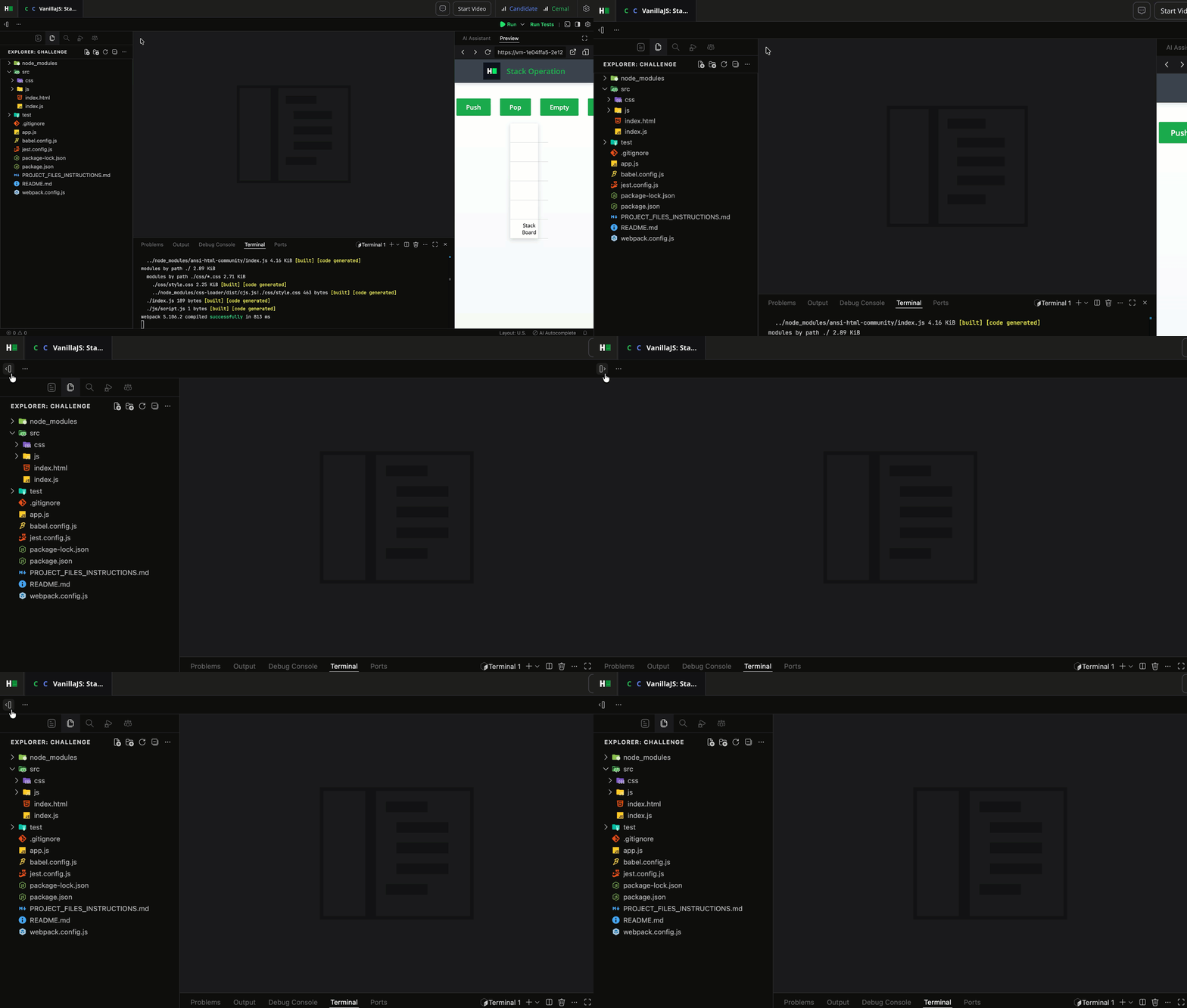
IDE Layout: You can hide the question description to expand the coding space further.
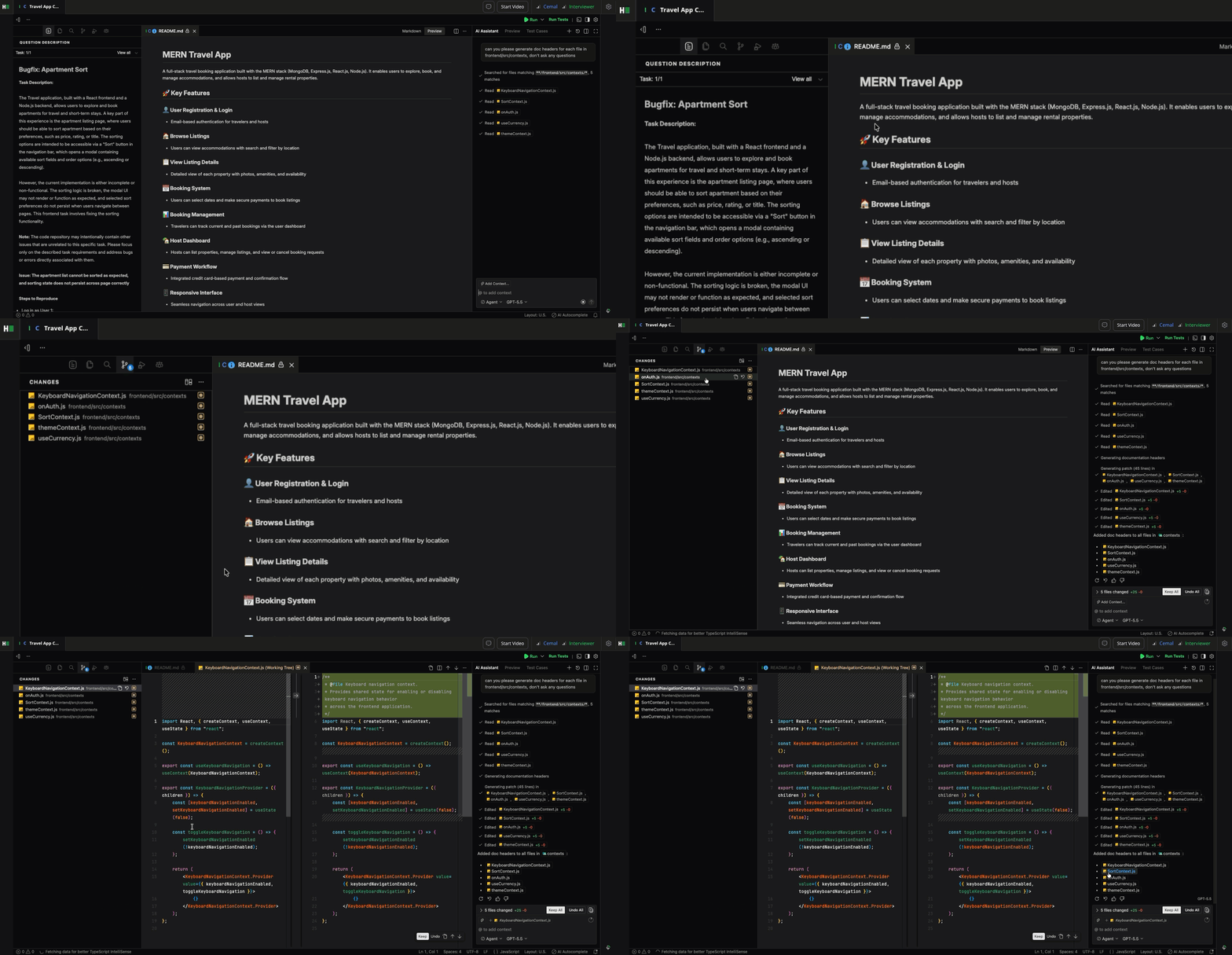
Diff View: You can compare your current project with its original state at the start of the test.
Terminal: To open the terminal, click Terminal in the menu bar.
Debugging: You can use the built-in debugger in the IDE to trace errors and inspect variables to debug the code and resolve issues efficiently.
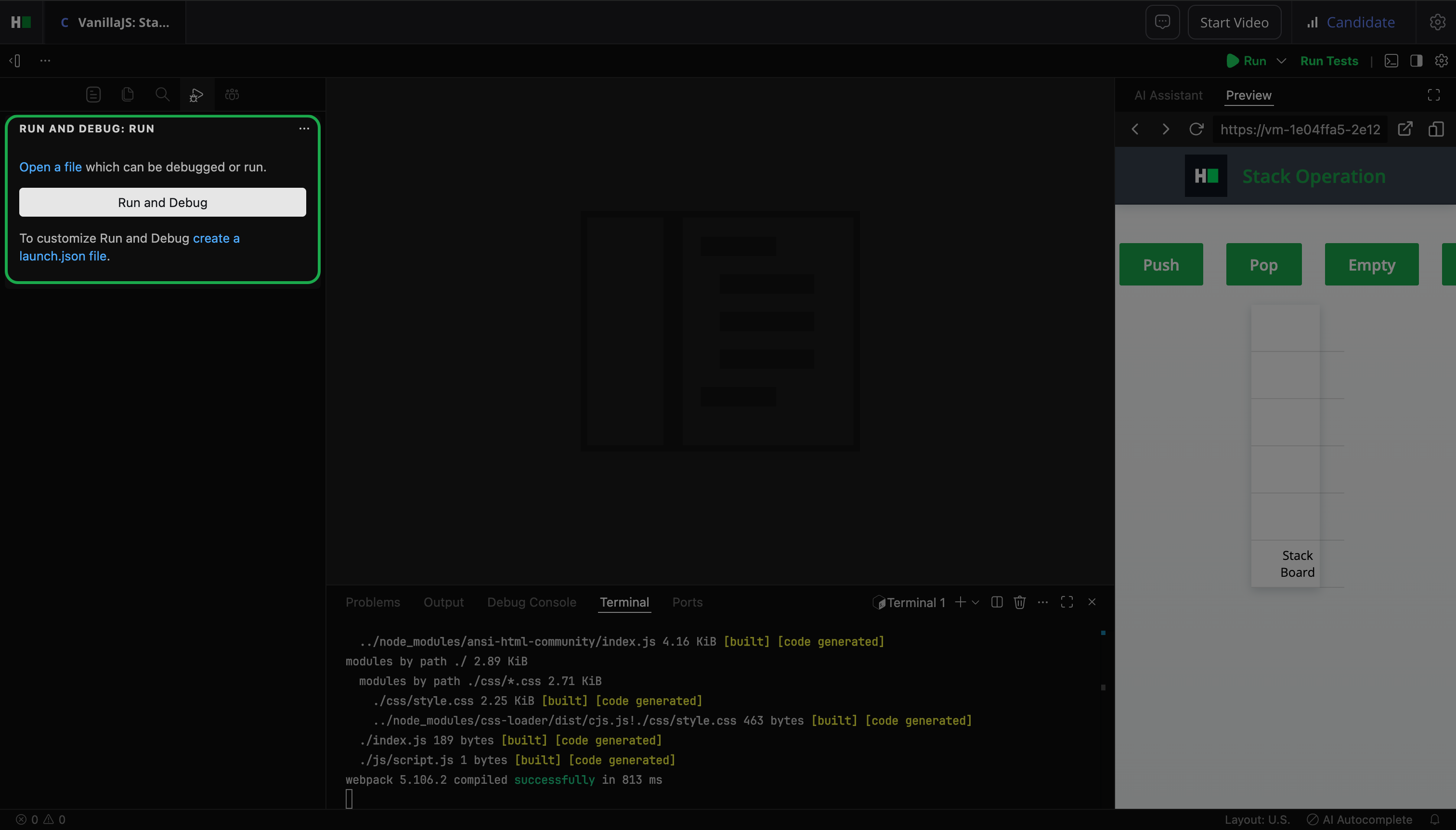
Testing application using Postman
You can use Postman to test API endpoints after you run your application in the HackerRank IDE.
Note: Use Postman only for projects that require API endpoint testing.
To test your application using Postman:
Click Run in the IDE to start the application
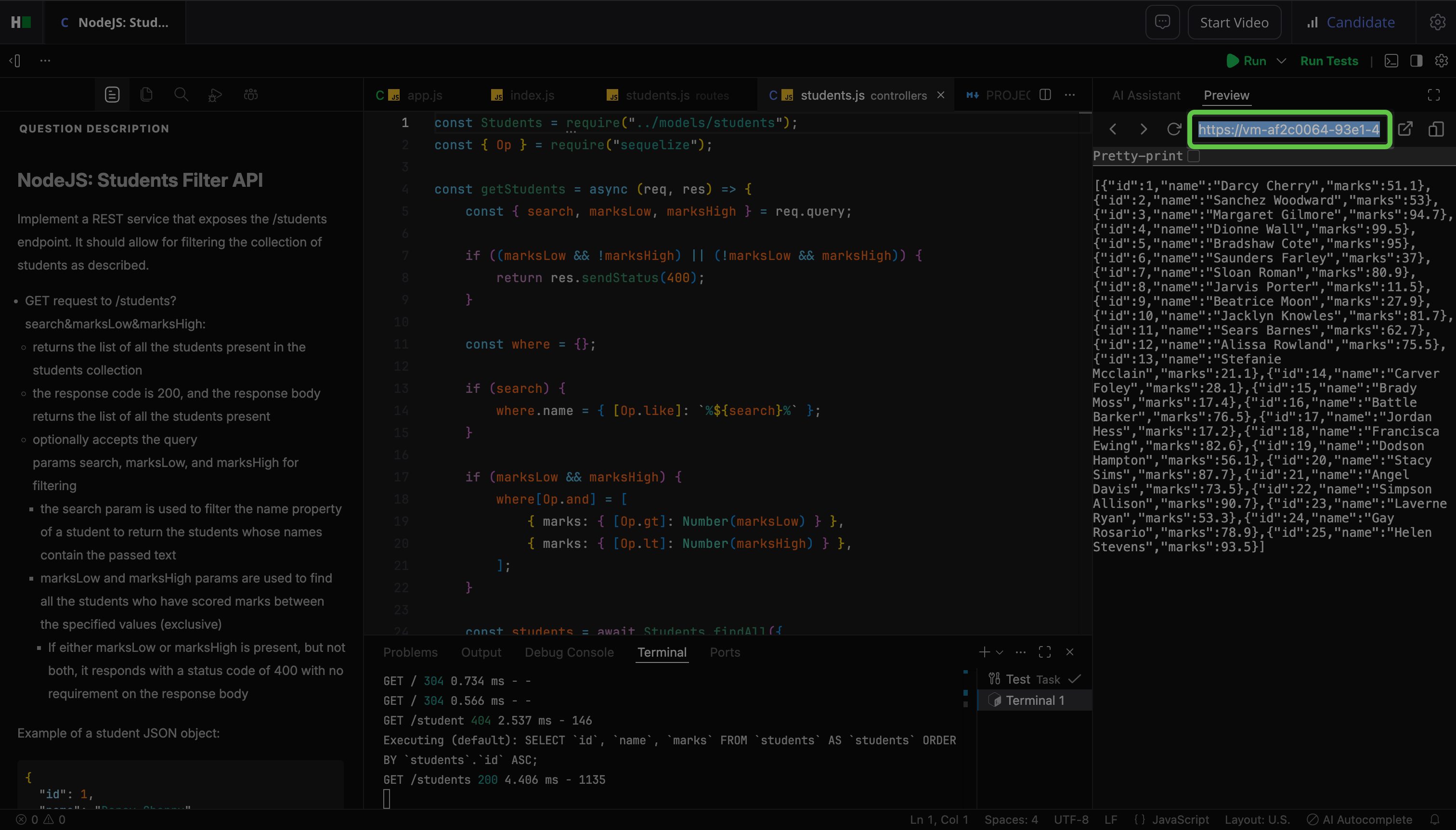
Copy the API endpoint URL from the Preview panel after your application is live.
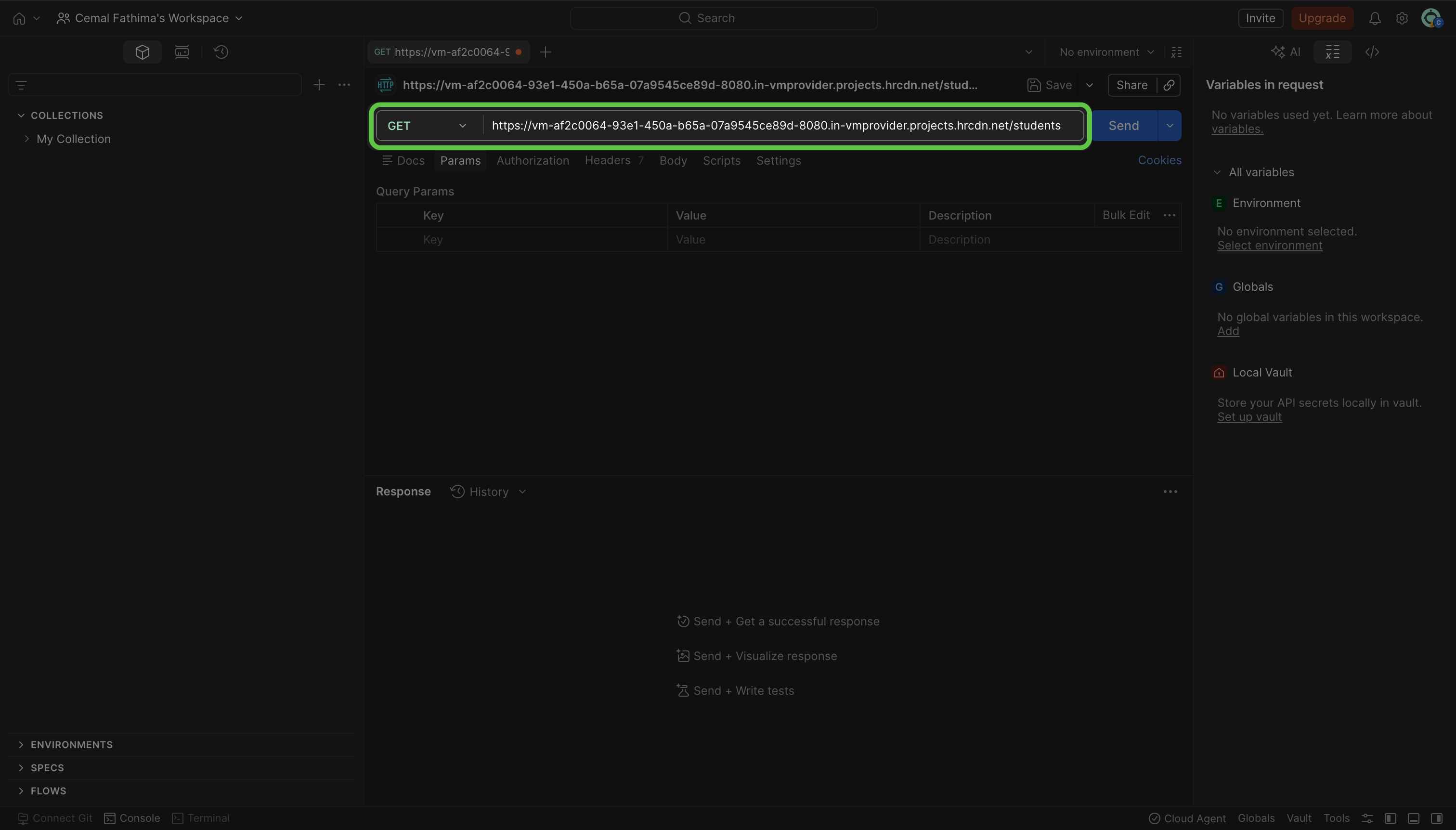
Open Postman and create a new request.
Paste the endpoint URL into the request URL field and select the appropriate HTTP method (for example, GET, POST).
(Optional) Add required headers, query parameters, or a request body to configure the request.
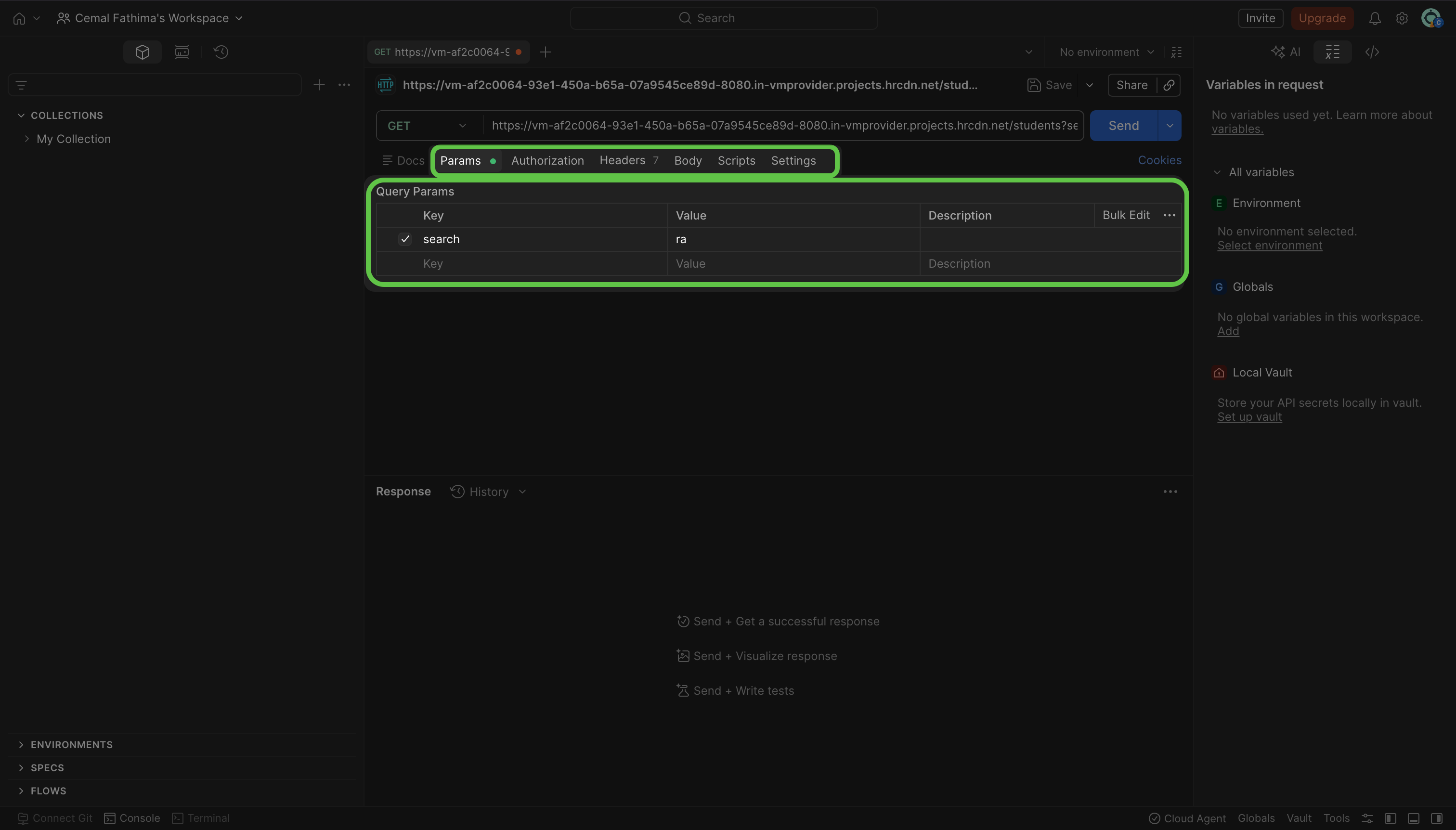
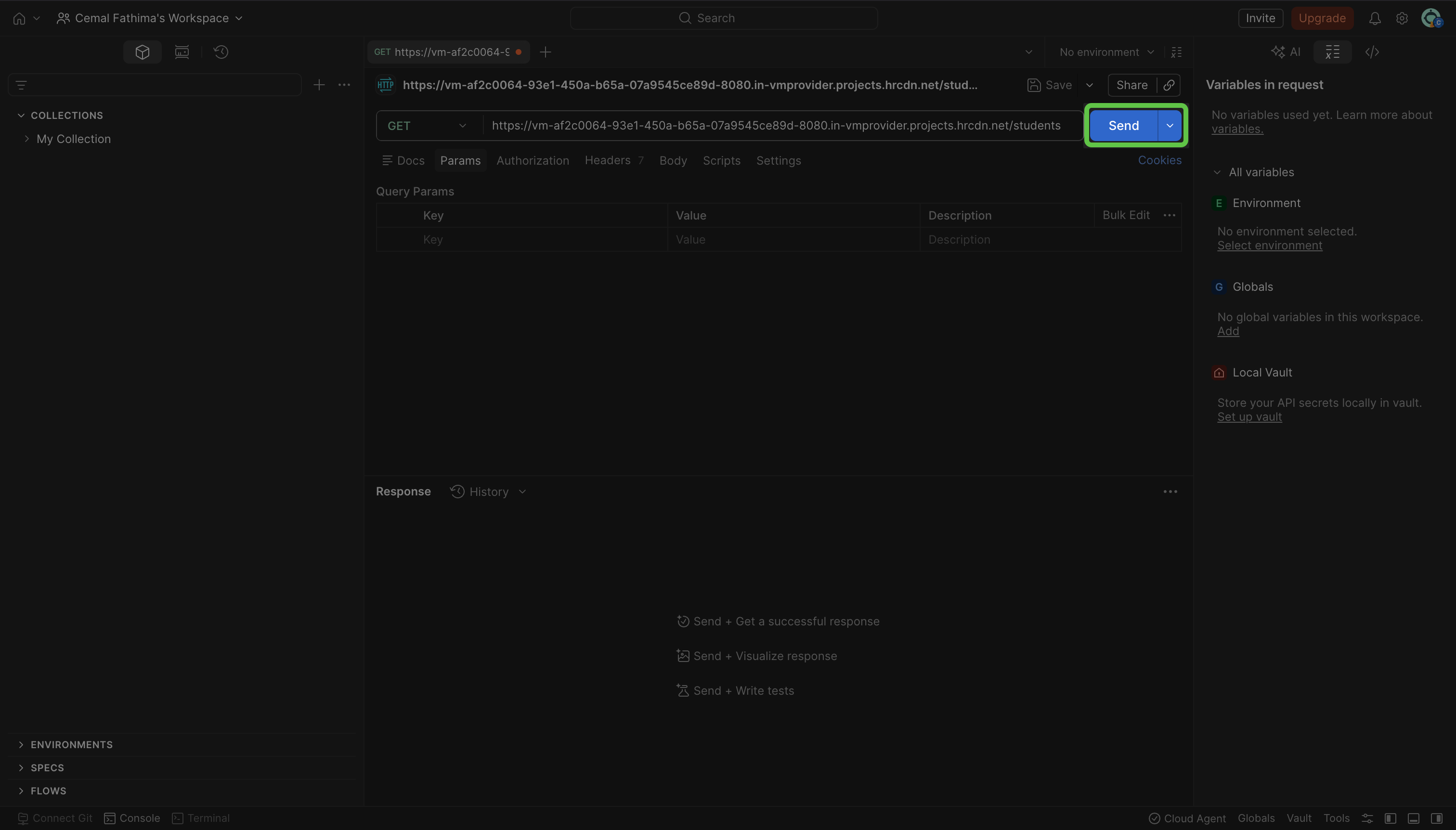
Click Send to run the request.
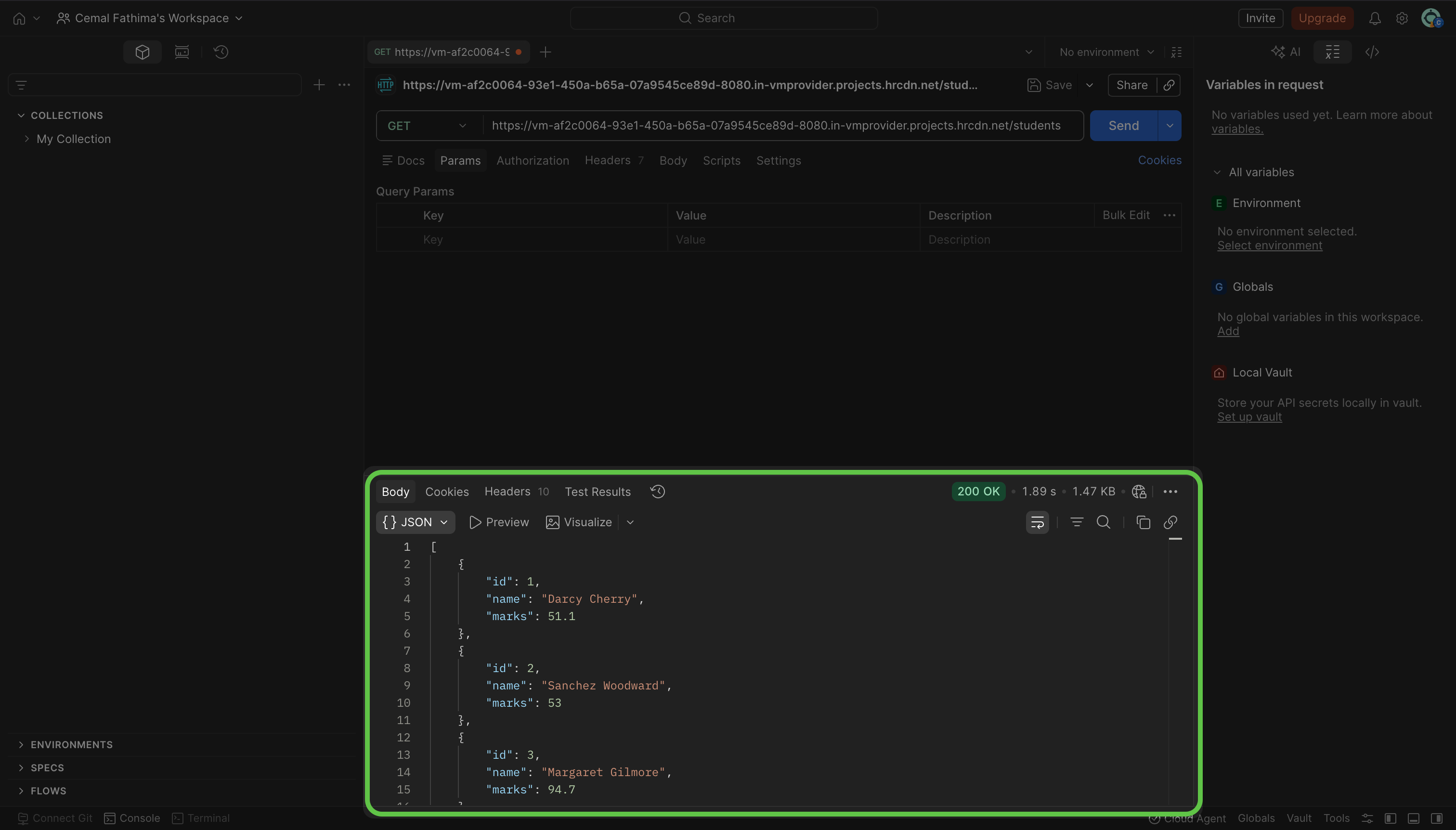
Review the response from your application to confirm that the API endpoint returns the expected data, status code, and behavior.
Note: The endpoint URL in the preview panel remains active only while the application runs. The URL may change when you stop and restart the application. Always copy the latest URL before testing.