Set up IntelliJ IDEA Keybindings in HackerRank IDE
Last updated: May 11, 2026
IntelliJ IDEA keybindings let you use familiar keyboard shortcuts during a coding interview. This article explains how to install and use these keybindings in the HackerRank IDE.
Installing IntelliJ IDEA keybindings
To install IntelliJ IDEA keybindings in your HackerRank interview IDE:
Download the IntelliJ IDEA Keybindings extension from the Open VSX marketplace.
Open your HackerRank interview IDE.
Go to the Explorer view.
Drag and drop the downloaded
.vsixfile into the file tree.Right-click the
.vsixfile and select Install Extension VSIX.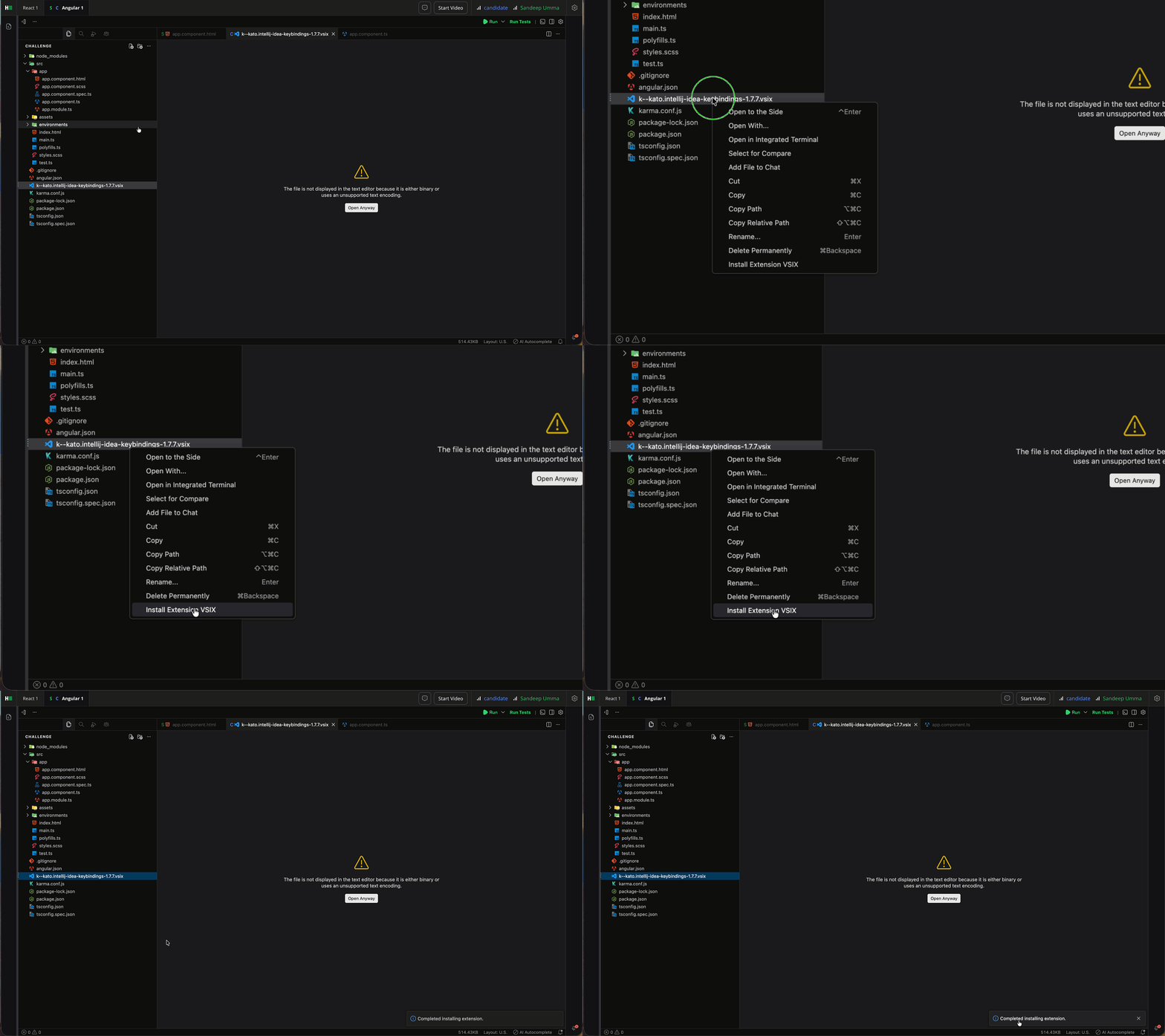
Note: You can delete the .vsix file after installation.
After you install the extension, the HackerRank IDE applies IntelliJ IDEA keybindings immediately and overrides the default VS Code shortcuts. You do not need to restart the IDE.
For example, Shift + Shift opens the global search bar instead of having no functionality in VS Code, and Cmd + B / Ctrl + B navigates to a definition or declaration instead of toggling the Explorer view in VS Code.
Note: Some shortcuts may not work as expected in a browser-based IDE. Browser or operating system shortcuts can override IDE shortcuts. For example, Cmd + W closes the browser tab instead of the editor tab.
Importing custom IntelliJ keybindings
If you use custom IntelliJ keybindings, you can import them into the HackerRank IDE.
Before you begin, ensure that you:
Export the keybindings XML file from IntelliJ IDEA
Install VS Code locally
Install the IntelliJ Keybindings extension in local VS Code
To import custom IntelliJ keybindings:
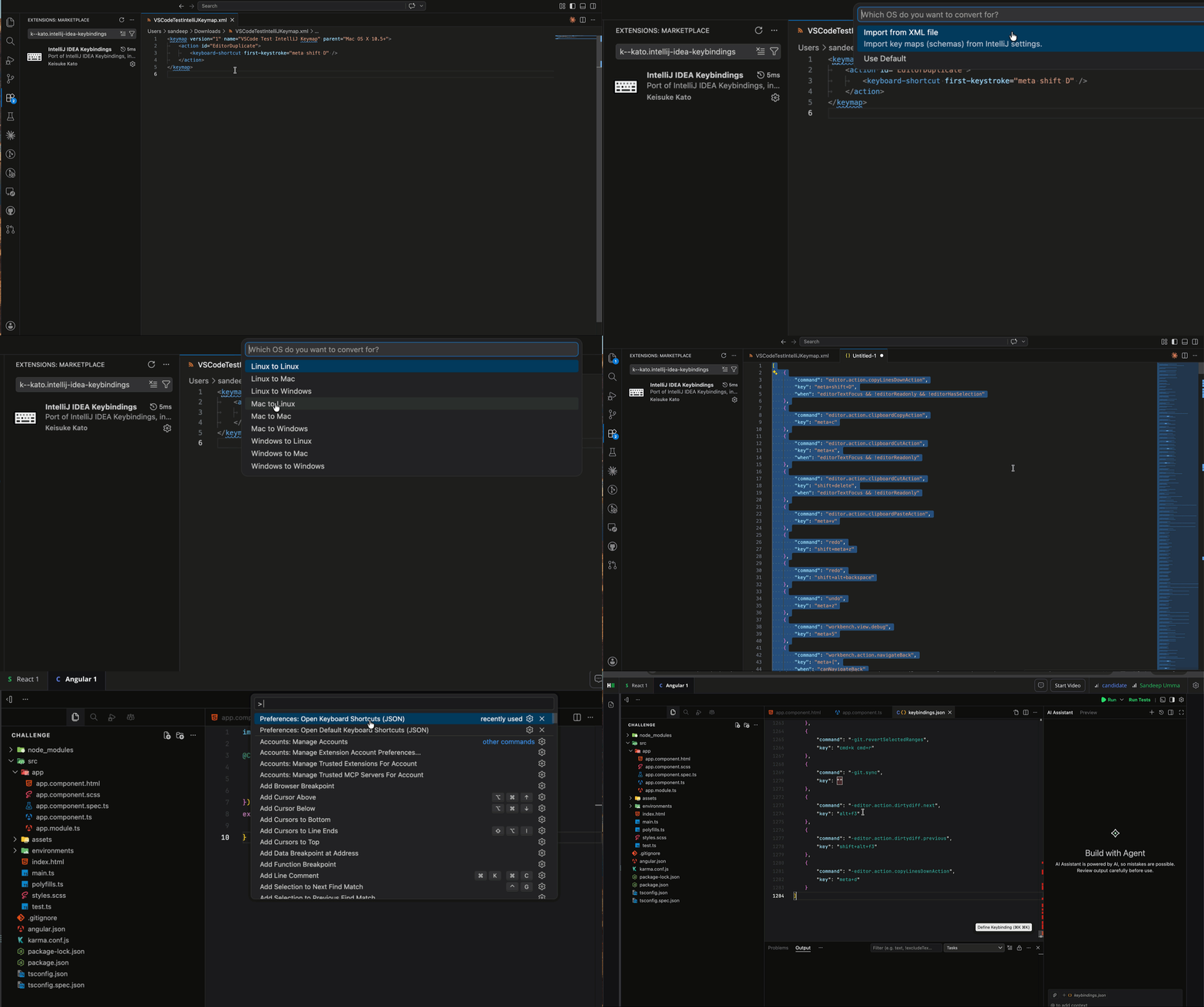
Open VS Code on your device.
Go to the Command Palette.
Search for Import IntelliJ Keybindings XML.
Select the appropriate OS conversion (for example, Mac to Linux).
Upload your XML file. The system generates a
keybindings.jsonfile.Copy the generated keybindings JSON content.
Open your HackerRank interview IDE
Go to the Command Palette.
Search for Preferences: Open Keyboard Shortcuts (JSON).
Paste the copied content into the file.
After you paste the JSON content, your custom keybindings become active in the HackerRank IDE.
For example, Cmd + Shift + D opens the debug panel by default in VS Code. After you map this shortcut to duplicate a line, it duplicates the current line instead.