Debug in Projects and Code Repositories
Last updated: February 23, 2026
You can debug your code directly in the HackerRank IDE to identify and fix issues before submitting your solution. Debugging helps you step through your code, inspect its behavior, and verify logic in Project-type questions (Frontend, Backend, and Full-stack) or Code Repository questions.
The HackerRank IDE provides the following panels and tools to help you manage debugging sessions efficiently.
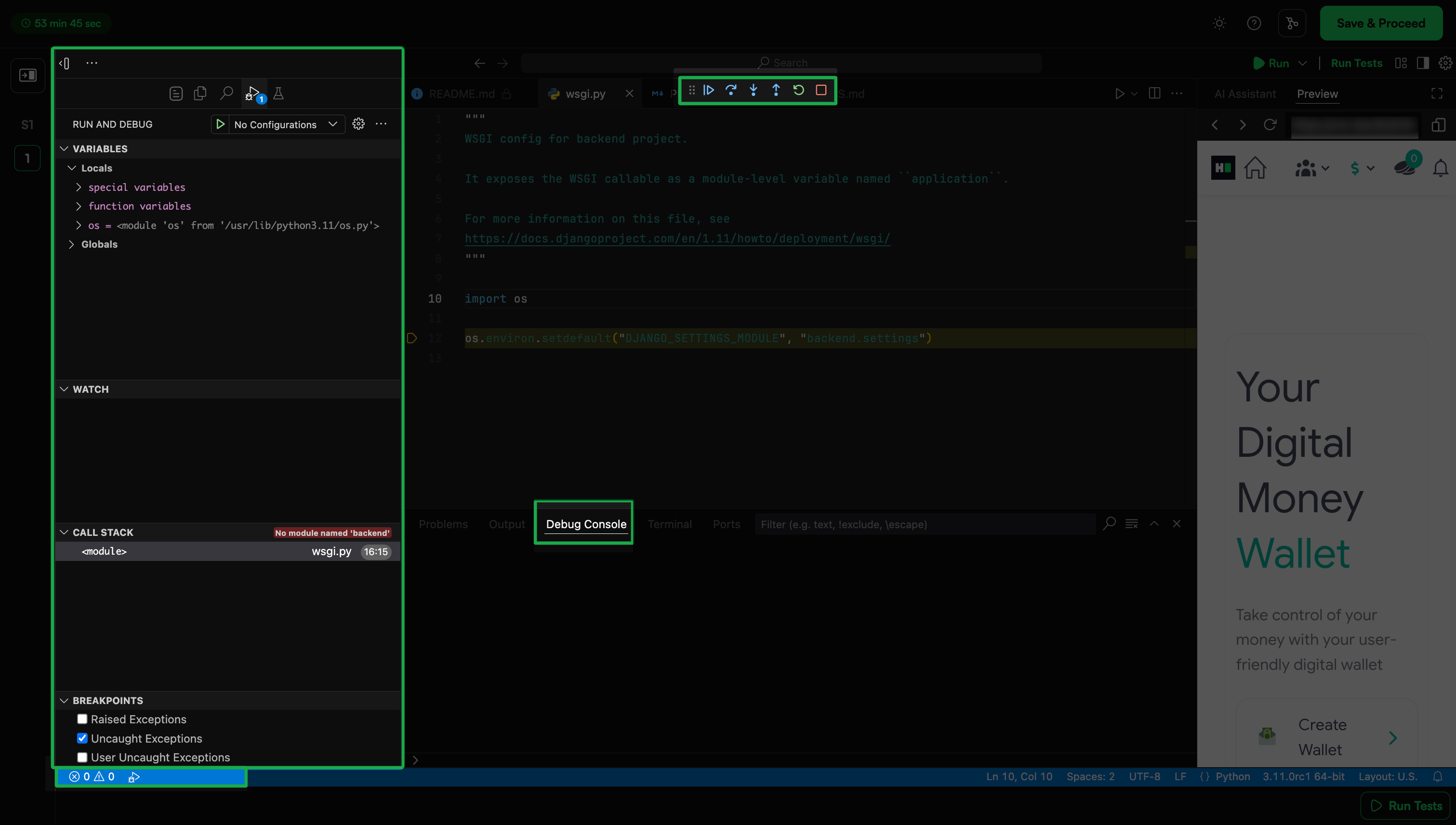
Run and Debug view: Displays all run and debug information, including configuration settings.
Debug toolbar: Provides buttons for common debugging actions, such as Continue, Step Over, Restart, and Stop.
Debug console: Displays output from your running code and allows interaction during a debug session.
Debug sidebar: Displays the call stack, breakpoints, variables, and watch expressions.
Run menu: Offers quick access to frequently used run and debug commands.
Prerequisites
Before you start a debugging session, complete the following setup:
Define a debug configuration: Pre-configured projects can run without additional setup. For advanced scenarios, create a launch.json file in the .vscode folder of your project. For more information, see Debug configurations.
Set breakpoints: Breakpoints pause program execution at specific lines to let you inspect variables and state. To set a breakpoint, click the gutter next to the line number in your code.
Starting a debug session
To start debugging in the HackerRank IDE:
Open the file that contains the code you want to debug.
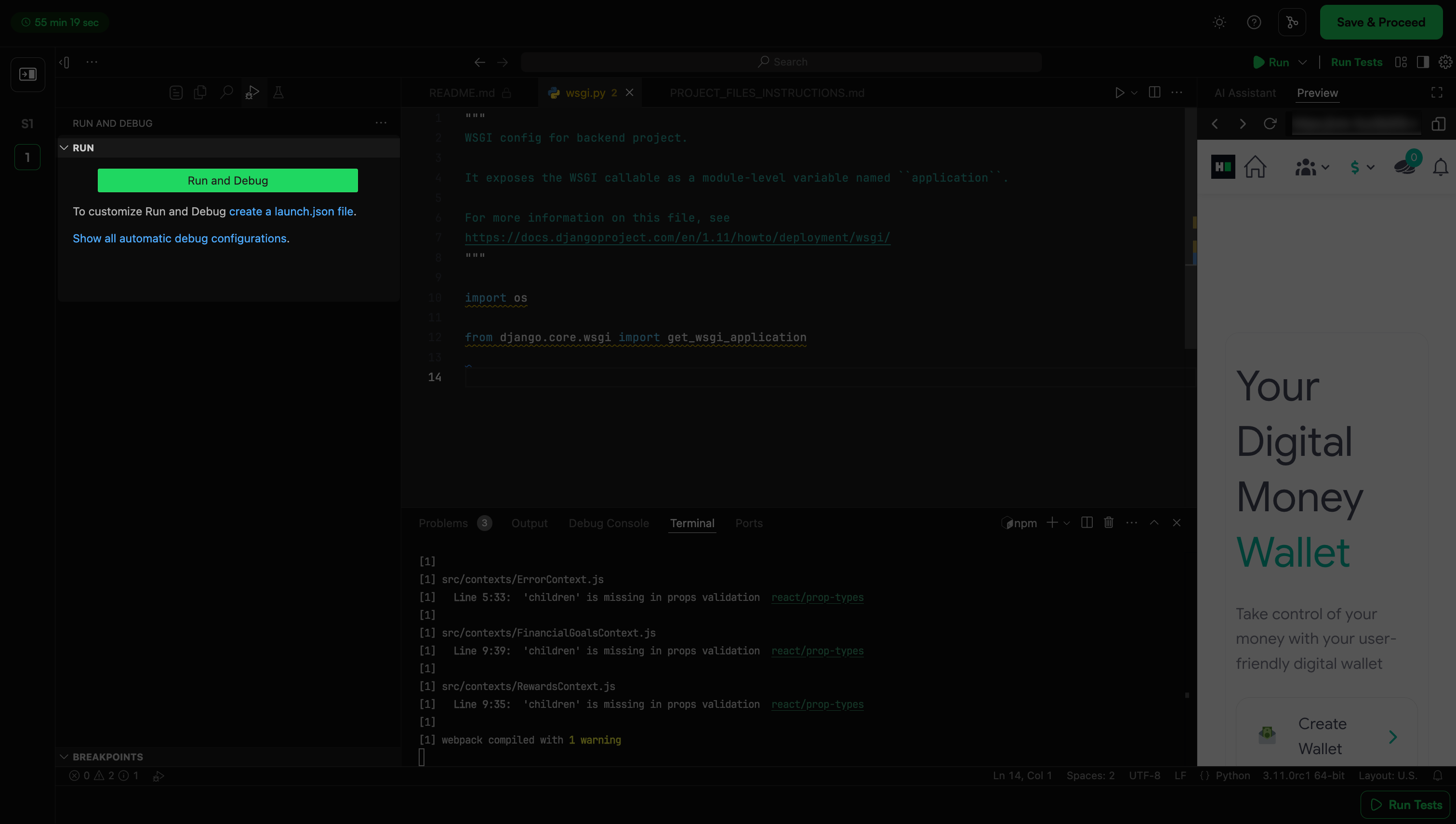
Press F5 or select Run and Debug from the Run and Debug view.
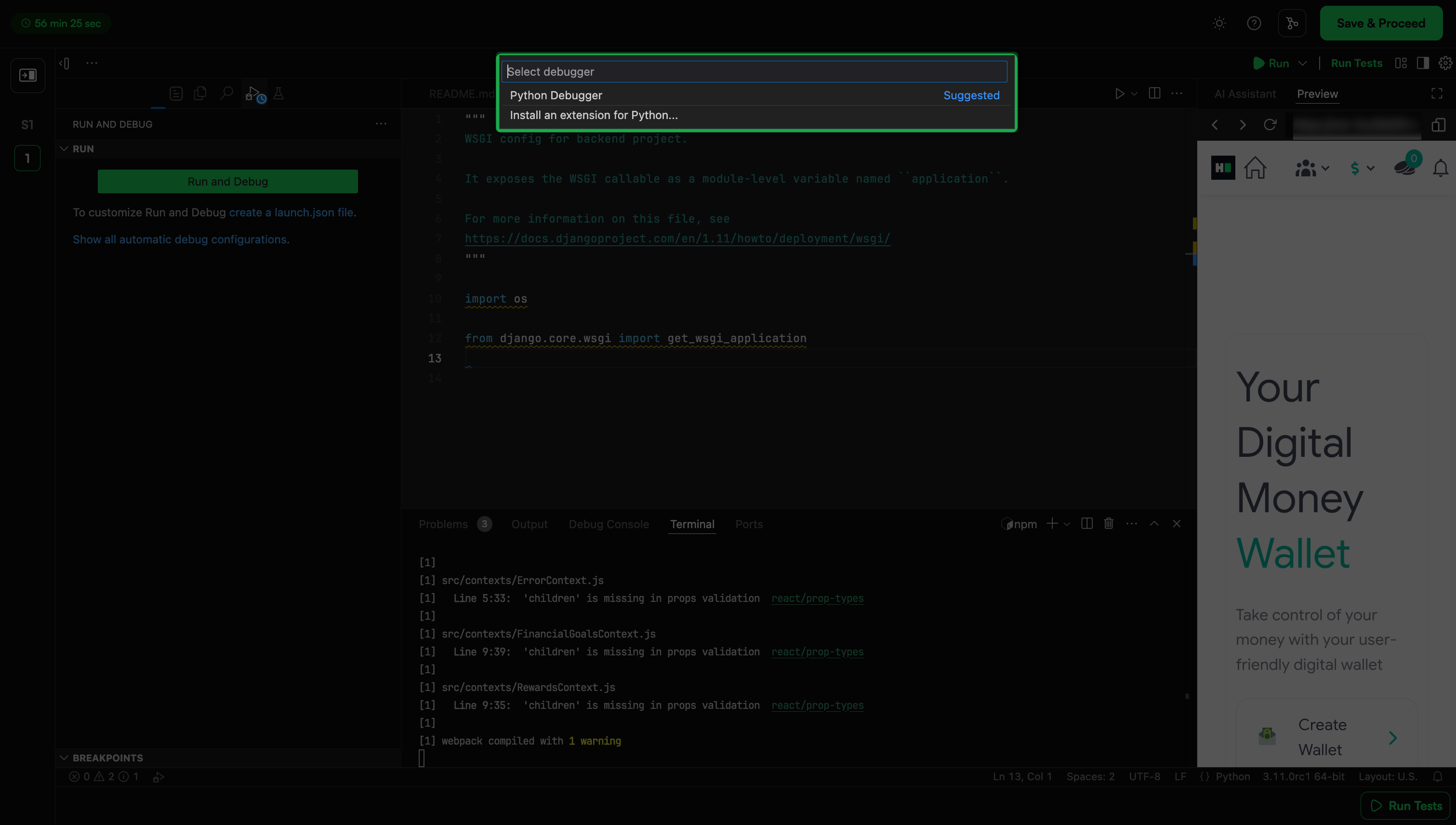
Choose the appropriate debugger from the list of available debuggers. The Debug Console displays output.
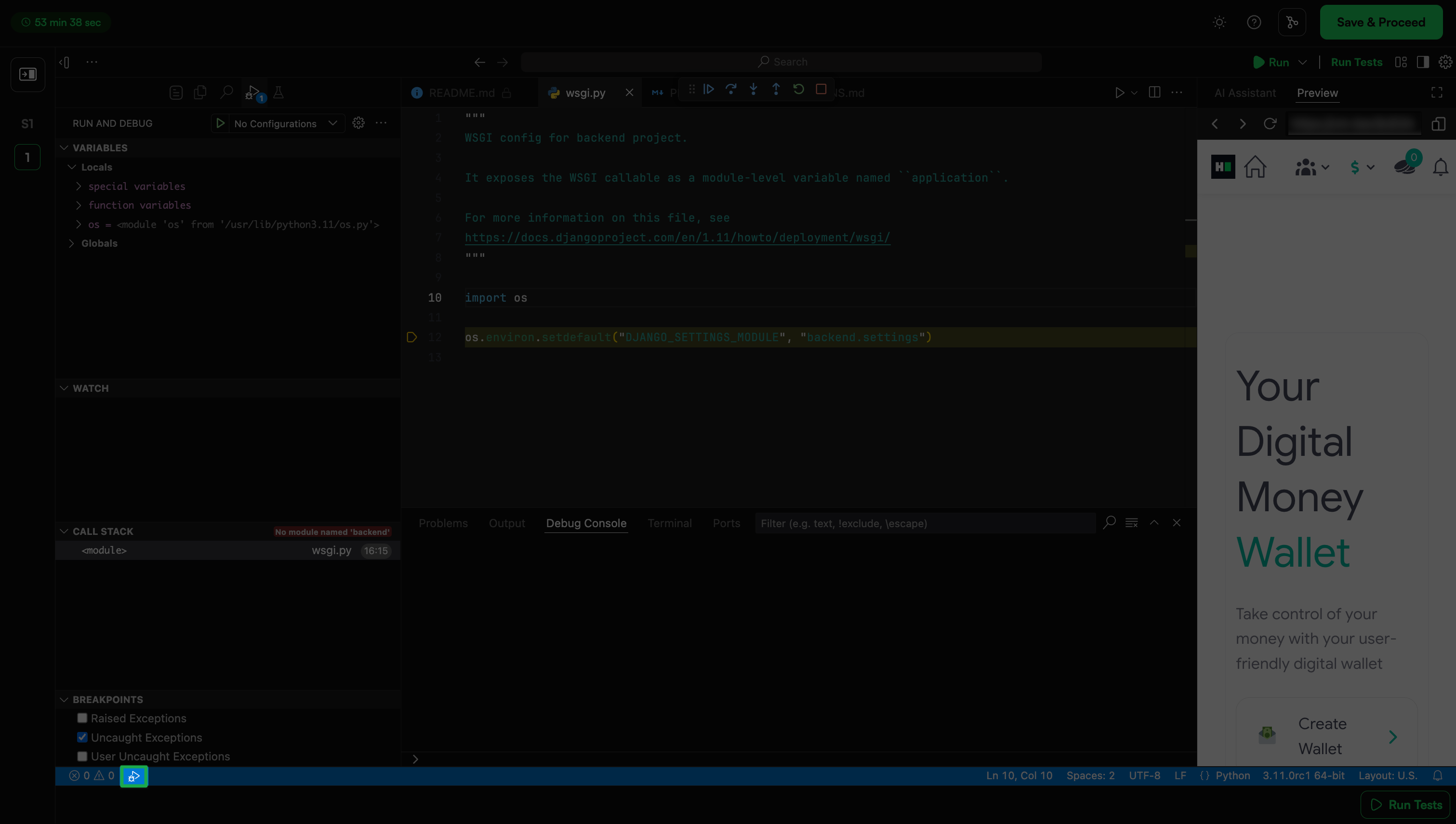
You can also select the debug status to start debugging without opening the Run and Debug view.
Debug actions
When a debugging session starts, the Debug toolbar appears at the top of the IDE. Use it to control code execution and navigate through your program.
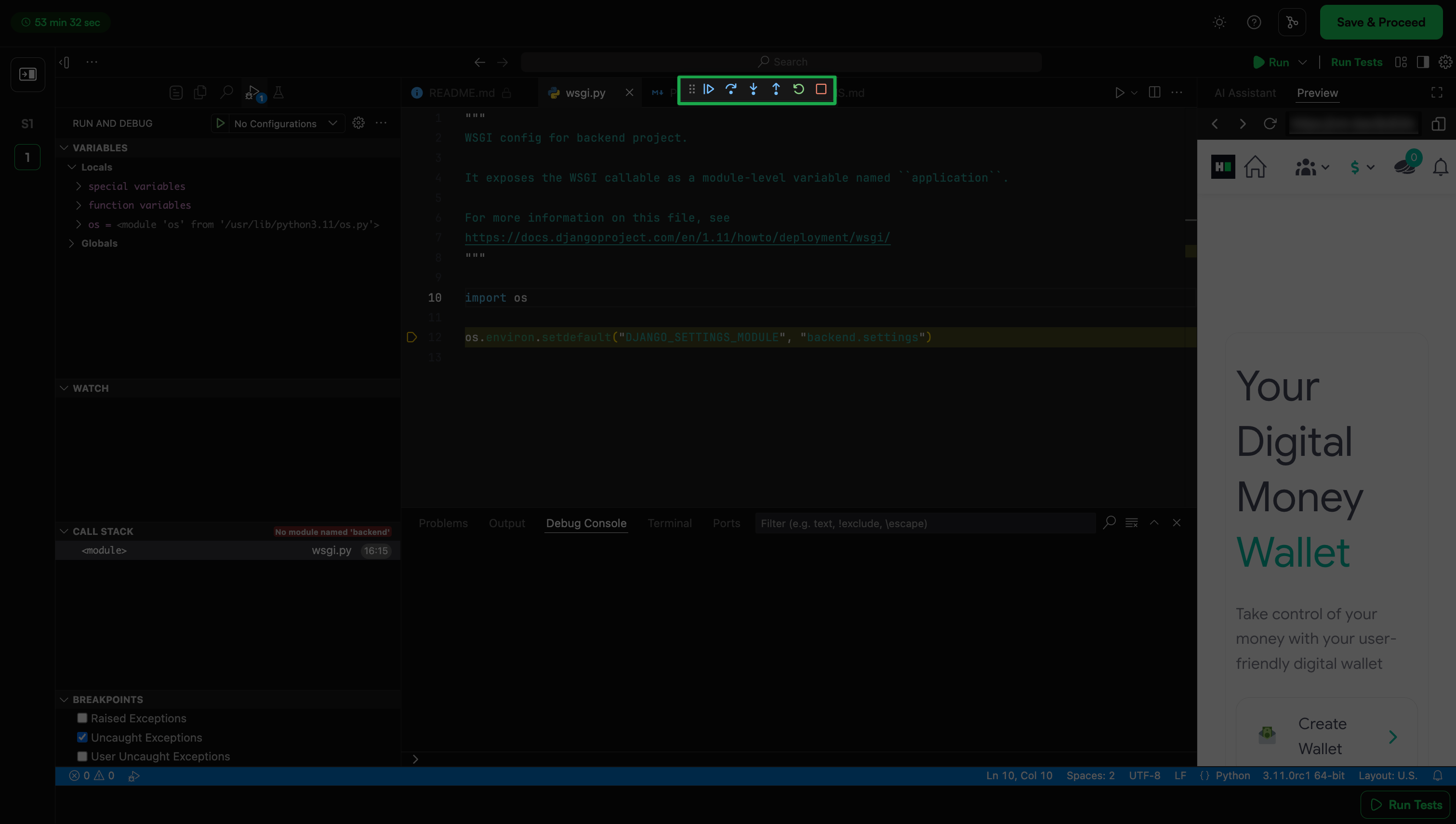
The table below describes the actions available in the debug toolbar.
Breakpoints
A breakpoint is a marker that pauses the execution of your code at a specific point, allowing you to inspect the state of your application at that point.
Setting breakpoints
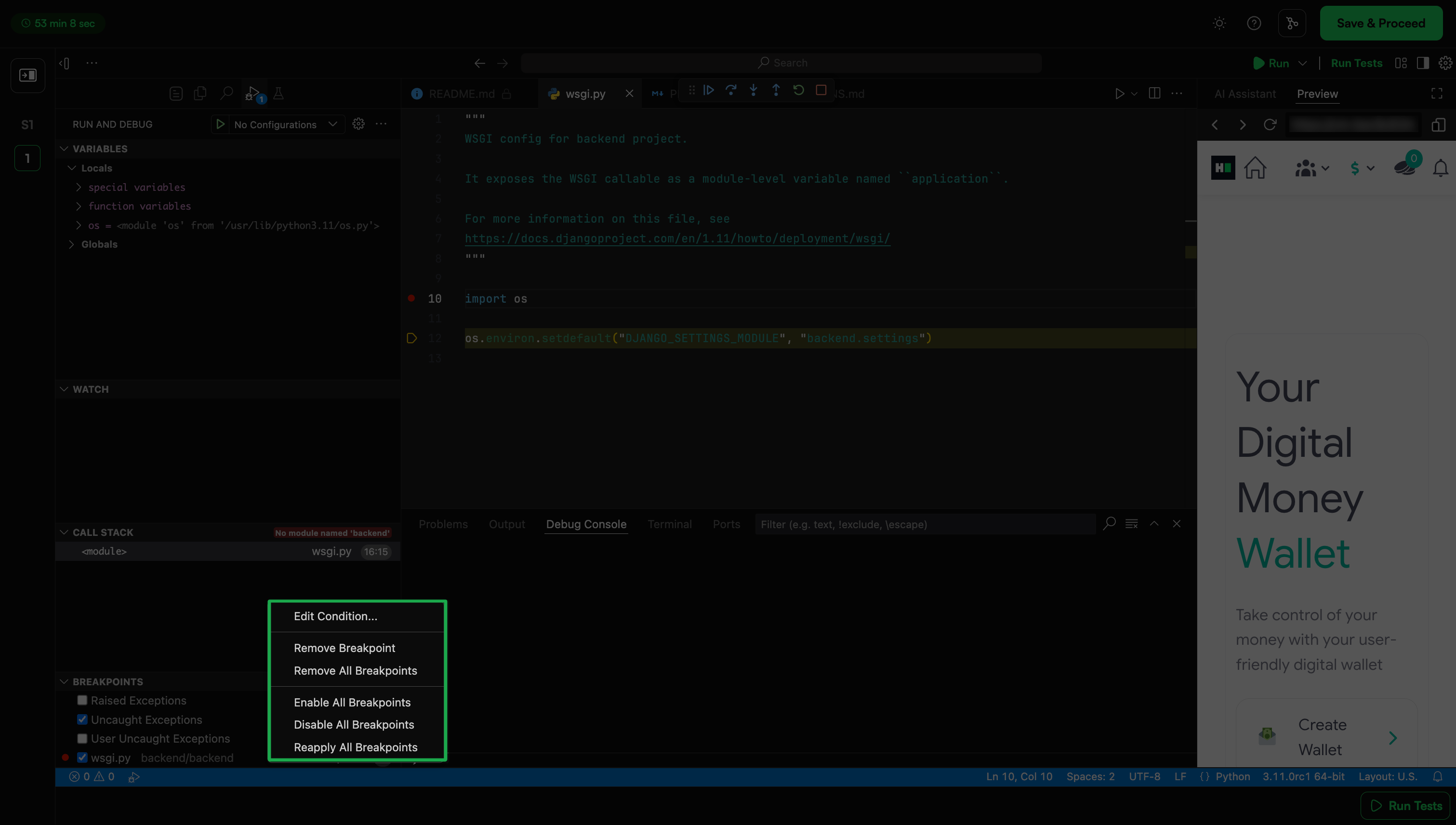
To set or unset a breakpoint, click on the yellow arrow icon or press F9 on the target line.
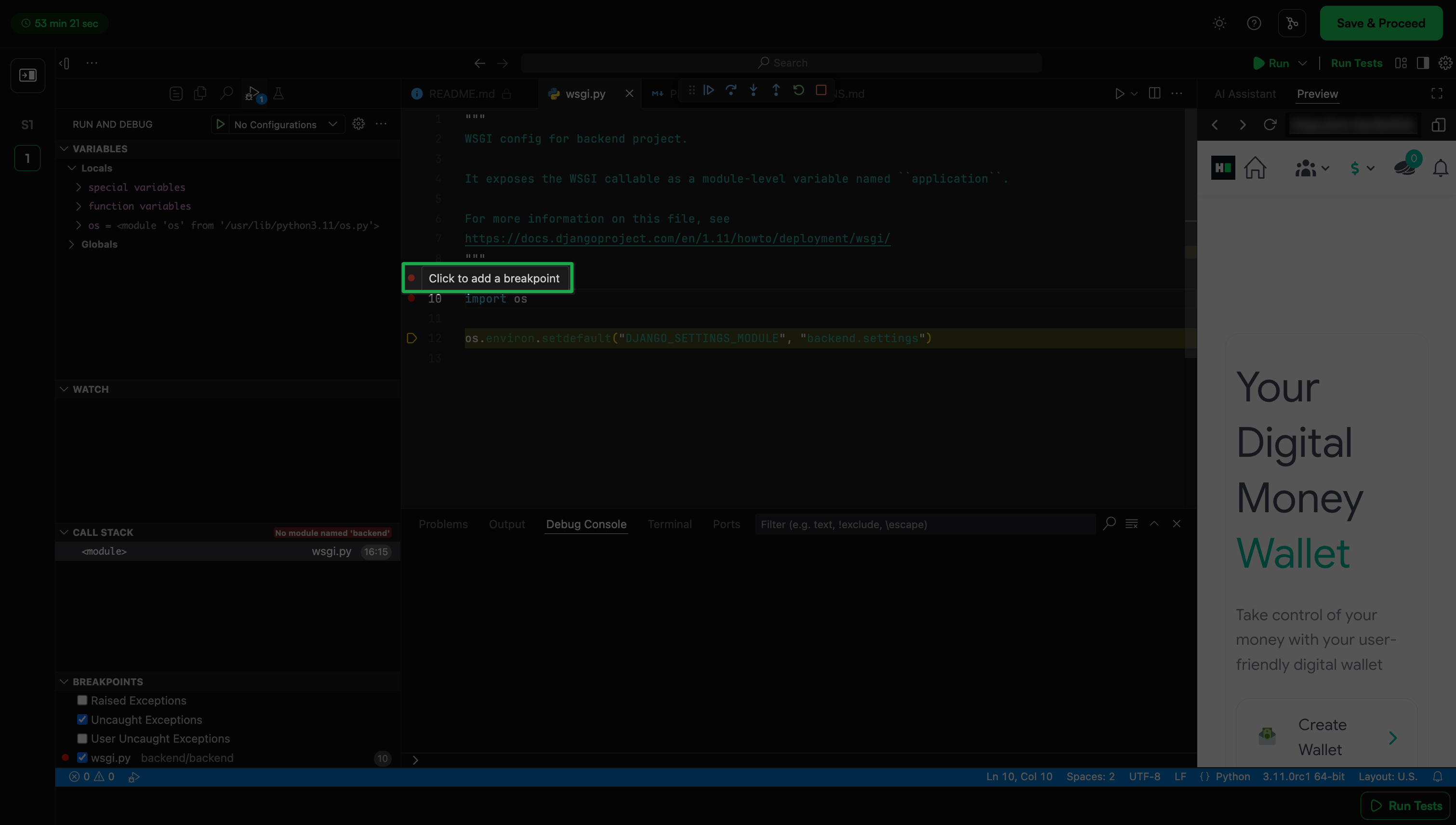
Breakpoints appear as red-filled circles in the editor margin.
Disabled breakpoints appear as gray-filled circles.
When a breakpoint cannot register with the debugger (for example, if the source file is edited during a live session), it appears as a gray hollow circle.
When a debugging session starts, breakpoints that cannot be registered with the debugger change to a gray hollow circle. The same might happen if the source is edited while a debug session without live-edit support is running.
Use the Breakpoints section in the Run and Debug view to view and manage all breakpoints. You can enable, disable, or remove breakpoints as required.