Navigate Question Workspaces in an Interview
Last updated: August 27, 2026
This article applies to the new Interview experience. If your interview interface looks different for project questions, see 📄 Front-end, Back-end, Full-stack, and Mobile Developer Interviews for the legacy Interview experience.
When an interviewer adds a question, HackerRank opens the workspace for that question type. This article explains how to use the Code Repos, Coding, Whiteboard, Database, Data Science, and DevOps workspaces.
Code Repos
A Code Repos question opens in the Agentic Development Environment (ADE). ADE displays the navigation panel on the left, the AI Assistant workspace in the center, and the development panel on the right.
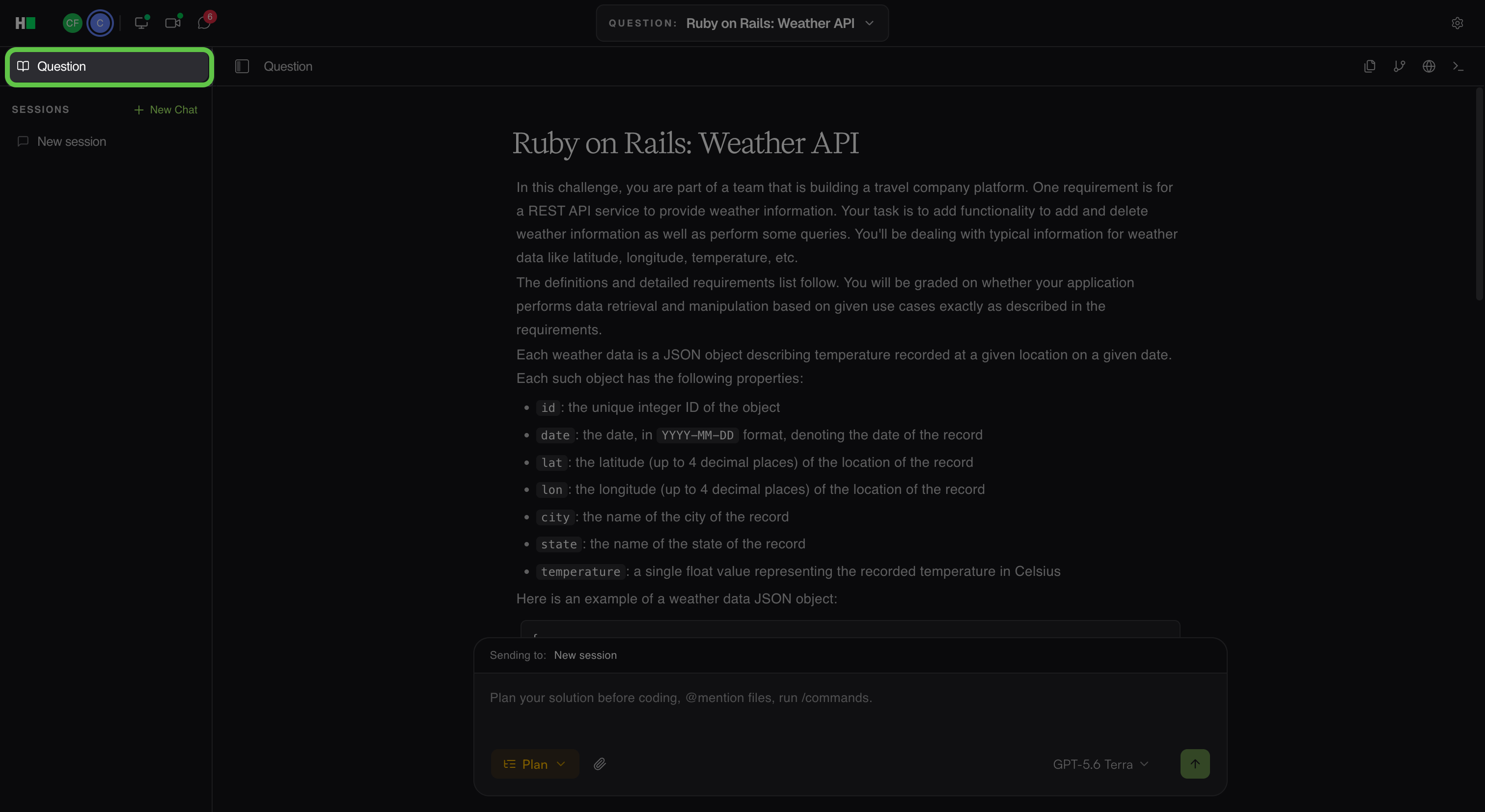
Question: Select Question in the left panel to display the problem statement, requirements, constraints, and repository context.
Agent Sessions: Lists the agent conversations in the interview. Each session is a separate conversation that candidates can use for a specific task or line of investigation.
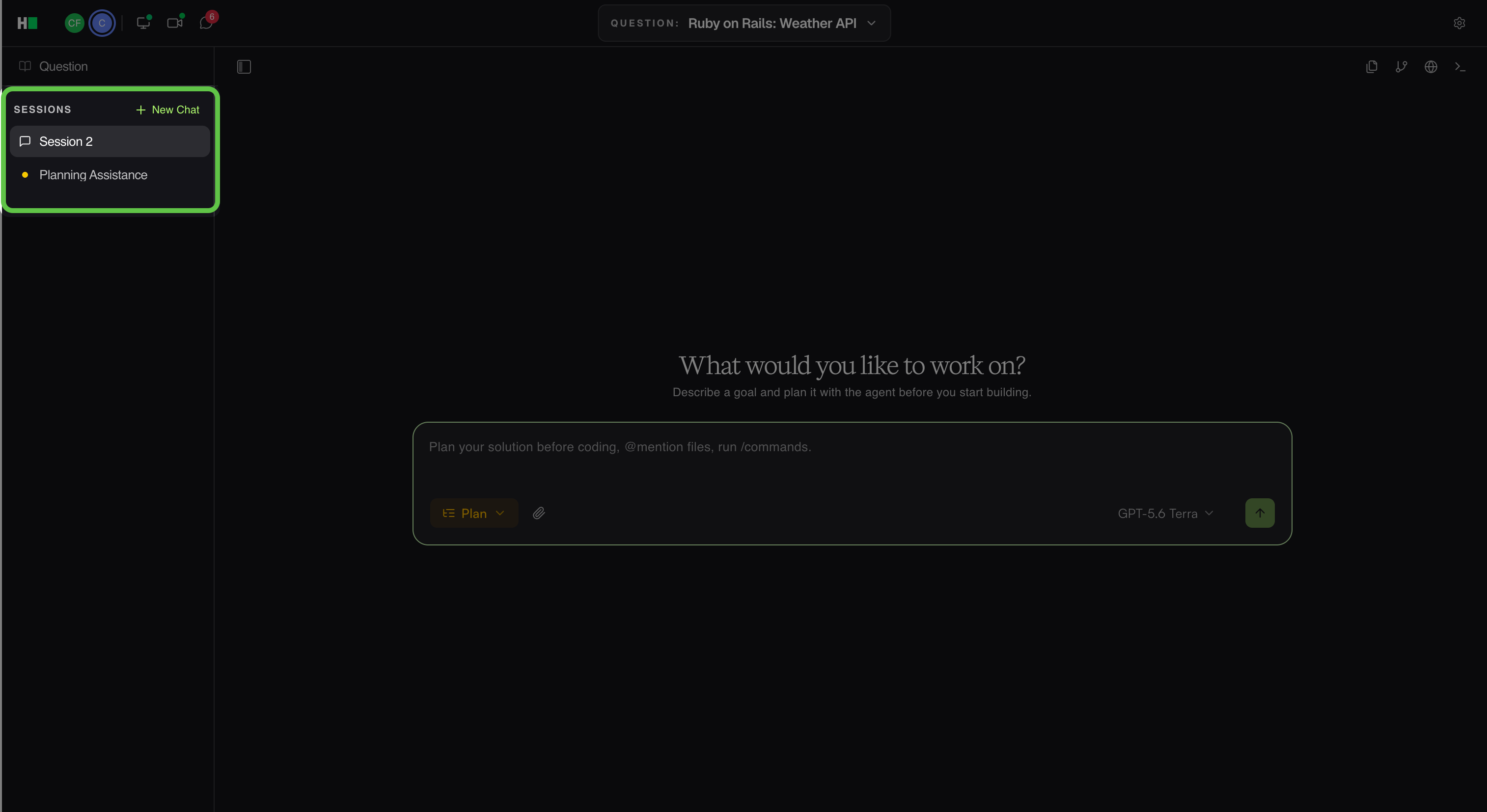
Select New Chat to start another session. To remove a session from the list, select its archive icon.
AI Assistant: Use the prompt field at the bottom of the workspace to enter prompts, reference files with
@mentions, run/commands, select an AI Assistant mode and model, attach files, and submit prompts.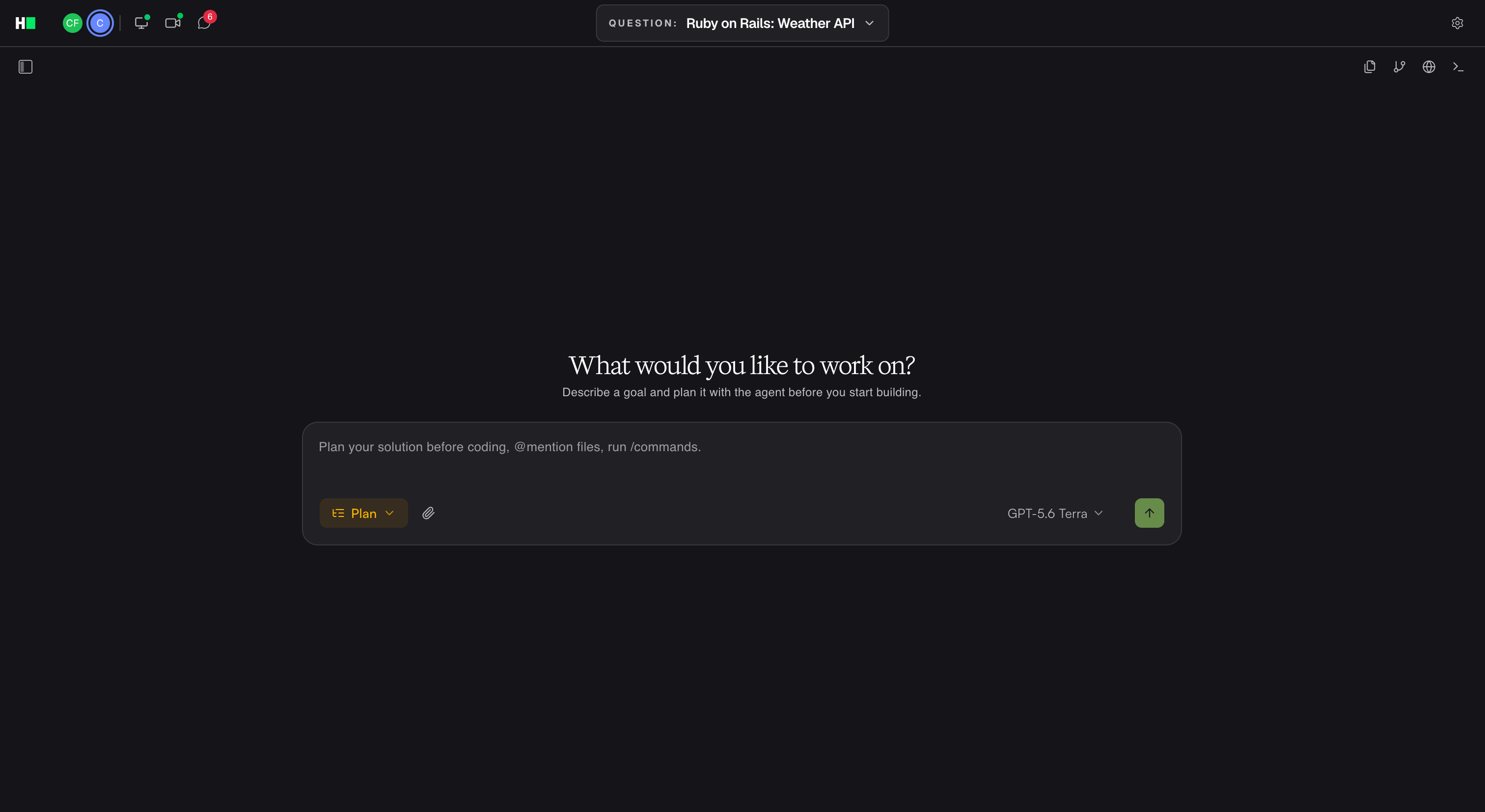
AI Assistant Mode: You can use the following modes:
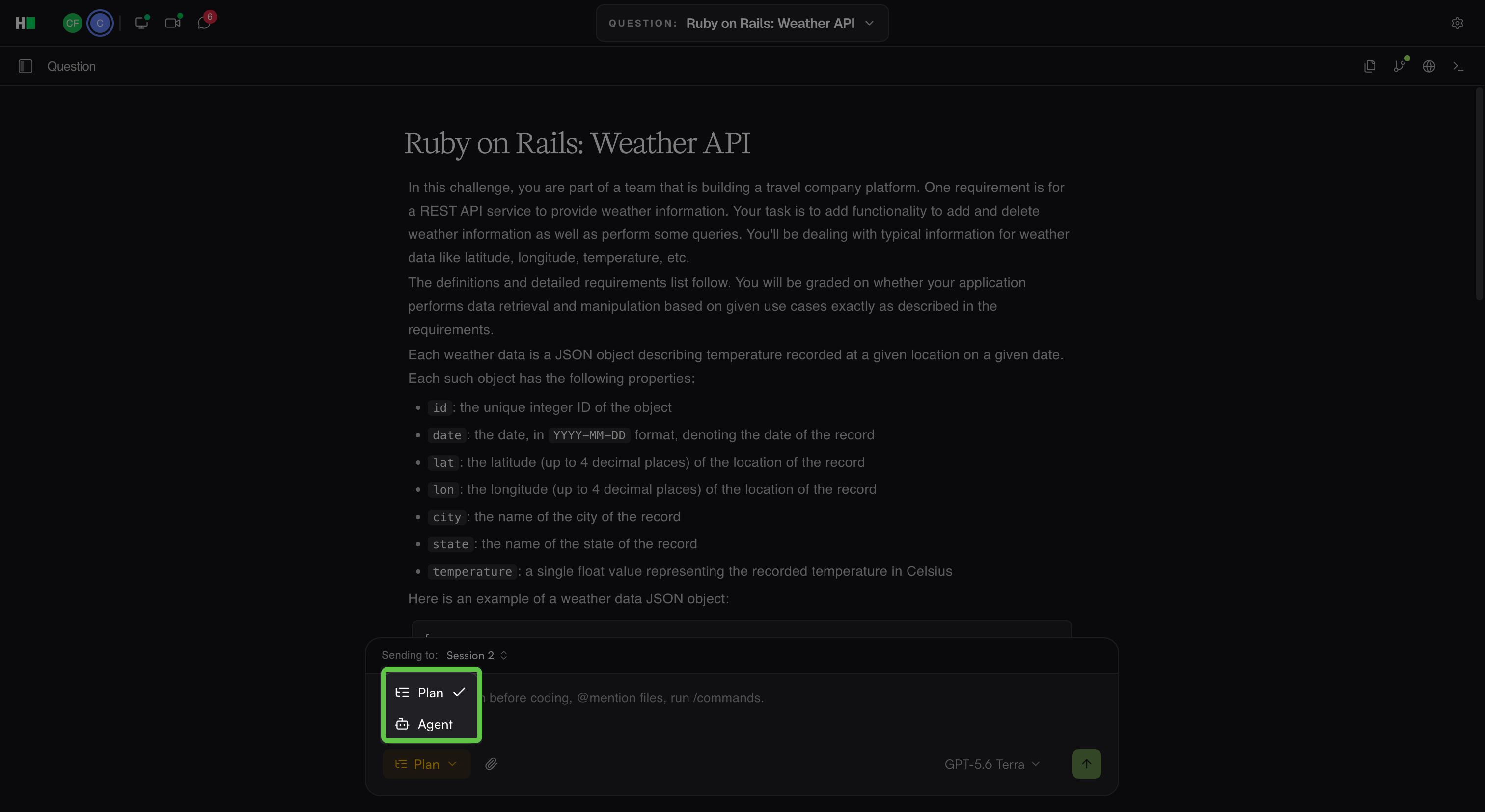
Plan Mode: Analyze the problem and create an implementation plan before writing code. The AI Assistant reviews the problem statement and existing code, asks clarifying questions when requirements are ambiguous, and creates a proposed implementation plan in Markdown. Plan Mode does not modify code.
Agent Mode: Implement your solution with the AI Assistant. The AI Assistant can write code, edit files, and run actions based on your prompts.
Use the mode selector in the prompt field to switch between modes.
Model Switching: Select an available model based on your task or preference. The available models depend on the hiring company’s configuration.
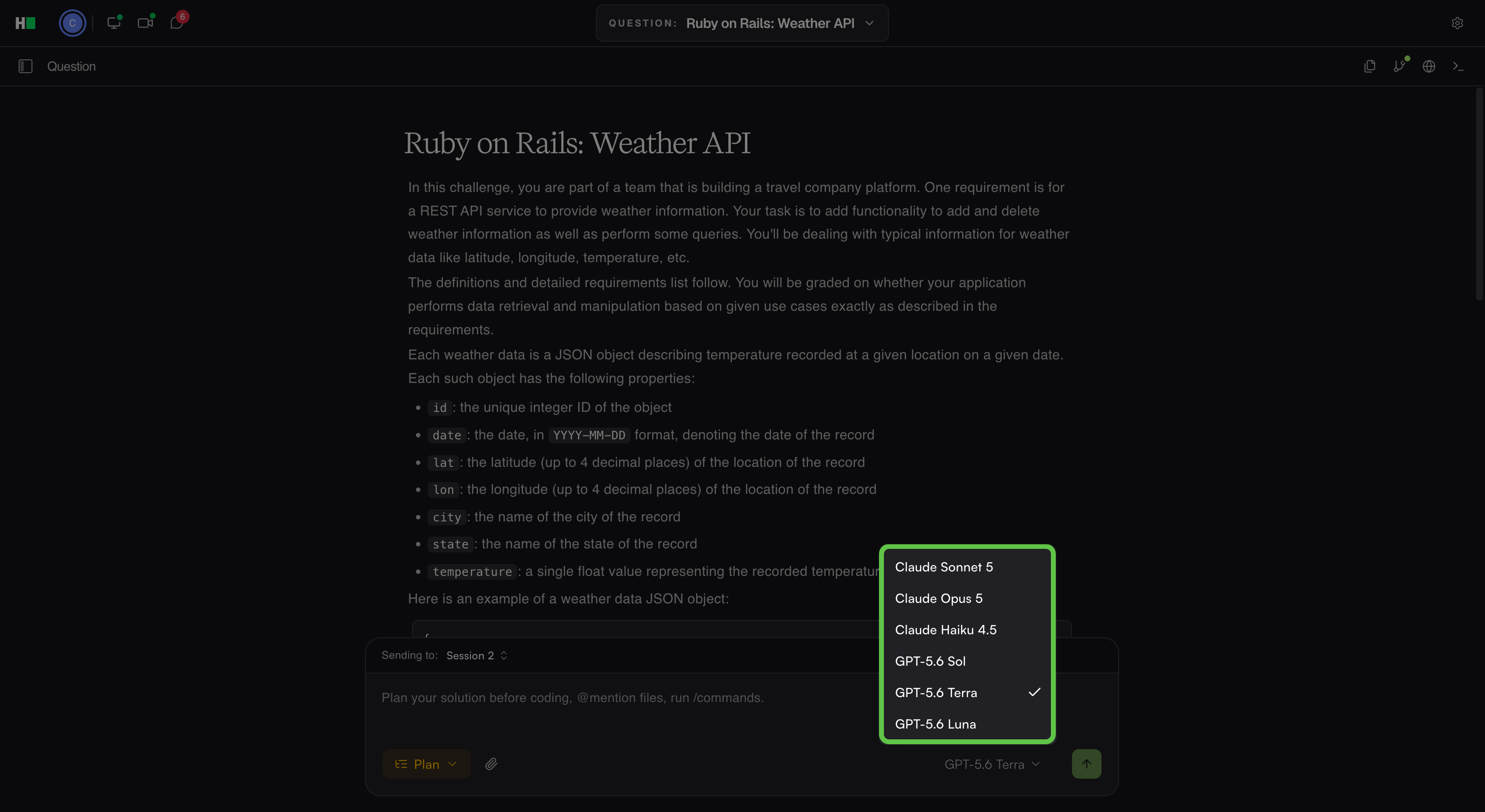
Note: The AI Assistant is available only when the hiring company enables it. For more information, see 📄 AI Assistant in Interview.
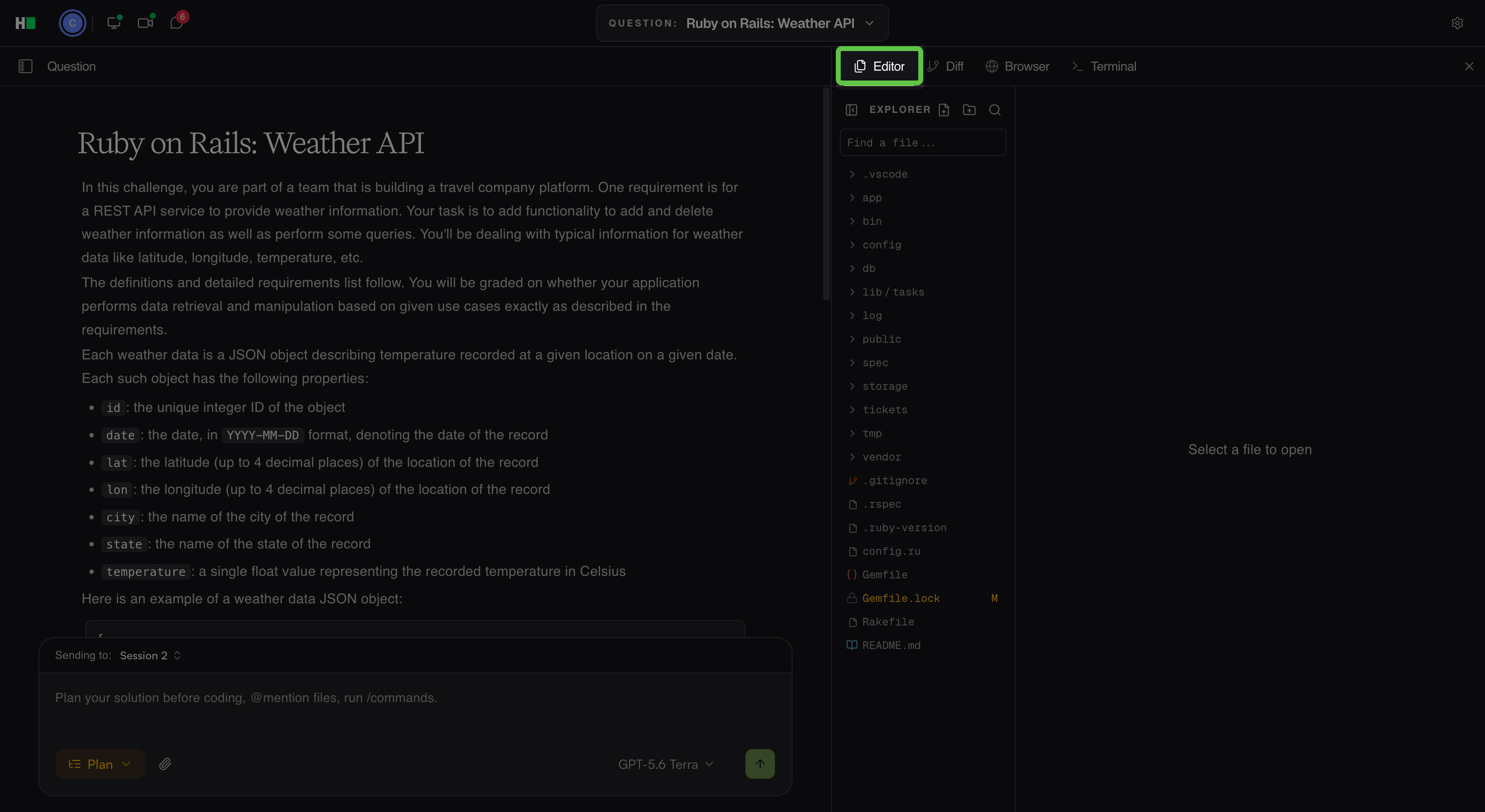
Editor: Click the Open editor pane icon in the upper-right corner. The Editor tab displays the repository files and folders in Explorer. You can create files and folders, search the repository, and select a file to open it. Use Find a file to search for a file by name.
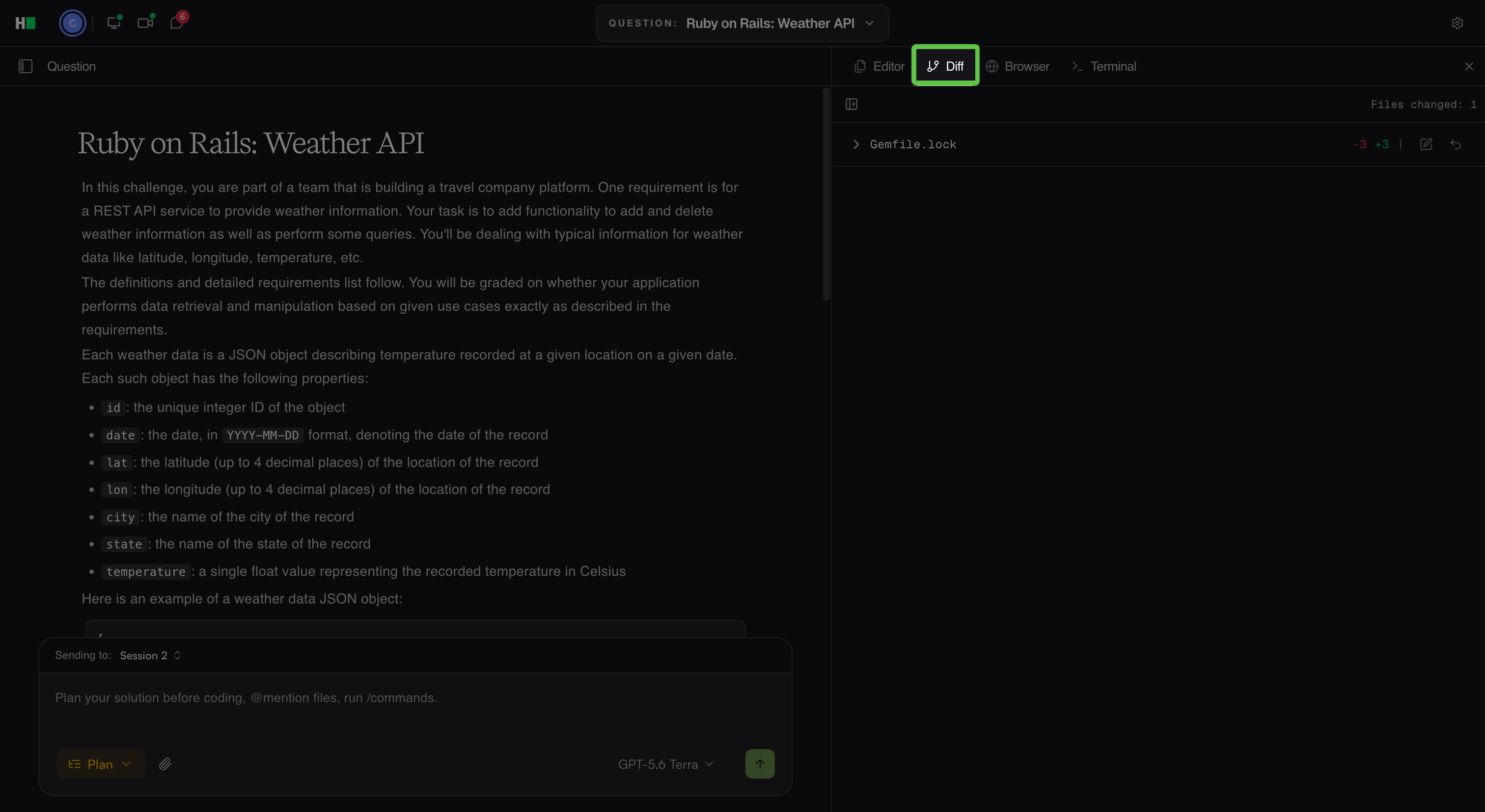
Diff view: Click the Open diff pane icon in the upper-right corner. The Diff tab displays files that change during the interview and compares them with the repository’s starting state. If no files have changed, the tab displays No changed files yet.
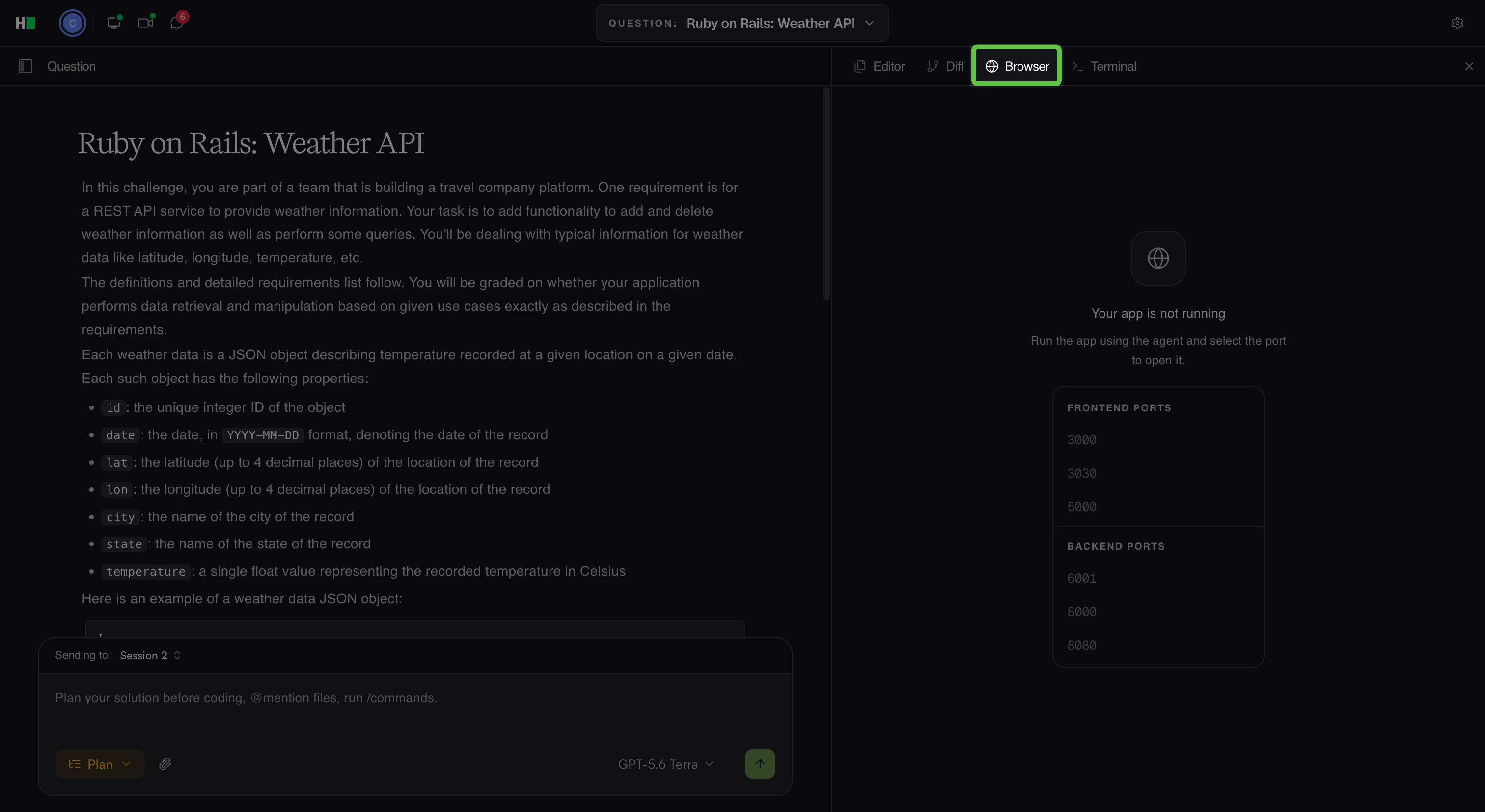
Browser: Click the Open browser pane icon in the upper-right corner. The Browser tab runs the application inside the environment. The agent starts the application, and you select a port from the available frontend and backend ports to open it. Until the application is running, the tab prompts you to run it using the agent.
Terminal: Click the Open terminal pane icon in the upper-right corner. The Terminal tab provides command-line access to the ADE workspace. You can inspect the repository, start services, run tests, and verify application behavior. Select the plus (+) icon to open another terminal tab.
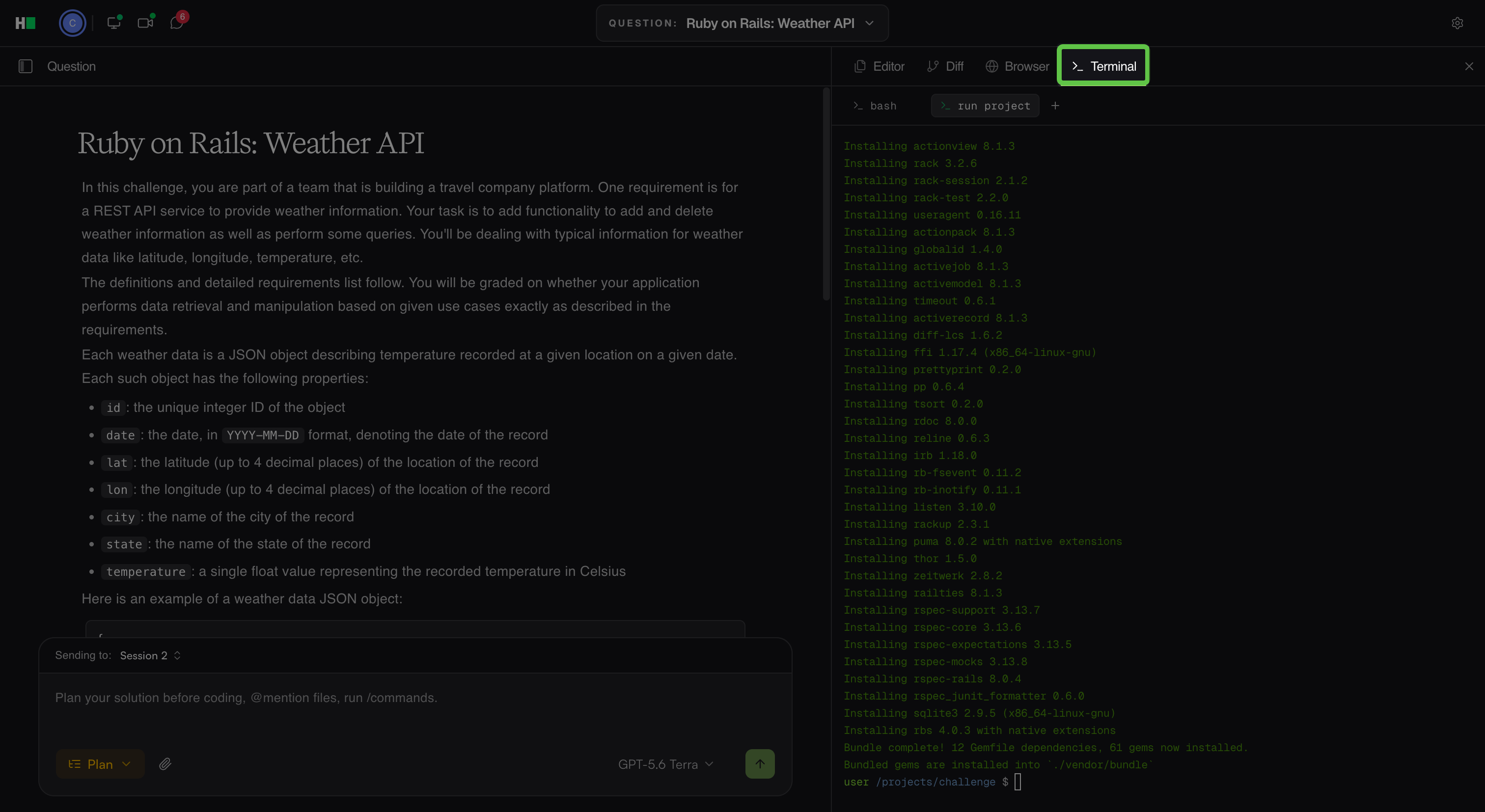
After you open any of the right-side development panes, you can switch between the Editor, Diff, Browser, and Terminal tabs. Select the close (×) icon in the upper-right corner to close the pane.
Coding
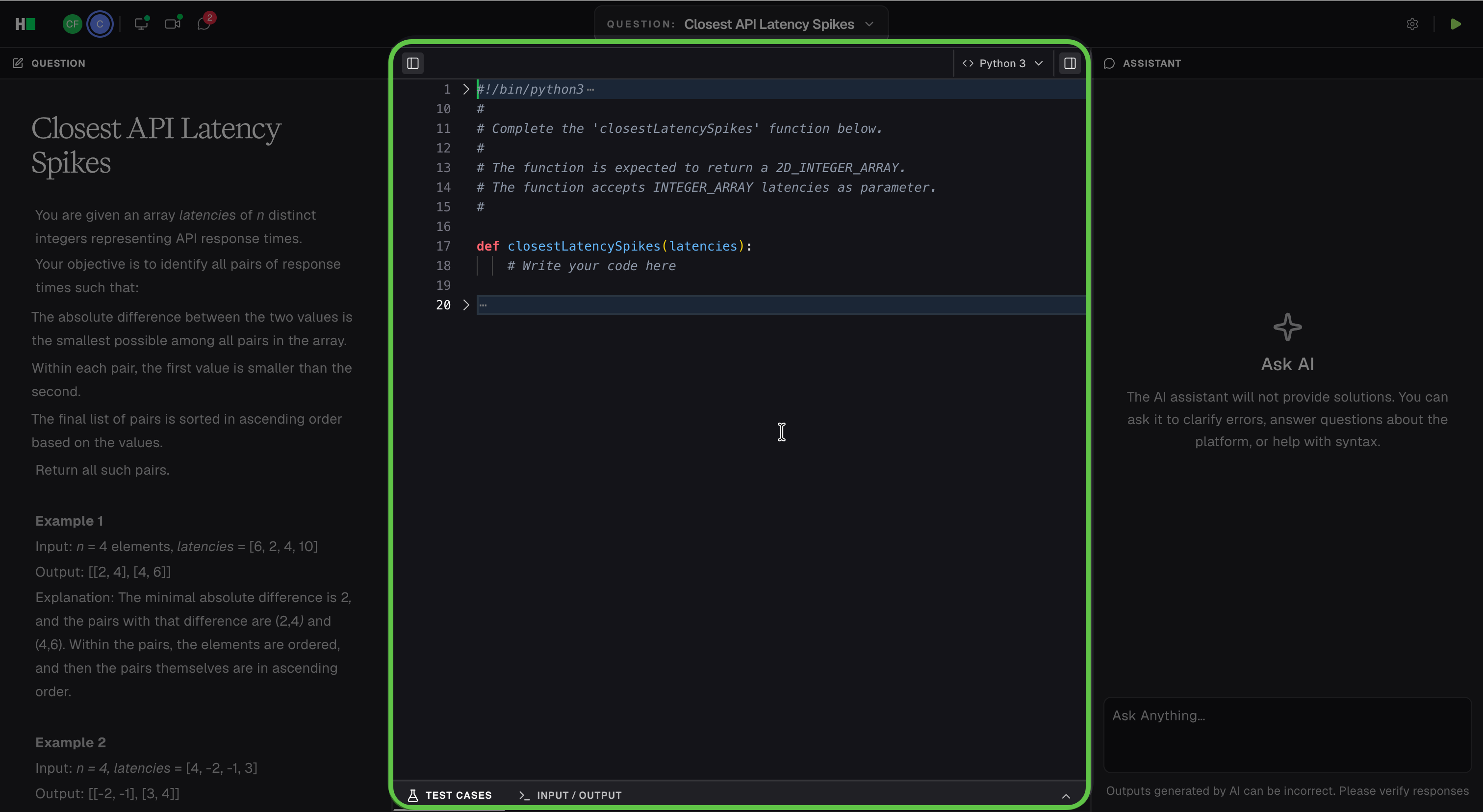
Coding questions assess your ability to solve algorithmic or functional problems in a single-file code editor. The workspace displays the question on the left, and the code editor in the center. If the hiring company enables the AI Assistant, it appears on the right.
You can use the following workspace elements and controls:
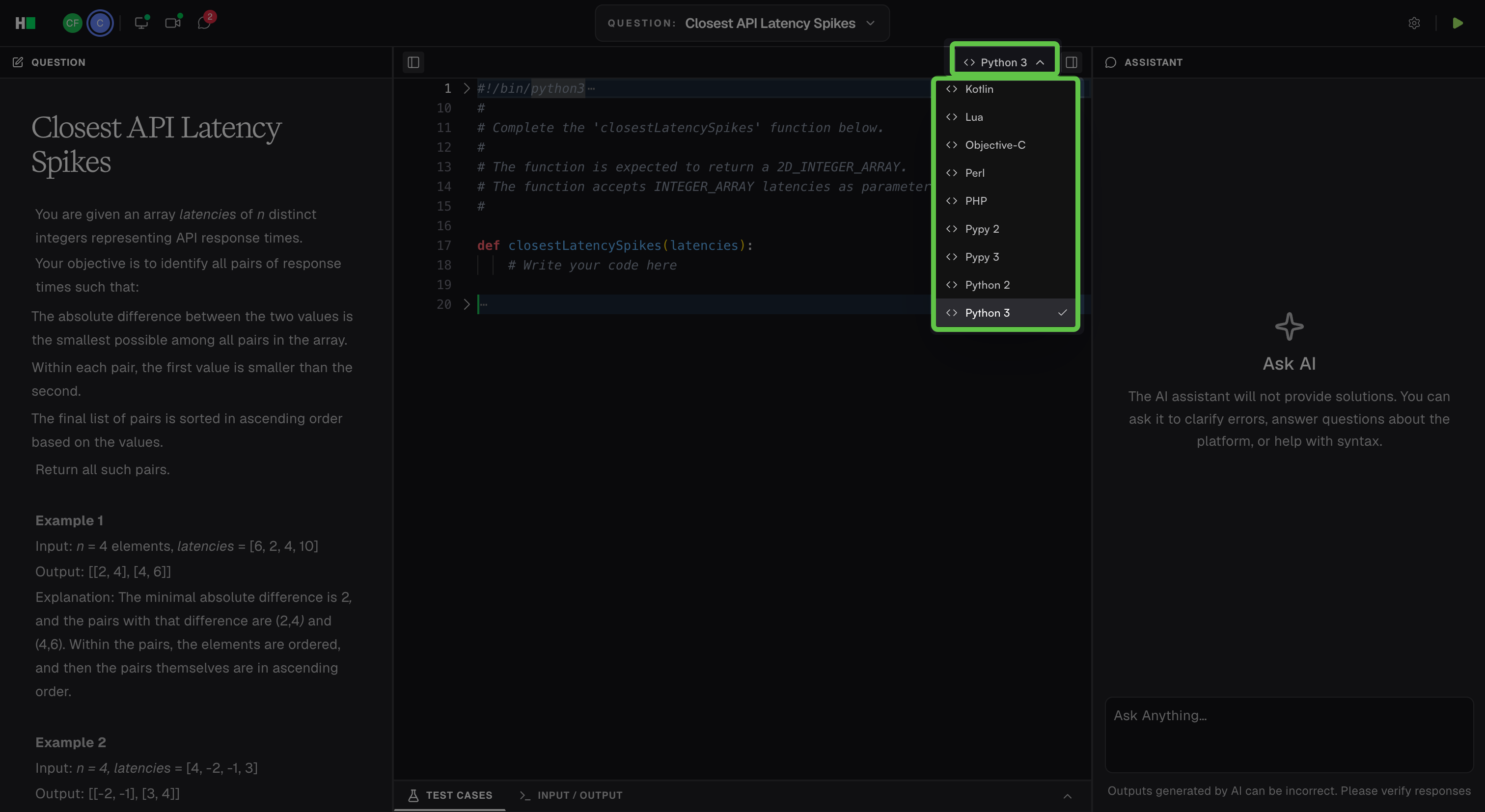
Language: Select the language menu above the editor, and then select a programming language.
Code editor: Enter and edit your solution.
Run: Click the Run icon in the upper-right corner to run your code.
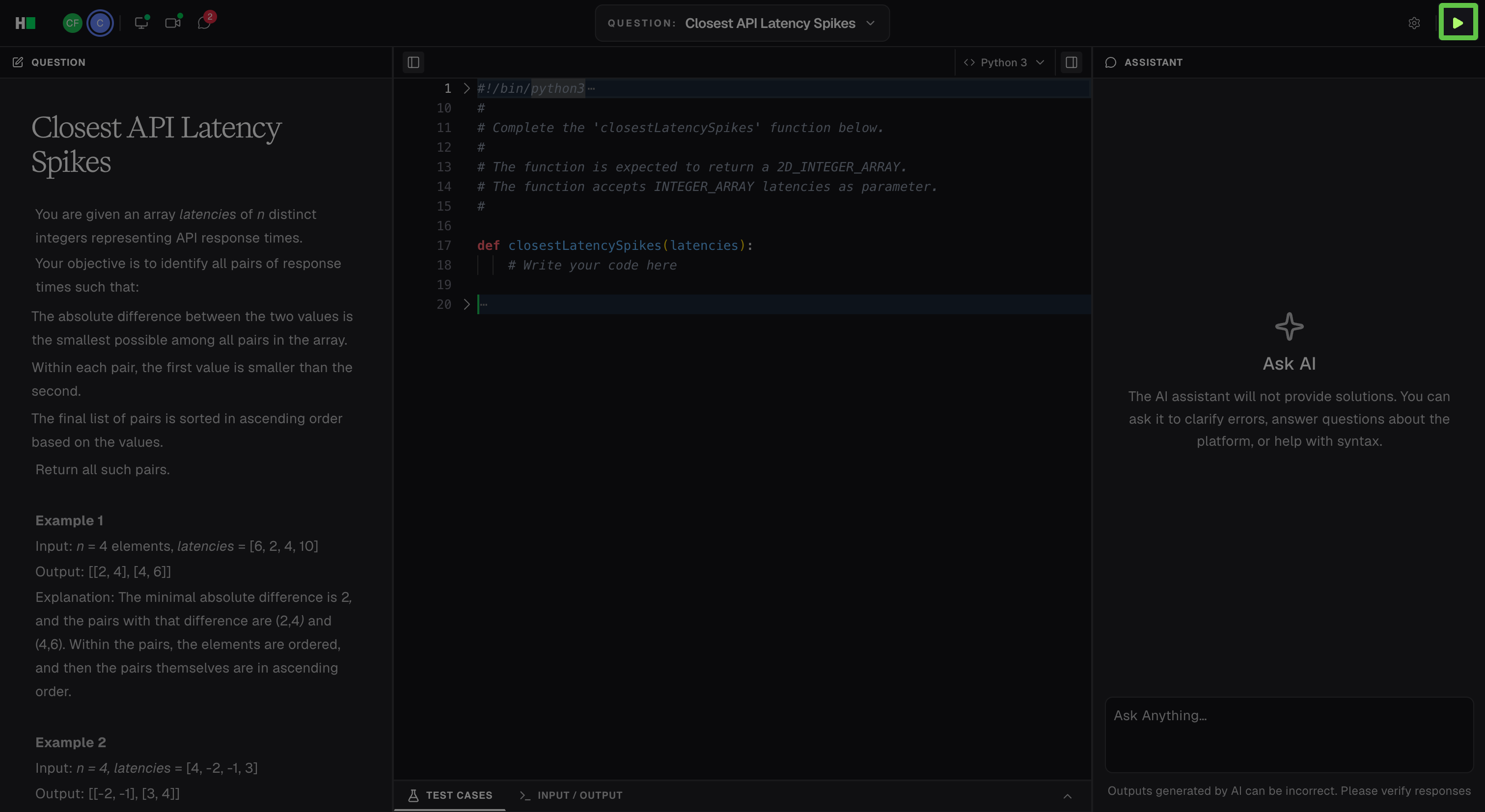
Test Cases: Expand the Test Cases tab at the bottom of the editor to review and run the available test cases.
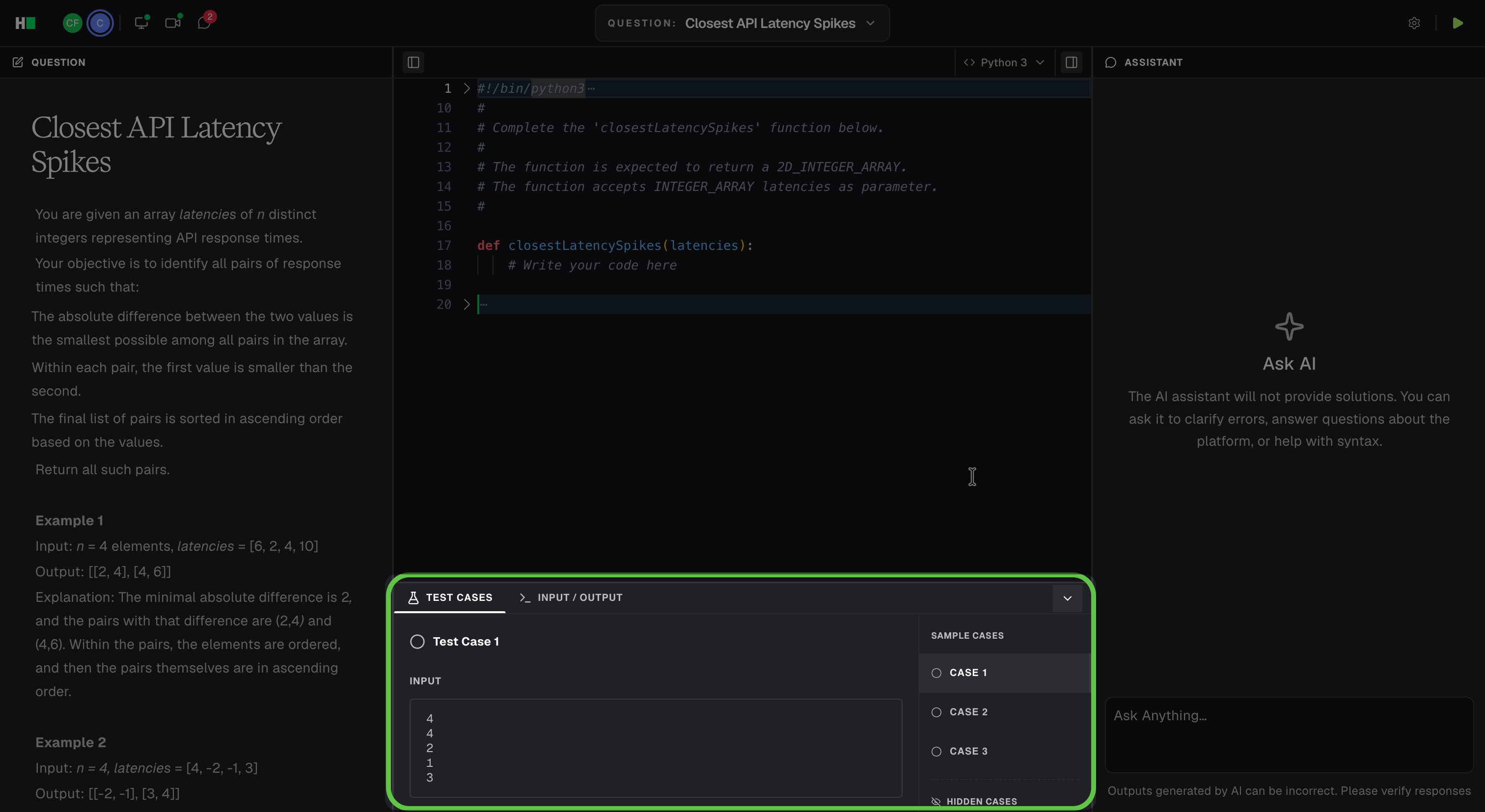
Input/Output: Expand the Input/Output tab to provide custom input and review the output.
AI Assistant: The AI Assistant operates in guarded mode. You can request help with syntax, platform navigation, and programming concepts. The AI Assistant does not provide complete solutions.
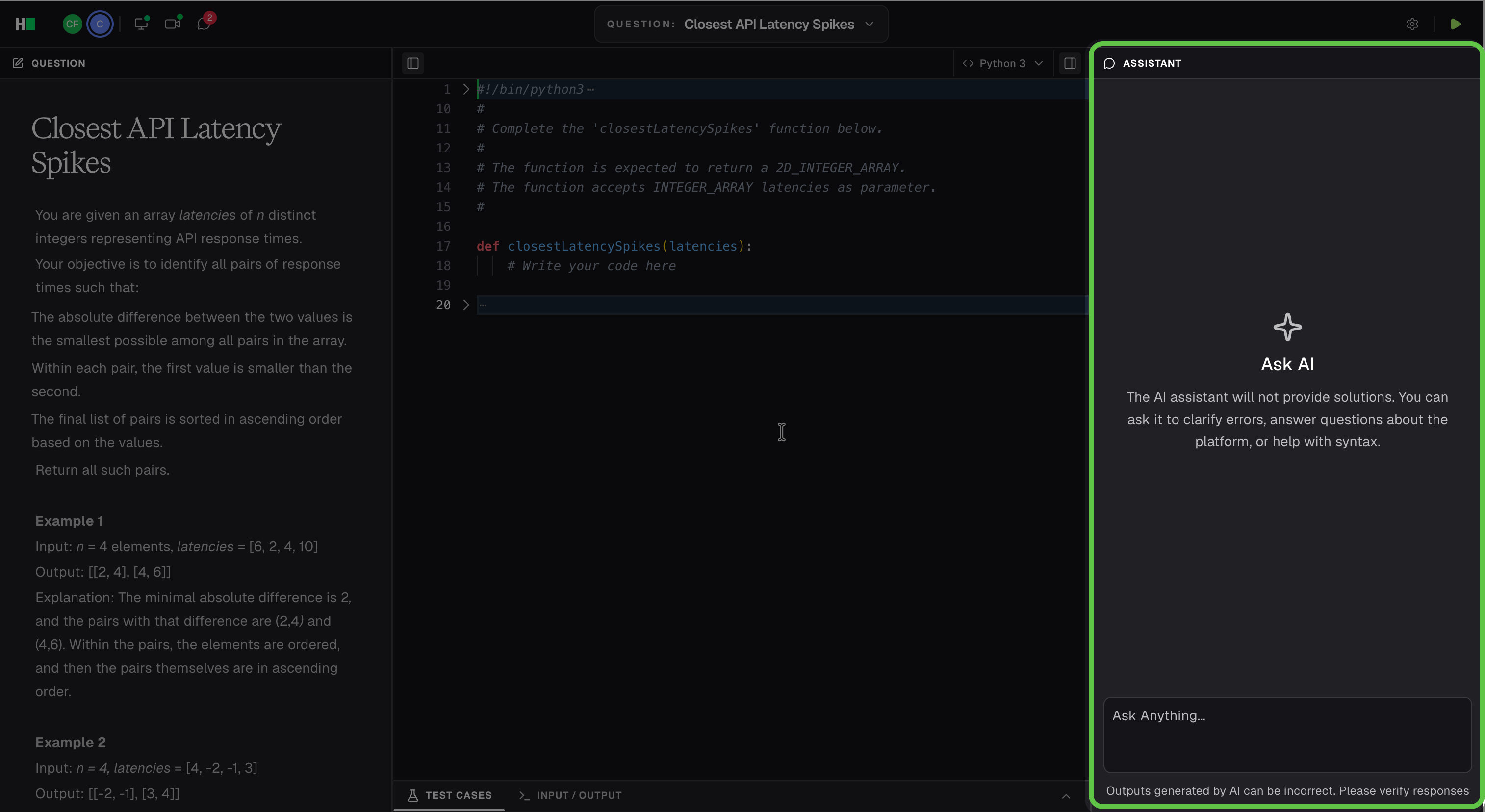
Select the Toggle right panel icon to collapse or expand the AI Assistant.
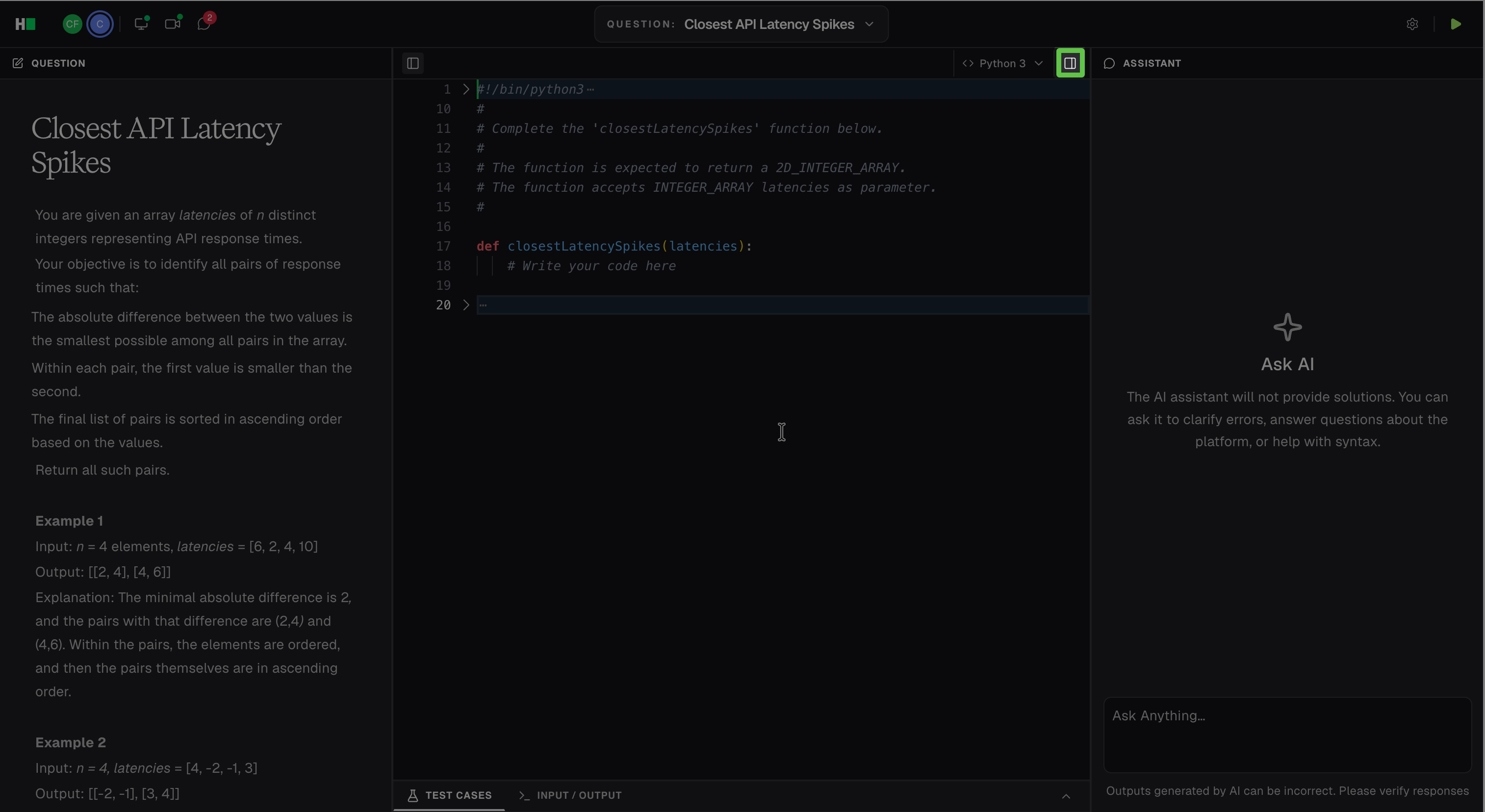
Note: The AI Assistant is available only when the hiring company enables it. For more information, see 📄 AI Assistant in Interview.
Whiteboard
A Whiteboard question provides a shared canvas where you can create diagrams, add text, and explain your solution. The question panel appears on the left, and the whiteboard appears in the center.
The whiteboard includes the following components and tools.
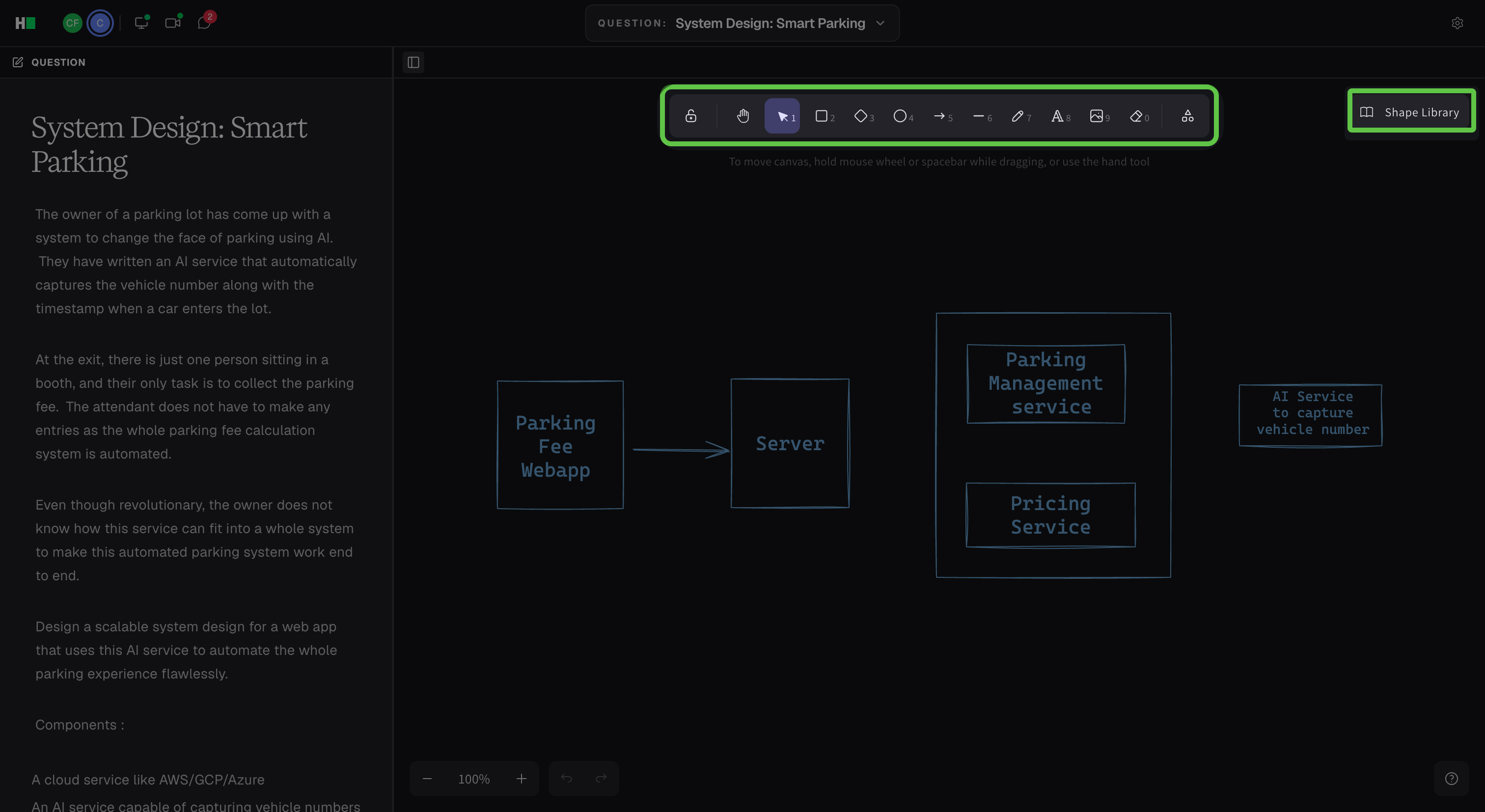
Canvas controls
Sketch and annotate without space limitations.
Scroll through the canvas to continue drawing seamlessly.
Use the + and – icons in the bottom-left corner to zoom in and out.
Drawing tools: The toolbar at the top of the whiteboard includes:
Selection tool: Select and move shapes or drawings. Drag handles around shapes to resize selected shapes. Press the Delete key on your keyboard to remove selected elements.
Shapes library: Insert common shapes such as squares, diamonds, and circles.
Arrow tool: Add directional arrows to diagrams.
Line tool: Draw straight lines for connections or boundaries.
Pen tool: Draw freehand sketches.
Text tool (A): Add labels, notes, or annotations.
Image upload icon: Insert predefined architecture diagrams and images to avoid redrawing company-specific architectures.
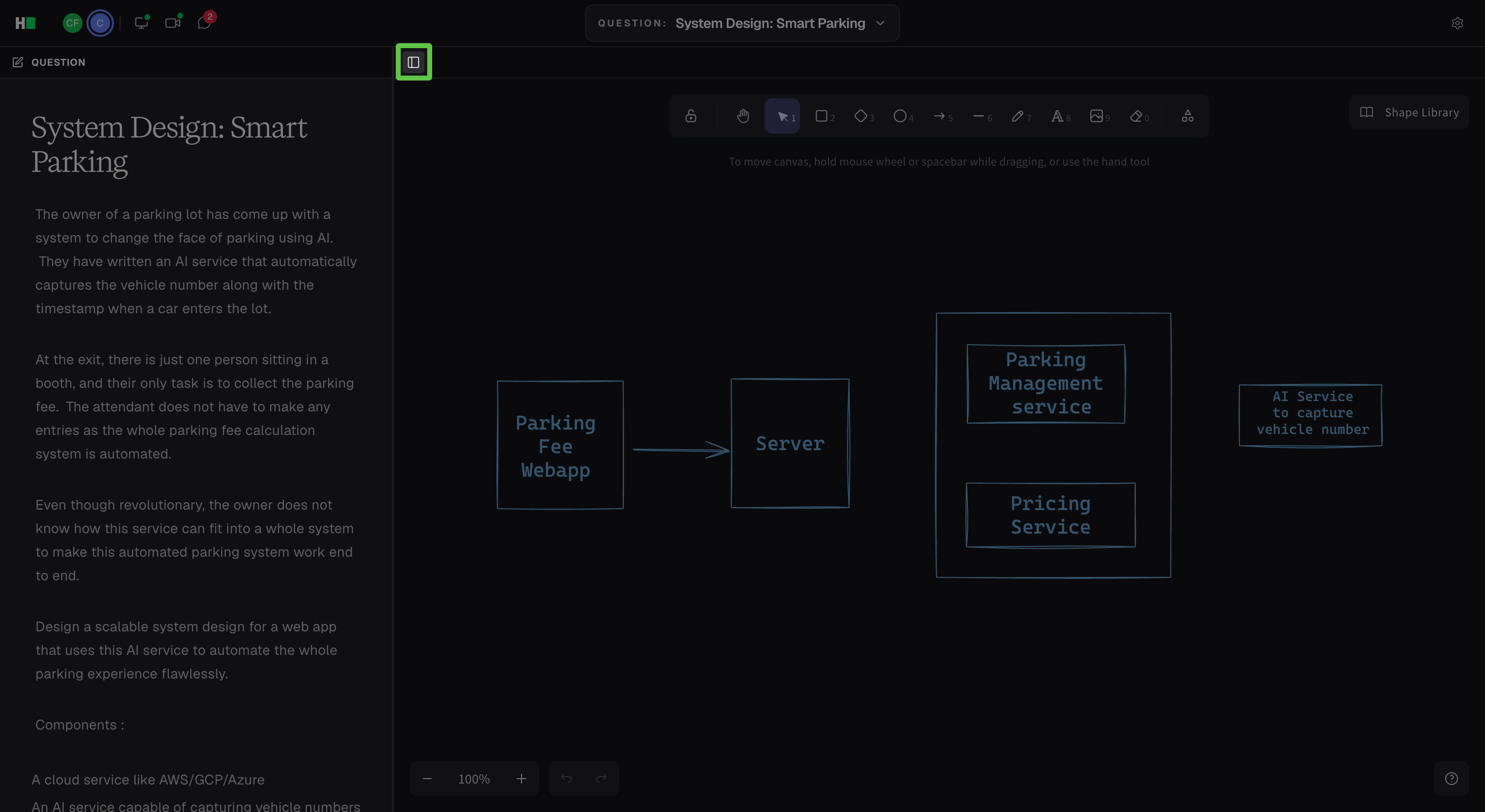
Select the Toggle left panel icon to collapse or expand the question panel.
Database
A Database question provides an editor where you can write and run database queries. The workspace displays the question on the left and the query editor in the center.
You can use the following workspace elements and controls:
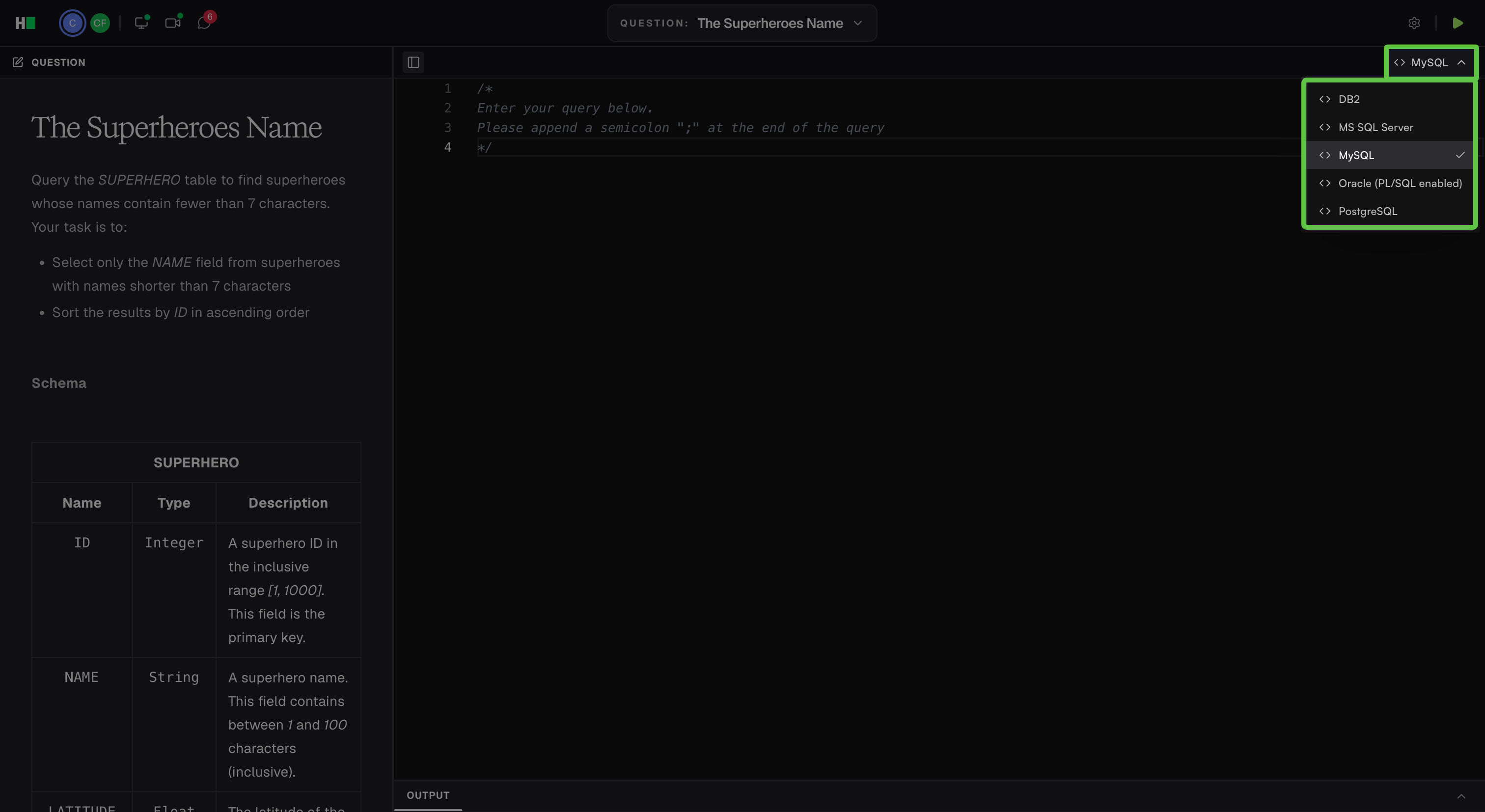
Database language: Click the language dropdown to select database language.
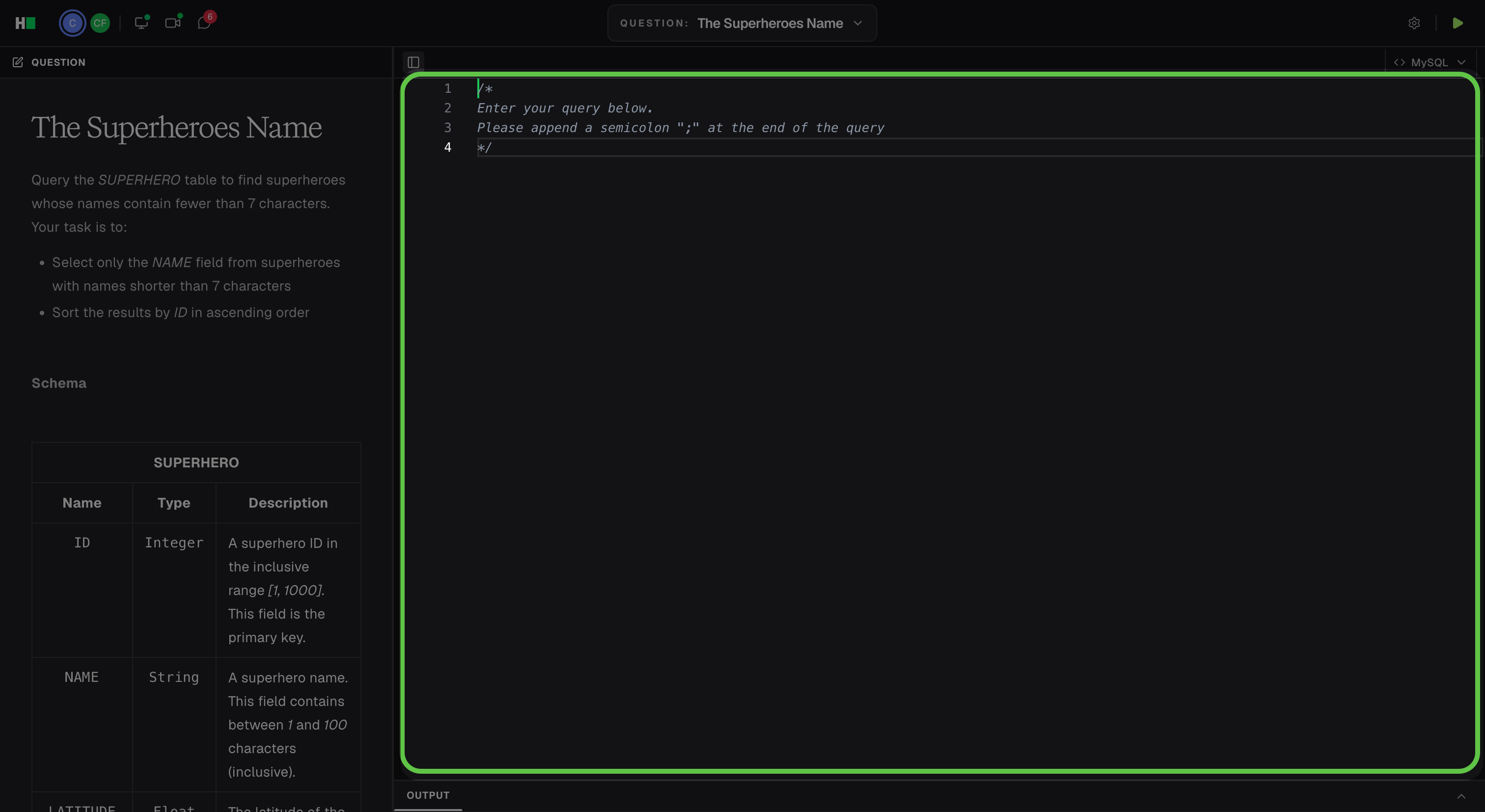
Query editor: Enter and edit your query in the main workspace.
Run: Click the Run icon in the upper-right corner to run the query.
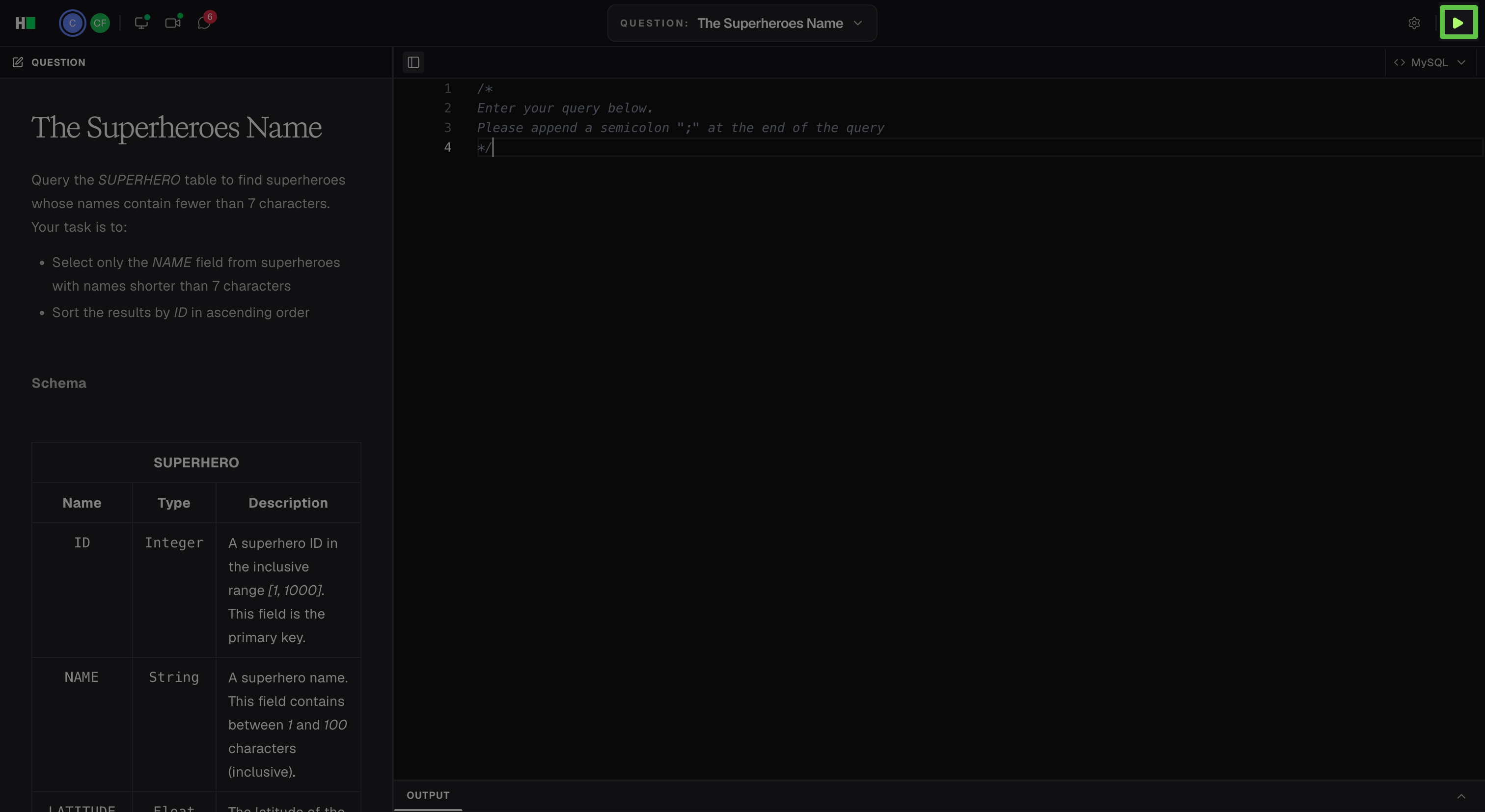
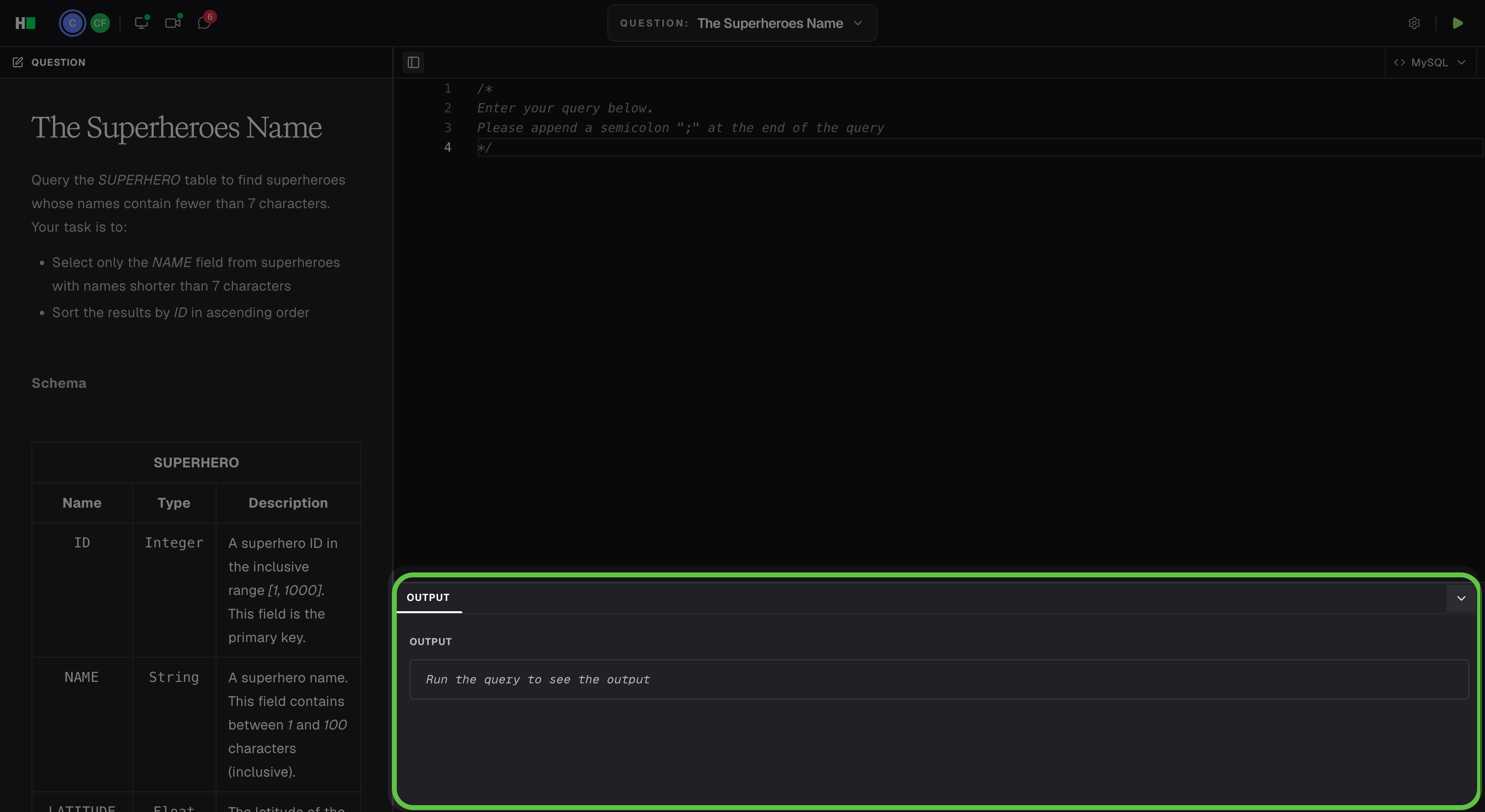
Output: Expand the Output tab at the bottom of the editor to review the query result.
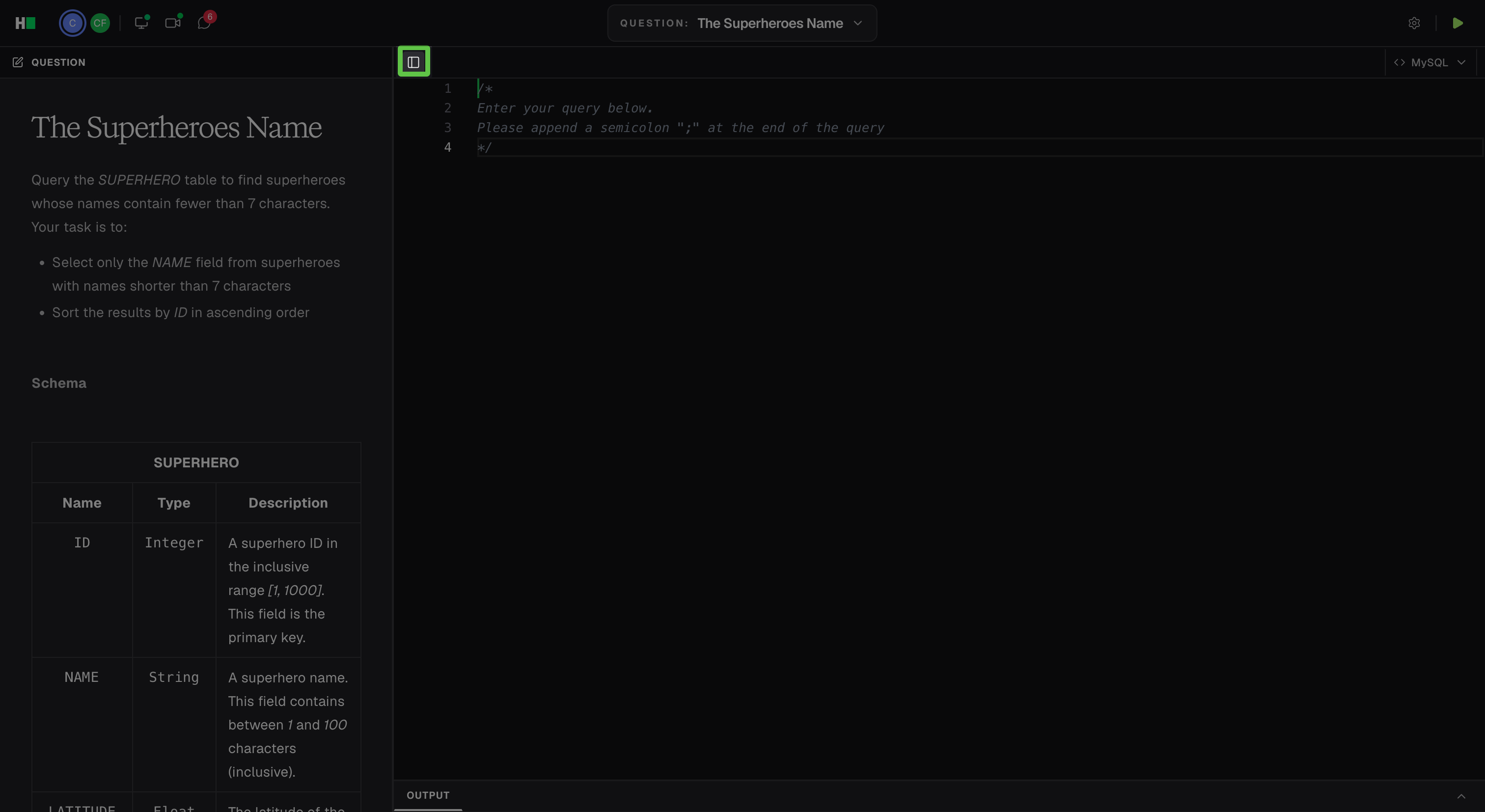
Click the toggle left panel icon to collapse the question panel.
Data Science
A Data Science question opens in a VS Code IDE with notebook support. The question appears in the left panel, and the IDE appears in the main workspace.
The workspace includes the following components:
Explorer: View and open notebooks, datasets, scripts, and other project files.
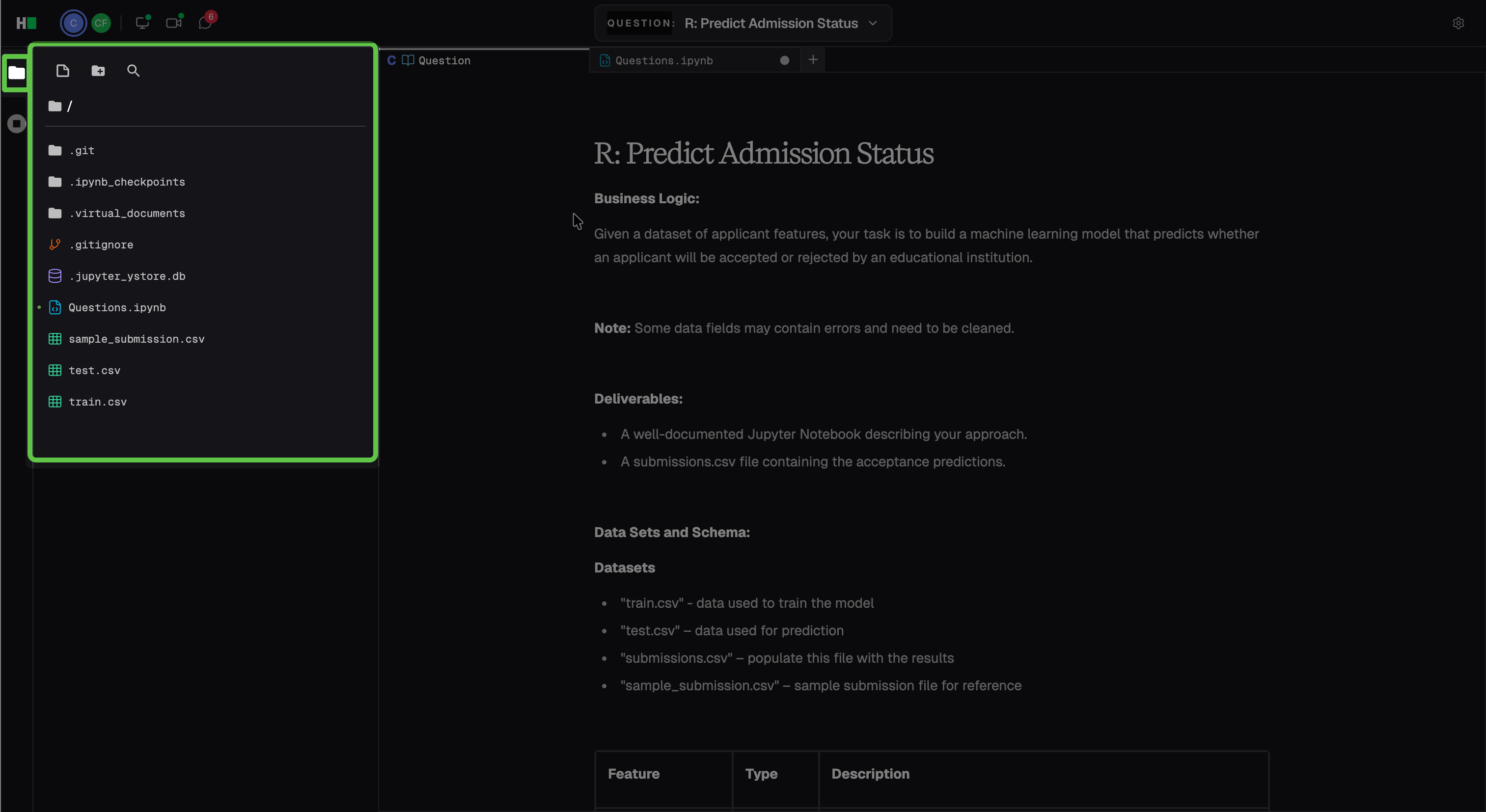
Question panel: Review the problem statement, data description, requirements, and expected deliverables.
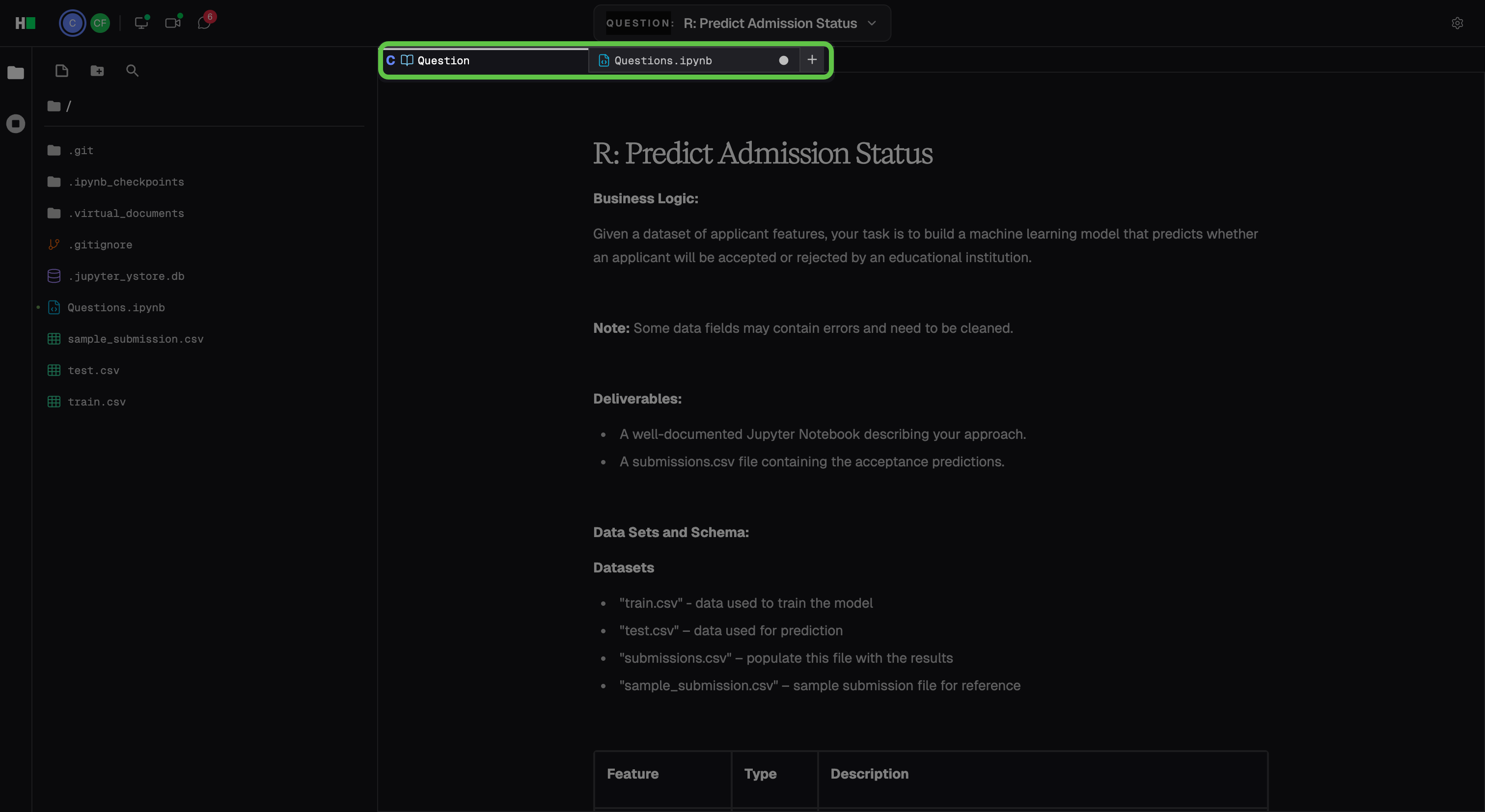
Notebook editor: Add or edit Markdown and code cells, run code, and review cell output.
Notebook controls: Run an individual cell or select Run All to run the entire notebook.
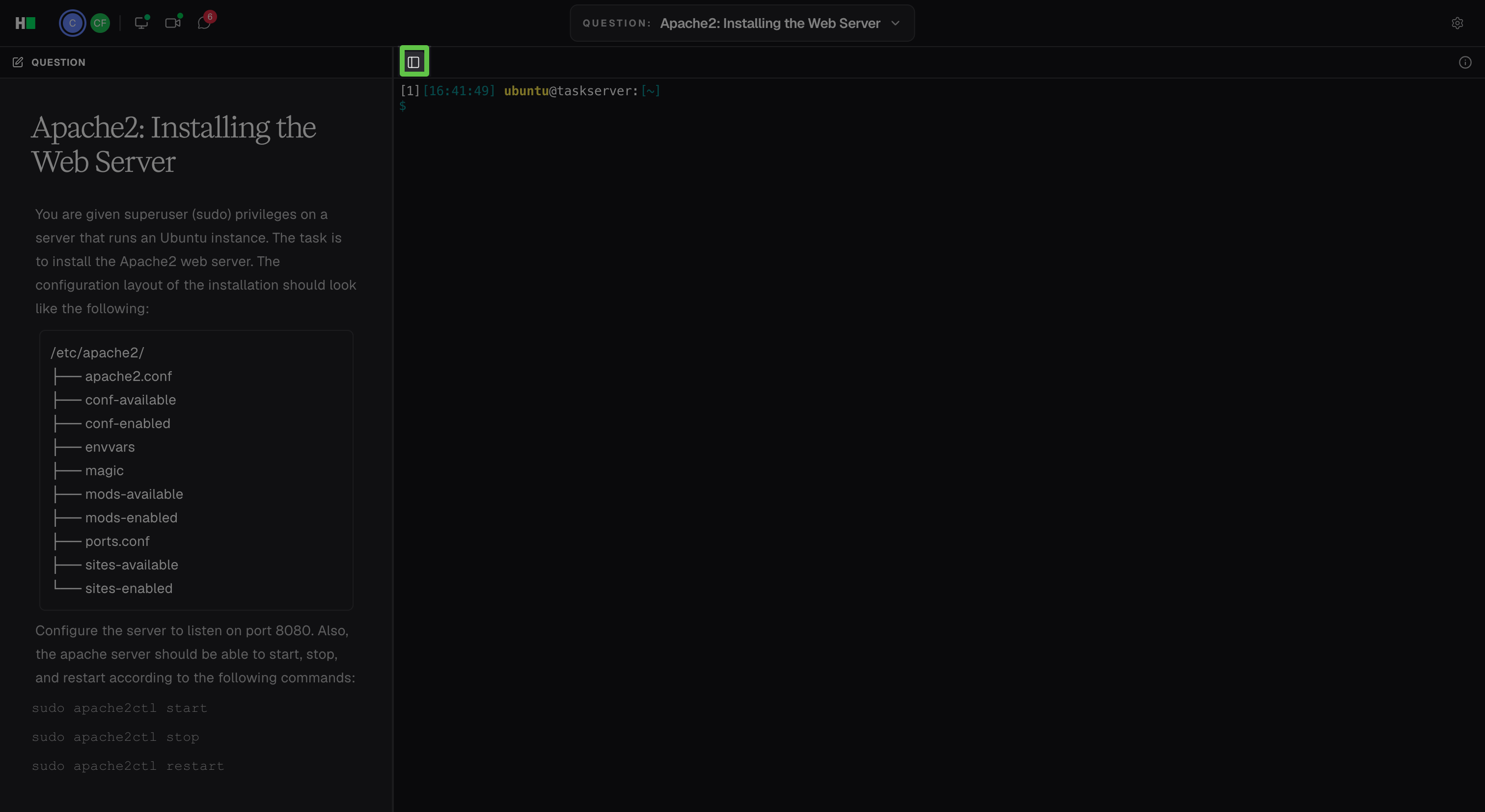
DevOps
A DevOps question provides a sandboxed Linux environment that you access through an in-browser terminal. The question panel appears on the left.
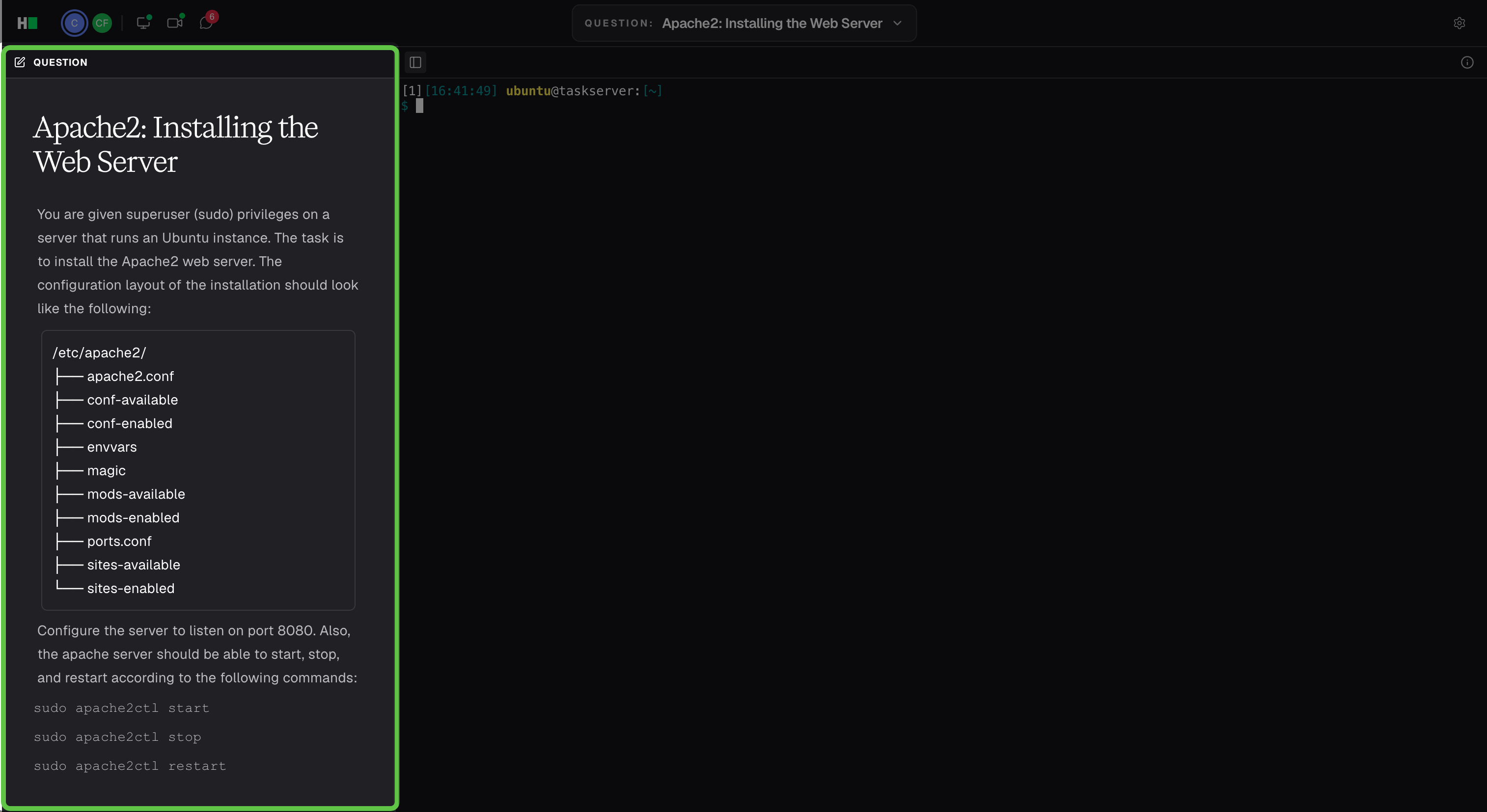
The terminal appears in the main workspace.
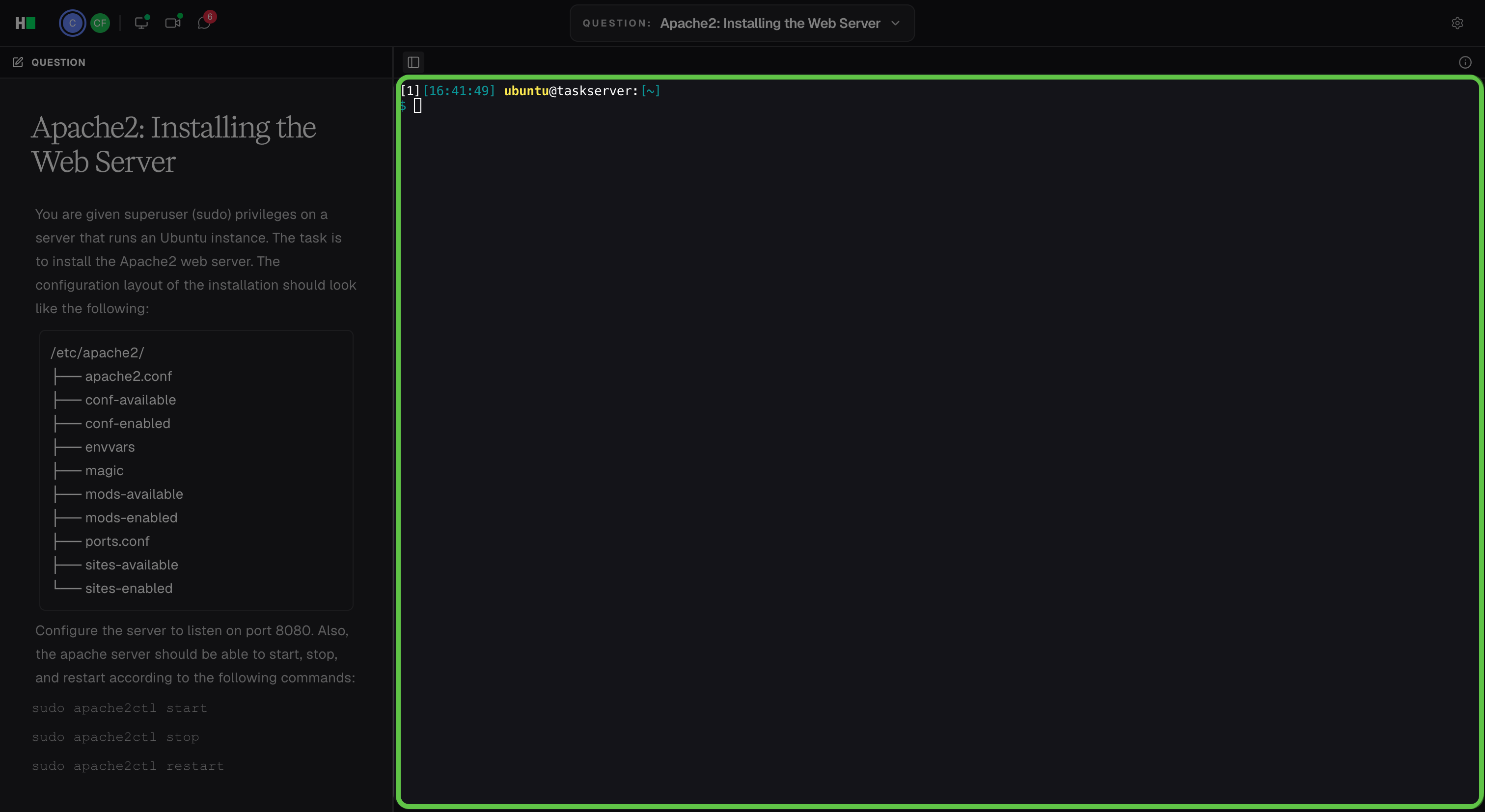
Review the requirements in the Question panel, and then use the terminal to complete the required Linux tasks, such as installing packages, creating files, or running command-line tools.
Click the toggle left panel icon to collapse the question panel.