Troubleshooting Guide for Tests in HackerRank Desktop App
Last updated: November 20, 2026
This article describes troubleshooting steps to resolve common issues before or during a test in the HackerRank Desktop App.
Note: For installation and setup instructions, see 📄 Attempting Tests using HackerRank Desktop App.
Installation and launch issues
Issue: Antivirus software blocks installation of the desktop app
If your antivirus software flags the HackerRank Desktop App as suspicious or blocks it from running, temporarily disable it to complete the installation.
Issue: App stays on the updating screen
If the app stays on the updating screen:
Check that your internet connection works.
If an update error appears, select Retry Download when offered.
If the issue continues, uninstall the app and reinstall it.
Issue: App does not open from the test link
If the app does not open your test or stays on its landing page after you select Start Test:
Return to the invitation page in your browser and select Start Test again.
If the test still does not open, open HackerRank from the Start menu on Windows or the Applications folder on macOS.
Paste your invitation link into the test link field.
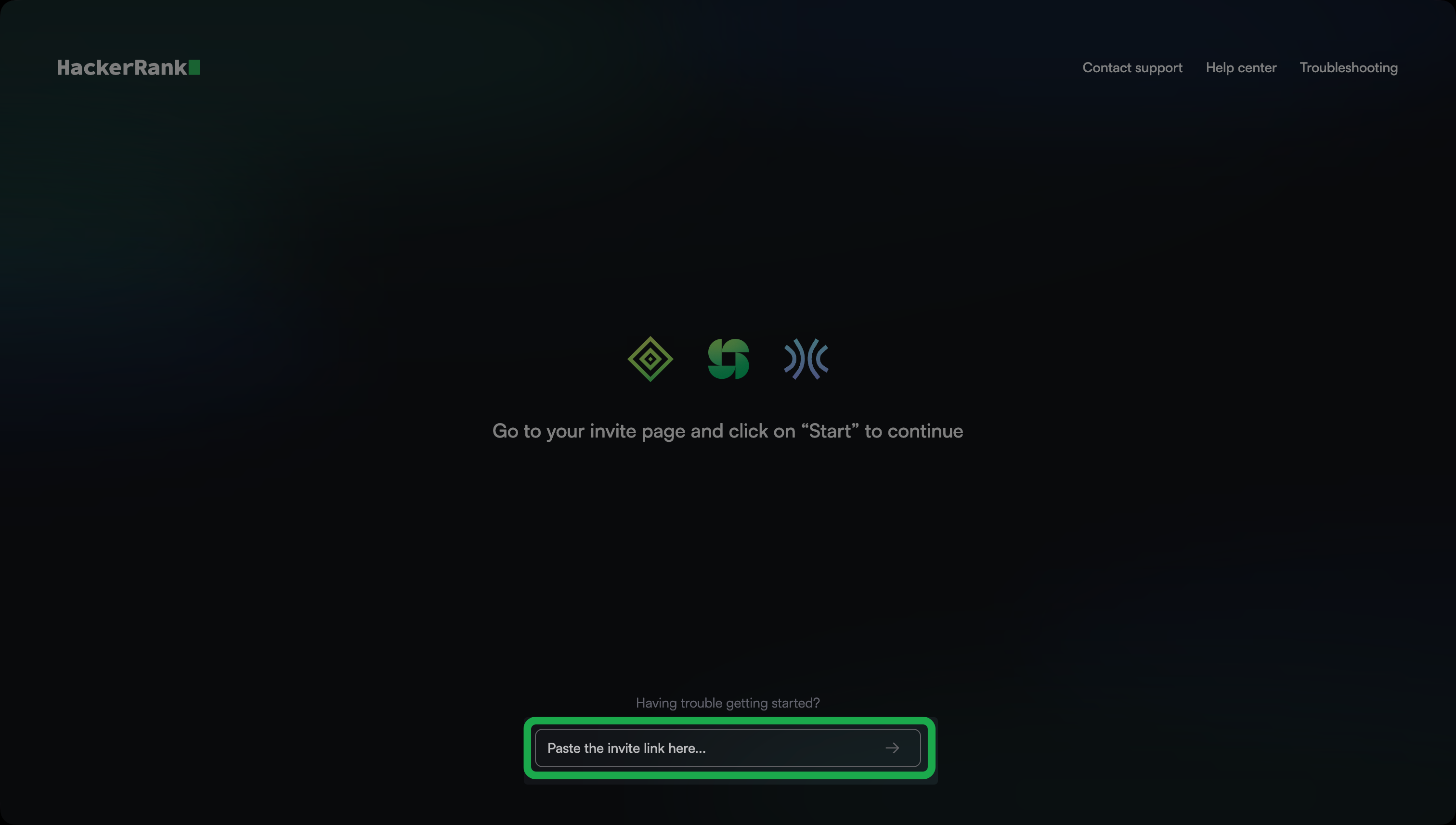
Select the arrow icon to open your test.
Login issues
Issue: Cannot log in to the test
If the app displays a login error or you cannot access your test:
Refresh the HackerRank Desktop App.
Check that you use the correct test link and credentials.
If an error appears, follow the steps for that error in 📄 Troubleshooting Test Login Errors.
If you still cannot access the test, contact your hiring team.
Permission and device issues
Issue: Close external applications warning appears
If the Close external applications warning appears, follow the instructions for your operating system.
Windows
Open Task Manager.
Select the application and click End task.
macOS
Open Activity Monitor.
Select the application, then select Stop, and select Quit. Use Force Quit if it does not close.
If the warning continues, open System Settings and check whether the detected application has screen recording or screen sharing permission. Turn off that permission for the detected application in Mac’s privacy settings.
Note: Force Close All Apps closes detected applications automatically. Save your work before you use it because force-closing an application discards unsaved changes.
Issue: Disable Notifications check fails after you turn off notifications for all apps on Windows
If Disable Notifications remains incomplete before your test:
Confirm that notifications are off at the system level, not just for individual applications.
Windows 11: Go to Settings > System > Notifications and turn off Notifications.
Windows 10: Go to Settings > System > Notifications & actions and turn off Get notifications from apps and other senders.
If the check remains stuck, refresh the app.
If it still does not update before the test starts, close and reopen the app, and then open the same test link.
If the issue continues, restart your computer as a last resort before starting the test.
Issue: Multiple monitors or screen mirroring detected
If the multiple monitor check fails during setup or Multiple Monitors Detected appears during the test:
Disconnect additional monitors, including mirrored displays and displays connected through a dock.
Disconnect wireless displays and any device you use as an additional screen, such as an iPad through Sidecar.
Check your computer’s display settings and disconnect any remaining additional displays:
Windows: Open Settings > System > Display.
macOS: Open System Settings > Displays.
Return to the Test Permissions page and select Check Now under Check for Multiple Monitors. During the test, follow the displayed instructions after you disconnect the additional displays.
If the pre-test check remains stuck, close and reopen the app before starting the test, and then repeat the check.
Issue: Webcam is not detected
If the HackerRank Desktop App does not detect your webcam, follow these steps:
Before your test, check your webcam at webcamtests.com. Close that browser tab before retrying in the HackerRank Desktop App.
Step 1: Check the connection and privacy shutter
Check that the webcam is connected properly and its privacy shutter is open.
If you use an external webcam, test it on another device to confirm that it works.
Step 2: Check the USB port
Try another USB port, or test the same port with another device to check whether the port works.
Step 3: Close other camera applications
Close applications that use the webcam, such as Zoom, Microsoft Teams, Google Meet, or FaceTime. Return to the HackerRank Desktop App and repeat the webcam check.
Step 4: Check camera permissions for the app
Follow the instructions for your operating system.
Windows 11
Open Settings > Privacy & security > Camera.
Turn on Camera access, Let apps access your camera, and Let desktop apps access your camera.
Windows 10
Open Settings > Privacy > Camera.
Allow camera access for the device. Turn on Allow apps to access your camera and Allow desktop apps to access your camera.
macOS
Open System Settings > Privacy & Security.
Select Camera and turn on access for the desktop app.
After changing permissions, reopen the HackerRank Desktop App before starting your test and repeat the webcam check.
Step 5: Check antivirus webcam protection
If your antivirus software blocks webcam access:
Open the antivirus application.
Review its webcam or privacy protection settings.
Temporarily allow the HackerRank Desktop App to access the webcam.
Refresh the app and repeat the webcam check.
Step 6: Update webcam drivers or macOS
Windows
Open Device Manager.
Expand Cameras or Imaging devices.
Right-click your webcam and select Update driver > Search automatically for drivers.
Restart your computer after the update completes.
macOS
Camera updates are included in macOS updates.
Open the software update settings for your macOS version. Go to System Settings > General > Software Update.
Install available updates and restart your Mac.
For a webcam interruption during an active test, see Issue: Webcam stops working after login.
Issue: Lighting or face visibility warning appears
If the app cannot detect your face clearly, you may see Face is not clearly visible during setup or No Face Detected during the test.
Move to a well-lit area or place a light in front of you.
Avoid bright windows or lights behind you.
Position your face in the center of the webcam preview and keep it unobstructed.
Before the test, repeat the webcam check. During the test, follow the displayed warning and check whether it clears.
Issue: Webcam stops working after login
If your webcam stops working after you log in:
Check that the webcam is connected and its privacy shutter is open.
Follow any camera access prompt in HackerRank.
Refresh the HackerRank desktop app.
Test interruptions
Issue: Test window is blank, freezes, or stops responding
If the test window stays blank or the app stops responding:
Check that your computer is connected to a stable network.
Select the Refresh icon in the upper-right corner of the app. You can also press Ctrl+R on Windows or Command+R on macOS.
Issue: Keyboard stops responding during the test
If your keyboard stops responding:
Refresh the app:
Windows: Press Ctrl+R.
macOS: Press Command+R.
If the keyboard still does not respond, restart your computer.