Attempting Tests using HackerRank Desktop App
Last updated: April 22, 2026
The HackerRank Desktop App is a lightweight application that provides a secure environment for you to take tests. After you launch the application, it blocks unauthorized activities such as accessing other applications, browsers, or tabs to ensure a fair and seamless testing experience.
Supported operating systems
Operating System | Supported Versions |
Windows | 10 and 11 |
macOS | Monterey 12 or above (Compatible with both Intel-based and Apple Silicon-based Macs) |
Install and launch the HackerRank Desktop App
To install and launch the HackerRank Desktop App:
Step 1: Download the app
For Windows
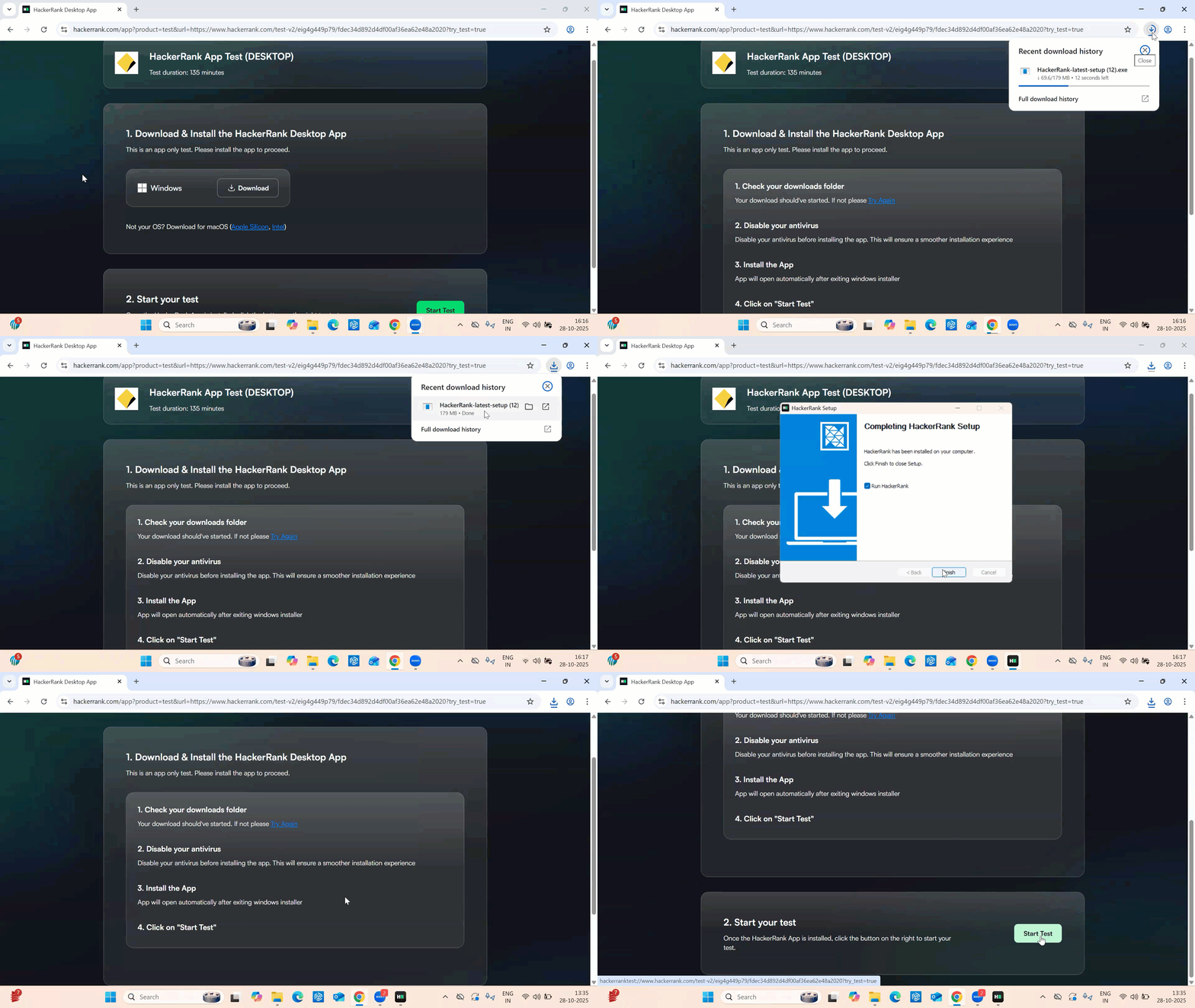
Open your HackerRank test invitation email and click the test link. The test page prompts you to download the HackerRank Desktop App.
Click Download to download the Windows installer.
Note:
You do not need administrator access to install the HackerRank Desktop App on Windows.
If your antivirus software flags the HackerRank Desktop App as suspicious or blocks it from running, temporarily disable your antivirus to complete the installation. The HackerRank Desktop App is safe to use.
Once the download is completed, open the downloaded
.exefile and follow the on-screen instructions in the setup wizard to install the app.When the installation completes, select Finish to close the setup wizard.
Note:
Keep the Run HackerRank checkbox selected to launch the app automatically.
If the HackerRank Desktop App does not open automatically, open it manually from the Start menu or Desktop.
Return to the browser tab where you downloaded the app.
Click Start Test, and when prompted, click Open HackerRank to launch the app.
For macOS
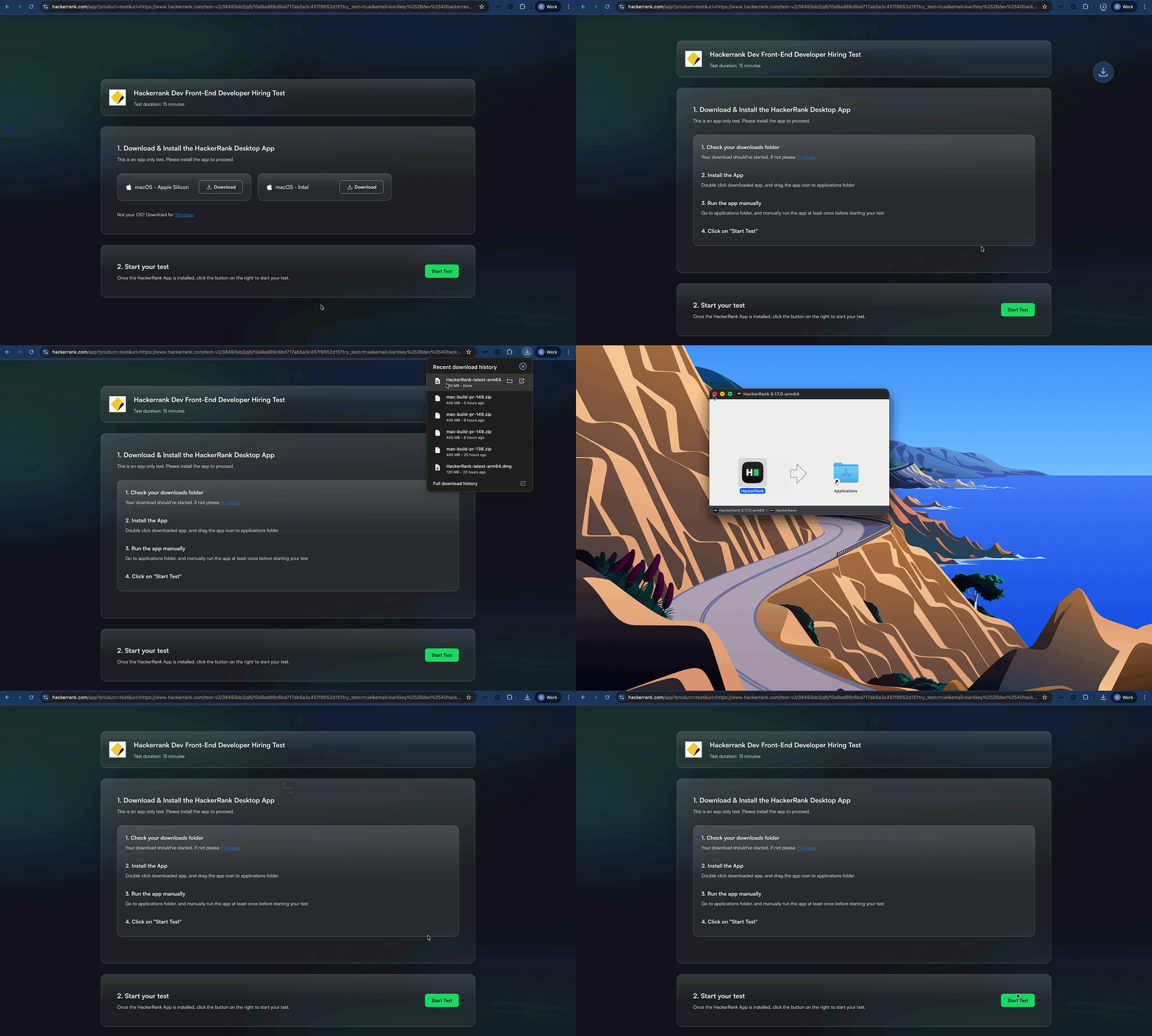
Open your HackerRank test invitation email and click the test link. The test page prompts you to download the HackerRank Desktop App.
Click Download under your macOS version (Apple Silicon or Intel) to download the macOS installer.
Note: To check your Mac version, go to Apple menu > About This Mac.
If it shows Chip: Apple M1, M2, or later, choose Apple Silicon.
Otherwise, choose Intel.
Once the download is completed, open the downloaded
.dmgfile.Drag the HackerRank icon into the Applications folder, and close the installation window.
Open Finder, search for HackerRank, and click HackerRank to launch the app.
Click Open when macOS prompts that the app is downloaded from the internet.
Return to the browser tab where you downloaded the app.
Click Start Test, and when prompted, click Open HackerRank to launch the app.
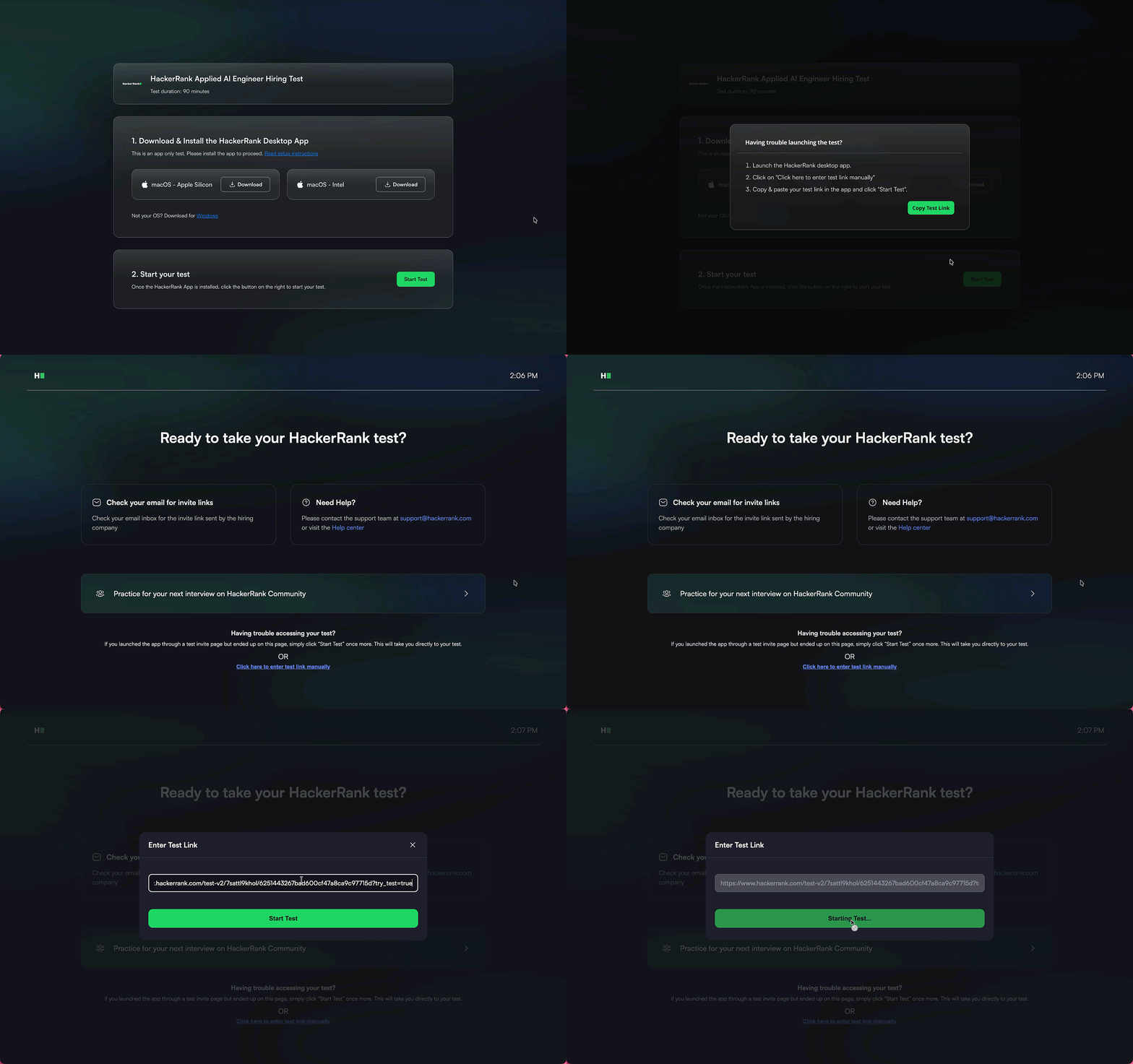
Note: If the HackerRank Desktop App does not open when you click Start Test, follow the troubleshooting steps to open the app manually and paste the test link to start the test.
Step 2: Grant system permissions
For Windows
When you open the HackerRank app for the first time, you will be prompted to grant the system permission to access your webcam.
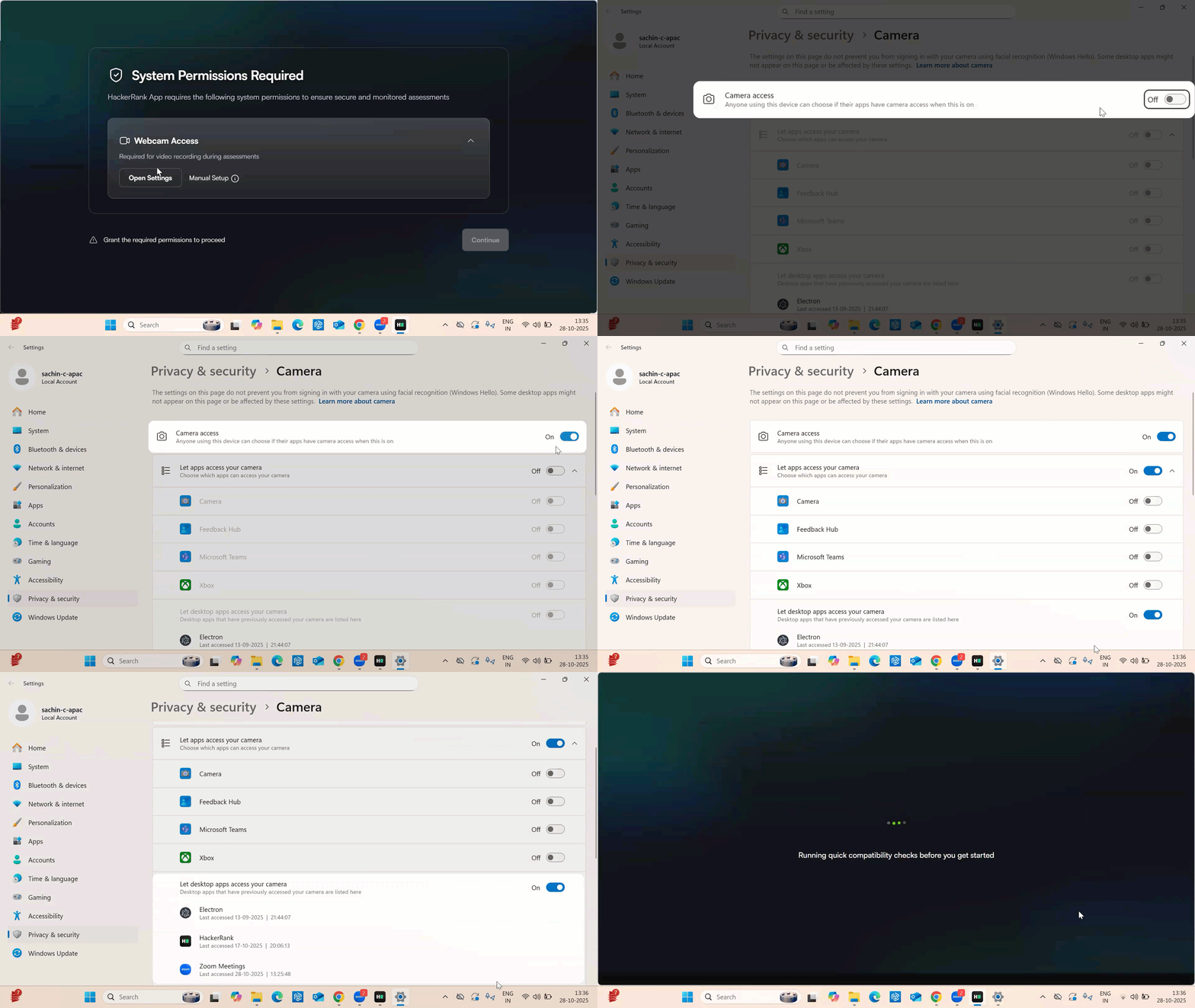
Click Open Settings to go to Privacy & Security > Camera.
Turn on the Camera access toggle for the HackerRank app.
Return to the HackerRank app and click Continue to proceed.
For macOS
When you open the HackerRank app for the first time, you will be prompted to grant the following system permissions:
Webcam and System Events access
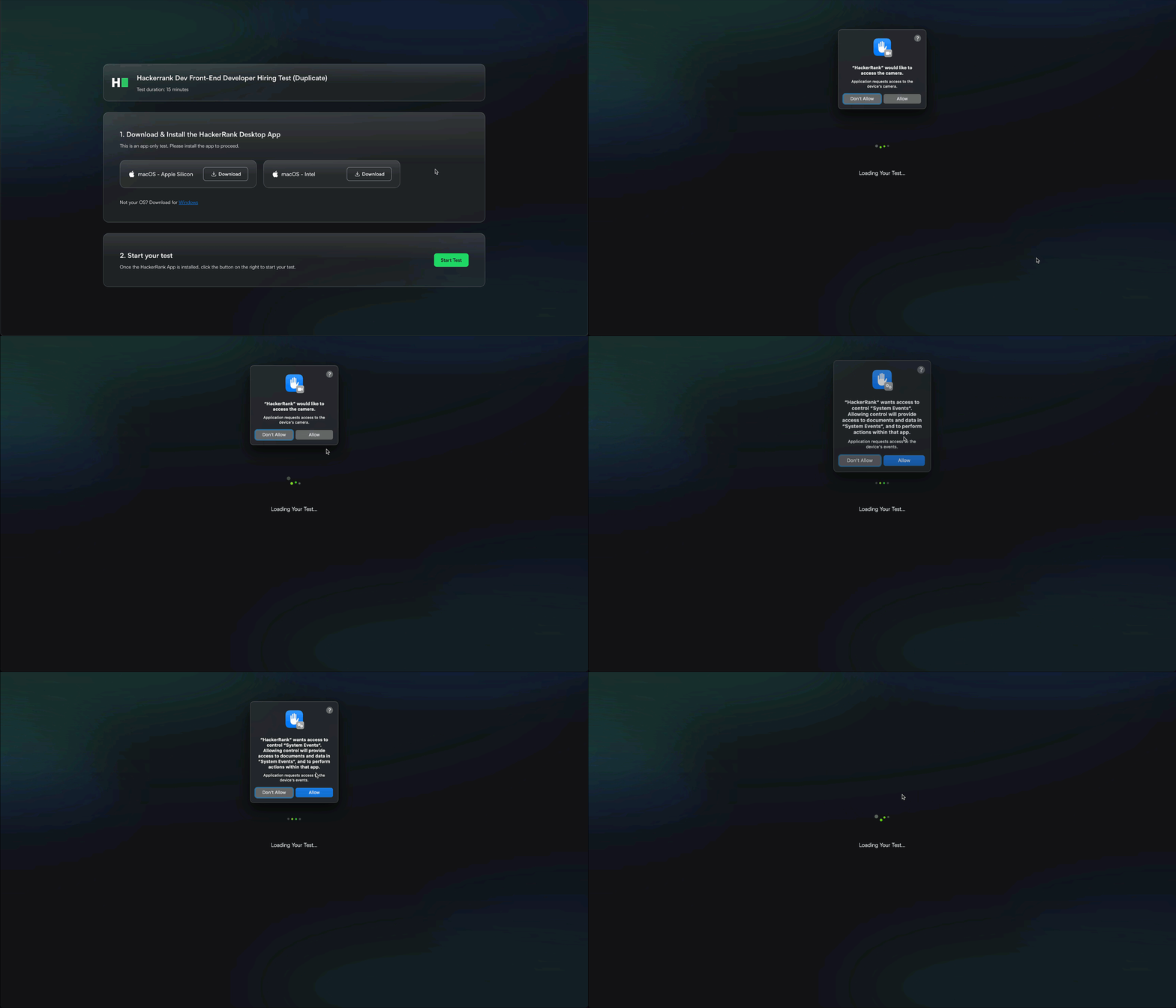
When prompted to allow camera access, click Allow.
When prompted to allow access to System Events, click Allow.
Screen recording access
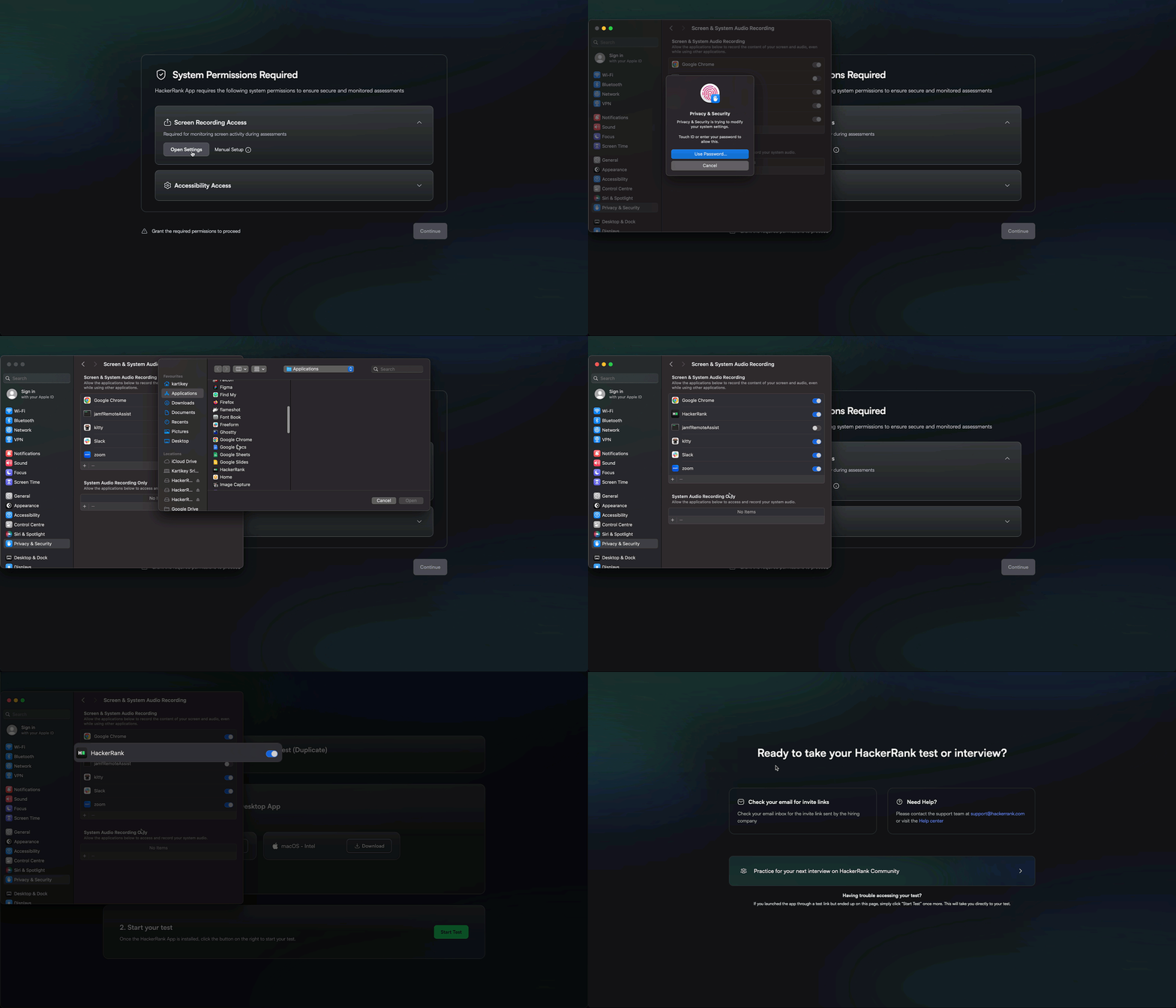
Click Open Settings to go to Privacy & Security > Screen & System Audio Recording.
Do one of the following:
If the HackerRank app is not in the list:
Click the + icon.
In the Applications folder, select HackerRank, and click Open.
Enter your password or use Touch ID to confirm the setting changes.
Click Quit & Reopen when prompted to apply the changes.
Verify that HackerRank appears in the list with the toggle turned on.
If the HackerRank app is already in the list:
Turn on the HackerRank toggle.
Accessibility access
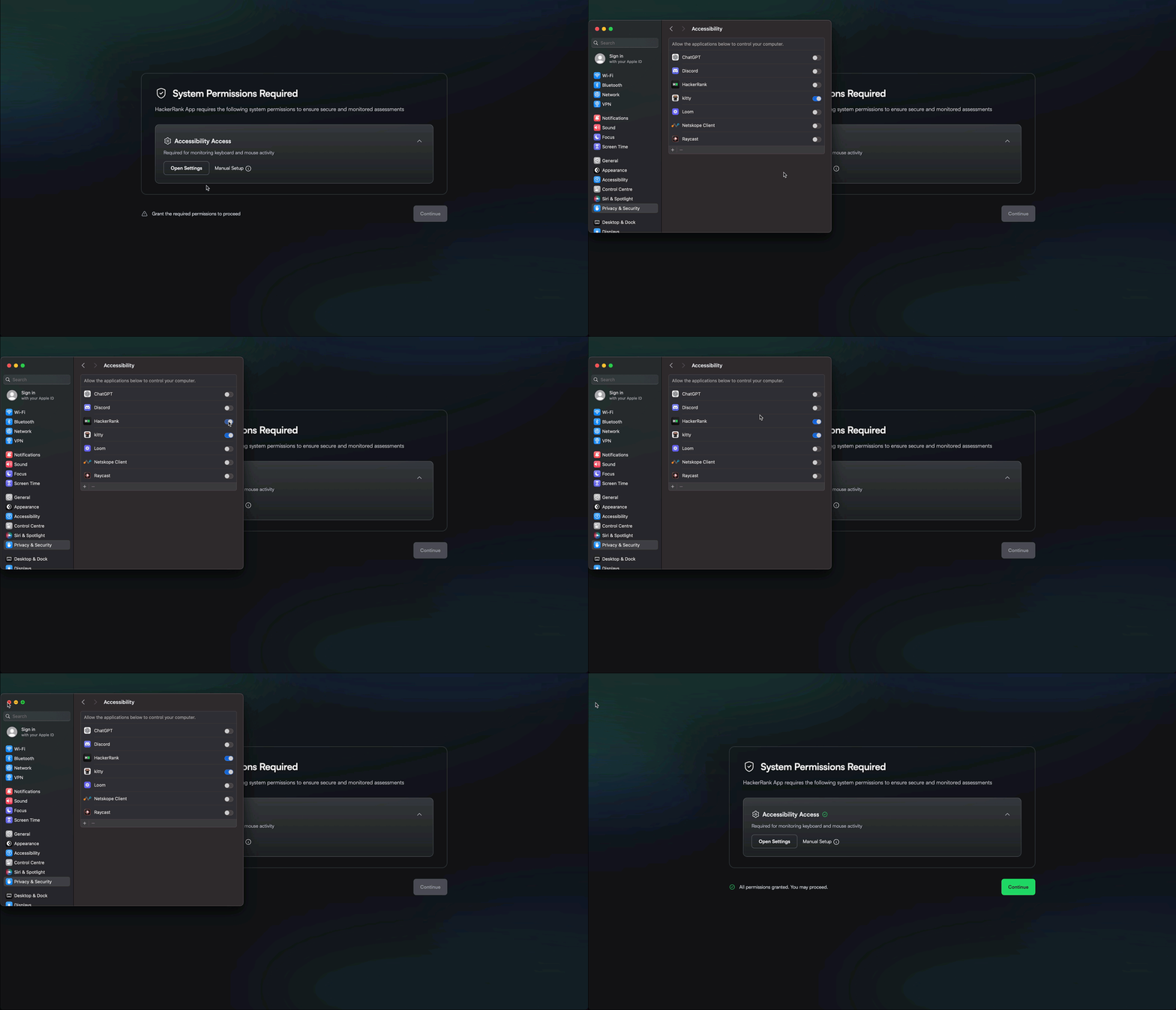
Select Open Settings to go to Privacy & Security > Accessibility.
Do one of the following:
If the HackerRank app is not in the list:
Click the + icon.
In the Applications folder, select HackerRank, and click Open.
Enter your password or use Touch ID to confirm the setting changes.
Click Quit & Reopen when prompted to apply the changes.
Verify that HackerRank appears in the list with the toggle turned on.
If the HackerRank app is already in the list:
Turn on the HackerRank toggle.
After you grant all required permissions, click Continue to proceed.
Step 3: Add details and acknowledge test rules
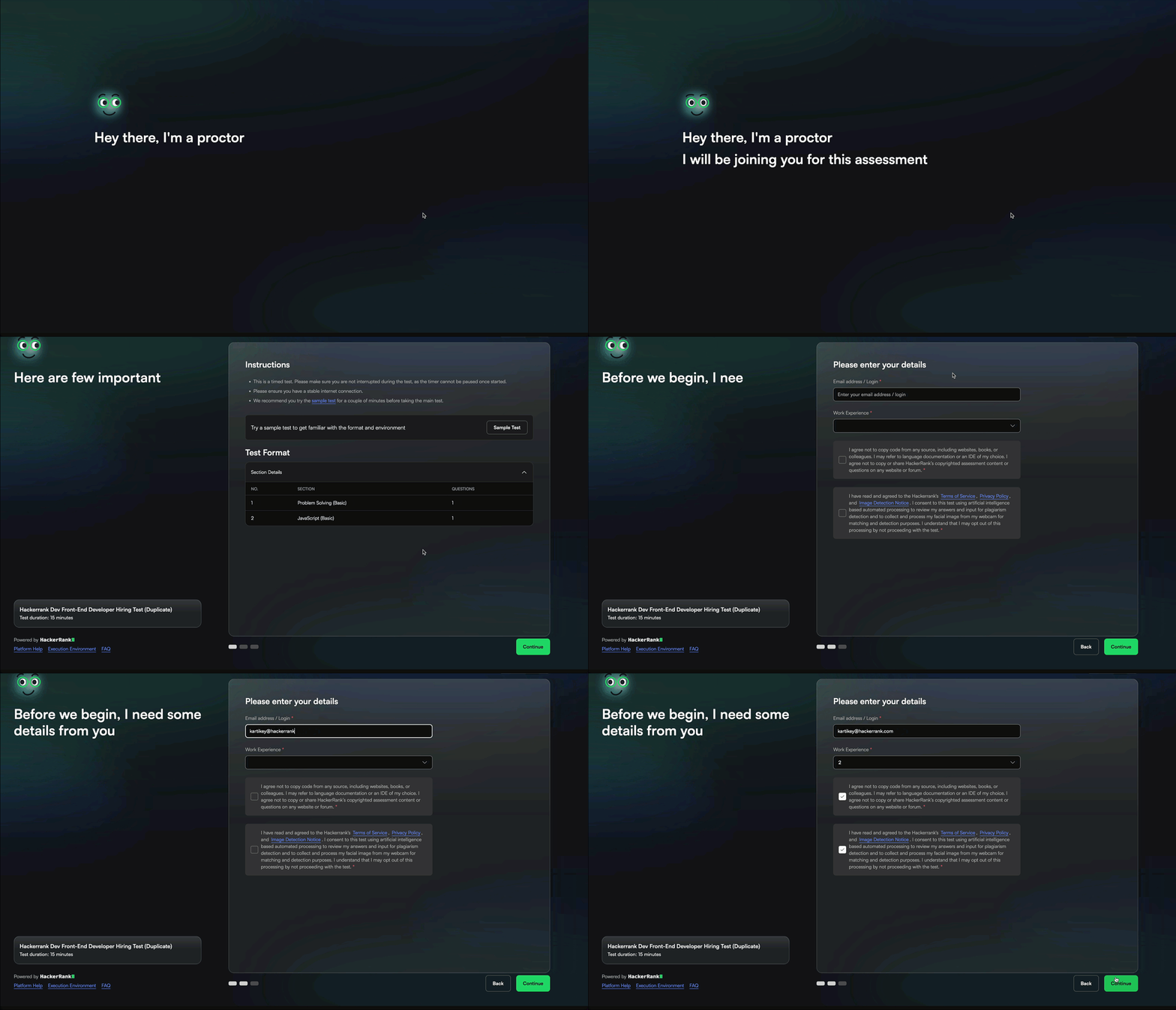
Read the instructions carefully.
(Optional) Take the Sample Test to familiarize yourself with the HackerRank environment.
Click Continue.
Enter any details requested by the hiring company.
Select the checkboxes to confirm that you agree to the terms and understand the test rules.
Click Continue to proceed.
Step 4: Grant test permissions
Complete the required permission checks before starting the test.
Close additional applications: Close all other applications running on your system before starting the test. Close them manually or click Force Close All Apps to close them automatically. The system displays a list of applications that you need to close. If you force close applications, any unsaved data is lost.

Allow webcam access: Select Grant Access, ensure your face is clearly visible in the webcam, and click Continue.
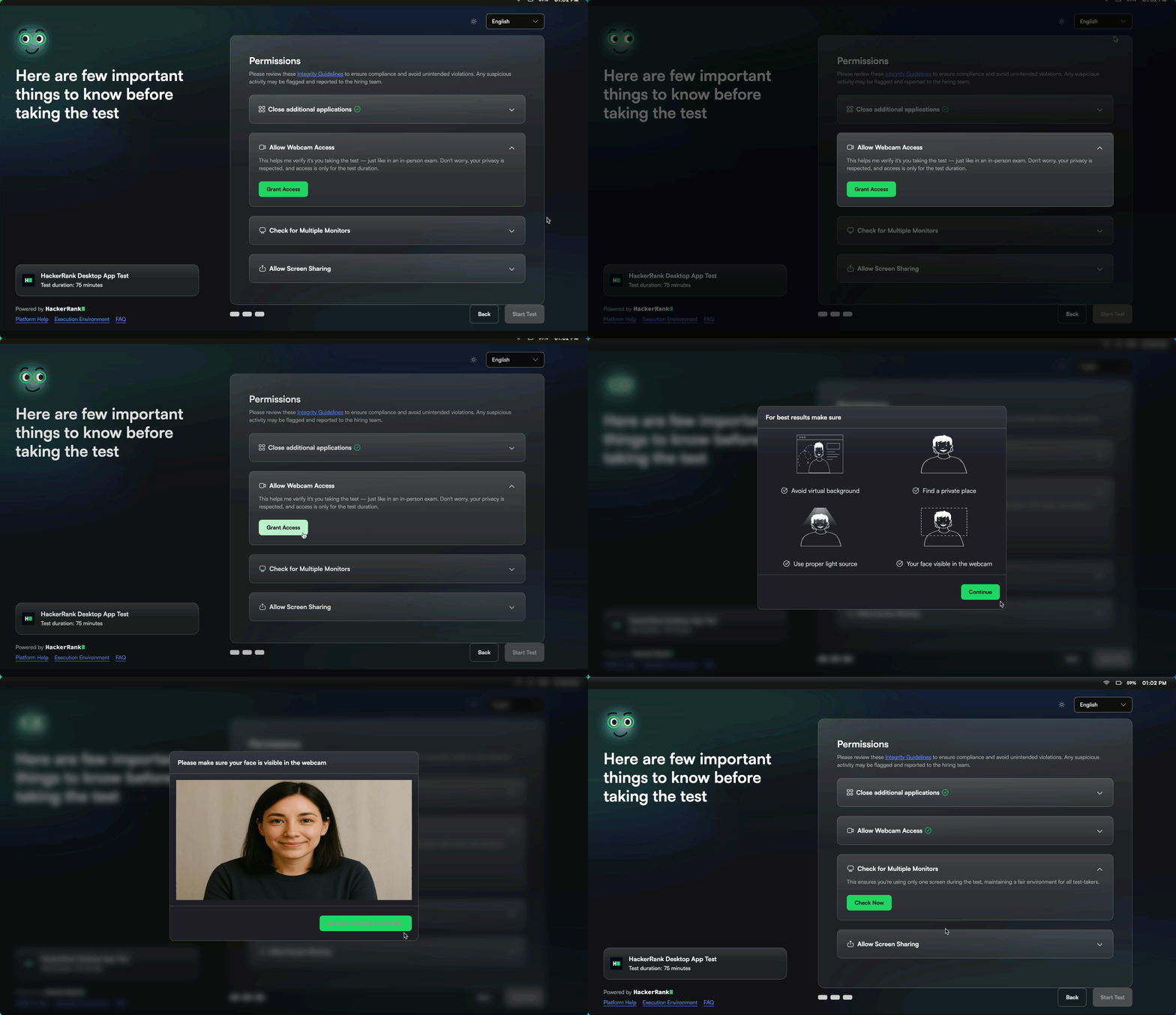
Check for multiple monitors: Select Check Now to confirm that no additional monitors are connected. Disconnect any extra monitors if detected.

Allow screen sharing: Select Share Screen to allow access.

Note: A green check mark appears when the permissions are granted correctly.
Step 5: Start the test
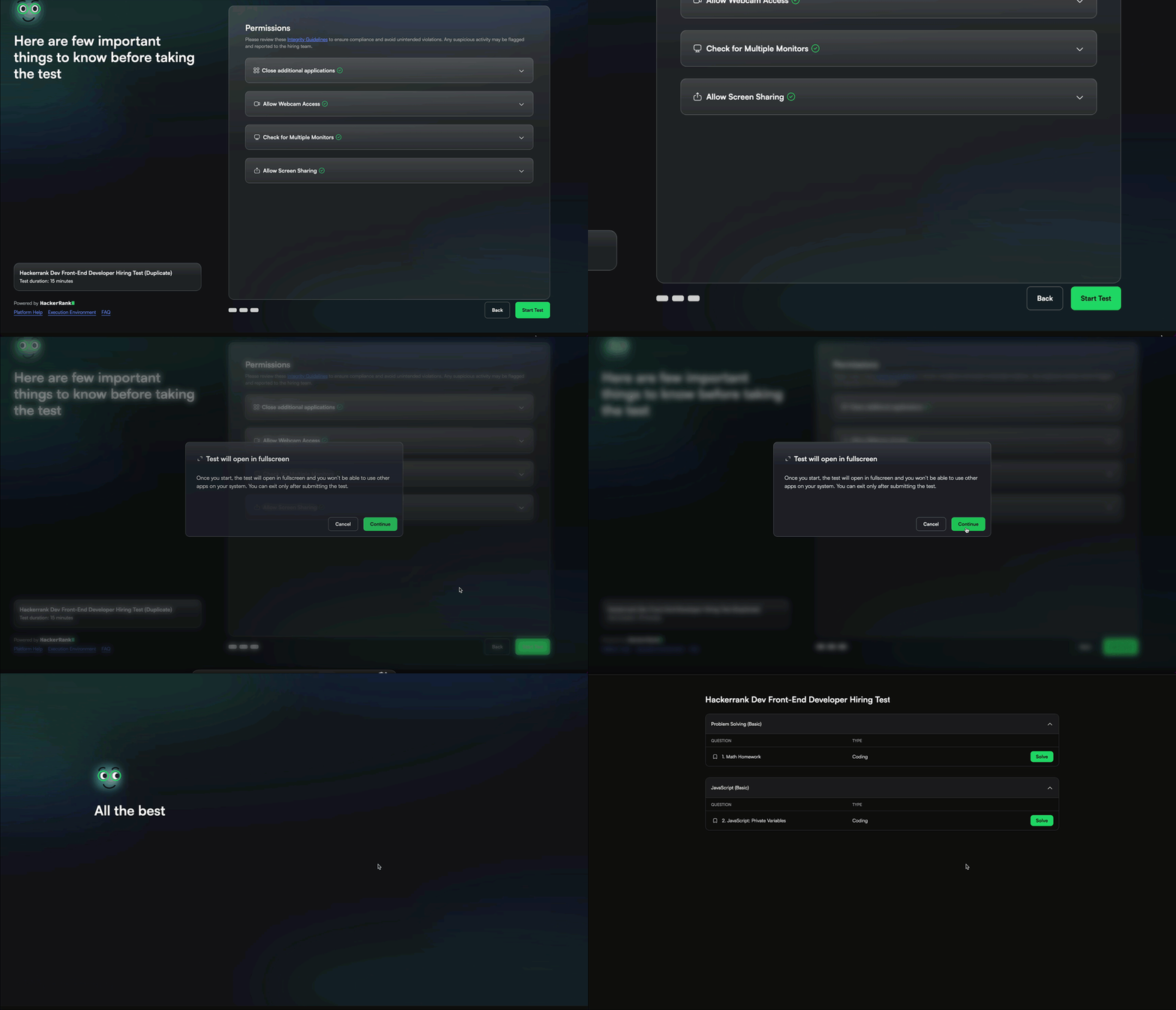
When all permissions display green check marks, click Start Test.
The app launches your test in full-screen mode. You can exit full-screen mode only after you complete the test.