Taking Proctored Tests
Last updated: July 16, 2025
Your recruiter may send you a test that has the proctoring feature turned on. Proctoring allows the recruiter to monitor your test screen activity and identify potential malpractice.
Enabling Webcam Access for a Test
To participate in a proctored test, your PC must have a fully functional webcam and you must allow HackerRank to access your webcam. Once the test begins, your webcam will capture and record periodic snapshots of your activity until the test concludes.
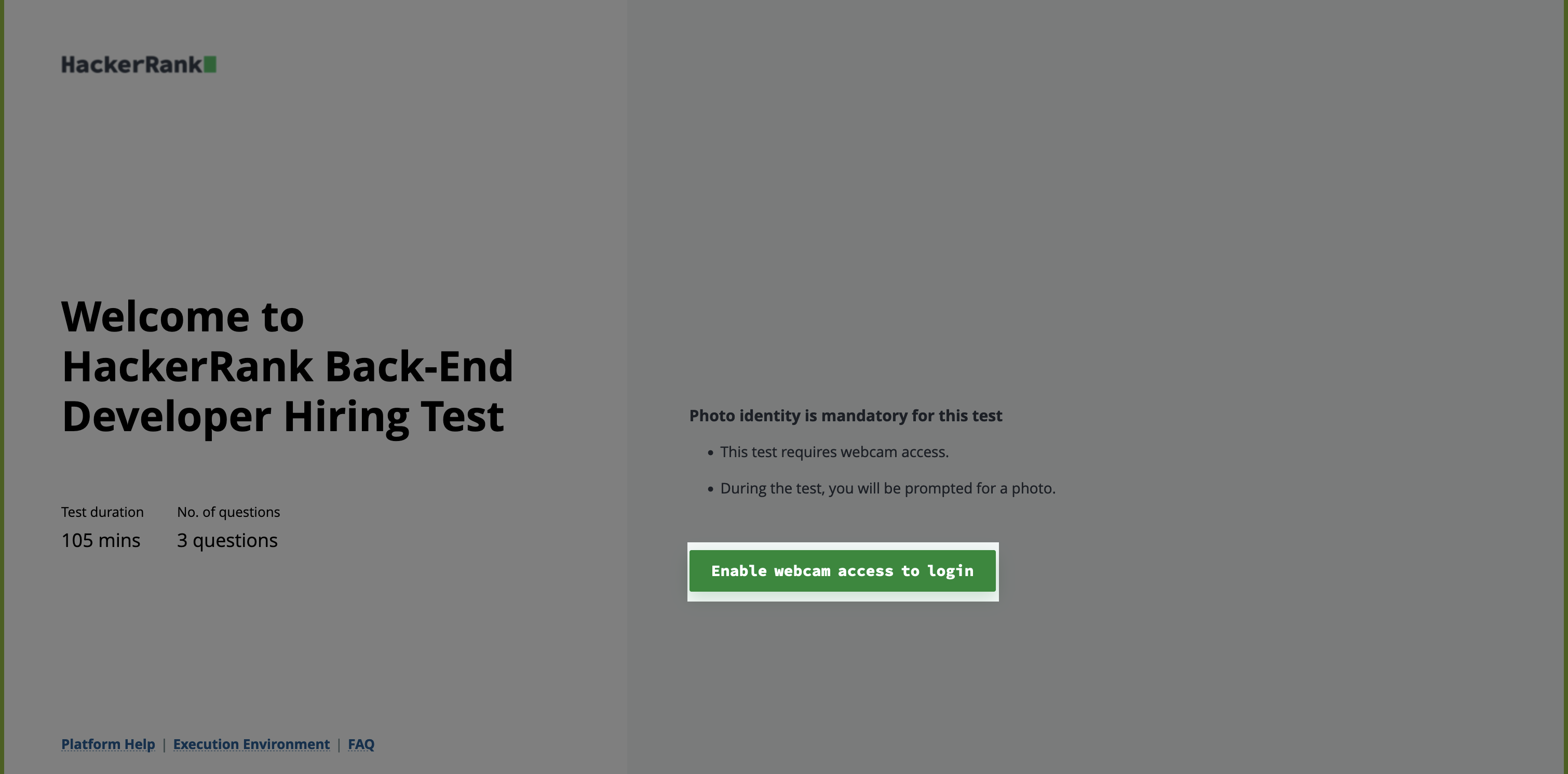
Recruiters will review these snapshots to ensure no prohibited activities occurred during the test.
Webcam Troubleshooting Guide
Check your webcam status here before taking the test. If your webcam is not detected during the test, follow these steps to troubleshoot:
Check the Webcam Connection
Ensure the webcam is properly connected.
If using an external webcam, test it on another device to confirm it is working.
Verify USB Port Functionality
Test the USB port with another device to rule out any issues with the port.
Update Webcam Drivers
Ensure that your webcam drivers are up-to-date.
Check Antivirus Software
Your antivirus software might be blocking the webcam. Review your antivirus settings.
Use Supported Browsers
Use the latest versions of Google Chrome, Edge or Mozilla Firefox while taking the test.
Verify Operating System Permissions
Ensure that your operating system allows applications and browsers to access the camera.
Close any other applications that might be using the webcam.
Disable privacy-based extensions that may block camera access.
Test your webcam at webcamtests.com.
Restart Your Computer
Restarting your computer can often resolve the issue. If using a USB webcam, unplug the USB, restart your computer, and reconnect the webcam.
If these steps do not resolve your issue, please submit a support ticket at support@hackerrank.com for further assistance.