Troubleshooting Test Login Errors
Last updated: April 22, 2026
This article describes solutions for common login issues encountered by candidates during HackerRank assessments.
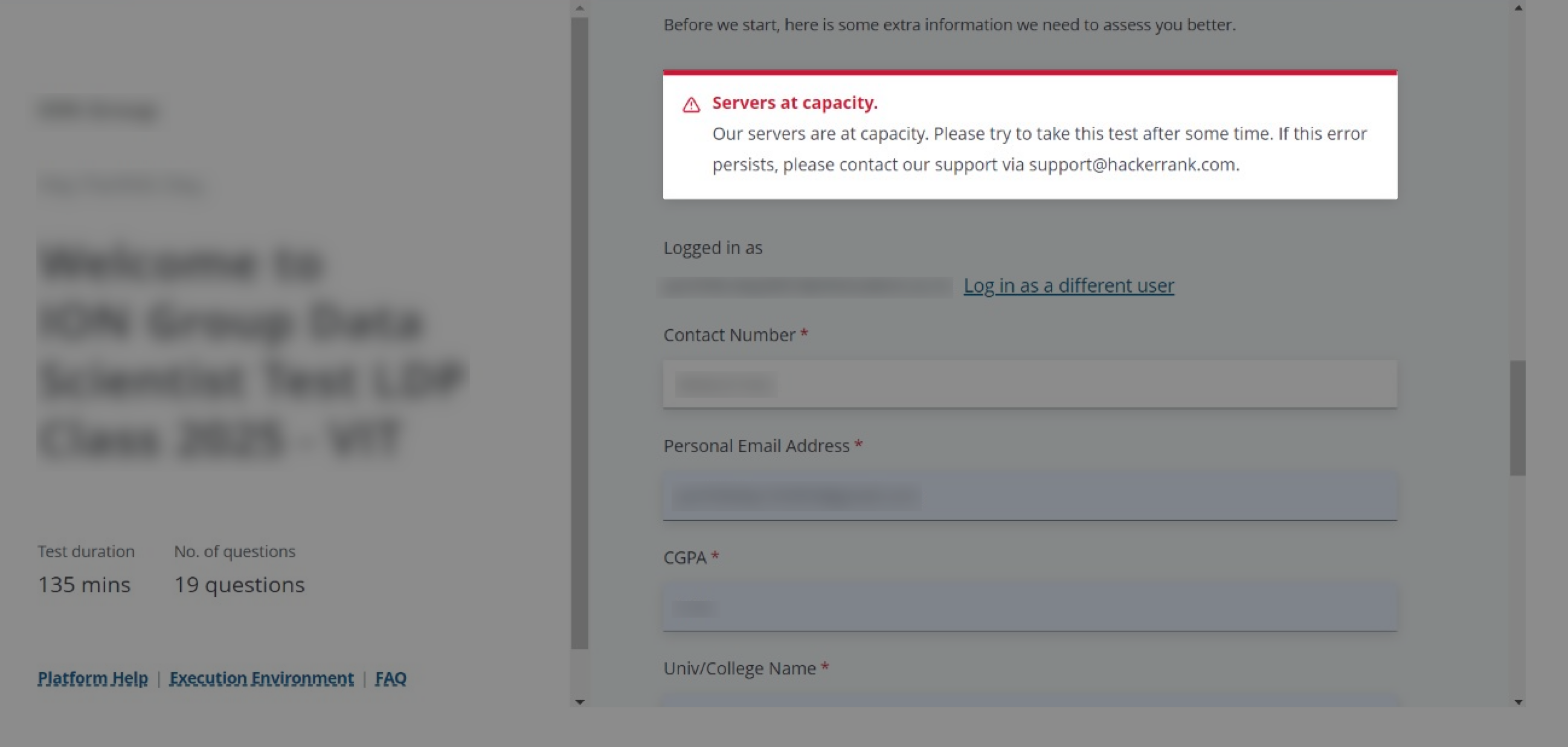
Error 1: Servers at capacity
The HackerRank for Work platform allows multiple candidates to access tests at the same time. During periods of very high traffic, the system enforces a limit on concurrent users to maintain stability. When this limit is exceeded, candidates see this error message.
Troubleshooting
Retry logging in: Wait a few minutes and try logging in again. Ensure your login attempt is within the designated login window.
Contact your hiring manager: If the test window expires and the issue persists, reply to your test invitation email or contact your recruiter or hiring manager. You can provide the exact error message and your test link to assist in resolution.
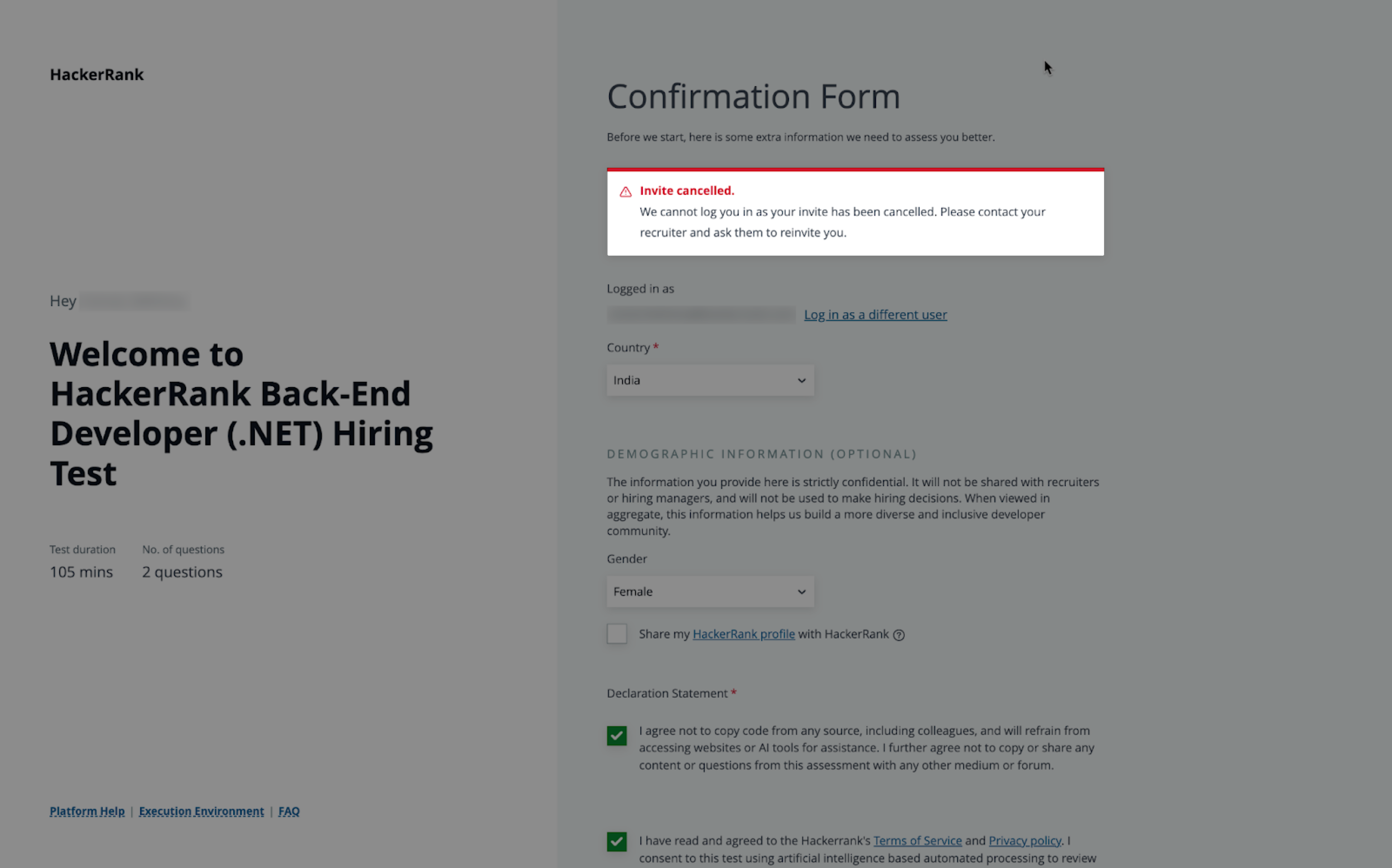
Error 2: Invite cancelled
This error occurs when the recruiter or hiring team cancels the test invitation.
Troubleshooting
Reply to the test invitation email or contact your recruiter or hiring manager. Describe the issue and request a new test invitation.
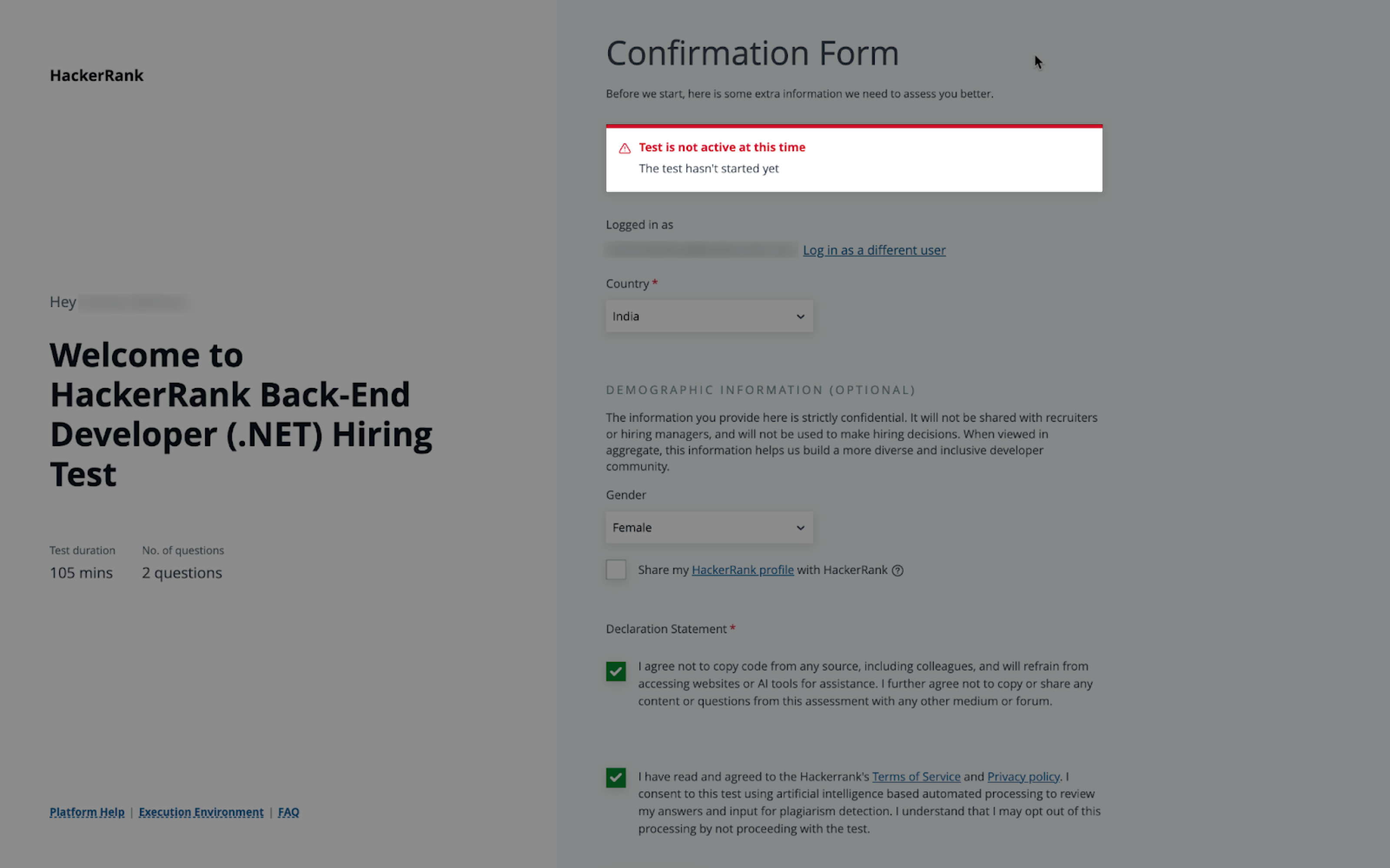
Error 3: Test is not active at this time
This error occurs when a candidate attempts to access a test before its scheduled start time or after its expiration date and time.
Troubleshooting
If the test has expired: Reply to the test invitation email and ask the recruiter to extend the test’s expiration date and time.
If the test has not yet started: Refer to the scheduled start date and time in your invitation email. Try accessing the test again at the scheduled time.
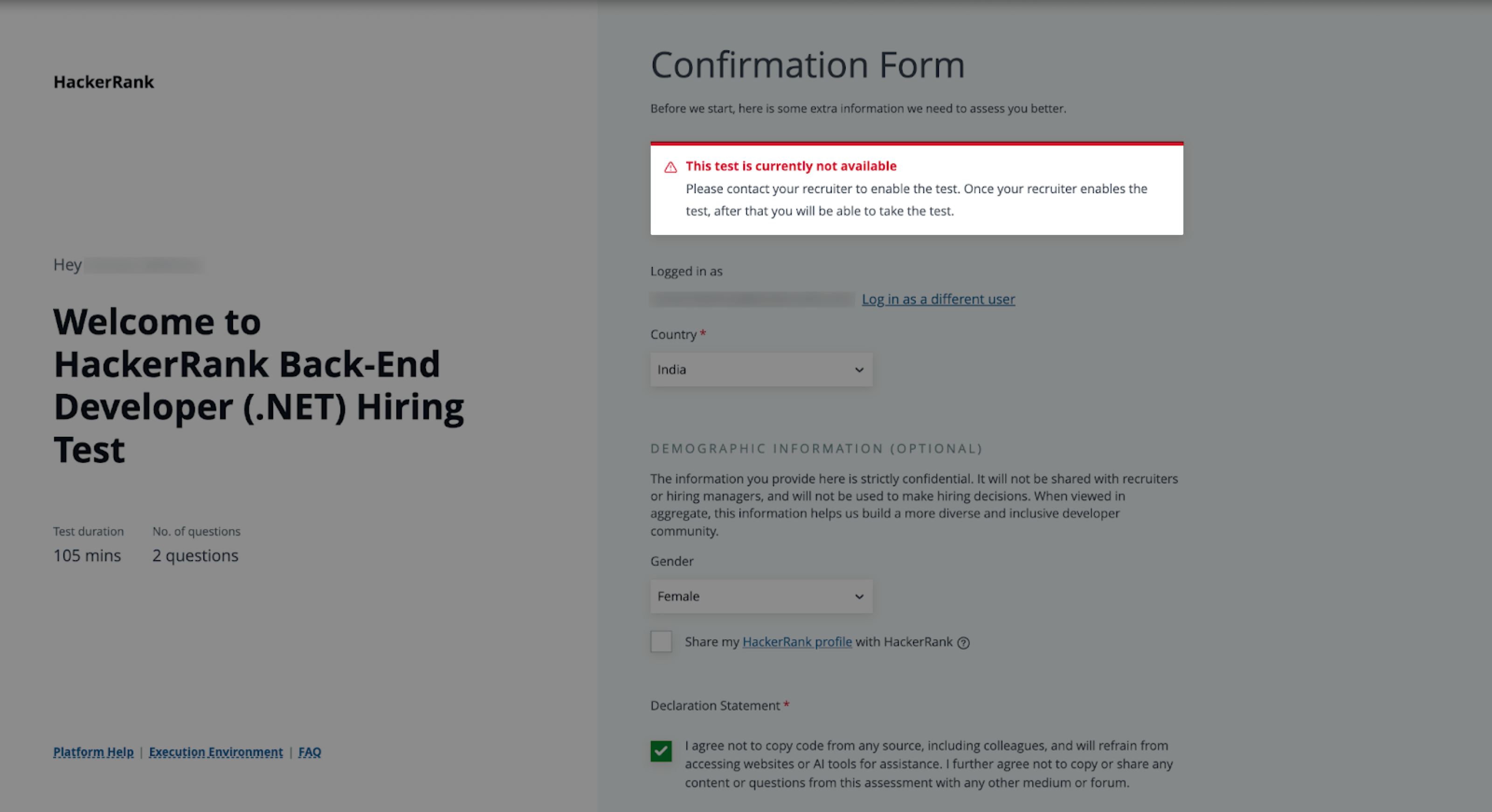
Error 4: Test is currently not available
This error occurs when a recruiter edits a test after sending invitations. The edit changes the test status from Published to Draft.
Troubleshooting
Reply to the test invitation email or contact your recruiter or hiring manager. Describe the issue and ask them to republish the test.
Error 5: Unable to login
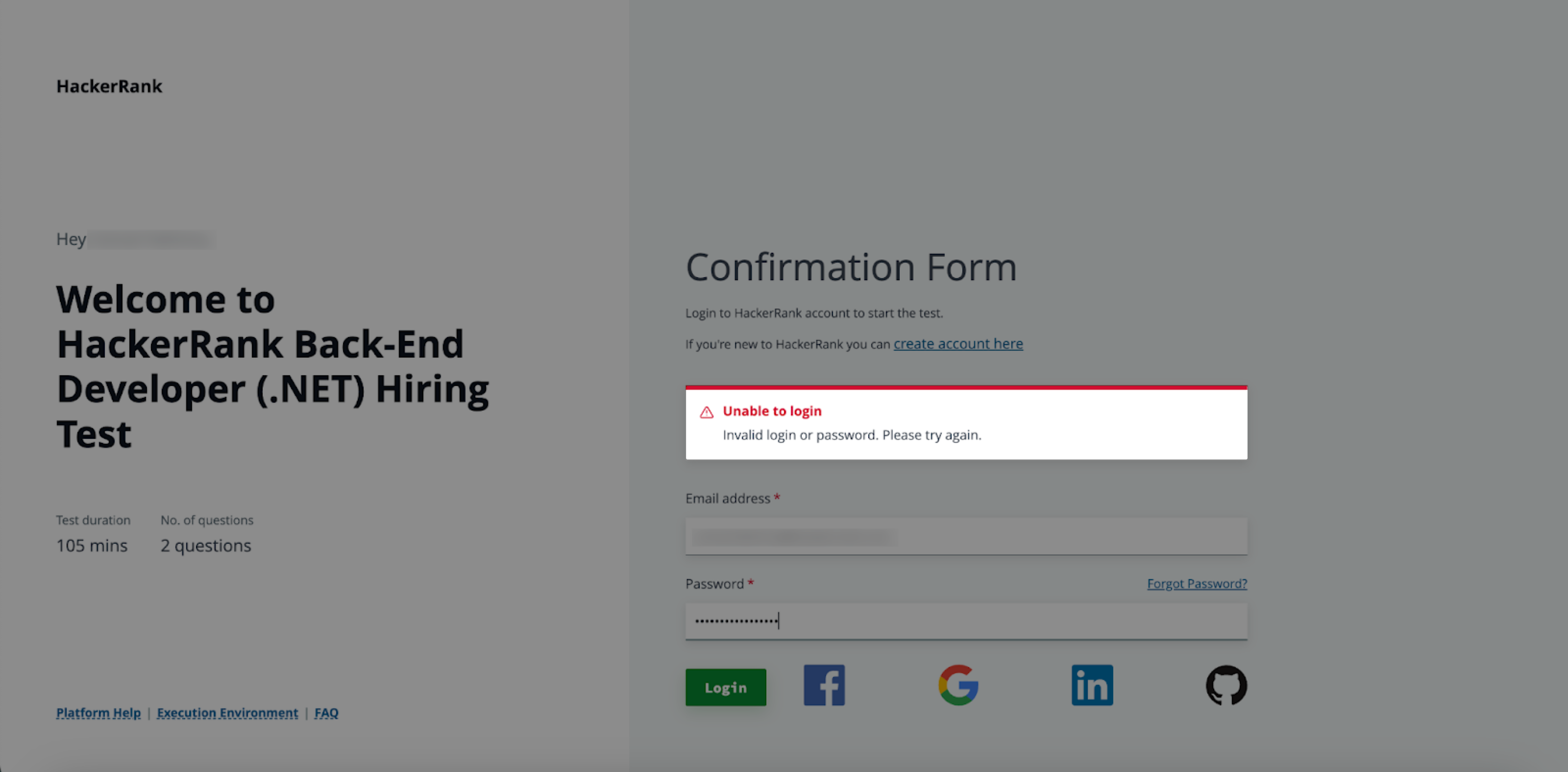
This error occurs when a candidate attempts to log in with invalid credentials. Candidates can log in using their email address and password, or through Google, Facebook, LinkedIn, or GitHub. Any incorrect or mismatched information causes a login failure.
Troubleshooting
Double-check your email and password or the credentials for the platform you are using to log in. If necessary, select Forgot Password to reset your account credentials.
If you do not have a HackerRank account, see Create an account.
If the hiring company requires you to log in using credentials they provide, check the recruiter's email for your test-specific login details. If you did not receive the credentials, reply to the test invitation email or contact your recruiter or hiring manager.
Note:
When you see the error message
Please use a valid business email address to sign up, you have signed in with the HackerRank business URL instead of the HackerRank candidate URL. You must sign in using https://www.hackerrank.com/signup.If you previously created a HackerRank account using a different email address than the one to which the test was sent, add the new email address to your account and set it as the default. This ensures all HackerRank communications are sent to the correct email address. For more information, refer to the Add or delete email addresses.
Error 6: Test already taken
This error occurs when candidates attempt to access a test and see a message stating that the test has already been taken.
Troubleshooting
Reply to the test invitation email and inform the recruiter about the error.
Error 7: Blocked domains
This error occurs when your network settings block access to required HackerRank resources.
Troubleshooting
If you use an office device, ask your network administrator to safelist the domains listed in the error message. If you use a personal device, safelist the domains listed in the error message.
Error 8: WebSocket connectivity check
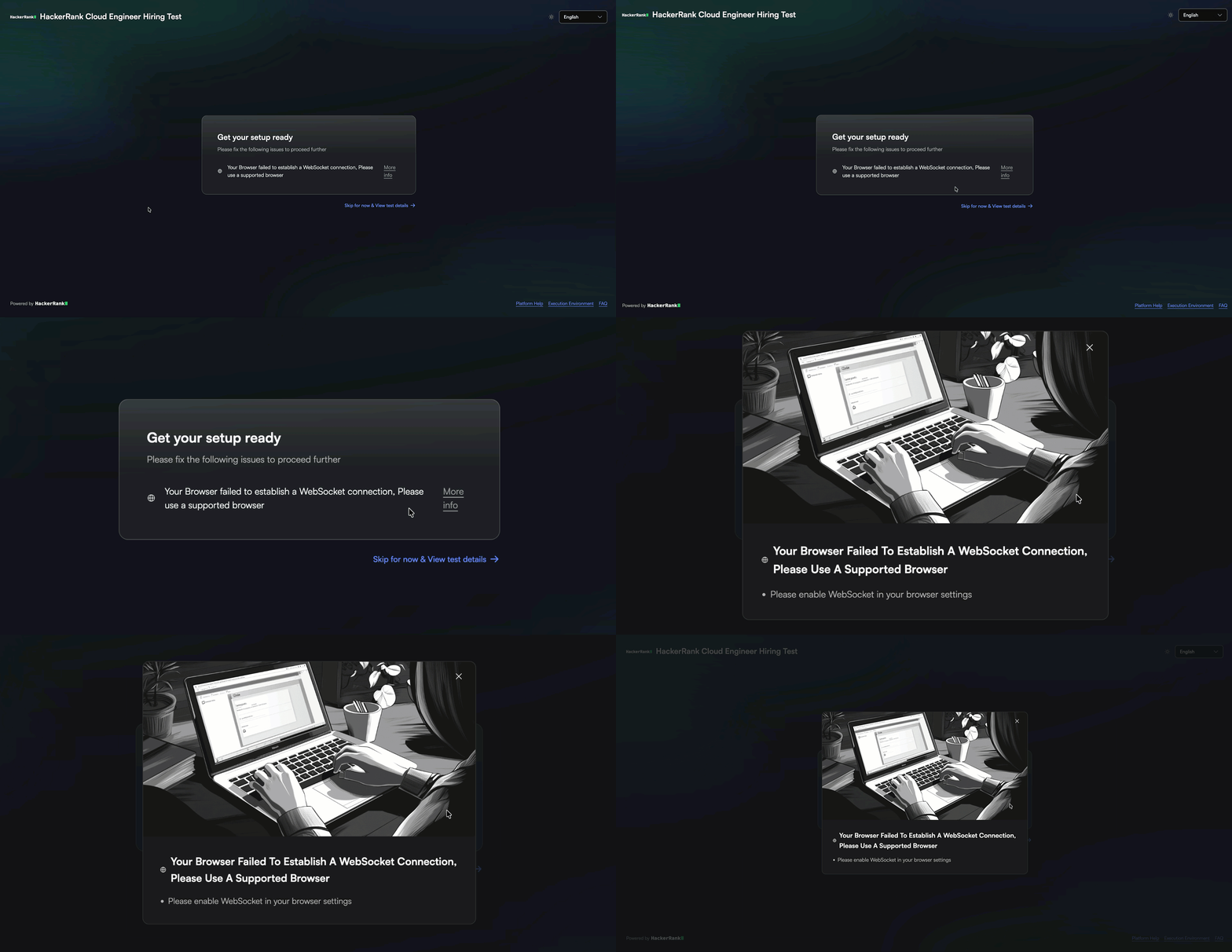
This error occurs when network restrictions or domain-level blocking prevent WebSocket connections.
Troubleshooting
Check your network configurations: Switch to a different network, such as a personal hotspot or home Wi-Fi, if your current network restricts WebSocket connections.
Allowlist required domains: If you use a managed network (For example, office network), contact your network administrator and ask them to allow WebSocket connections and allowlist HackerRank domains, including secure WebSocket (WSS) protocols.
Disable VPNs or proxy servers: Disbale any VPN or proxy service and try again.
Disable browser extensions: Disable browser extensions such as ad blockers or security tools, or open HackerRank in an incognito or private window.
Use a supported browser: Use an up-to-date version of a supported browser, such as Chrome, Firefox, or Edge.
Check firewall and antivirus settings: Ensure that your firewall or antivirus software allows connections to HackerRank.
If the issue persists, contact your recruiter or hiring manager